
Release notes: June 2026
Ad Server
Search Term reporting
If you use Search Term Targeting, Custom Reports in the Ad Server UI can now group and filter reports by two new dimensions. The Reporting API has offered both since late May. Search Term (searchTerm) is the query the shopper typed. Search Term (Matched) (matchedSearchTerm) is the term you targeted that matched it. Both appear in lowercase. Use them with the usual metrics, such as impressions, clicks, CTR and revenue, and together in one report. They cannot be combined with the keyword or Placement Category dimensions.
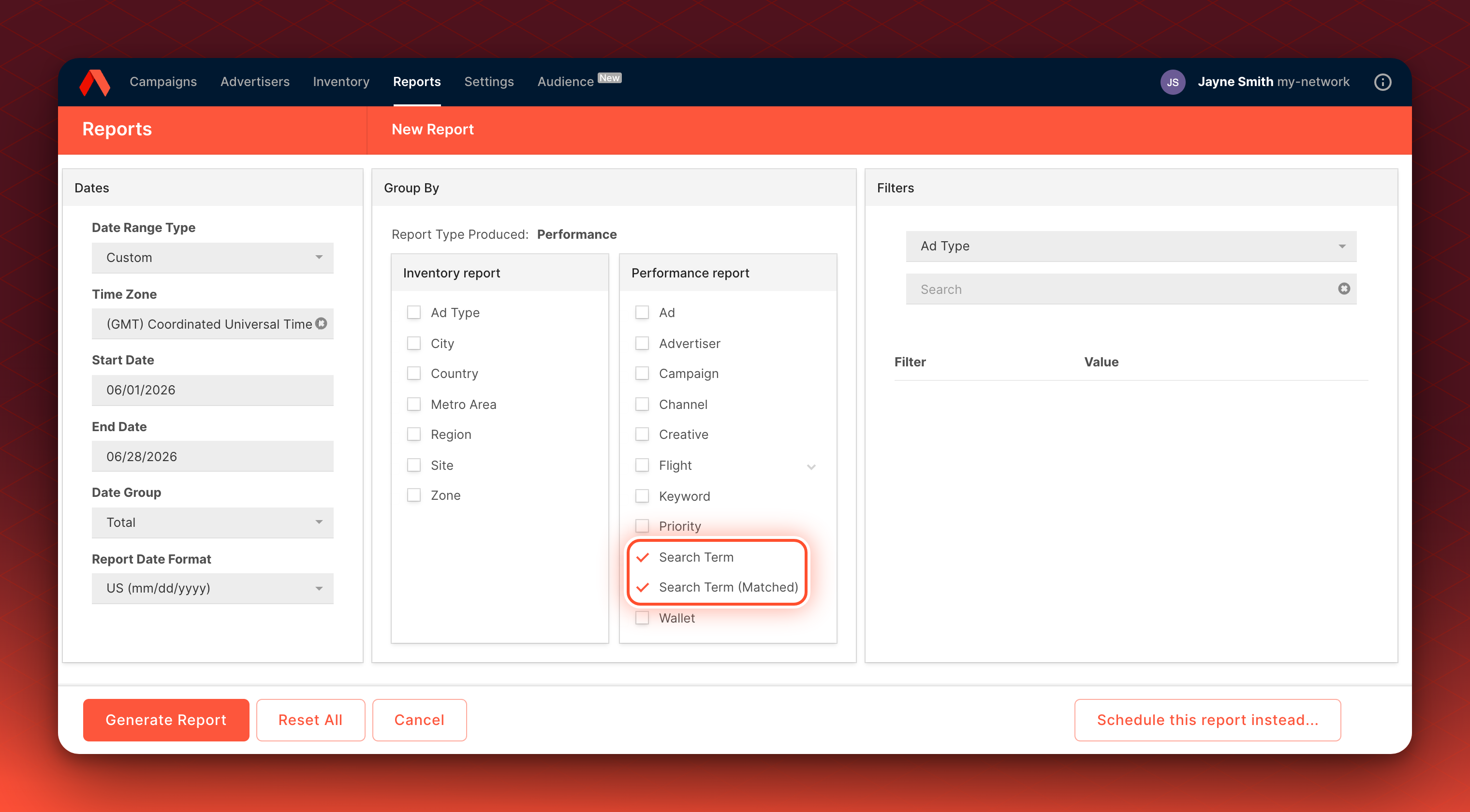
Turned on per network in the Ad Server UIIf you do not see the dimensions in Custom Reports, ask your Kevel account team. The Reporting API needs no setup.
Learn more about reporting on search terms
Placement Category reporting
Ad ops teams and analysts can now group reports by Placement Category, the category each request carried. It works in Custom Reports and in queued and scheduled reports in the Reporting API. Your pages send the category on each placement in the Decision API request. A report cannot combine Placement Category with the keyword or search term dimensions.
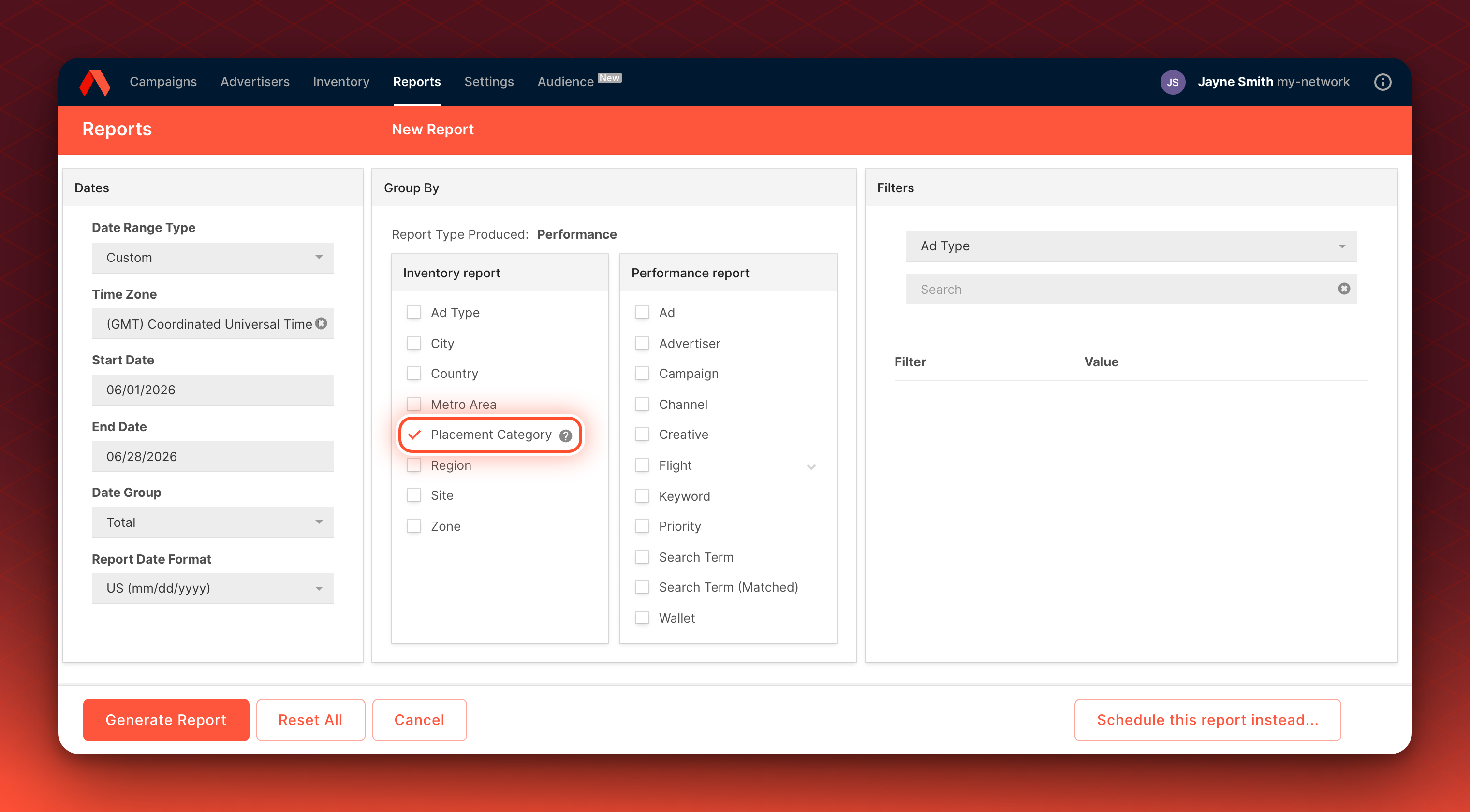
Turned on per network in the Ad Server UIIf you do not see Placement Category in the report builder, ask your Kevel representative. The Reporting API needs no setup.
Learn more about reporting by category
Report by wallet
If you use wallets, Custom Reports in the Ad Server UI can now group and filter reports by wallet, with the usual metrics such as impressions, clicks and revenue. Choose Wallet as a group-by or a filter. Each row shows the wallet's ID, name, external ID and currency. Since May, the Reporting API has accepted wallet grouping too: send walletId in GroupBy, Parameters or ExcludeParameters on a Create Queued Report request.
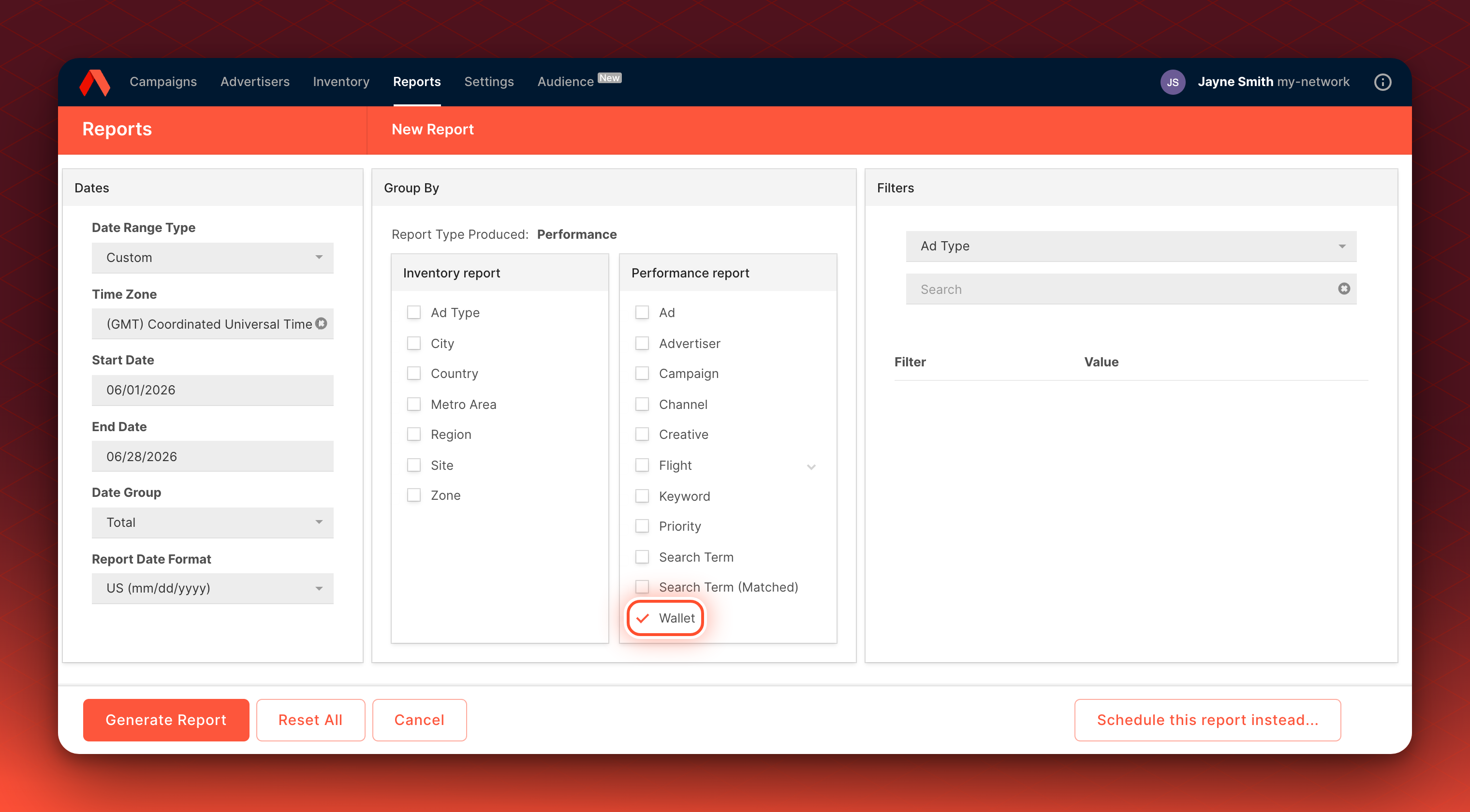
Not on every network yetAsk your Kevel representative to turn wallets on.
Learn more about queued reports
User segments in custom targeting
You can now target on user segments in a custom targeting rule. The $user.segments key holds the IDs of the user segments a user belongs to, from UserDB or passed in the ad request, so $user.segments CONTAINS 154 targets members of segment 154. Like the other $user keys, it needs the user's key on the request and applies only when GDPR does not apply to the request or the user has given consent.
Learn more about reserved keys
Placement Opportunity Ratio traffic modifier
You can now model a change in how often a placement is offered. A Placement Opportunity Ratio traffic modifier keeps a fraction of the opportunities for the placements your rule matches. The ratio is a value from 0 to 1: 1.0 keeps every matching placement and 0.0 drops them all. Other placements in the same ad request are unaffected, and ad request volume does not change, so you can simulate removing a placement or showing it less often. This example keeps half the opportunities on iframe placements.
{
    "id": "iframe-ratio-2024",
    "type": "placementOpportunityRatio",
    "startDate": "2024-09-03T00:00:00",
    "endDate": "2024-09-04T23:59:59",
    "ratio": 0.5,
    "rule": "$divName = \"iframe\""
}
Good for planning a page redesignSee what removing a placement does to delivery before you remove it.
Learn more about traffic modifiers
Metrics in the forecast response
You can now ask Forecast to return a summary computed over the winning ads in each forecast result. Add Metrics under Params.Include in the Create Forecast request, name each metric, and set its source to winningBid with a rateType and the avg aggregation. Each result block then returns your named values, for example the average winning CPM bid (rateType 2). A metric with no matching forecasted data is left out of the response.
"Params": {
  "Include": {
    "Metrics": {
      "winningBidCPM": { "source": "winningBid", "rateType": 2, "aggregation": "avg" }
    }
  }
}
Learn more about creating a forecast
User groups in UserDB
You can now read, set or clear a user's group through the UserDB API, without sending an ad decision request. A group is a number from 1 to 100, and sending null clears it. Incrementality testing uses it to decide whether a user is in a Campaign's holdout, and these endpoints suit media owners who assign groups from a CDP or a backend system. The endpoints need no setup and follow your network's UserDB authentication.
POST https://e-{networkId}.adzerk.net/udb/{networkId}/group?userKey=ue1-e397eb5990

{ "group": 42 }
Turned on per network in the Ad Server UIIf you do not see the Incrementality setting, ask your Kevel account team.
Learn more about reading a user's group and setting it
Kevel MCP server for automated integrations
An integration that cannot open a browser can now connect to the Kevel MCP server with the OAuth client credentials grant. Send your Kevel API key as the client_secret in a request to https://mcp.kevel.com/token, with a client_id that names your integration. The server returns an access token and no refresh token, so request a new token when it expires. Two new tools are available too: kevel_create_ad_type creates an ad type on a channel, and kevel_lookup_docs looks up Kevel reference documentation.
Learn more about the Kevel MCP server
Console
Realistic ad previews at Campaign review
On the Campaign review step in Console, each onsite display ad now opens to a realistic preview before the Campaign is submitted.
Adform placement buying type
Adform templates in Console now keep each placement's buying type when you create a Campaign from them: Open Exchange or Only target deals. A placement set to Only target deals needs at least one deal. You set it in the Adform template, and Kevel syncs the template into Console.
Wallets in Console
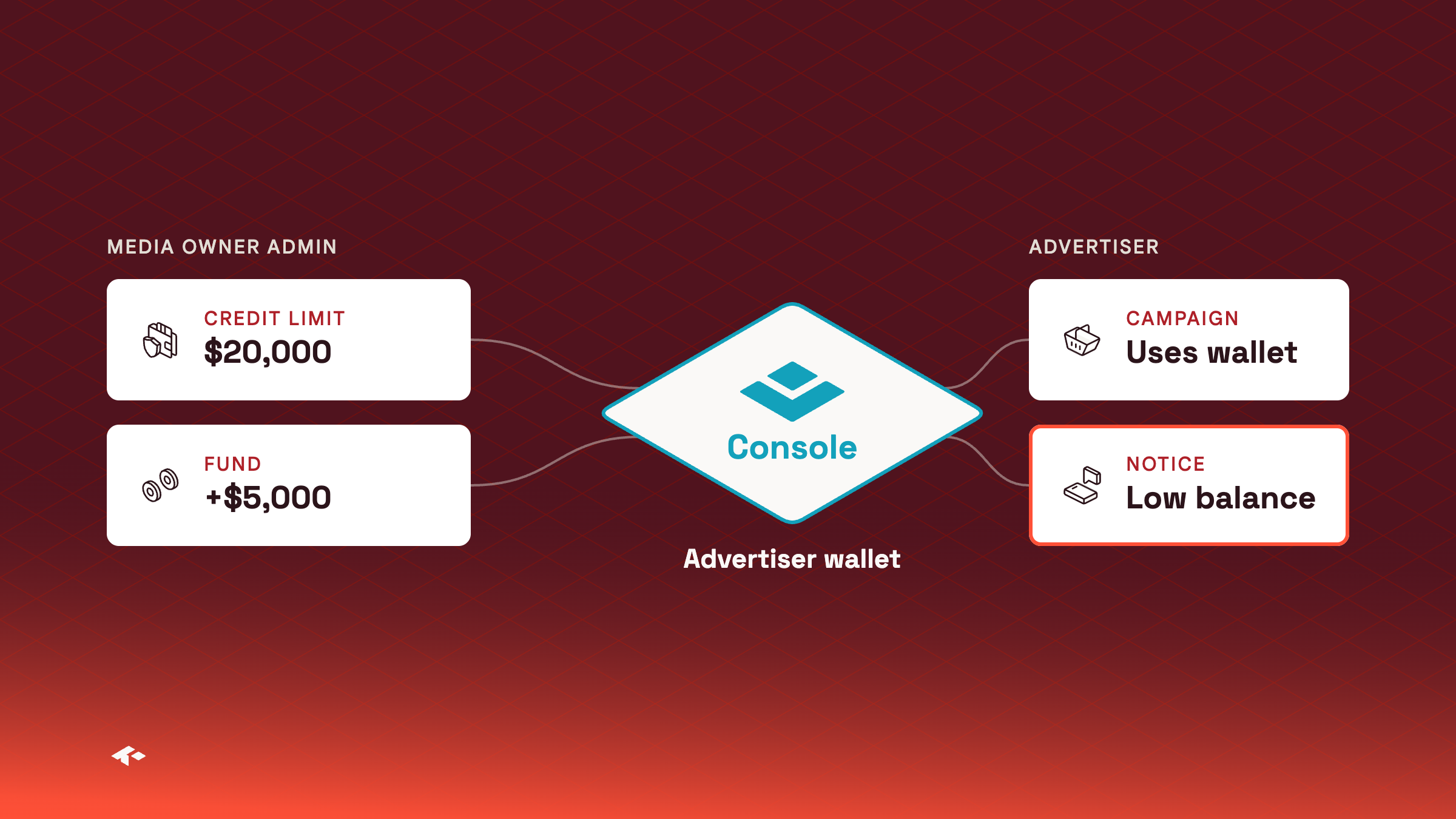
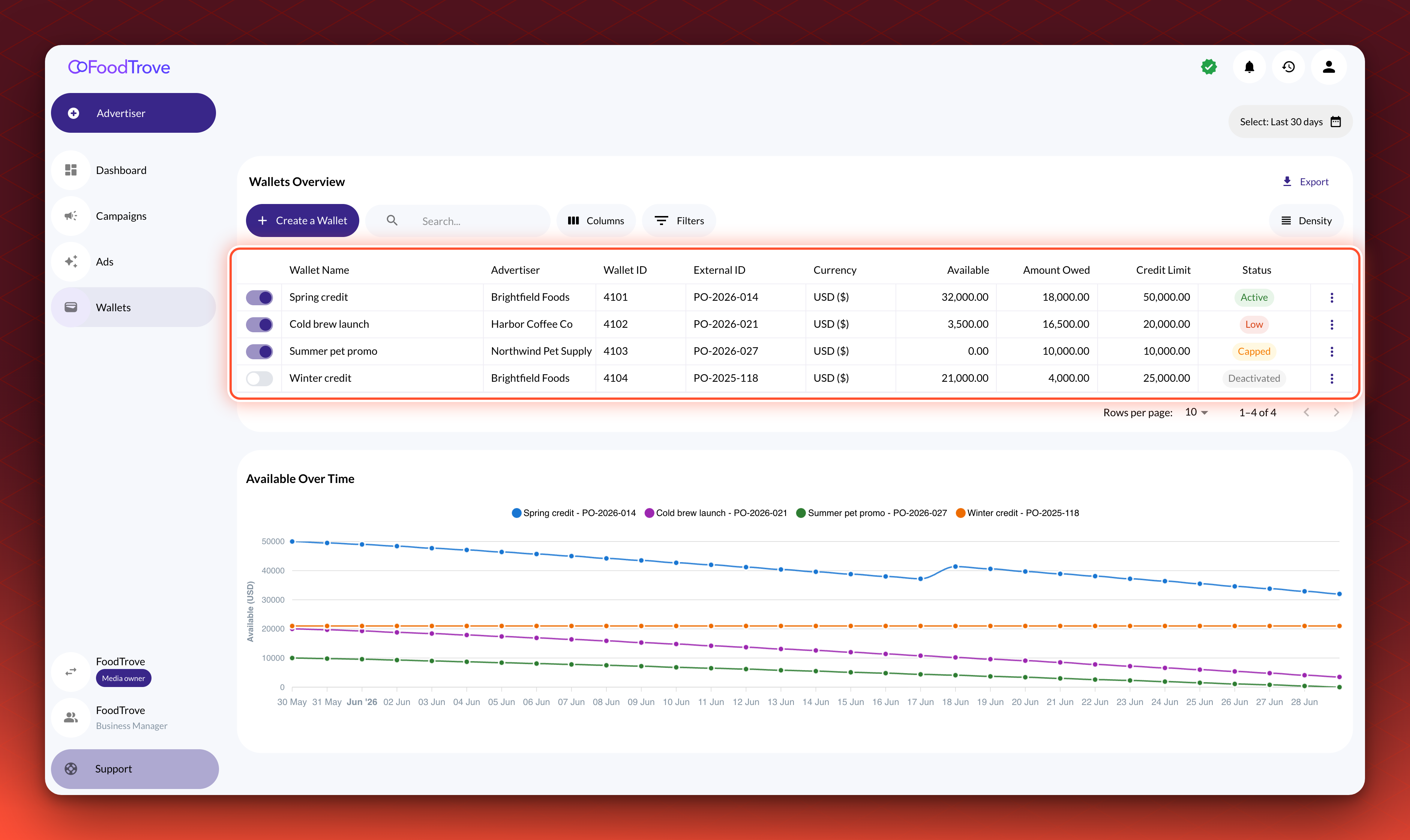
Media owner admins can now create a wallet for each advertiser to cap what its Campaigns can spend. Set a credit limit, then fund the wallet to give the advertiser more room, or refund it to take room back.
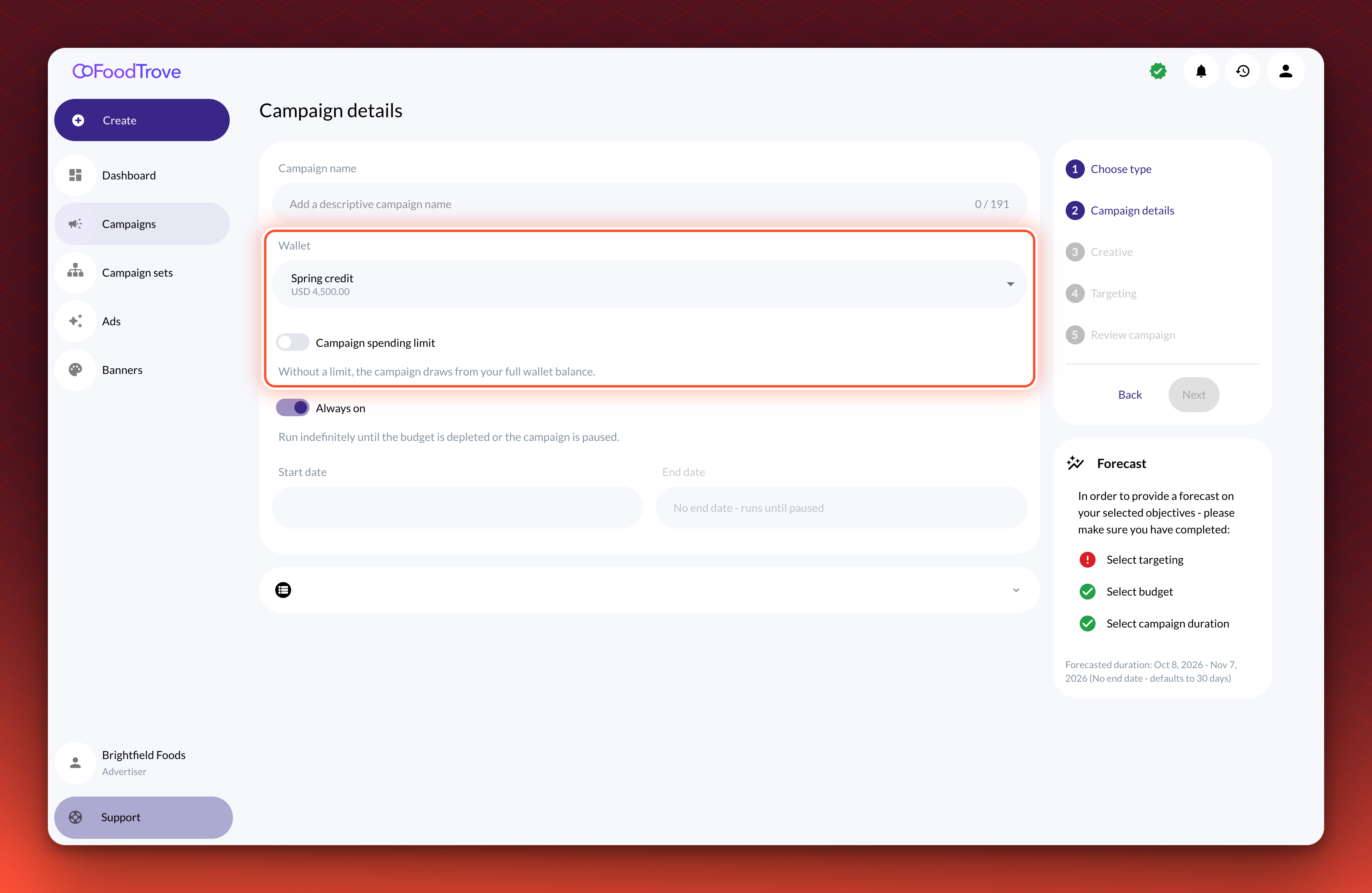
Advertisers choose a wallet when they book on a placement that needs one, and get a low-balance notification when a wallet reaches its threshold. Console does not check the balance when an advertiser books, so a wallet with no room left still caps spend.
A Campaign that draws on a wallet can also have no budget of its own: turn off its spending limit and it draws on the full wallet balance.
Good for advertisers on a credit line or prepaid budgetFund the wallet as payments arrive, and their Campaigns never spend past it.
Not on every network yetWallets are off until you ask for them, and not every network can have them yet. Kevel turns them on for your team and, separately, for your advertisers.