
Wallets in Console
For media owner admins: create wallets, set limits, fund and refund them, and see how advertisers use a wallet when they book a campaign.
A wallet caps how much an advertiser can spend with you. It is a spending limit on credit, not prepaid money: the advertiser spends against the limit, and you fund the wallet to give them more room. Media owners create and manage wallets in Console. Advertisers choose a wallet when they book on a placement that requires one, and see their wallets in read-only form.
AvailabilityThe Wallets menu item appears only where Kevel has turned wallets on for your business manager, and a placement asks for a wallet only where Kevel has set it up that way. Contact your Kevel representative to turn wallets on or to change which placements need one.
How it works
Each wallet has three numbers.
| Number | What it is |
|---|---|
| Credit Limit | The most the wallet can spend. A limit of 0 means spend is allowed only once the wallet is funded. |
| Available | The Credit Limit minus what has been spent. It can go negative. |
| Amount Owed | What has been spent beyond what you have funded, never below zero. |
Funding a wallet does not add money. It lowers the balance, which gives the wallet more room, so Available goes up by the amount. A refund does the opposite. For example, a wallet with a limit of 0 that you fund with 5,000 has 5,000 available and nothing owed. After 5,200 of spend it has 200 owed, and Available is -200.
A wallet shows one of four statuses.
| Status | When |
|---|---|
| Active | The wallet is on and has room to spend |
| Low | The wallet has a Notification threshold, and Available is at or below it |
| Capped | Spend has reached the Credit Limit. A new wallet with a limit of 0 reads Capped until you fund it |
| Deactivated | The wallet is switched off, whatever its balance |
Campaigns that use a wallet stop when the wallet is capped, and a campaign can run a little past the limit, because limits are enforced in cycles rather than on every ad. Funding a wallet, or raising its limit, lets campaigns serve again after the next cycle.
Before you start
Where it applies. The Wallets page for media owners, and the Wallet field on the booking flow for placements that need one.
What you need. The Admin role to create, edit, fund or refund a wallet. Enter whole numbers for the limit and the threshold.
What it does not do.
- It does not check the balance when an advertiser books. An advertiser can book a campaign on a wallet that has no room left, and the wallet then caps its spend. To stop a wallet being used, deactivate it.
- It does not delete wallets. Deactivate a wallet to take it out of use. Deactivated wallets do not appear in the booking flow.
- It does not change currency. A wallet's currency is fixed when you create it. To use another currency, create a new wallet.
Create a wallet
Only media owner users with the Admin role can create a wallet. Advertisers cannot create their own: they choose from the wallets you create for them. The wallet belongs to one advertiser, and you choose which when you create it.
- Open Wallets. Select Wallets in the sidebar, then select Create a Wallet.
- Choose the advertiser. Search by name or ID. The wallet fields appear after you choose one.
- Fill in the details. Use the fields in the table below.
- Select Create New Wallet. Console confirms with a message such as Wallet "Spring credit" created.
| Field | What to enter |
|---|---|
| Wallet name | Required. Up to 255 characters |
| Limit | Required. Zero or more. Zero allows spend only once you fund the wallet |
| Notification threshold (optional) | The available amount at which Console warns about a low balance. Leave it empty for no alert |
| External ID (optional) | A reference such as a purchase order number |
| Currency | Choose from the currencies of the advertiser's campaign templates |
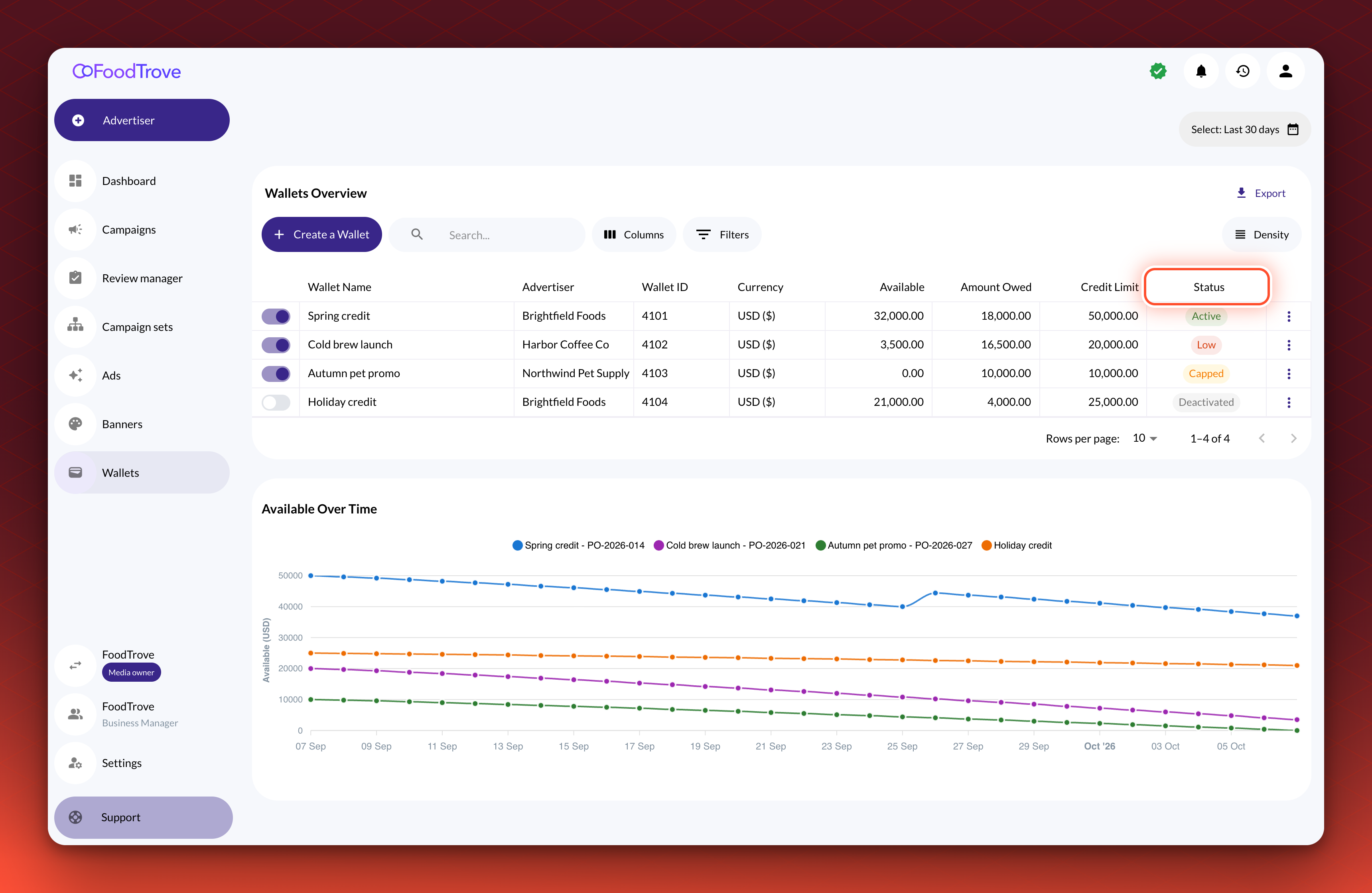
Validation. The wallet appears in the Wallets Overview list as Active, or as Capped if its limit is 0 and it is unfunded.
Fund or refund a wallet
- Open the row menu. In the Wallets Overview list, open the actions menu for the wallet.
- Select Fund or Refund. The dialog shows the wallet, the advertiser and the current available balance.
- Enter the amount and an optional note. The amount must be greater than 0. Type it without thousands separators. The note is kept with the adjustment.
- Confirm. Select Fund or Refund in the dialog. Console confirms "Successfully funded wallet" or "Successfully refunded wallet", with the wallet's name.
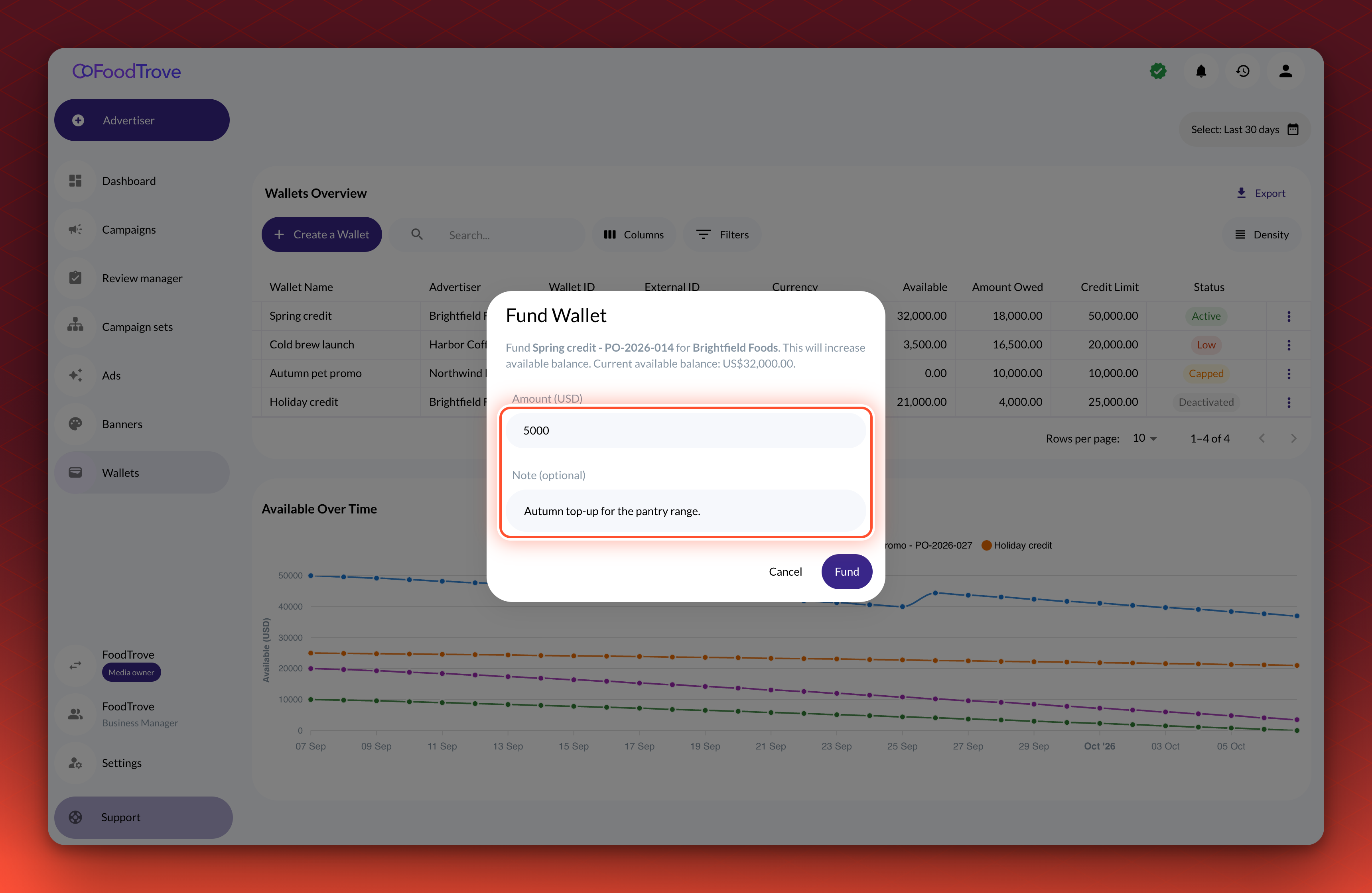
A refund is blocked if it would take Available below zero. The message reads "Insufficient balance" and shows the most you can refund.
Validation. The Available figure for the wallet changes by the amount, and an adjustment appears in the Adjustments table where it is switched on for your business manager.
Edit, deactivate or find wallets
- Edit. Open the row menu and select Edit. You can change the name, limit, threshold and external ID. You cannot change the currency or the advertiser.
- Deactivate or reactivate. Use the switch at the start of the row. It takes effect straight away and stops all spend from the wallet.
- Search and filter. Search by wallet name, or select Filters to filter by Wallet Name, External ID, Currency, Wallet ID, Credit Limit or Advertiser. Filters apply across every page.
- Export. Select Export to download
wallets.csvfor every wallet that matches your search and filters. The Status column in the file uses different words from the screen: Active, Capped, RunningLow and Inactive stand for Active, Capped, Low and Deactivated. - See spend over time. The Available Over Time chart shows the available balance of the wallets on the current page for the dates you choose, 30 days by default. The chart can trail a top-up by a few hours.
How advertisers use a wallet
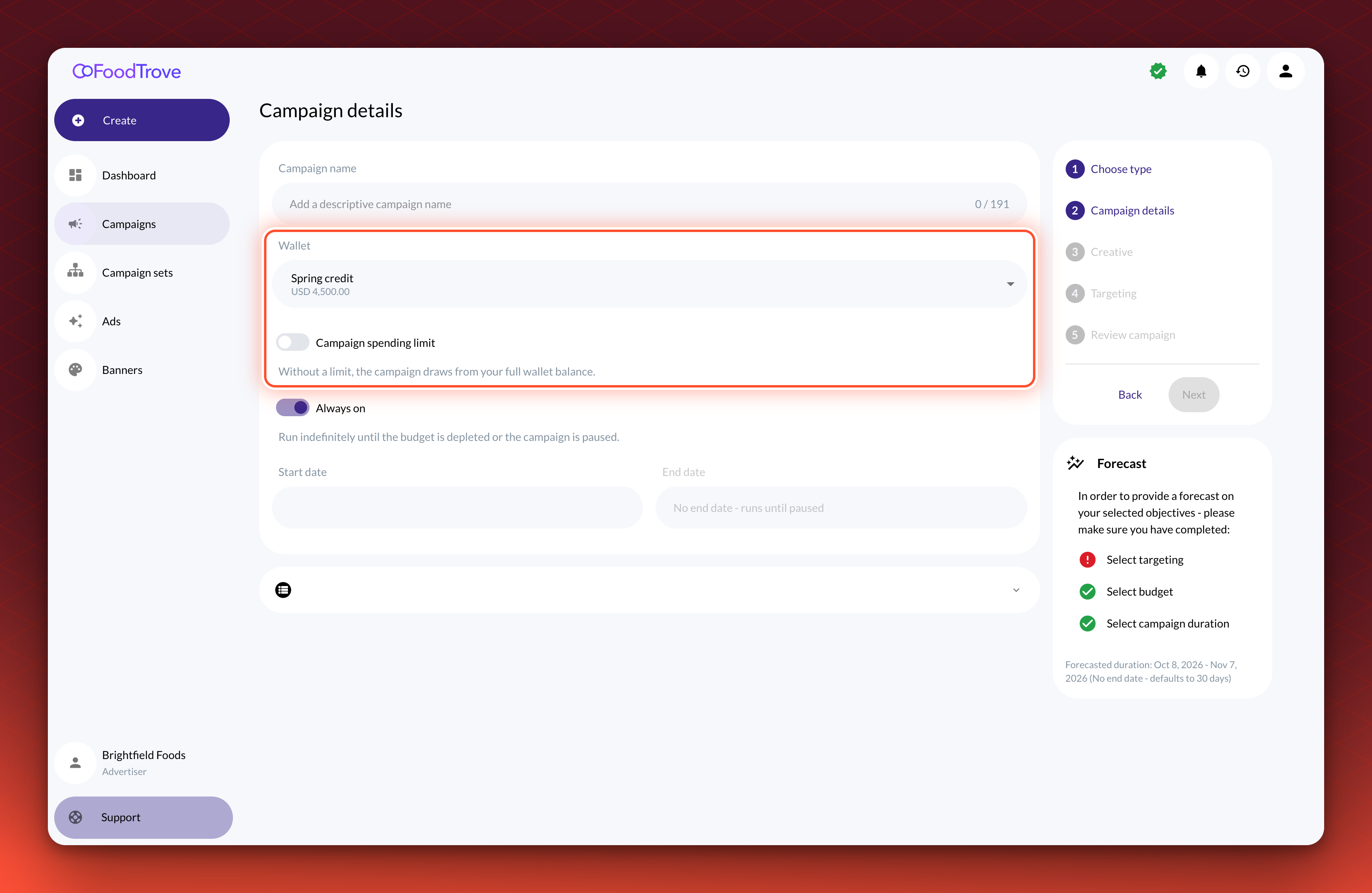
An advertiser sees their own wallets in read-only form. When an advertiser books on a placement that needs a wallet, the Details step has a Wallet field. Each option shows the wallet's name and its available balance. The step does not move on until a wallet is chosen. The Review step shows the chosen wallet.
| Advertisers can | Advertisers cannot |
|---|---|
| Choose one of their active wallets when they book a campaign | Create, edit, fund, refund or deactivate a wallet |
| Turn Campaign spending limit on or off, and set a campaign budget when it is on | Change a wallet's limit, notification threshold or currency |
| Swap the wallet on a live campaign, where the placement lets them. On placements that review wallet changes, the swap waits for approval | Use a deactivated wallet, or a wallet that belongs to another advertiser |
| See their wallets, balances, the Available Over Time chart and the adjustments, and export the list to CSV | See other advertisers' wallets |
| Receive a Low wallet balance notification when a wallet reaches its threshold |
The Campaign spending limit switch sits below the Wallet field and decides whether the campaign has its own budget. With it off, the campaign draws from the full wallet balance.
See Set up campaign review for which changes a placement reviews.
Troubleshooting
I cannot see Wallets in the sidebar. The menu item is off for your business manager, or your user has a read-only role. Contact your Kevel representative.
An advertiser sees "No wallets found" when booking. The advertiser has no active wallet. Create one for them, or reactivate a deactivated one.
The Details step will not continue. The placement needs a wallet and none is chosen. Select a wallet in the Wallet field.
A new wallet reads Capped. Its limit is 0 and it has not been funded. Fund it, or raise the limit.
Fund, Refund or Edit is disabled for a wallet. The wallet's advertiser cannot be matched to an advertiser in your business manager. Contact your Kevel representative with the wallet ID.
Saving a wallet fails. Check that the limit and threshold are whole numbers, and that you have the Admin role. Console shows the error in a message at the top of the screen.
Related
Updated 24 days ago