
Report on categories
Group and filter reports by page category or matched category in the Ad Server UI and the Reporting API, for ad ops and analysts.
Category reports break impressions, clicks, revenue and fill rate down by the category page they came from. Ad ops and analysts use two dimensions: Placement Category, the category each request carried, and Placement Category (Matched), the category that matched a category rule on the Ad. Your pages send the value as described in Send a category in decision requests.
Placement Category is enabled per network in the Ad Server UI. If you do not see it in the report builder, contact your Kevel representative. The Reporting API accepts both dimensions without it.
Which dimension to use
There are two dimensions. Placement Category is the category the request carried, so it describes the page. Placement Category (Matched) is the category that matched a category rule on the Ad that served, so it describes the Ad's targeting. Matched category exists only for category targeting. Start from the question you want answered.
| You want to know... | Use | What you get |
|---|---|---|
| How each category page performs, whichever Ad served | Placement Category | Impressions, clicks and revenue for each category page. Add request counts and fill rate when the report is an inventory report |
| Which category rules your Ads matched, and how they performed there | Placement Category (Matched) | Impressions, clicks and revenue for each matched category. It is a performance report, so request counts and fill rate do not apply |
| Both views in one report | Both | A performance report, with the page category and the matched category side by side |
| Which category pages have unsold inventory | Placement Category, with Fill Rate | Category pages with high traffic and low fill rate are inventory to sell. Add Site to compare the same category across sites |
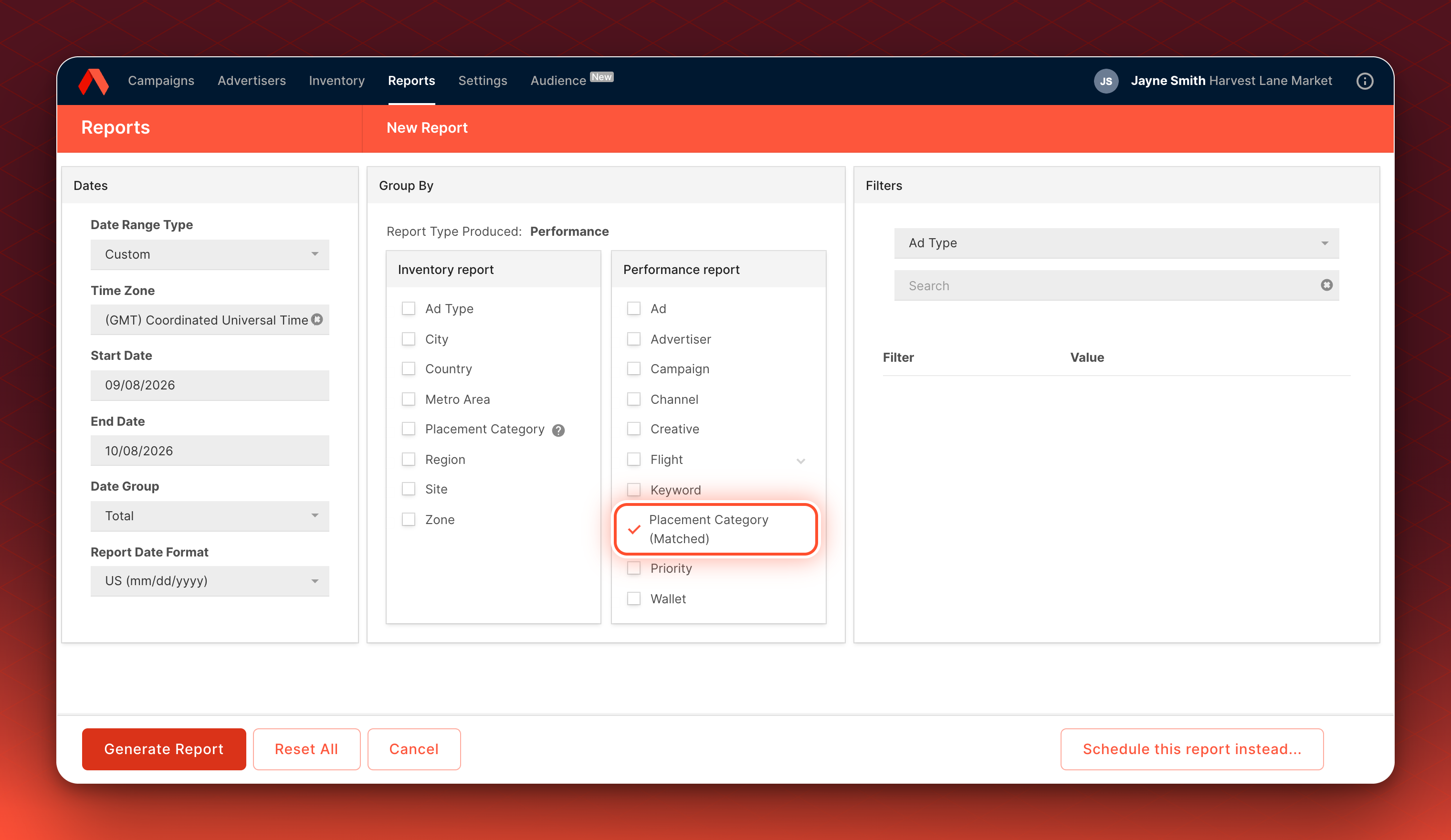
Example output. A report grouped by Placement Category (Matched), with the Performance report type:
| Placement Category (Matched) | Impressions | Clicks | Revenue |
|---|---|---|---|
Grocery > Dairy | 600 | 24 | $36.00 |
Pet > Dog food | 90 | 5 | $9.50 |
| No matched category | 1,310 | 41 | $52.00 |
An example
A request sends Grocery > Dairy. Two Ads are eligible and each serves an impression.
| Ad | Its category rules | Placement Category | Placement Category (Matched) |
|---|---|---|---|
| Ad A | Includes Grocery > Dairy | Grocery > Dairy | Grocery > Dairy |
| Ad B | No category rules | Grocery > Dairy | No value |
Ad B has no matched category because it has no include rule to match. The same is true of an Ad that only excludes categories. Placement Category has a value whenever the request sent a category, whichever Ad served.
How values read
- Levels are joined with
>. Kevel splits the category at your network's delimiter, and a report joins the levels again. With the default delimiter,>, a request that sendsElectricals>Computing>Laptopsreports asElectricals > Computing > Laptops. A value with no delimiter reports as one value. - Capitalization and inner spaces are kept.
Baby Careandbaby careare two categories. Spacing around the delimiter is not kept, soElectricals>ComputingandElectricals > Computingreport as the same category. - Requests with no category share one row. A request that sent no category, or only spaces, reports as a row with no category value.
- Flat rate revenue has no category. It appears on its own row, as described in Flat rate reporting, and not under a category.
Before you start
Where it applies. Custom Reports in the Ad Server UI, and queued reports and scheduled reports in the Reporting API.
What you need.
- Your pages send a
categoryon each placement. See Send a category in decision requests. - Placement Category enabled for your network, if you report in the Ad Server UI.
- For fill rate, Request Reporting turned on for your network. Ad Decision Requests are enabled separately. Ask your Kevel representative.
What it does not do.
- It does not report AdQuery category filters. Send a
categoryon each placement to report by category, whichever approach you use to target. - It does not roll a parent up with its children, because Kevel treats each whole value as one category. See Roll up a parent and its children.
- It is not in Console. Category reporting in Console is coming soon.
- It is not in the synchronous report endpoint (
/v2/report/sync) or the v3 Reporting API. Use queued reports. - It is not in Data Shipping yet. See Category fields in Data Shipping.
Run a category report in the Ad Server UI
Purpose. See traffic and performance for each category page without writing a query.
- Open a new report. Go to Reports > New Report and choose your dates.
- Group by category. In the Group By panel, add Placement Category from the Inventory report options, or Placement Category (Matched) from the Performance report options.
- Filter to one page. Optional. In Filters, choose the category dimension and type the full category with its levels joined by
>. Separate several values with commas. - Exclude pages. Optional. Use Exclude Filters the same way. The panel is shown where your network has it enabled.
- Generate the report. Select Generate Report.
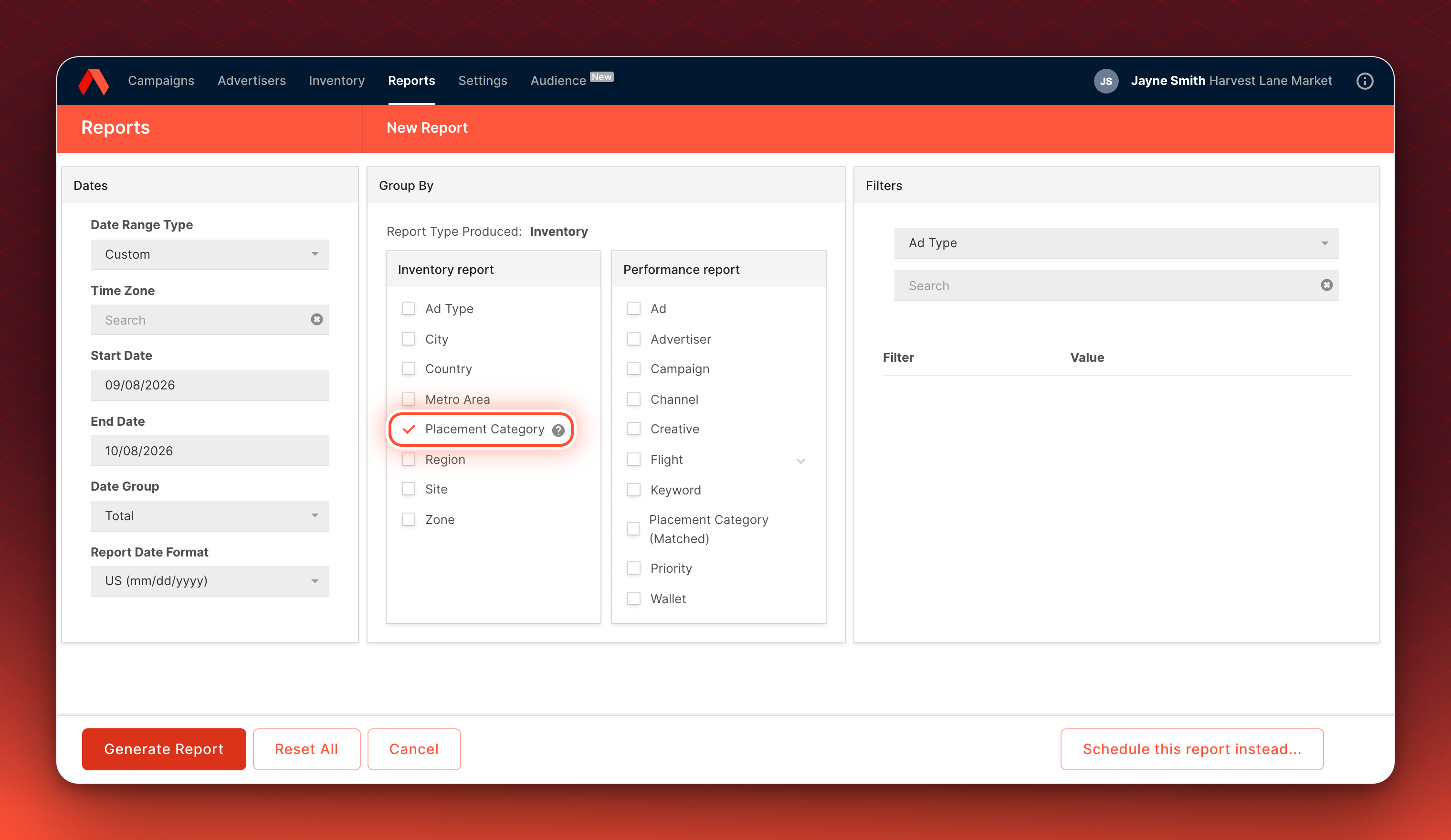
Example output. A report grouped by Placement Category on its own, with the Inventory report type:
| Placement Category | Selection Requests | Impressions | Fill Rate |
|---|---|---|---|
Grocery > Dairy | 1,000 | 600 | 60% |
Grocery > Snacks | 900 | 450 | 50% |
Pet > Dog food | 300 | 90 | 30% |
| No category | 700 | 280 | 40% |
Validation. Each row is one category value. With no specific Time Zone selected, Report Type Produced in the Group By panel shows Inventory for Placement Category on its own. It shows Performance once you add Placement Category (Matched) or a campaign-level dimension. Reporting data lags up to 30 minutes, so a new category can take that long to appear.
Filter by category
A filter matches the whole value that the report shows, joined with >. It does not match a prefix, and capitalization counts.
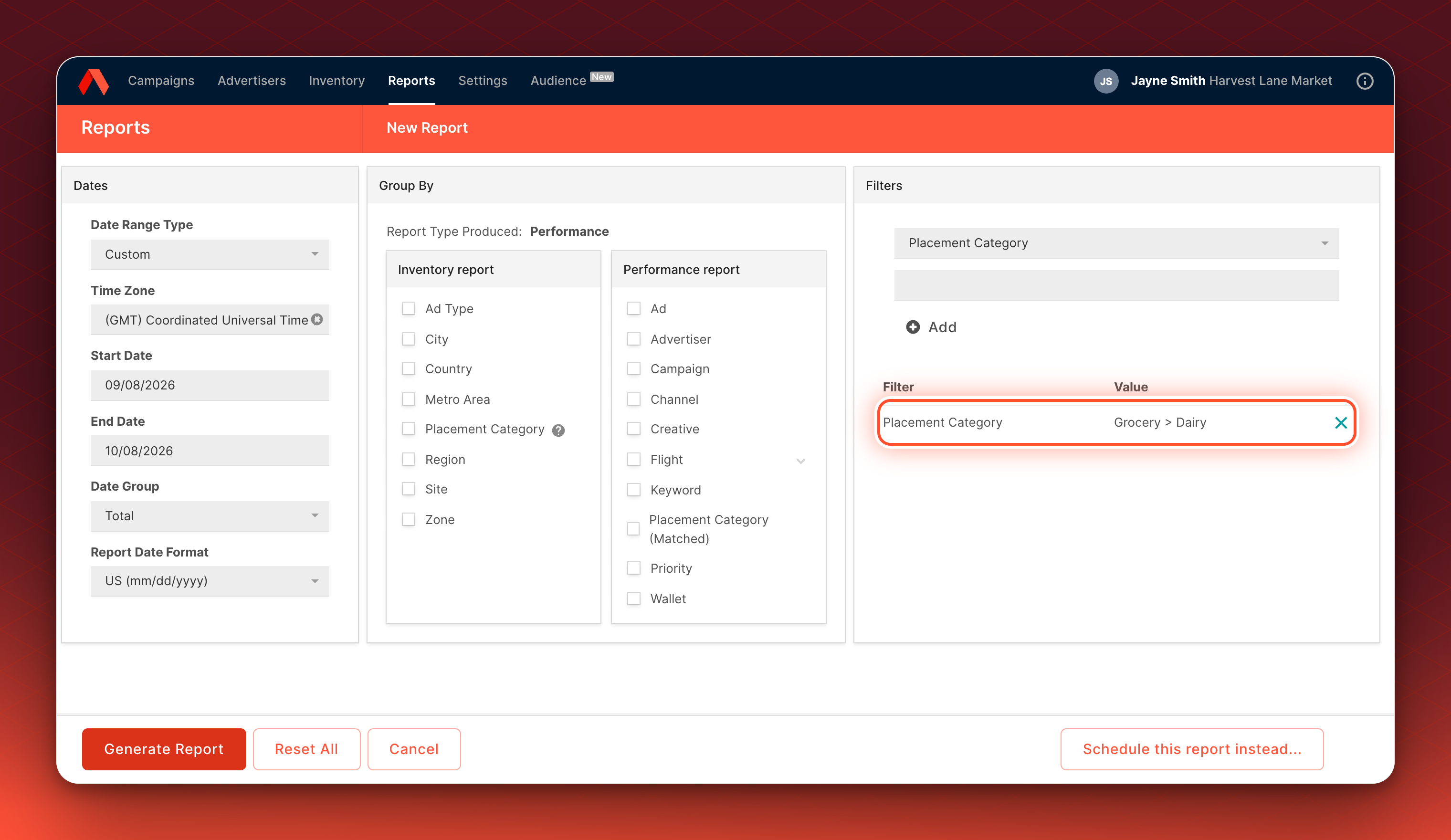
| Filter value | What happens |
|---|---|
Baby > Diapering > Wipes | Returns that page only |
Baby | Returns the Baby page only, not Baby > Diapering |
baby | Returns nothing if your pages send Baby |
Baby > Diapering, Baby > Bath | Returns both pages. Several values for one dimension combine, so a row matches either |
The Ad Server UI splits what you type at commas, so it cannot filter a category that contains a comma. Filter that category with the Reporting API.
Example output. A report filtered to Grocery > Dairy:
| Placement Category | Selection Requests | Impressions | Fill Rate |
|---|---|---|---|
Grocery > Dairy | 1,000 | 600 | 60% |
Run a category report with the Reporting API
Queued reports are created, then polled. The steps are in the Reporting API overview. Name the category dimension in GroupBy, and filter with Parameters or ExcludeParameters. Each object in Parameters has one property.
{
  "StartDateISO": "2025-03-01T00:00:00",
  "EndDateISO": "2025-03-31T00:00:00",
  "GroupBy": ["day", "placementCategory"],
  "Parameters": [{ "placementCategory": "Baby > Diapering > Wipes" }]
}
Send it to Create Queued Report, then poll with Poll for Queued Report Result until Status is 2. Each row in the result carries the category in Grouping.PlacementCategory, beside its metrics such as Impressions, Requests and FillRate. Use matchedPlacementCategory for the matched dimension. Scheduled reports accept the same dimensions.
Read fill rate by category
Fill rate is Impressions divided by Selection Requests. A category report returns request counts and fill rate when all of these are true:
- Request Reporting is on for your network.
- Every group and filter is an inventory dimension: Site, Zone, Ad Type, Country, Metro, Region, City, Keyword or Placement Category. A campaign-level dimension such as Advertiser, Campaign, Flight, Ad or Creative makes it a performance report, and so does a device, product or bid modifier dimension.
- The report has no specific Time Zone selected, which means UTC. A report in another time zone still runs, without request counts.
Selection Requests count each Ad returned and each placement that returned none. See Request Reporting. If your placements ask for several Ads, fill rate can read high while slots go empty, because only returned Ads are counted. Ask your Kevel representative about Ad Decision Requests, which count each placement once.
For example, a report grouped by Placement Category on its own:
| Placement Category | Impressions | Selection Requests | Fill Rate |
|---|---|---|---|
Grocery > Dairy | 600 | 1,000 | 60% |
Grocery > Snacks | 450 | 900 | 50% |
Pet > Dog food | 90 | 300 | 30% |
Placement Category (Matched) is the exception. Requests exist before any Ad matches, so do not read request counts or fill rate from a report that uses it. Use Placement Category for fill rate.
Roll up a parent and its children
Group by Placement Category, keep the rows whose value is the parent or starts with the parent and >, and add them up. Calculate fill rate again from the totals. Averaging the row fill rates gives the wrong figure. In the example, Baby and its children have 120 + 300 + 80 = 500 impressions and 400 + 500 + 100 = 1,000 Selection Requests, so the fill rate is 500 / 1,000 = 50%.
| Placement Category | Impressions | Selection Requests | Fill Rate |
|---|---|---|---|
Baby | 120 | 400 | 30% |
Baby > Diapering | 300 | 500 | 60% |
Baby > Diapering > Wipes | 80 | 100 | 80% |
Baby and its children | 500 | 1,000 | 50% |
Or filter on every value you want. The filter has no prefix form, so list each page.
Category fields in Data Shipping
Category fields are coming soon to the Data Shipping models. Until then, use a report to analyze category. This page will be updated when they are available.
The ad server already writes three category fields to its logs. When the Data Shipping models add them, on both AWS and GCP, the columns will look like this. The planned shape may change before release.
| Column | Type | Models | What it holds | Example |
|---|---|---|---|---|
PlacementCategory | json | Decision, Selection, Impression, Click, Conversion, Custom Event | The category the request carried, as one value for each level. Left out when the request sent no category | ["Electricals","Computing","Laptops"] |
TargetedPlacementCategories | json | Selection, Impression, Click, Conversion, Custom Event | The category rules on the Ad, each with an include or exclude flag. Only for Ads that have category rules | [{"Id":"Electricals > Computing","IsExclude":false}] |
MatchedPlacementCategory | json | Selection, Impression, Click, Conversion, Custom Event | The category that matched an include rule, as one value for each level. Left out for an Ad that only excludes categories, or when no rule matched | ["Electricals","Computing"] |
For comparison, this is how the other approaches appear in Data Shipping today.
| Approach | What appears |
|---|---|
| Category targeting | The three columns above, coming soon |
| Keyword targeting and reserved keys | Keywords, a json array of the keywords sent in the request, on the Request log and the event logs, and MatchingKeywords on the event logs, the keywords that matched |
| AdQuery category filtering | AdQuery on the Decision log, the AdQuery found in the placement object |
The BidModifier field will also include category as a match type, and ModifiedPrice will reflect category bid modifiers.
Kevel splits the request's category at your network's delimiter to build the levels in PlacementCategory and MatchedPlacementCategory. Id in TargetedPlacementCategories is the category ID exactly as saved on the Flight or Ad.
Rules and limits
A report can use dimensions from only one of three groups, across Group By, Filters and Exclude Filters: Placement Category and Placement Category (Matched), Keyword, or Search Term and Matched Search Term. Dimensions inside one group combine. These dimensions have many distinct values, so one group at a time keeps a report a usable size. Run a second report for the other group.
A request that mixes groups returns a 400 with MutuallyExclusiveDimensions and the message "The dimensions 'keywords', 'placementCategory', 'searchTerm' cannot be combined in the same report. Please use only one of these dimensions per request."
Reports of more than 1.3 million rows return Report Too Large, and reports expire after 10 days. The limits are in Custom Reports.
Troubleshooting
| What you see | Why it happens and what to do |
|---|---|
| Placement Category is not in the Group By panel. | It is not enabled for your network in the Ad Server UI. Contact your Kevel representative, or use the Reporting API. |
| A filter returns no rows. | Filters match the whole category, including capitalization, joined with >. See Filter by category. |
| There is no Fill Rate column. | A condition in Read fill rate by category is not met. Check Request Reporting, the dimensions and the time zone. |
| A row has no category. | Those requests sent no category, or the revenue is Flat rate. Send a category on each placement. |
| The same page appears twice. | The page sent two values, for example with different capitalization. Send one value for each page. If Kevel changed the delimiter for your network, the same page also appears under two values across the change date. Matching is not affected. |
| Placement Category (Matched) is empty for an Ad. | The Ad has no include rule, only excludes categories, or no request carried a category that equals the rule. See How category targeting matches Ads. |
The request returns MutuallyExclusiveDimensions. | The report mixes category, keyword or search term dimensions. Run one report for each group. |
| The report returns Report Too Large. | Shorten the date range, group by week or total, or filter to fewer categories. |
Related
Updated 24 days ago
What’s Next
Send categories and match Ads to them