
Release notes: November 2026
Ad Server
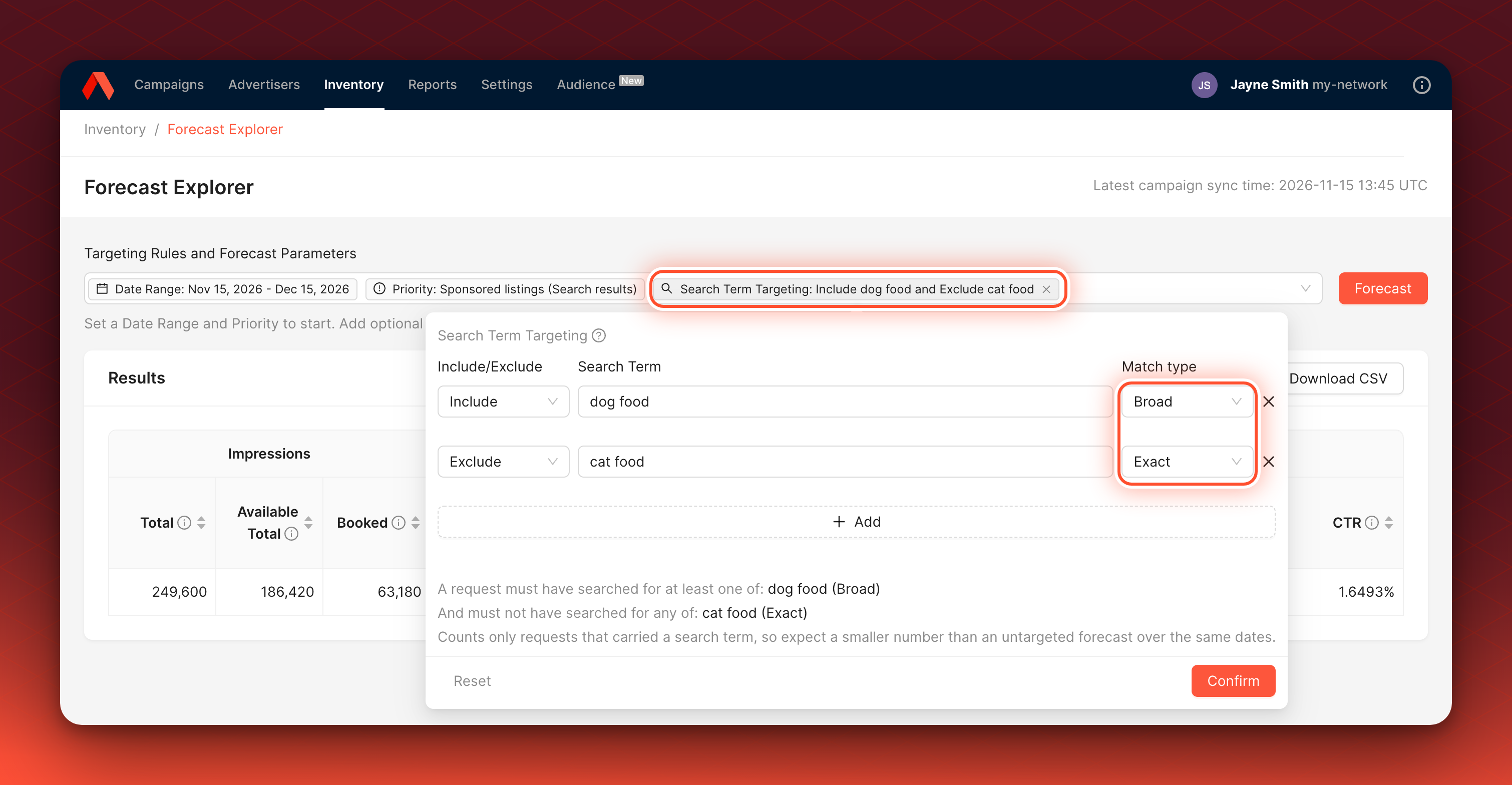
Search Term targeting in Forecast Explorer
You can now forecast available inventory against shopper search terms in Forecast Explorer. Go to Inventory > Forecast Explorer, open the Targeting Rules and Forecast Parameters menu and, under Targeting, choose Search Term Targeting. For each rule, choose include or exclude, enter the term, and pick Broad, Strict or Exact, the same match types as Flights and Ads. Only requests that carried a search term are counted, so expect a smaller number than an untargeted forecast.
Good for selling search placementsCheck how much inventory a search term can deliver before you book it.
Where Search Term Targeting is onThe option appears on networks that have Search Term Targeting.
Learn more about forecasting with search terms
Campaign Health Check Up skips inactive Campaigns
Flights whose Campaign is inactive or deleted no longer appear as under-pacing.
Targeting-only Creative Template fields
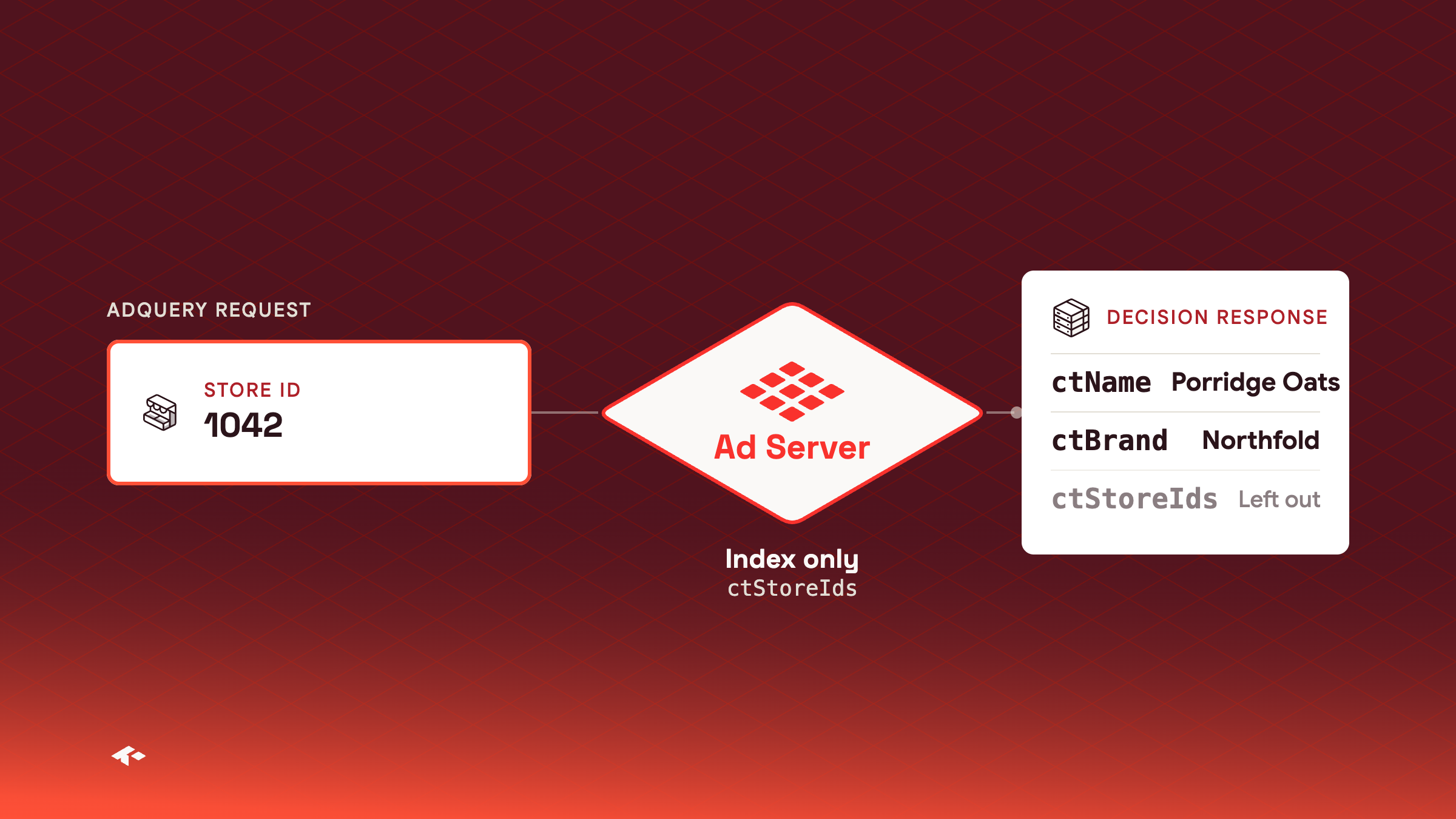
You can now mark a Creative Template field as IndexOnly, so it is used for AdQuery targeting but left out of ad decision responses. Use it for long lists you only target on, such as the store IDs where a product is in stock. The field stays targetable and is no longer returned in each content's data in Decision API (/api/v2) responses. IndexOnly needs AdQuery, and works on String, Number and Array fields.
{ "Name": "Store IDs", "Variable": "ctStoreIds", "Type": "Array", "AdQuery": true, "IndexOnly": true }
Good for store-level availabilityTarget on the stores that stock a product without sending every store ID back in each response.
Nothing changes until you mark a fieldExisting templates and their responses stay as they are.
You cannot unmark a field
IndexOnlycannot be turned off once set. Do not reference an index-only field in a template body or in another field's macro.
Learn more about targeting-only fields
Console
Text rules from creative templates in the Ad Builder
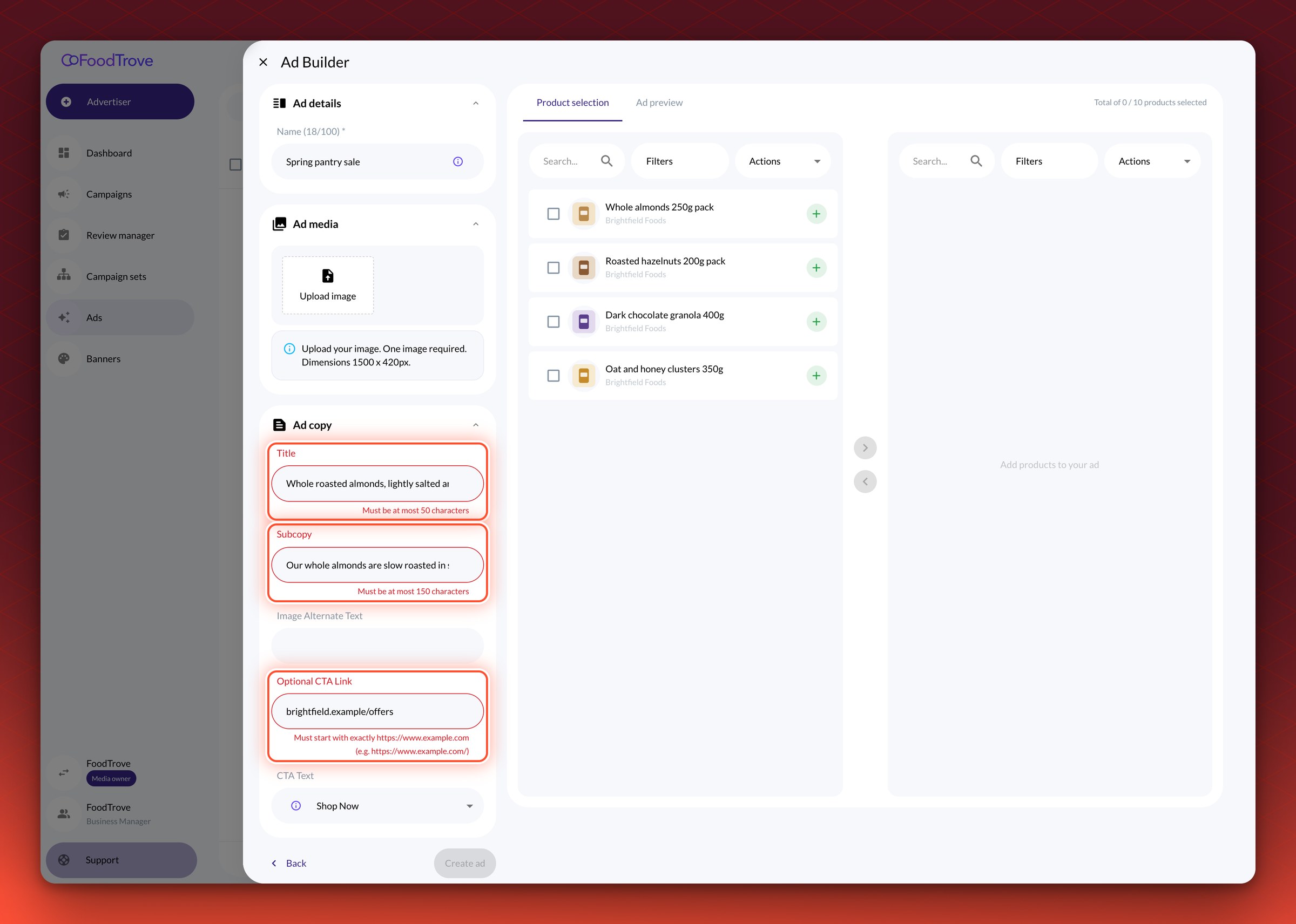
Console's Ad Builder now applies the text rules set on your creative template fields. When an advertiser's copy breaks a rule, they see an error under the field, in plain language where possible, such as "Must be at most 50 characters", and they cannot save the Ad until the text fits. Rules apply to text fields only.
Good for brand guidelinesStop advertisers saving copy that breaks your character limits or link formats.
Rules come with each template syncTo apply rules to a template your advertisers already use, ask your Kevel representative to sync it into Console. Ads that are already live keep serving as they are.
Learn more about text rules in Console
Balance history for each wallet
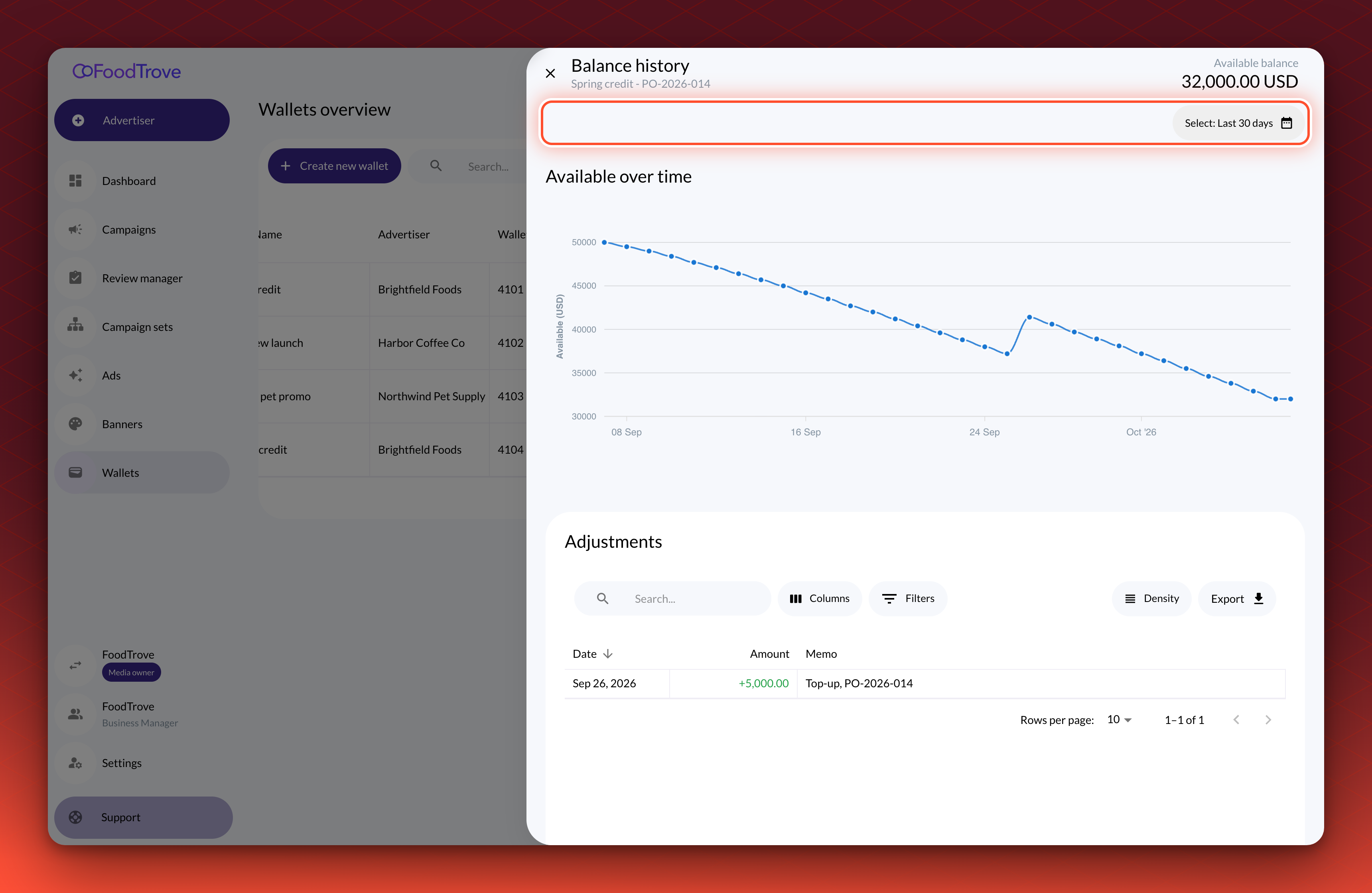
On the Wallets page, media owners can now open one wallet's history at a time. Select the chart icon on a wallet's row to open its Balance history, with the available balance, an Available over time chart and that wallet's Adjustments, which you can export. The date range starts at the last 30 days. This replaces the combined chart and table that sat under the wallet list.
Advertisers' view does not changeAdvertisers see their Wallets page as before.
Learn more about a wallet's balance history
Book a placement without wallets
A placement can now be set up without wallets, so advertisers book it with a plain budget.
Exclude search terms from specific Ads
As a media owner, you can now stop chosen Ads from showing for chosen search terms. In the campaign wizard's Targeting step, open the Exclusions tab under Search Terms, select the products or Ads, enter the terms and select Exclude from … selected. Exclusions use Exact match. You can see a campaign's exclusions in the Excluded search terms tab of the campaign details drawer.
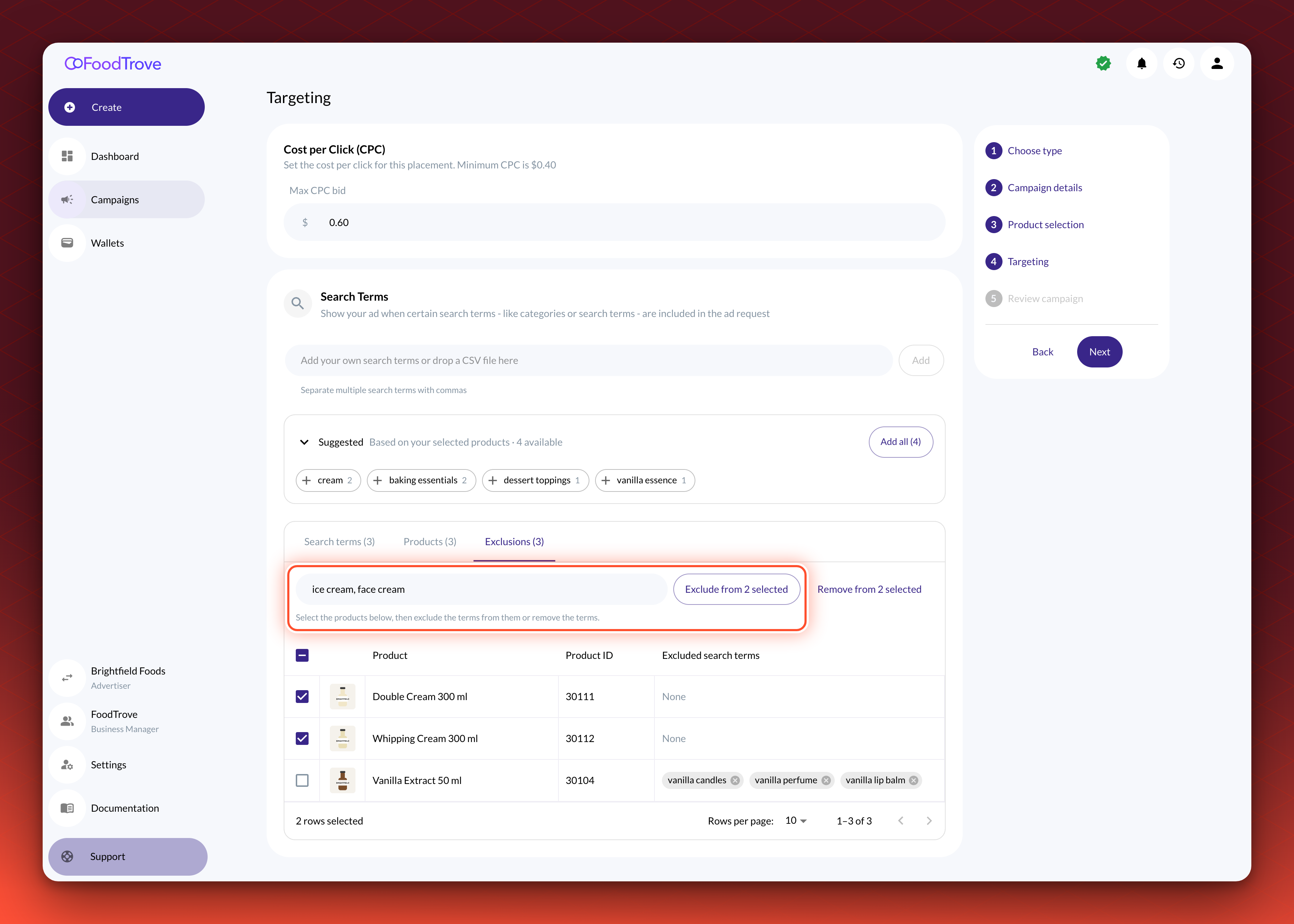
Good for irrelevant searchesKeep a cream Ad off searches for ice cream or face cream.
Saved without review, hidden from advertisersExclusions save straight to the campaign, even when it is live, without a change request. Advertisers do not see them.
You choose the placementsThe Exclusions tab appears on the placements where you've had Kevel turn search terms on. Only media owners see it.
Learn more about excluding search terms
Change a product's bid in place
You can now change one product's bid without reopening the campaign. Select the pencil next to the bid price on the Products tab of the campaign details drawer, or in the new Bid price column on the Ads page, enter the new bid and select Save. The form shows the product's minimum bid and will not save a bid below it.
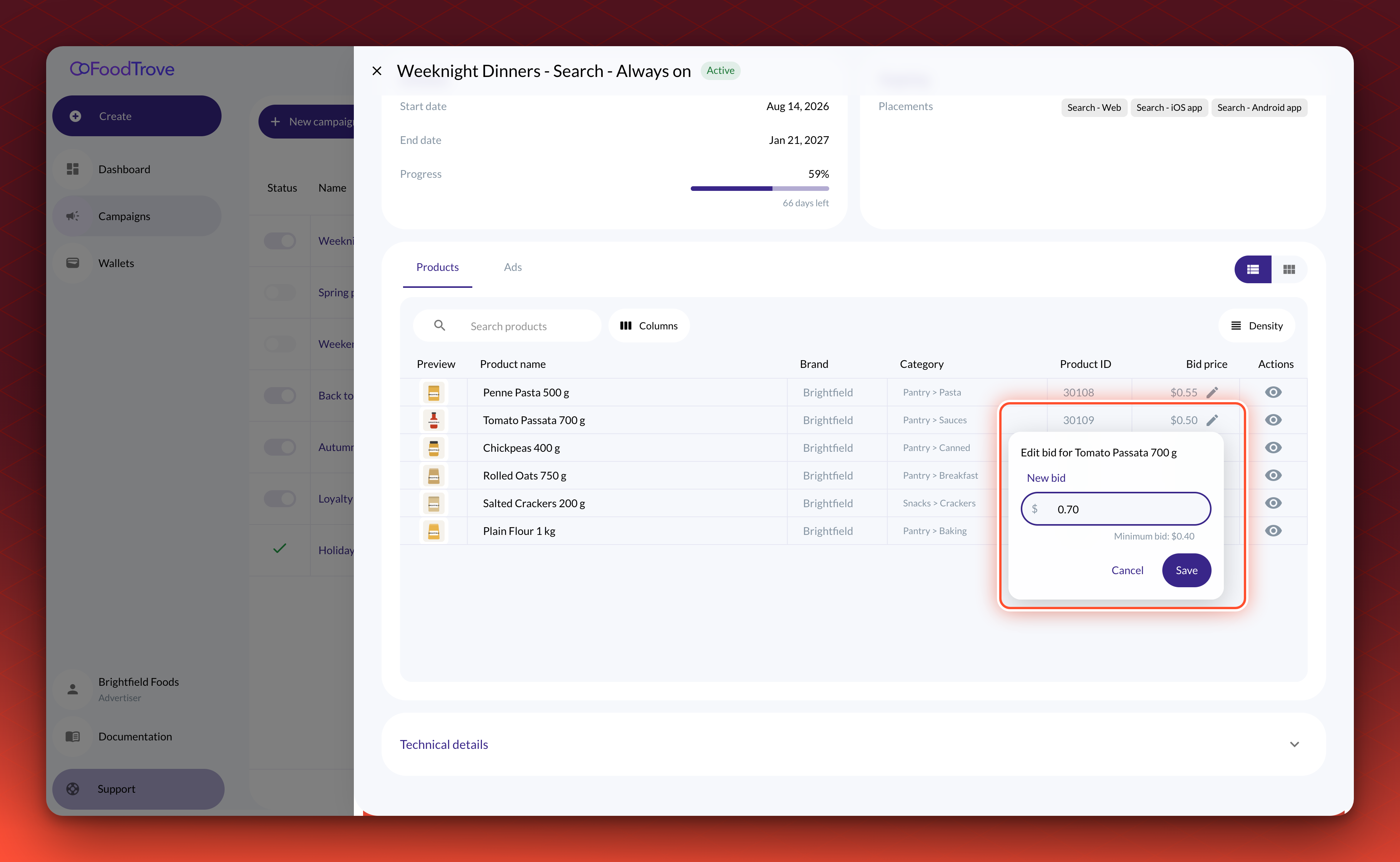
Good for quick bid changesRaise or lower one product's bid without stepping back through the campaign.
Only the bid changesCategories and search terms stay as they are. In-place bid edits are not available on business managers that use campaign review.
You choose the placementsOn the Ads page, the Bid price column shows on placements where you've had Kevel turn on product bids.
Learn more about creating a campaign
See who last updated a campaign
The Campaigns list now has an Updated by column, which you can sort and filter. In its filter, select Me to fill in your own user and list the campaigns you last changed. You can still type any other user.
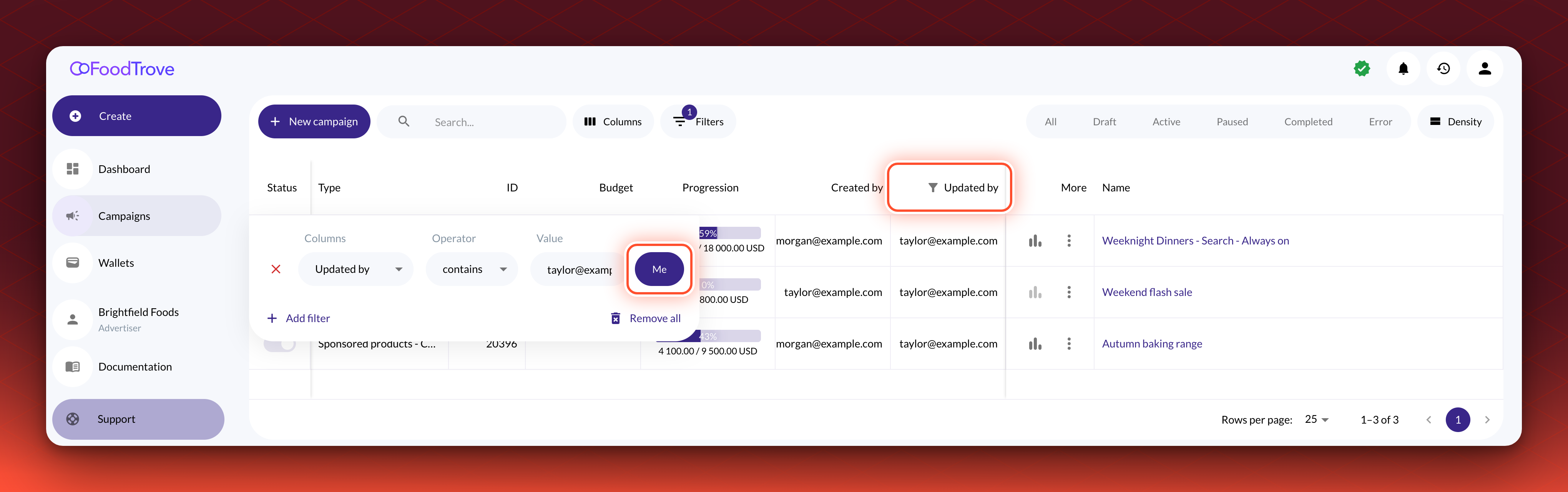
Good for shared accountsFind the campaigns you changed when several people work on one advertiser.
Learn more about the Campaigns list
Preview requested Ad changes before you approve
In the Review manager, reviewers can now see an Ad that a change request edits or adds before they approve it. Select Preview on the Ad in the request. For an edited Ad, the Ad preview shows the Requested change and the Original (currently live) version. For a new Ad, it shows how the Ad will look once the request is approved.
Good for creative reviewCheck an advertiser's new creative before you approve it, instead of rejecting the request to see it.
Previewing changes nothingThe request stays open and the live Ad keeps serving as it is until you decide.
Learn more about reviewing requests
Multiple products
Read-only API keys, including for the MCP server
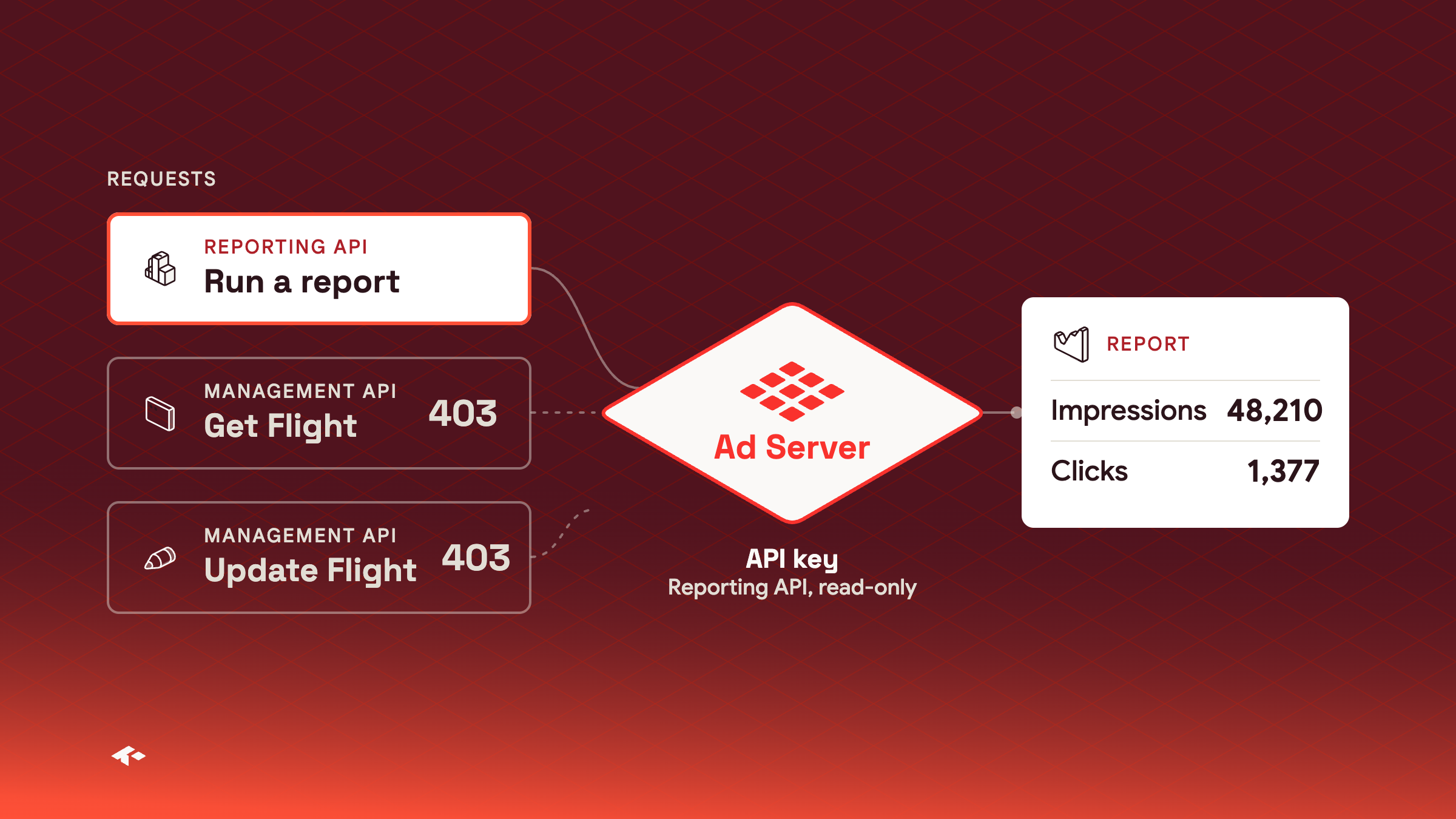
You can now limit what each API key can do. In the Ad Server UI, select Settings > API Keys, then choose whether a key can call the Management API, the Reporting API or both, and set Access to Read-only for an integration that only reads data. A read-only key can retrieve data, run reports and request forecasts, and cannot create, update or delete anything. The Kevel MCP server acts with the key each person signs in with, so someone who signs in with a read-only key can explore your network but cannot change it. Their client still lists the write tools, and Kevel rejects any change.
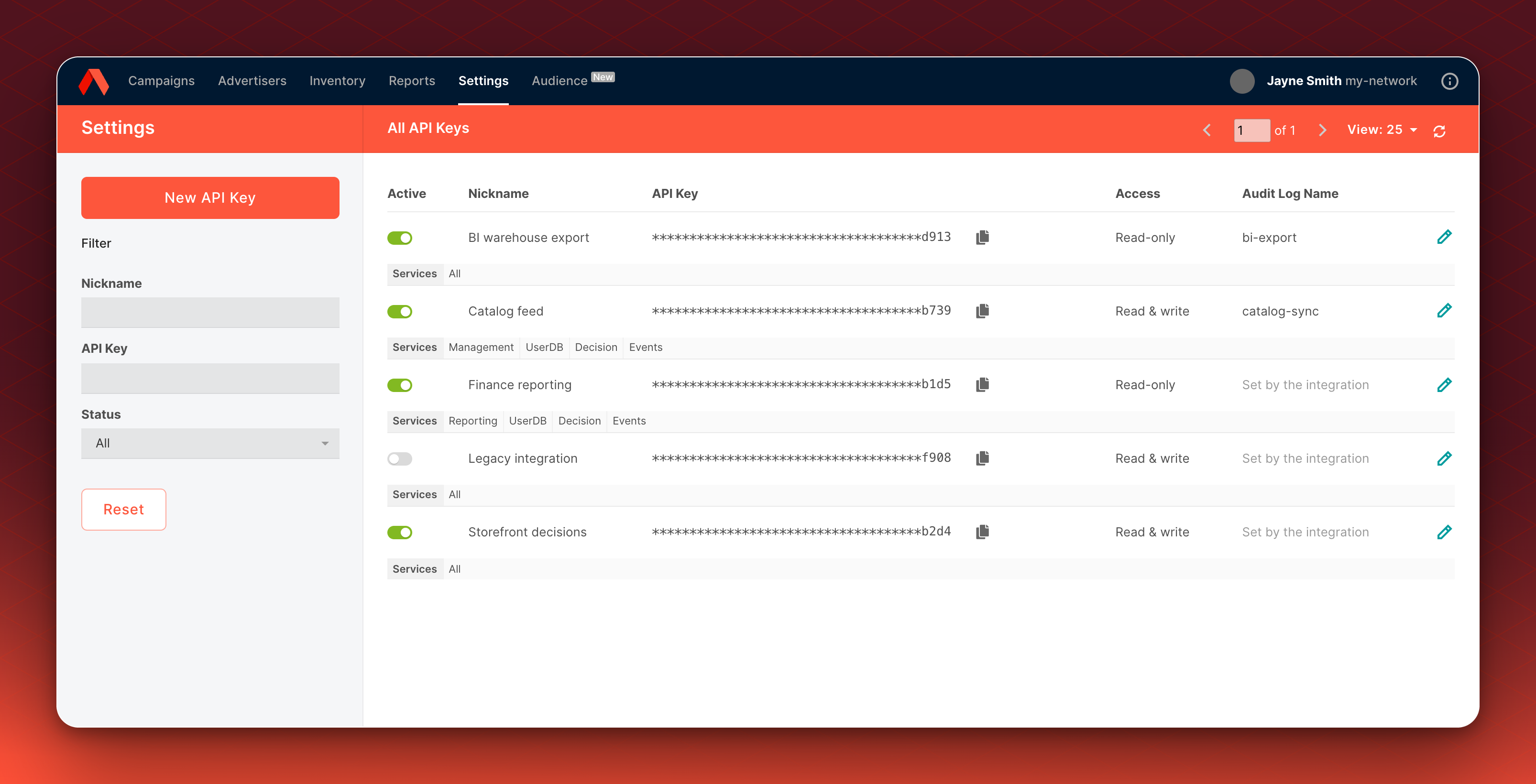
Good for reporting integrationsGive a BI tool a key that can read reports but cannot change your campaigns.
Admins manage keysYou need the Admin access level to manage keys.
Learn more about managing API keys
Targeting in the Kevel MCP server
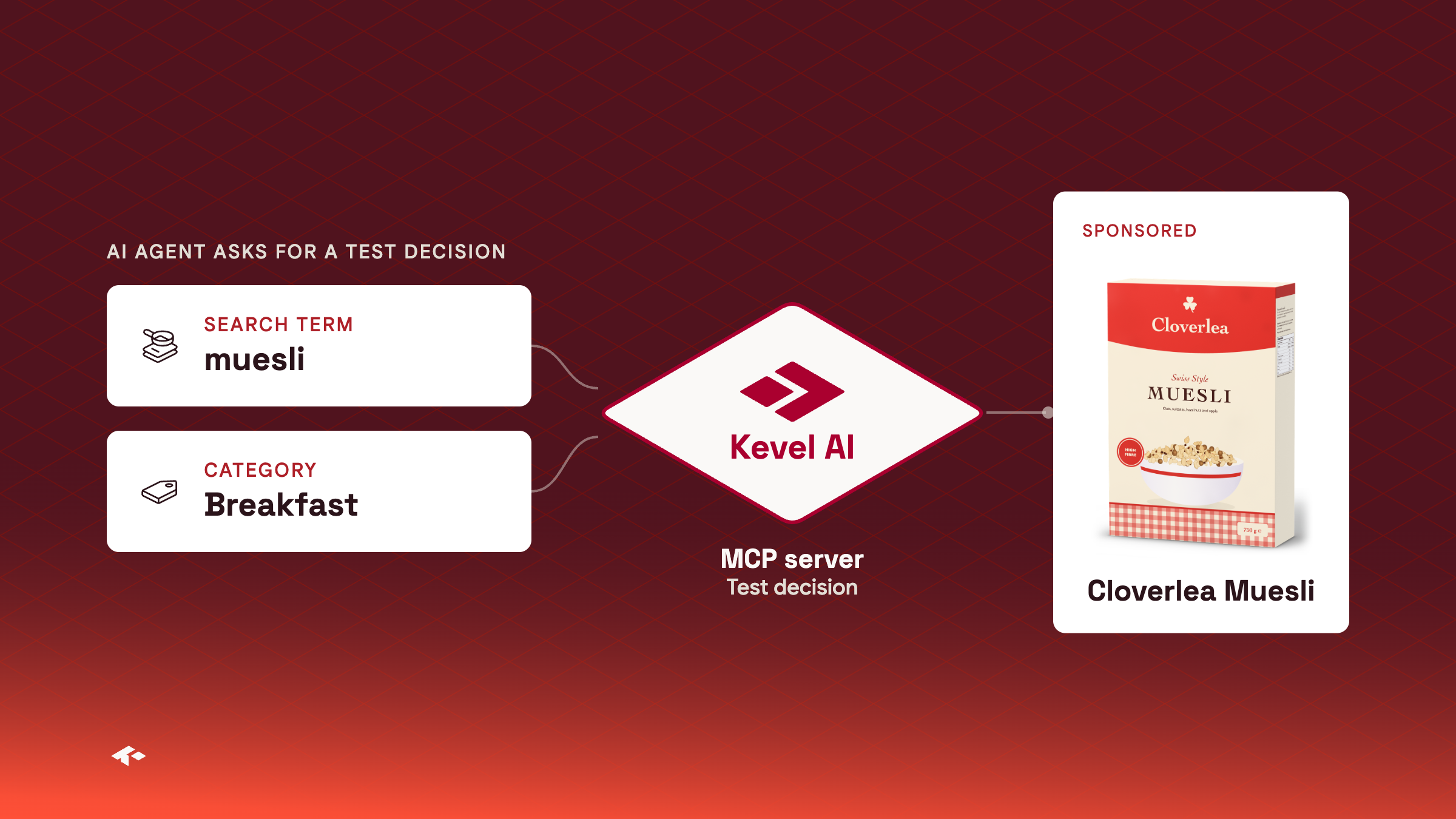
An agent connected to the Kevel MCP server can now work with search term, category and AdQuery targeting. When it requests a test decision, it can send a search term, plus a category and an AdQuery filter for each placement, so you can see which Ads a shopper's search or category page would get. It can also set category targeting on Flights and Ads, use the Exact search term match type, and add category and search term bid modifiers. To find valid category IDs, ask it to list your network's category catalog.
Good for checking targetingAsk the agent which Ad a shopper searching for muesli would see, without building a test page.
Category rules need category targetingCategory rules save only where category targeting is on for your network.