
Text rules from creative templates in Console
For media owners: apply the text rules on your creative template fields in Console’s Ad Builder, and see what advertisers get when copy breaks a rule.
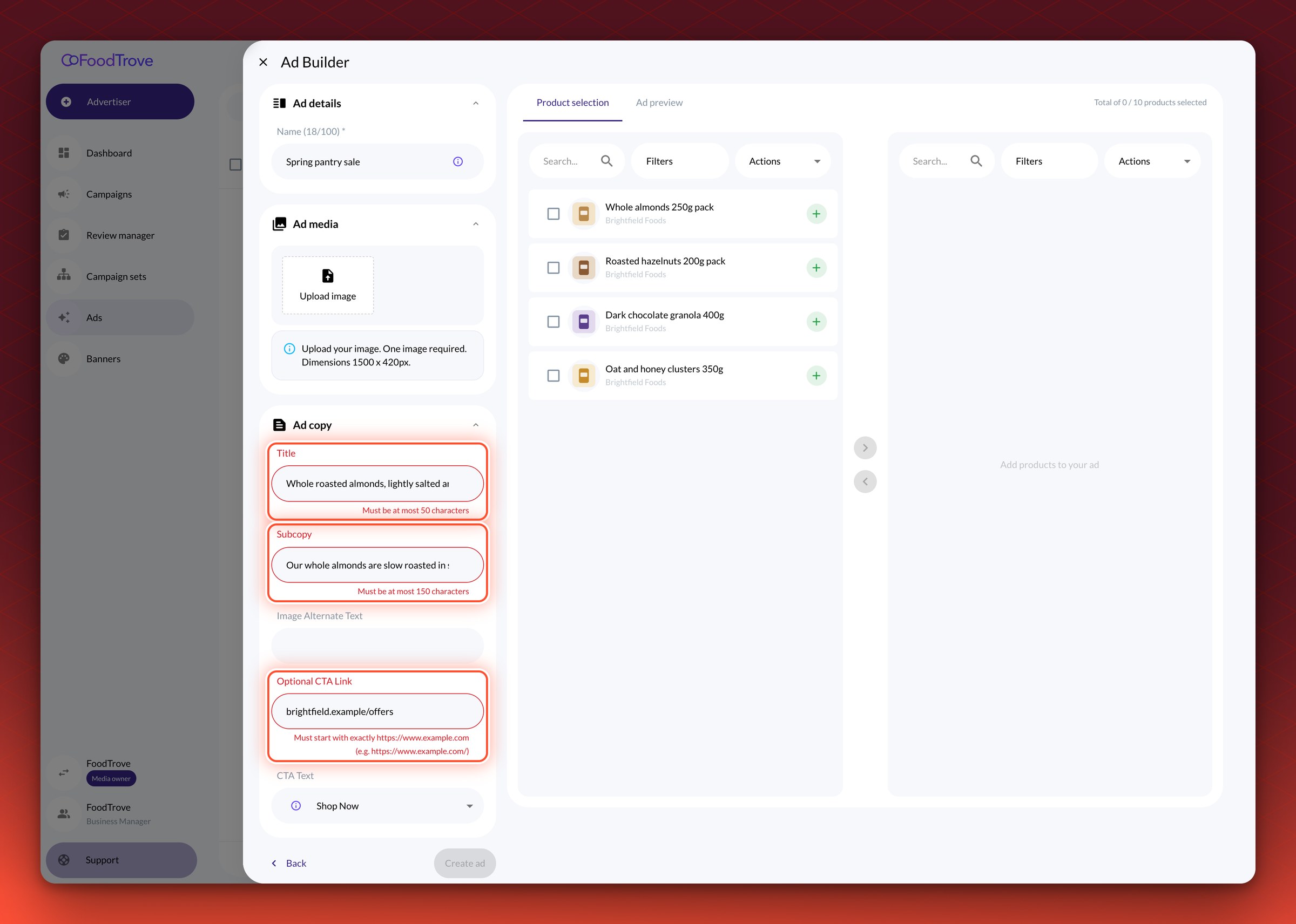
Console applies the text rules you set on your creative template fields in the Kevel Ad Server. When an advertiser’s copy in the Ad Builder breaks a rule, they see an error under the field and can’t save the Ad until the text fits. Use it to hold advertiser copy to your limits, such as a maximum headline length or a required link prefix, before an Ad reaches review.
How it works
A text rule is a regular expression (Regex) on a String field of a creative template, set in Studio. The Ad Server already checks it when an Ad is created through the Ad Server UI or API; see the Creative Template Field Validation FAQ. Console applies the same rule to Ads advertisers build in the Ad Builder.
| When | What happens |
|---|---|
| The advertiser leaves a field whose text breaks the rule | An error appears under the field, in plain language where possible |
| The advertiser corrects the text | The error clears |
| The advertiser tries to save with a broken rule | The Ad is not saved |
| The field is optional and left empty | No check runs |
| An Ad is already live when the rule reaches Console | It keeps serving as it is. The rule applies the next time someone edits it |
Rules reach Console per template. Kevel syncs each template into Console, so a template that hasn’t been synced since you added a rule has no rule in Console yet.
Before you start
Where it applies. Ad templates in Console that come from a Kevel Ad Server creative template, such as Native Product Ads.
What you need. Access to Studio in the Kevel Ad Server to edit creative templates, and the ID of each creative template your advertisers use in Console.
What it does not do.
- It checks text fields only. Rules on external file fields are not checked in Console. Ads created through the Ad Server UI or API still get the Ad Server check.
- It doesn’t change a rule on an existing field. A rule is set when the field is created and can’t be added to or tightened on a field that already exists. Add a new field with the rule instead, so Ads built on the old field are never left invalid. To loosen or remove a rule, contact your Kevel account team.
- It doesn’t write the error text for you. Common length and digit rules get a plain-language message. Other patterns get a message describing the pattern, and some show the pattern itself. See Write rules advertisers can read.
Apply a text rule in Console
-
Add the rule on a new String field in Studio. Open the creative template, add the field, and enter the regular expression.
What you need to do. In the field’s settings, enter a pattern that starts with
^and ends with$, for example^.{0,50}$for at most 50 characters. Save the template.
Validation. The field shows the pattern in Studio, and creating a test Ad through the Ad Server UI with longer text fails.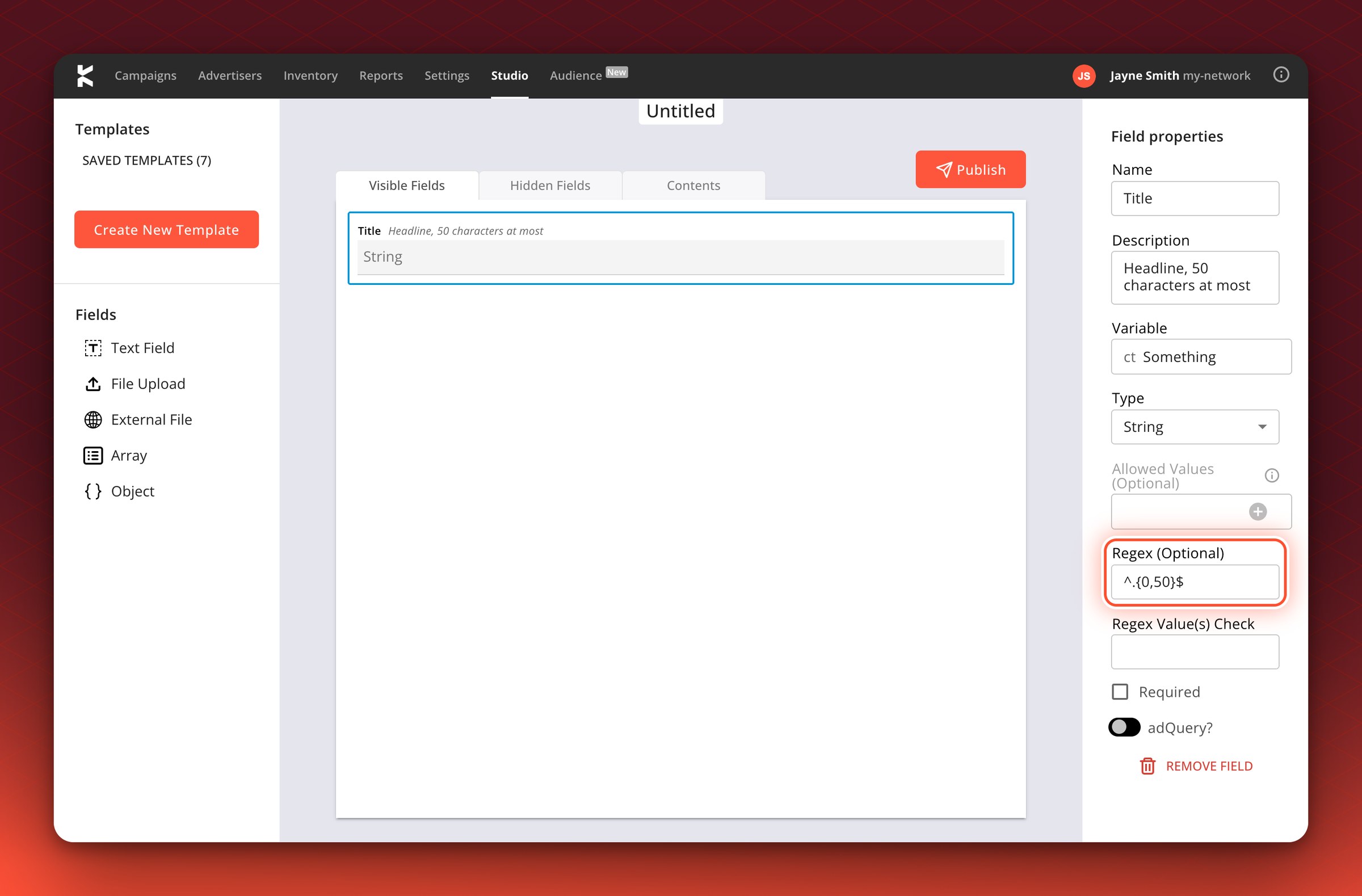
Common error Fix Saving the template fails with “cannot add or change Regex for an existing field” The field already exists. Add a new field with the rule “Text passes in Console but fails in the Ad Server” The pattern isn’t anchored. Console accepts a match anywhere in the text, while the Ad Server checks the whole value. Use ^and$ -
Ask Kevel to sync the template into Console. Contact your Kevel account team with the creative template ID.
What you need to do. Send the creative template ID and the fields you changed. Ask for a sync whenever you add or change a rule.
Validation. Your Kevel contact confirms the sync and when it ran.Common error Fix “We added a rule, but Console still accepts anything” The template hasn’t been synced since the rule was added. Ask for a sync -
Check the rule in the Ad Builder. Open the Ad Builder on that template, type text that breaks the rule, and click outside the field.
What you need to do. Repeat for each field with a rule.
Validation. An error appears under each field, and the Ad can’t be saved until the text fits.Common error Fix “No error under the field, but saving fails with a message about a pattern” The pattern uses syntax the browser can’t check. The save-time check still applies. Rewrite the pattern on a new field if you want the error to show earlier
Write rules advertisers can read
The error an advertiser sees depends on the pattern. These patterns give a fixed message:
| Pattern | Message advertisers see |
|---|---|
^.{0,50}$ | Must be at most 50 characters |
^.{25,}$ | Must be at least 25 characters |
^.{10}$ | Must be exactly 10 characters |
^.{5,40}$ | Must be between 5 and 40 characters |
^\d{5}$ or ^[0-9]{5}$ | Must be exactly 5 digits |
Other patterns get a description of the pattern, such as “Must start with exactly https://www.example.com” for a link prefix. Where no description is possible, the message is Must match pattern: '<your pattern>'. If your rule needs a pattern like that, say what you expect in the field’s name or in your guidance to advertisers.
Troubleshooting
“Advertisers can save copy that breaks our rule.” The template in Console predates the rule. Ask your Kevel account team to sync it.
“An advertiser can’t save a change to a live Ad.” The Ad’s copy breaks a rule added after it was created. The live Ad keeps serving; the advertiser fixes the copy to save the change.
“The error shows our raw pattern.” Console has no plain-language description for that pattern. Use one of the patterns above, or explain the rule in the field’s name.
“Our rule on an image link isn’t checked in Console.” Rules are checked on text fields only. The Ad Server check still applies to Ads created there.
Related
Updated about 9 hours ago