
Review campaigns in the Review manager
For media owner reviewers: find the campaigns and changes advertisers submit in Console, read what each asks for, and approve or reject it.
The Review manager lists the campaigns and campaign changes your advertisers submit for approval in Console. Use it to find a request, read what it asks for, and approve or reject it. To choose which requests reach this list, see Set up campaign review.
AvailabilityThe Review manager appears in the Console sidebar only for business managers where Kevel has turned on campaign review, and it lists only requests from placements Kevel has set to require review. To turn it on, or to change which placements need review, contact your Kevel representative.
How it works
Each row is one campaign and shows its most recent request. A request is either Create, for a new campaign, or Update, for a change to an existing one. The row shows what the campaign will look like once the request is approved, with the values the advertiser changed in amber.
A new campaign stays paused until you approve it. A change to an existing campaign does not touch the campaign: it keeps running on its current settings, and the change applies when you approve. Console applies decisions in the background, so after you decide the row shows Processing until its new status arrives. For the full cycle, see How campaign review works.
Before you start
Where it applies. Campaigns that advertisers book through campaign types and placements, on placements that require review. Changes your own team makes in Console are not reviewed.
What you need. A media owner login with the Admin role to approve or reject. Other media owner users can open the Review manager and read requests, but Approve and Reject do not appear for them. Users with a read-only role do not see the Review manager in the sidebar.
What it does not do.
- It does not reverse a decision. An approved request cannot go back to Awaiting approval, and cancelling a request cannot be undone. Console notifies the advertiser as soon as you decide. If you approve a campaign by mistake, fix it yourself. Your own edits are never reviewed, so you can change the campaign directly, or pause it in the Campaigns list while you decide what to do next. Alternatively, you can ask the advertiser to change the campaign and resubmit it.
- It does not let you cancel a request that is awaiting approval. Only the advertiser who submitted it can withdraw it. To send it back, reject it with a reason, and the advertiser can fix it and resubmit.
- It does not search advertiser names. Search matches campaign names. To find an advertiser's requests, filter on the Advertiser column.
Open the list of requests
- Select Review manager in the sidebar. It sits below Campaigns. The list opens on the Awaiting approval tab, with the newest submission first.
- Or follow the notification. When an advertiser submits a request, every media owner user gets a notification in the bell. Select Click here to review changes to open that request directly. The notification expires after 24 hours, and when one reviewer dismisses it, it clears for the other reviewers who are signed in.
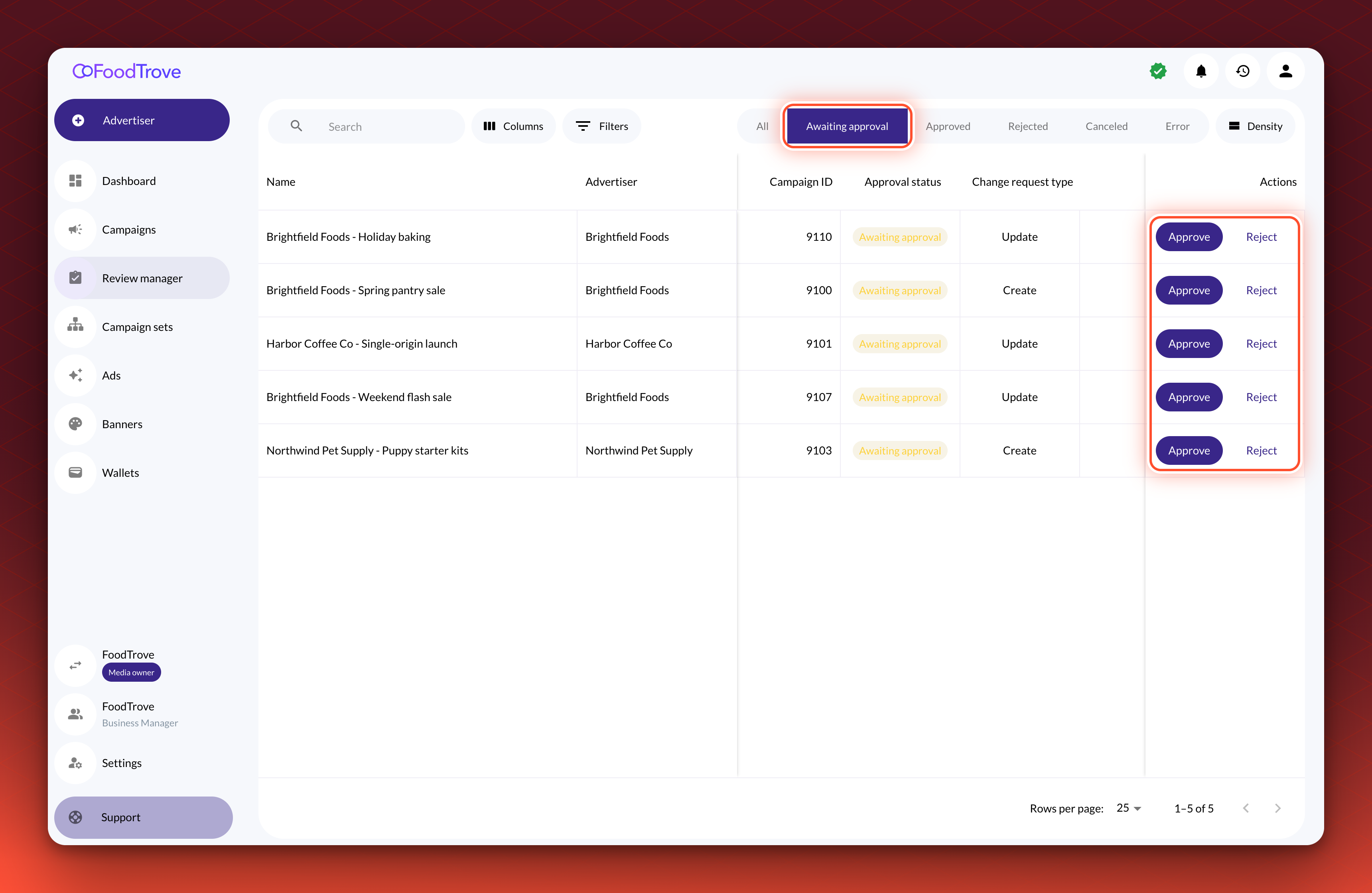
Validation. The list shows requests with the status Awaiting approval, and the Awaiting approval tab is selected.
Find a request
- Choose a tab. The tabs are All, Awaiting approval, Approved, Rejected, Canceled and Error. The Canceled tab lists canceled new campaigns only.
- Search. Type part of a campaign name, or type digits to find an exact Campaign ID, then press Enter.
- Filter. Select Filters and filter on any of the columns in the table below. Filters, the tab and the search all combine with AND.
- Choose your columns. Select Columns to show or hide columns. Name and Campaign ID always show, and Advertiser stays pinned beside Name. The list has many columns, so a narrow window needs a scroll to reach Approval status. Hide the columns you do not use to bring it into view.
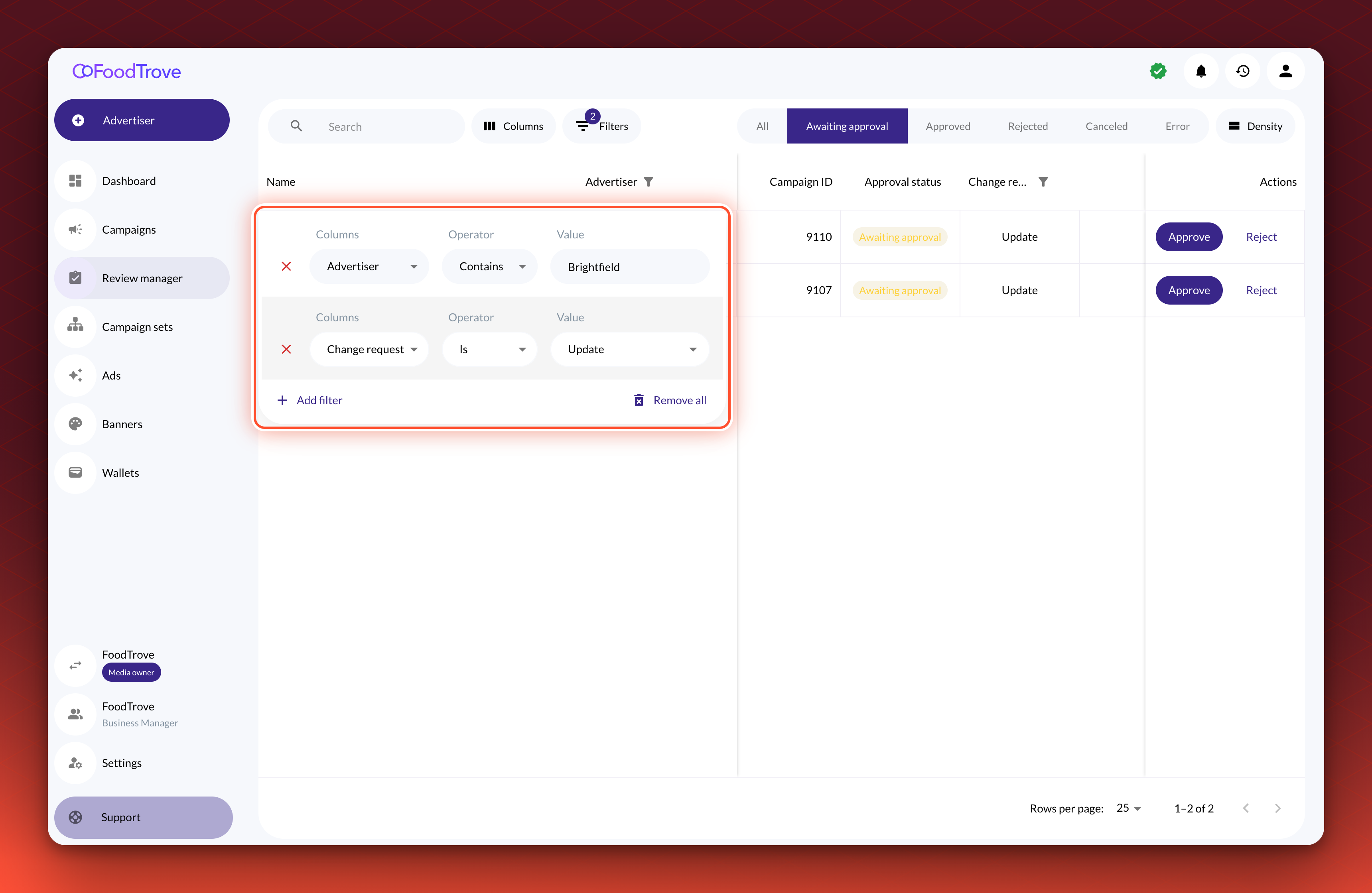
| Column | What it shows | Filter |
|---|---|---|
| Name | The campaign name, or the requested name for a change. You see it with the advertiser's name in front. | Contains |
| Advertiser | The advertiser the campaign belongs to. | Contains, Equals, Starts with, Ends with |
| Campaign ID | The numeric Campaign ID. | Equals, Does not equal, and number comparisons |
| Change request type | Create for a new campaign, Update for a change. | Is, Is not |
| Status | The campaign's own status, such as Draft, Active or Paused. It does not filter the request status. | Is, Is not |
| Submission date | When the advertiser submitted the request. | Before and after comparisons |
Read a request
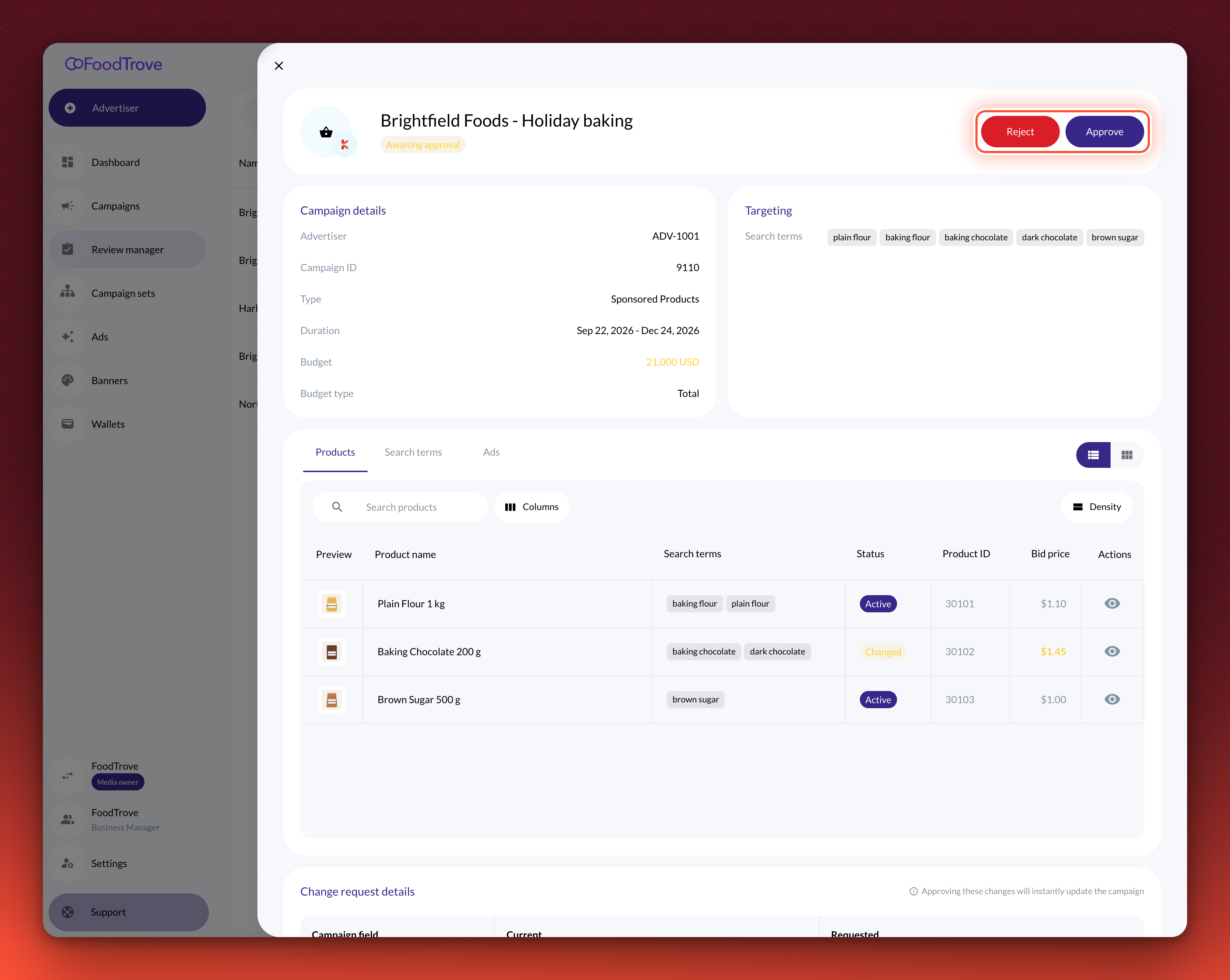
- Select a row. The request opens in a full-screen panel.
- Check the campaign details and targeting. The panel shows the advertiser's ID, the Campaign ID, dates, wallet, budget and targeting, with changed values in amber.
- Open the tabs. Products, a targeting tab such as Search terms, and Ads each list what the campaign contains. Chips mark each item Added, Changed or Active. On placements that set a bid per product, the Products tab also shows a Bid price column.
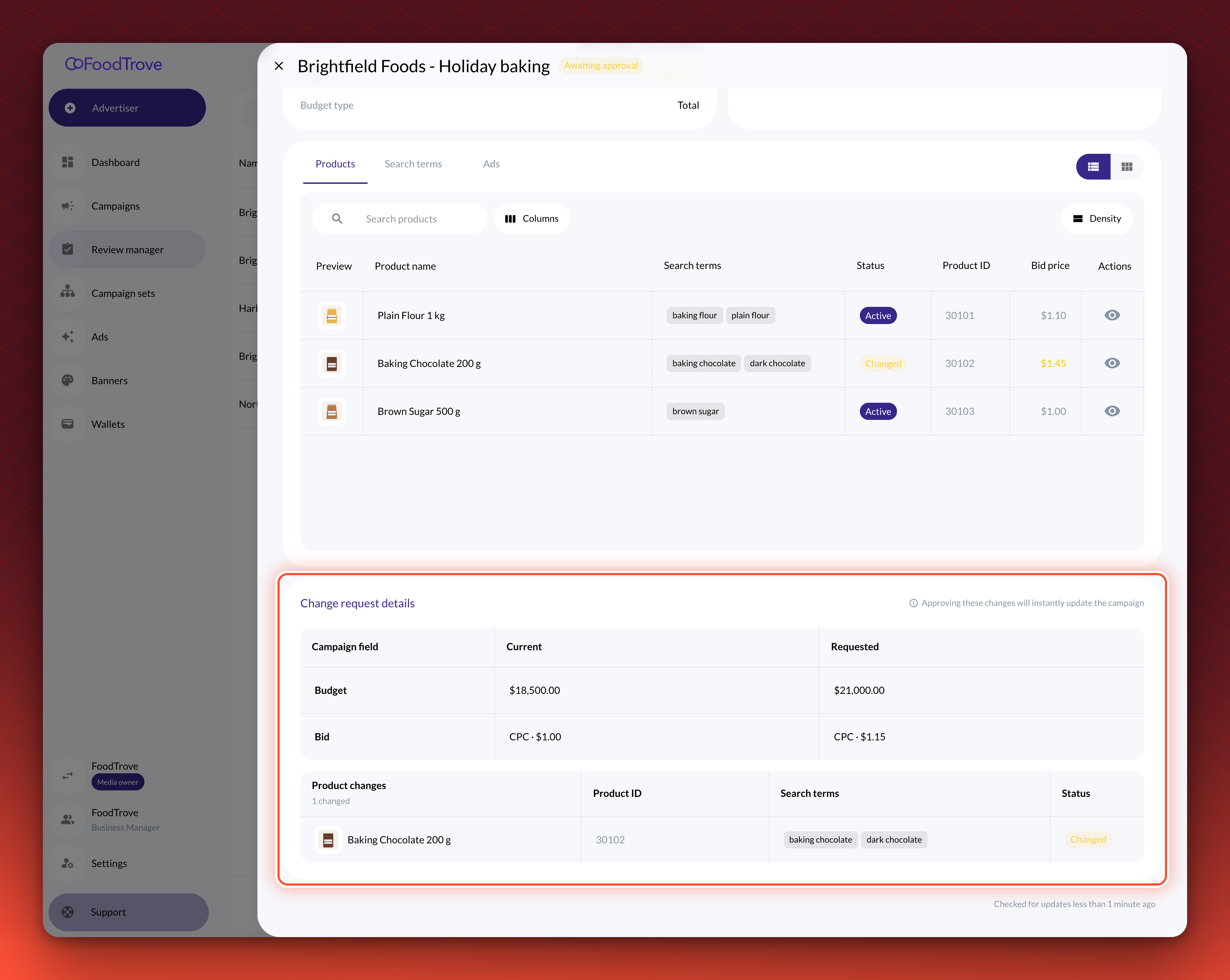
- For an Update, read Change request details. A grid lists every changed field with Campaign field, Current and Requested columns. Changes to ads are marked Added, Removed, Changed or Cloned.
Approve a request
- Select Approve. Use the button in the row or in the request panel. There is no confirmation step.
- Wait for the new status. The row shows Processing. Console rechecks the list every few seconds for about two minutes. If the row still reads Processing after that, reload the page.
Approval makes the campaign activeApproving a request sets the campaign to Active, including when you approve a change to a paused campaign. A new campaign starts delivering on its start date. To keep a campaign off after approval, pause it in the Campaigns list.
Validation. The row's status changes to Approved, and the advertiser gets a "Change request approved" notification.
Reject a request
- Select Reject. The Reject campaign dialog opens with the campaign name, advertiser and start date.
- Choose a rejection reason. The options are Creative policy violation, Incorrect targeting, Missing information, Product mismatch, Low quality assets, Invalid campaign setup and Other.
- Write a description. It is required. The advertiser reads it together with the reason, in the form "Incorrect targeting: Location is too broad".
- Select Reject campaign.
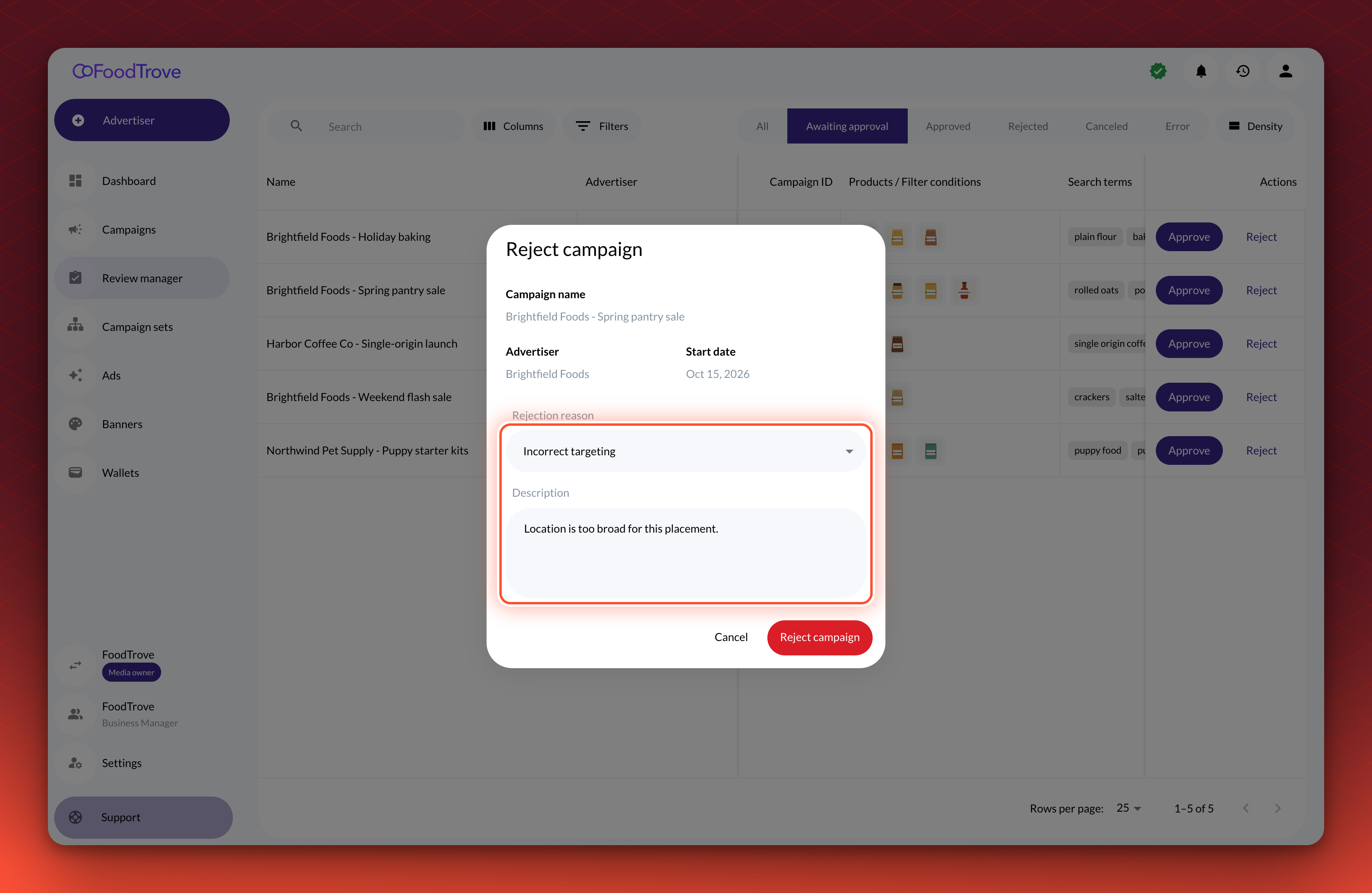
Validation. The row's status changes to Rejected. Hover over the chip to read the reason the advertiser sees.
The advertiser can edit the campaign and resubmit it. A resubmission cancels the rejected request and creates a new one, which appears under Awaiting approval.
Review several requests at once
AvailabilityBulk review is off until Kevel turns it on for your business manager, including where you already use campaign review. Contact your Kevel representative to turn it on.
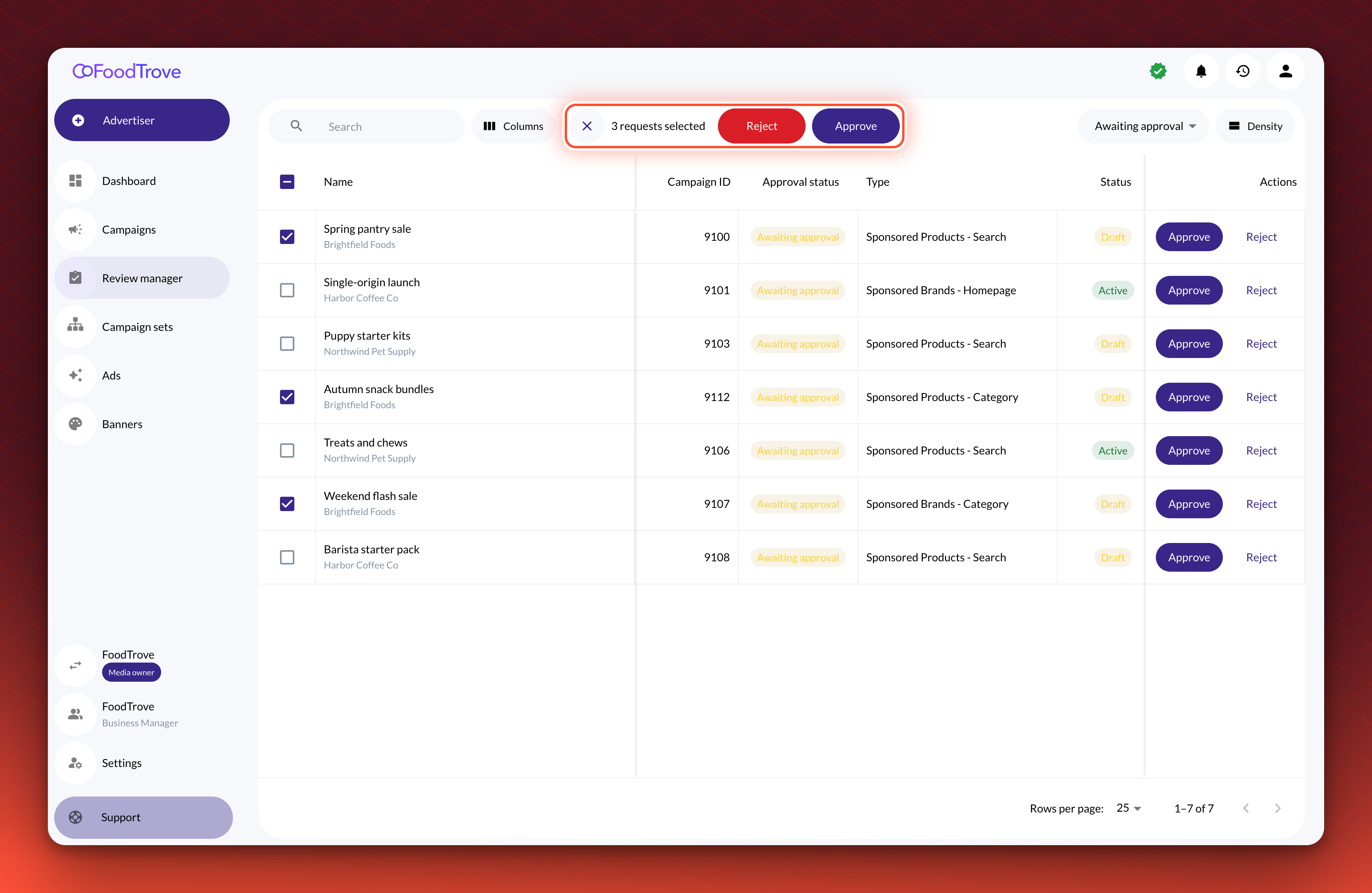
Tick several requests in the list to approve, reject or cancel them in one action. Console submits the selection as one batch and applies each request on its own, so one request that fails does not stop the others.
- Tick the requests. Use the checkbox at the start of each row, or the checkbox in the header to tick every row on the page. You can tick up to 50 requests, and your selection holds when you change page, search or switch tabs. At 50 the count reads "(maximum 50)" and no further row can be ticked.
- Check what you can do with the selection. Requests that are Awaiting approval can be approved or rejected. Requests that are Rejected can be canceled. A selection holds one kind of request, so once you tick one kind, rows of the other kind cannot be ticked.
- Choose the action. The toolbar next to the search box counts your selection, for example "3 requests selected", and shows the actions that fit. With Awaiting approval requests ticked, they are Reject and Approve. With Rejected requests ticked, the only action is Cancel requests. Select the cross beside the count to clear the selection. On a narrow window the actions collapse into one button, labeled with the first action and with a menu for the rest.
- Confirm an approval or a cancellation. For Approve and Cancel requests, an Are you sure? dialog lists the campaigns, grouped by advertiser with a count, and warns that the action cannot be undone. The warning grows stronger above 10 requests and again above 20. The buttons carry the number you ticked, so with three ticked you confirm with Approve 3 change requests or Cancel 3 change requests, or leave with Cancel or Keep requests.
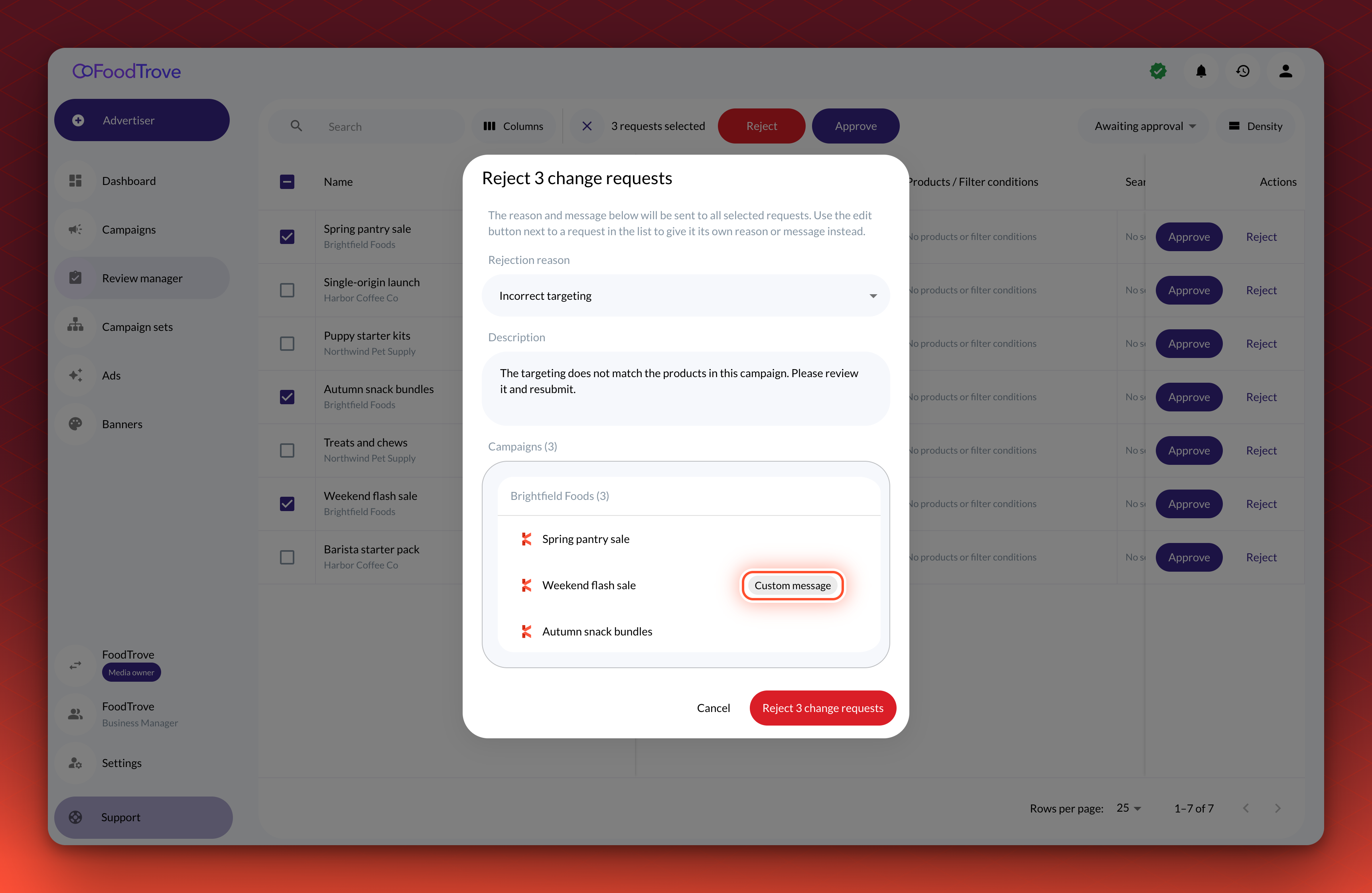
- Write the message for a rejection. The dialog is titled with the number you ticked, for example Reject 3 change requests. Choose one Rejection reason and write one Description. Both are required, and Console sends them to every request in the selection. A description is limited to 500 characters, and the box stops accepting text at the limit. To give one request its own reason or message, point at its row, select the edit button, write the message and select Done. That row then shows a Custom message chip, and Use default message puts it back on the shared message.
Validation. The selection clears when you confirm, and the toolbar counts the batch down, for example "Approving 3 requests...". Each row then shows Processing and its new status as the decision lands. When every request has settled, the list refreshes. Console follows a batch for about five minutes. If a row still shows Processing after that, reload the page.
If a request in the batch fails, it stays as it was and nothing retries it, so it is still in the list for you to decide again. Console notifies you once for each request that failed, and notifies the advertiser for each decision that succeeded, exactly as for a single decision. A batch where every request succeeds sends you no notification.
Cancel a rejected request
- Select Cancel on a Rejected row.
- Confirm. In the Are you sure? dialog, select Cancel request. Select Keep request to leave it as it is.
Cancelling cannot be undone, and Console does not notify the advertiser, so tell them. A canceled new campaign can no longer be edited or activated.
Troubleshooting
I cannot see Review manager in the sidebar. The item shows only for non-read-only media owner users, and only where Kevel has turned on campaign review. Check your role first, then contact your Kevel representative.
I cannot see Approve or Reject. These buttons appear only for users with the Admin role. Ask an administrator on your team to review, or to change your role.
A row still says Processing. Console stops rechecking after about two minutes. Reload the page to see the current status.
A message says "Approval failed" or "Rejection failed". Console could not send your decision, or the request changed while you were reading it, for example because another reviewer decided it first. Reload the list and open the request again.
A row has the status Error. Your approval was recorded, but Console could not apply the change or activate the campaign. The campaign stays locked, and the Review manager offers no way to cancel it. Contact your Kevel representative with the Campaign ID.
A tab or search looks empty. Tabs, filters and search combine, so clear the filters first. The Canceled tab lists canceled new campaigns only.
I cannot tick the rows. The checkboxes appear only where Kevel has turned bulk review on for your business manager. Contact your Kevel representative.
A message says "Approval failed", "Rejection failed" or "Cancel failed" after a bulk action. It reads "The change requests could not be submitted. Please try again." Console could not submit the batch, and none of the requests changed. Try again. If it keeps failing, contact your Kevel representative.
Related
Updated 17 days ago