Release notes: October 2026
Multiple products
Category targeting
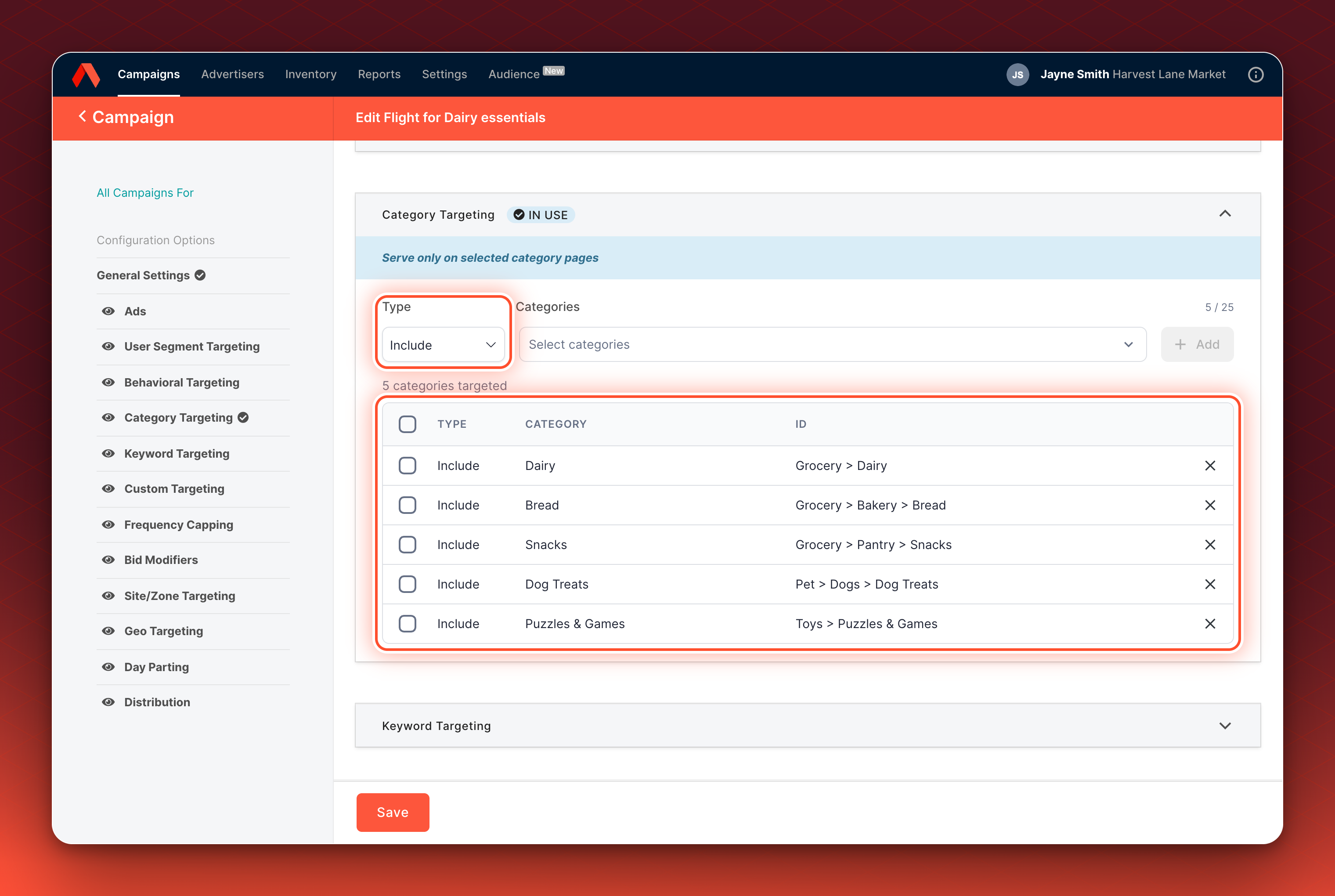
Show a Flight or Ad only on the category pages you choose, or keep it off the ones you exclude. Your pages send the page's category on each placement of a Decision API request, and Kevel compares it with the category rules saved on the Flight or Ad. Your team picks categories from your network's category list in the Ad Server UI, or sends CategoryTargeting in the Management API, and can add a Category bid modifier to bid more or less on a category. Advertisers pick categories in Console on the placements Kevel turns on for it. Forecast includes category rules. Reports can group by Placement Category (Matched), the category that matched a category rule on the Ad.
A request with no category is not eligible for an Ad that has category rules, and only Decision API requests carry a category. A parent category does not match its children. Matching ignores capitalization, so womens-shoes matches Womens-Shoes, but spaces and separators must match. A Flight or Ad cannot hold two category rules that differ only by capitalization. A Flight or Ad holds 25 category rules by default. The category list can be your site's own taxonomy or come from your product feed, with one list per network.
Not on every network yetContact your Kevel representative to turn category targeting on.
Keyword targeting keeps workingKeyword targeting, reserved keys and AdQuery category filtering keep working, alongside category targeting or instead of it.
Learn more about category targeting
Learn more about how category targeting matches Ads
Ad Server
Campaign Health Check Up
Find the active Flights that are off their delivery pace while there is still time to act. Open Reports > Campaign Health Check Up in the Ad Server UI. The dashboard compares how fast each Flight has delivered with how fast it must deliver to reach its goal by its end date, and sorts Flights into On Pace, Needs Attention and Act Now. It starts with the Flights ending within 7 days, names each Flight's Campaign, and estimates the ad spend at risk. A flag is a prompt to check the Flight, not a verdict.
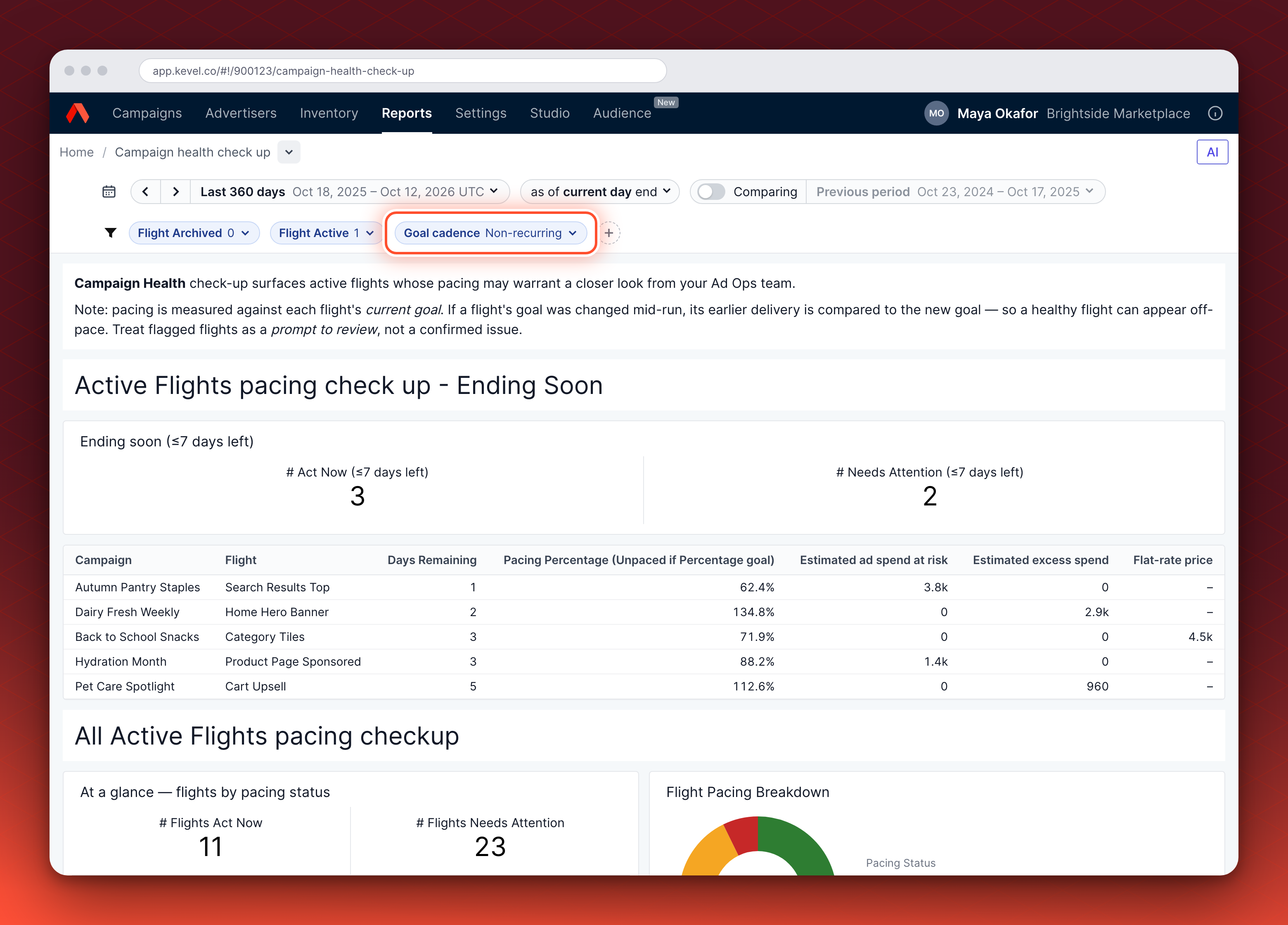
Good for a weekly pacing checkStart with the Flights ending in 7 days that are flagged Act Now.
Learn more about Campaign Health Check Up
Broad search terms handle punctuation
Broad matching now reads symbols such as &, >, / and " as spaces, so a query like "food & beverage" matches like "food beverage". A -, + or & between letters or digits stays part of the word, so "wi-fi router" still matches "wifi router". None of these act as search operators. A single-character word, such as the 2 in "lavadora 2 tinas", must match exactly. A query with symbols no longer causes a decision to return no Ads. This applies on every network that uses Broad search terms, with nothing to turn on.
Learn more about Broad matching
Scoped and read-only API keys
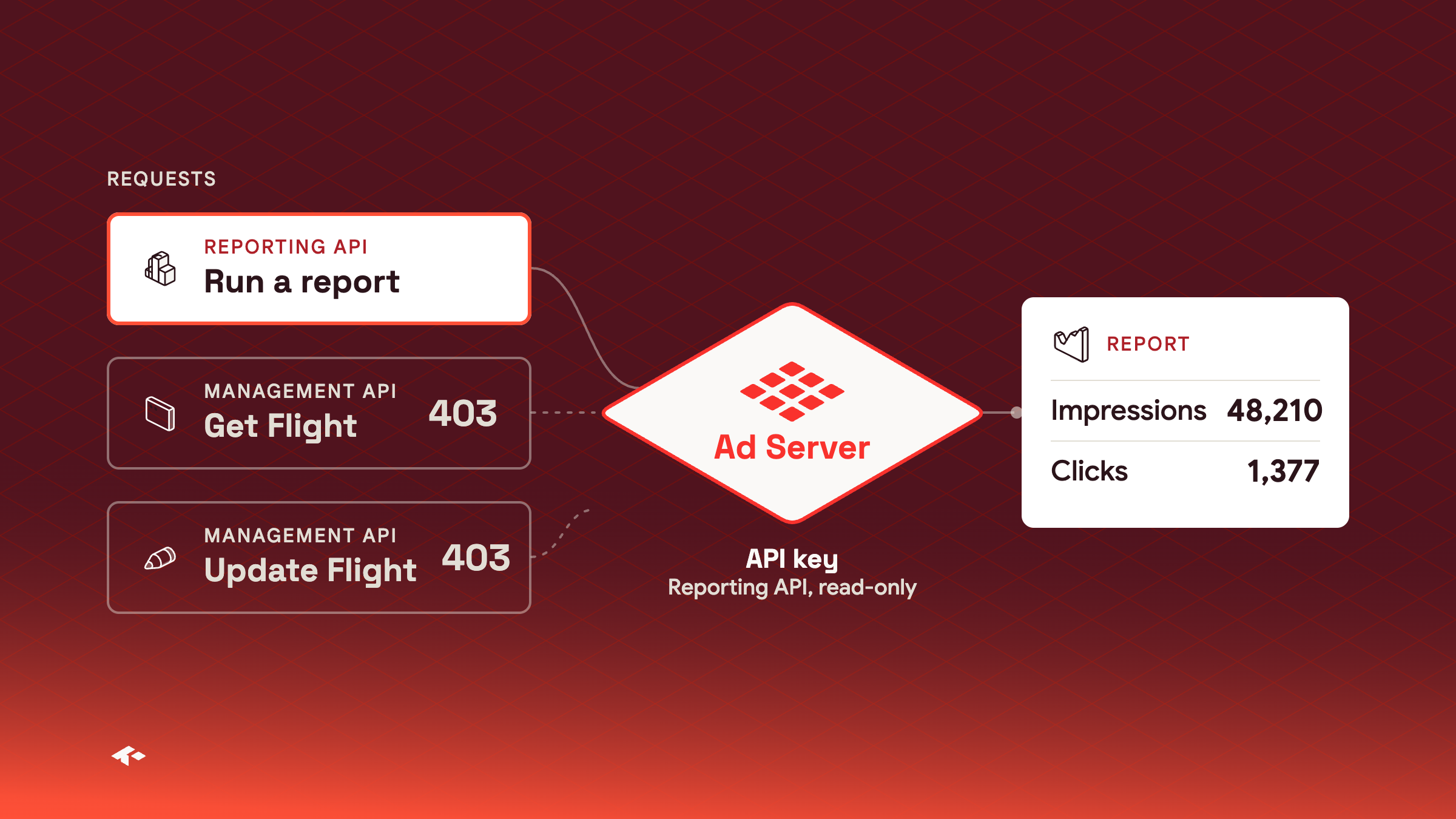
Network admins can now limit what each API key can do. In the Ad Server UI, open Settings > API Keys and choose whether a key can call the Management API, the Reporting API or both, and whether it is Read & write or Read-only. A read-only key can retrieve data, run reports and request forecasts, but cannot create, update or delete anything. A request a key is not allowed to make is rejected with HTTP 403 and a code of auth-scope-insufficient or auth-read-only. Each key can also carry an application name, which the Audit Log shows for every change made with it. Every key can still call UserDB, Decision and Events. Existing keys show All and Read & write until you change them, and your network must keep at least one key with Management and Reporting, Read & write. There is nothing to turn on.
Good for BI tools and AI agentsGive them a Reporting API, read-only key so they can't change your network.
Learn more about managing API keys
Competing Campaigns and Flights in the forecast availability widget
When you forecast a Flight, you can now see which Campaigns and Flights compete with it for the same inventory. In the forecast availability widget on the Flight page, select the caret on a metric card's Competing row to open the breakdown. It lists the top five competing Campaigns, highest first by the card's metric, with Show all to see the rest, and each Campaign expands to its competing Flights. Select a Flight to open it. On the Percentage card, each row shows its share of the matched total. The breakdown is on for every network, with nothing to turn on.
Learn more about the forecast availability widget
Amounts in your network's currency
If your network sells in a currency other than US dollars, the Ad Server UI can now show amounts in it. Once Kevel sets a default currency for your network, prices, caps, bid modifiers and the amounts in the Advertiser, Campaign, Flight and Ad lists show that currency's symbol, formatted for each viewer's browser locale, and downloaded CSV reports use the same symbol.
Set per networkAsk your Kevel representative to set your network's currency.
Amounts are not convertedOnly the symbol and formatting change. Networks without a default currency see US dollars as before.
City names in forecast results
When you group forecast results by City ID in the Ad Server UI, each row now shows the city's name next to its ID.
Learn more about the Forecast Explorer
Console
Bulk actions in the Review manager
Reviewers can now approve, reject or cancel several campaign requests at once. In the Review manager, tick up to 50 requests of the same kind, then choose the action. A rejection sends one reason and description to every request you ticked, and you can give any one request its own message. Console applies each request on its own, so one that fails does not stop the others, and each advertiser is told about their own decision.
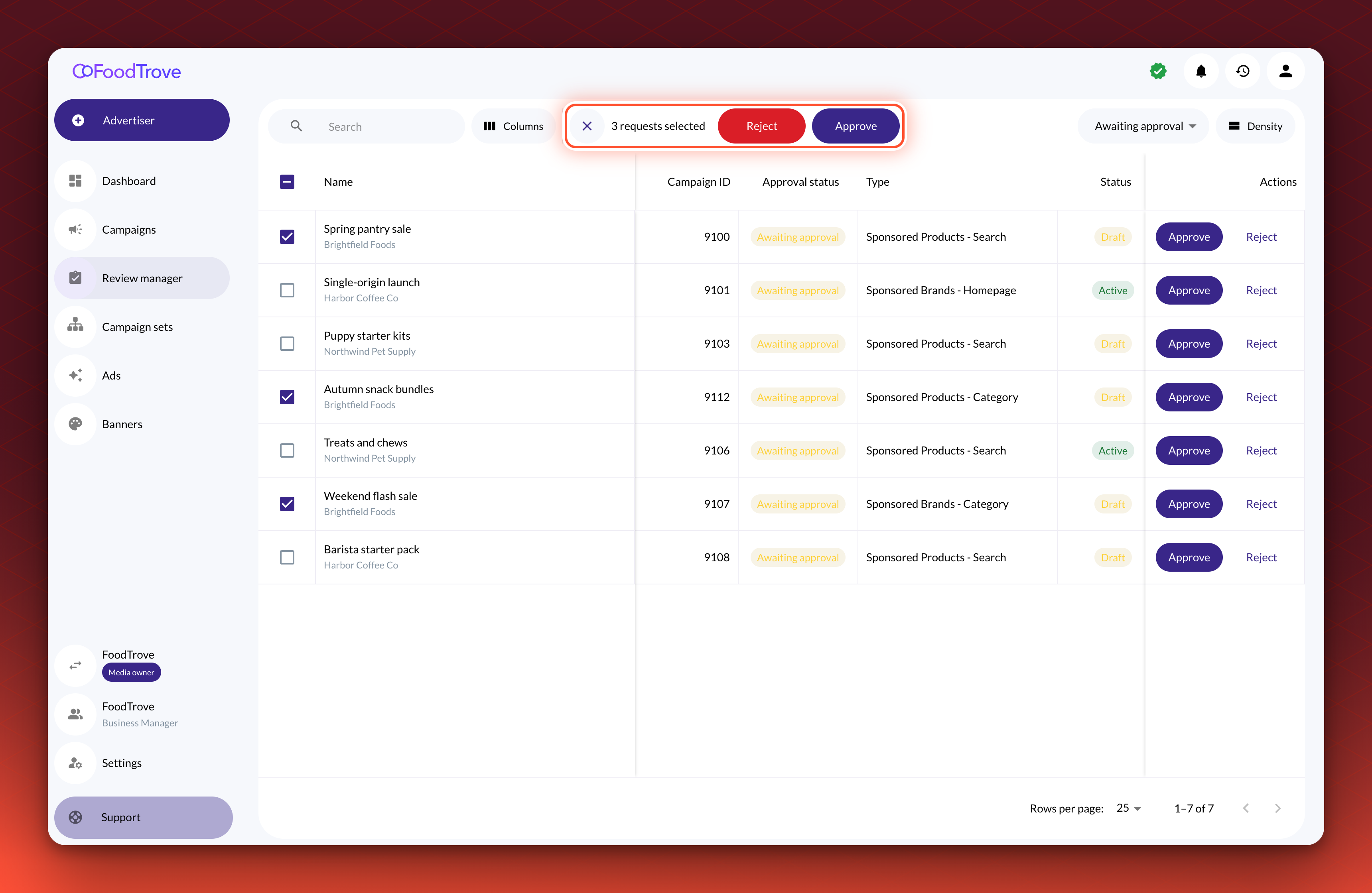
Good for large-scale reviewsApprove or reject up to 50 requests of the same kind in one go.
You choose, Kevel turns it onBulk review is off until you ask for it, including where you already use campaign review. Your Kevel representative turns it on.
Learn more about reviewing several requests at once
Find campaigns and requests by advertiser
Media owners now see an Advertiser column on the Campaigns list and in the Review manager, pinned beside Name. On the Campaigns list you can sort and filter by it. In the Review manager, Filters narrows the requests by name, Campaign ID, advertiser, change request type, status or submission date, and works together with the tab and the search.
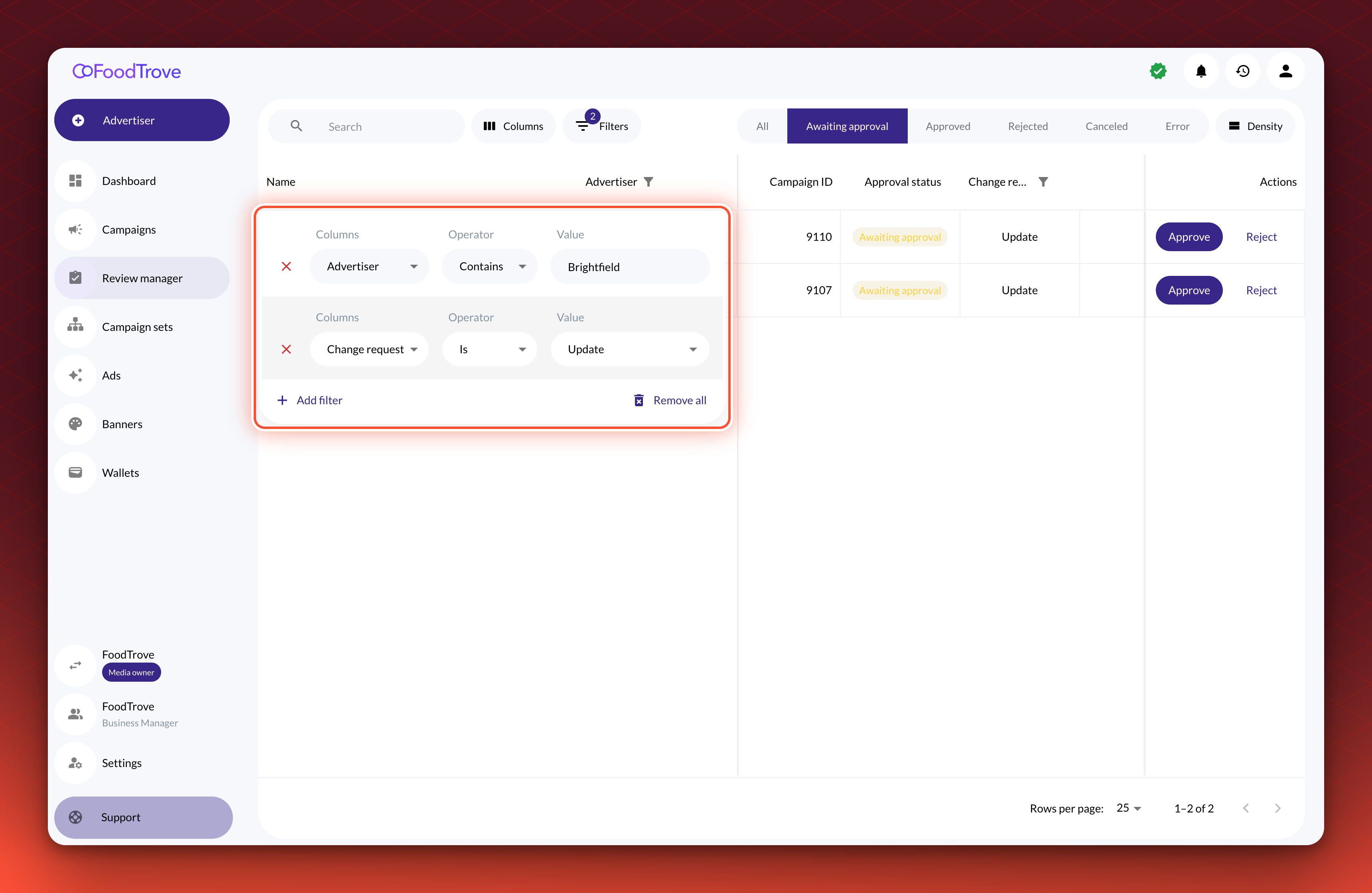
Learn more about finding a request in the Review manager
Native product ads at Campaign review
Native product ads now open to a realistic preview on the Campaign review step in Console, as onsite display ads already did.
Campaign details, redesigned
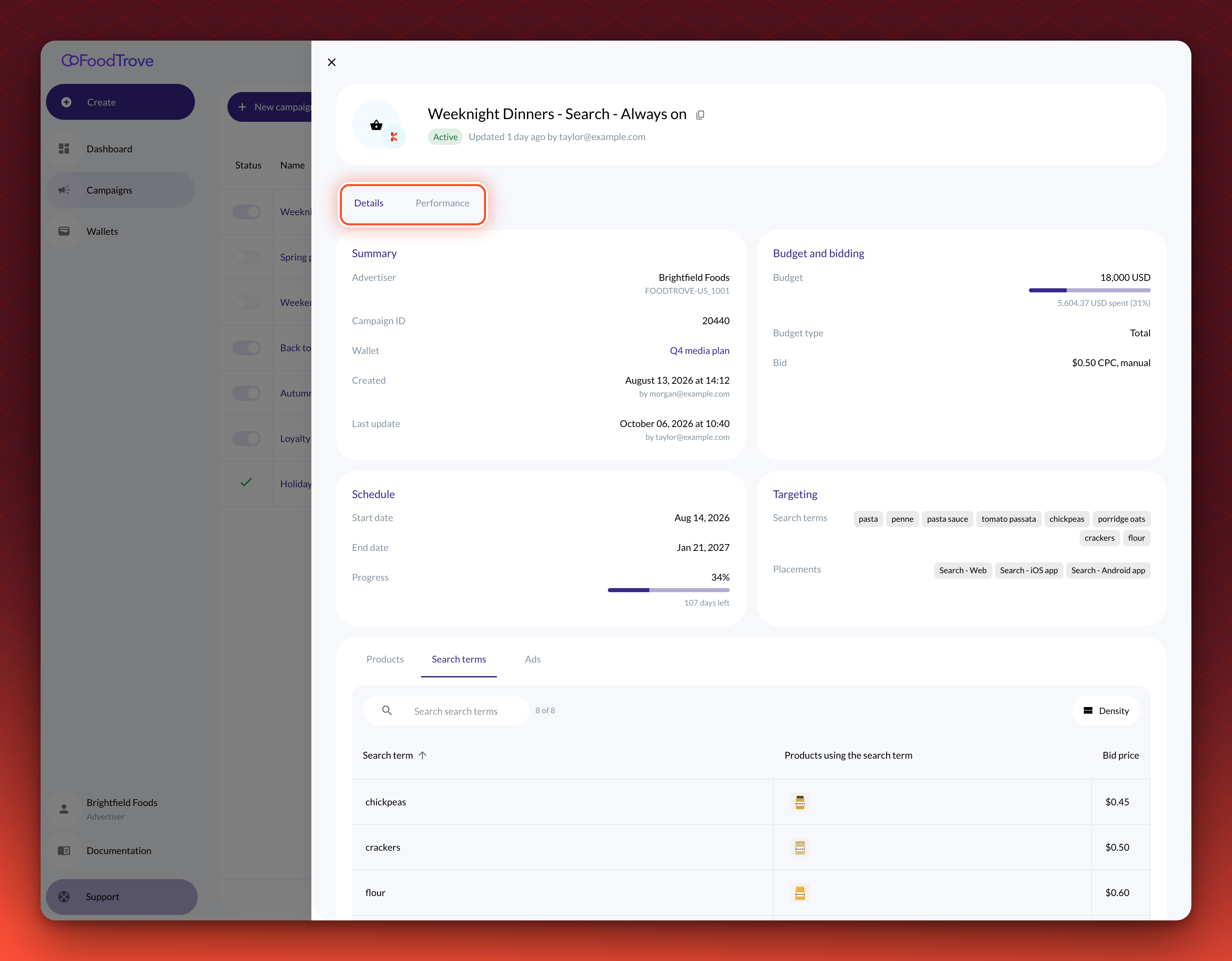
A campaign's details in Console now open on Details and Performance tabs. Details shows the campaign in cards, with its summary, budget and bid, schedule and targeting, above the tabs that list its products, search terms or categories, segments and Ads. Performance shows its statistics for a date range you choose. Where your Console has a Campaign sets page, a set's details work the same way.