
Campaign health check up
A dashboard for ad ops teams on the media owner side to find active Flights that are off their delivery pace before they end.
Campaign health check up is a dashboard in the Ad Server UI that shows which active Flights are off their delivery pace, with the parent Campaign named beside each one. Ad ops teams on the media owner side use it to decide which Flights to review while there is still time to act. It opens on active Flights only, so a Flight whose end date has passed is filtered out. It flags Flights for a closer look and is not a final verdict on a Flight's health. For program-level reporting, use Ad Program Insights.
Enabled per networkCampaign health check up is enabled per network. If you do not see it under Reports, contact your Kevel representative.
How it works
Open Reports > Campaign Health Check Up. The dashboard compares how fast each Flight has delivered with how fast it must deliver to reach its goal by its end date. Pacing percentage is the Flight's actual average daily delivery divided by the daily delivery its goal requires. For the goals the dashboard shows by default, that required rate is spread across the whole Flight. A value of 100% means exactly on pace. The dashboard opens on active Flights, so a Flight whose end date has passed is filtered out.
The dashboard measures delivery by goal type: impressions for an Impressions goal, valid clicks for a Clicks goal, valid conversions for a Conversions goal, and revenue for the revenue goals. The dashboard shows data for the network you have open, in the same way as Ad Program Insights.
What the dashboard shows
The dashboard reads from top to bottom, in four parts. Each part is described below with a table of its cards, in the order they appear. Card names in bold are the titles set in the dashboard. Other cards are named by what they show.
Active Flights by defaultThe dashboard opens filtered to Flights that are active: running now, or with no end date. Once a Flight's end date has passed, the default filter leaves it out. To review a finished Flight, use custom reports.
Ending soon
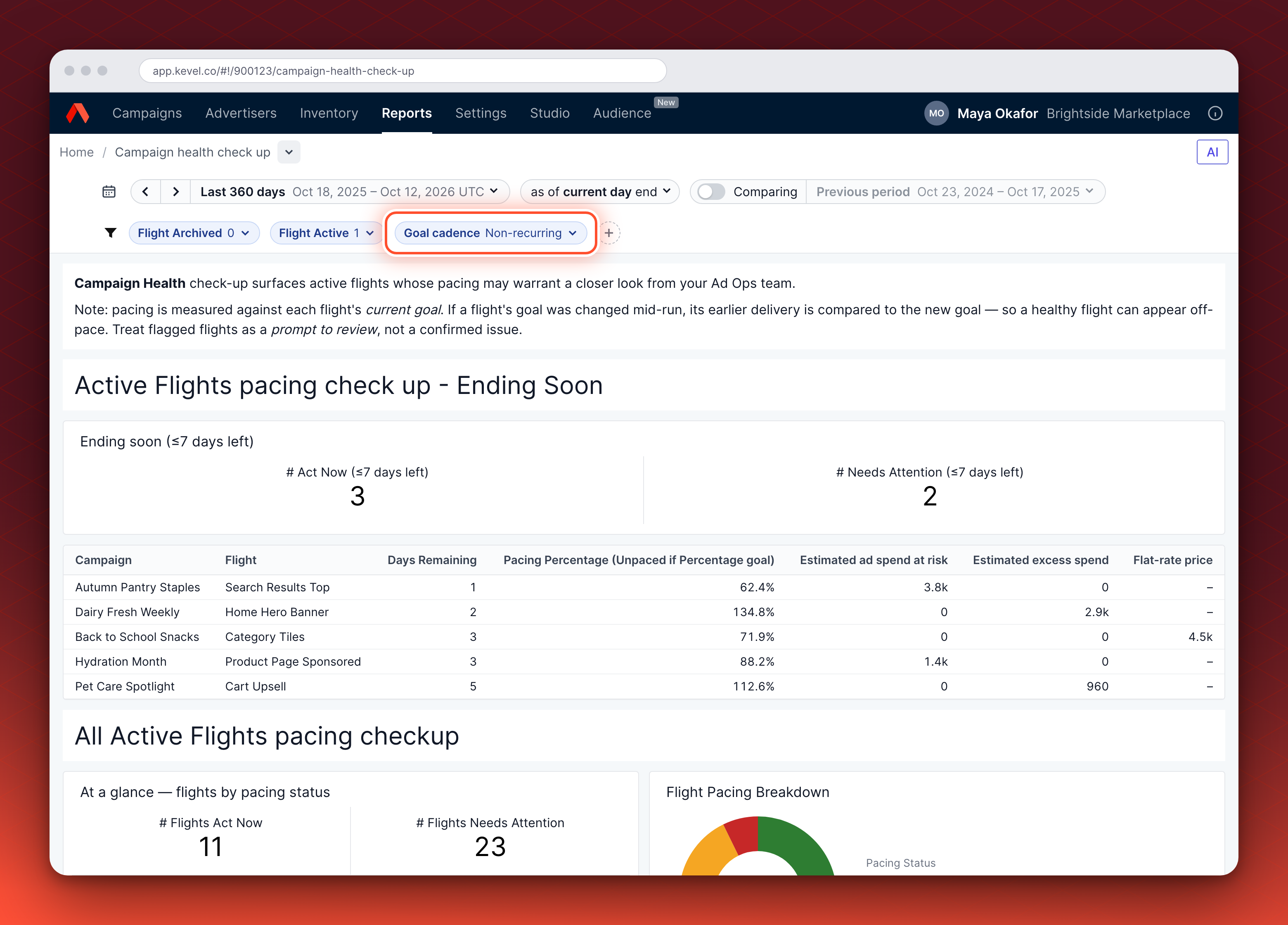
The Flights with the least time to recover, because they end within 7 days.
| Card | What it shows |
|---|---|
| Note at the top | A short note that pacing is measured against each Flight's current goal, and that a flag is a prompt to review. |
| Ending soon (≤7 days left) | Two KPI tiles: how many Act Now and how many Needs Attention Flights end within 7 days. |
| Flights table | The Flights that end within 7 days, with Campaign, Flight, Days Remaining, Pacing Percentage (Unpaced if Percentage goal), Estimated ad spend at risk, Estimated excess spend and Flat-rate price. |
All active Flights
How every active Flight is pacing.
| Card | What it shows |
|---|---|
| At a glance — flights by pacing status | Four KPI tiles: # Flights Act Now, # Flights Needs Attention, # Flights On Pace and # Flights. |
| Flight Pacing Breakdown | A donut of the share of active Flights at each pacing status: On Pace, Needs Attention, Act Now and Unpaced. |
| Excess spend (over-pacing) | Estimated excess spend for Flights running ahead, as one bar each for Act Now and Needs Attention, colored by goal cadence (Non-recurring or Recurring). |
| Ad spend at risk (under-pacing) | Estimated ad spend at risk for Flights running behind, shown the same way. |
Flight tables
One table for each status, with the same columns.
| Card | What it shows |
|---|---|
| Act now Flights table | One row for each Act Now Flight. |
| Needs attention Flights table | One row for each Needs Attention Flight. |
Both tables have the same columns. The first six are Campaign, Flight, Flight Start, Flight End, Days Remaining and Pacing Percentage (Unpaced if Percentage goal). The rest are Estimated ad spend at risk, Estimated excess spend, Flat-rate price, Goal, Goal amount and Ad spend.
Glossary
| Card | What it shows |
|---|---|
| Glossary | Definitions of goal cadence (Non-recurring, Recurring and Unpaced), pacing status (On Pace, Needs Attention and Act Now), and pacing direction (Under-pacing and Over-pacing). |
Pacing status
Each Flight with a pacing percentage falls into one of three statuses.
| Status | Pacing percentage | Meaning |
|---|---|---|
| On Pace | 95–105% | On track. |
| Needs Attention | 80–95% or 105–120% | A mild deviation. |
| Act Now | Below 80% or above 120% | A large deviation. |
The statuses are symmetric, so check the direction. A pacing percentage below 100% means the Flight is under-pacing and its budget may go unspent. A pacing percentage above 100% means it is over-pacing and may exhaust early. The two charts split the off-pace Flights by direction.
Estimated figures
- Estimated ad spend at risk. For an Act Now or Needs Attention Flight that is behind and not flat-rate, the booked ad spend not yet delivered. It is not a forecast of the final shortfall, because a Flight with time left can still recover.
- Estimated excess spend. For an Act Now or Needs Attention Flight that is running ahead of schedule and is not flat-rate, the ad spend already delivered above an even-pace schedule. It shows how much budget has been spent ahead of schedule, which is the early-exhaustion risk. It is not a projection of future overspend.
- Flat-rate price. The fee for a flat-rate Flight. It appears in its own column in the Flight tables. Both estimates are 0 for flat-rate Flights.
For a flat-rate Flight the dashboard shows the price instead of an estimate. Read it next to the Flight's pacing status and apply your own rule for a shortfall.
Figures are estimates based on each Flight's rate or price. Treat them as directional, not as billing figures.
What to do with a flagged Flight
- Open Campaign health check up. Go to Reports > Campaign Health Check Up.
- Start with Ending soon. The Act Now and Needs Attention Flights that end within 7 days have the least time to recover.
- Read the direction and the money. Below 100% is under-pacing, so read Estimated ad spend at risk. Above 100% is over-pacing, so read Estimated excess spend. For a flat-rate Flight, read the Flat-rate price.
- Check the Flight. Open it under Campaigns and work through the checks below.
- Work down the page. Finish the rest of Act Now, then Needs Attention.
What each flag means
| You see | What it means | Check next |
|---|---|---|
| Act Now, below 80% | The Flight is under-pacing and its booked spend may go unspent. | Work through the under-pacing checks below. |
| Act Now, above 120% | The Flight is over-pacing and may exhaust its budget before its end date. | Whether the goal was lowered or the end date pushed later, and whether you want it to spend this fast. |
| Needs Attention, 80–95% or 105–120% | A mild deviation. | Note it and look again in a few days, starting with the Flights that end soonest. |
| A flat-rate Flight | Ad spend at risk and excess spend are 0. | Read the flat-rate price next to the pacing status and apply your own rule for a shortfall. |
| Unpaced | A Percentage goal has no fixed target to pace against. | It is left out of the main tables. Review it in the Campaign health explorer. |
| Recurring | Daily Revenue and Monthly Revenue goals are paced per day or per 30 days, but the dashboard hides them by default. | Review them in the Campaign health explorer. |
If a Flight is under-pacing
Check in this order:
- Goal and dates. A goal changed part-way through makes earlier delivery look off pace.
- Caps. A daily or lifetime cap may be set below what the goal needs. A revenue cap on the Campaign or Advertiser may have been used up by its other Flights. A frequency cap may have reached most of the audience.
- Schedule. Day-parting limits when the Flight can serve.
- Ads. Check its Ads, including any in error.
- Competition. Higher-priority Flights may be taking the inventory first, or, in an auction priority, the Flight may be outbid.
If the setup looks right and delivery is still low, narrow targeting or limited inventory may be the cause. Contact your Kevel representative. For how delivery is paced, see How pacing and balancing work.
A flag is a reason to check the Flight. The money figures are estimates, and pacing is measured against the Flight's current goal, so a healthy Flight can still be flagged.
Campaign health explorer
The Campaign health explorer is a view where you pick the measures and dimensions yourself. It includes the Recurring and Unpaced Flights and the archived Flights that the dashboard leaves out by default. Open it from the breadcrumb at the top of the dashboard. It opens with Ad Spend, Impressions and Clicks by Advertiser, over the last 360 days.
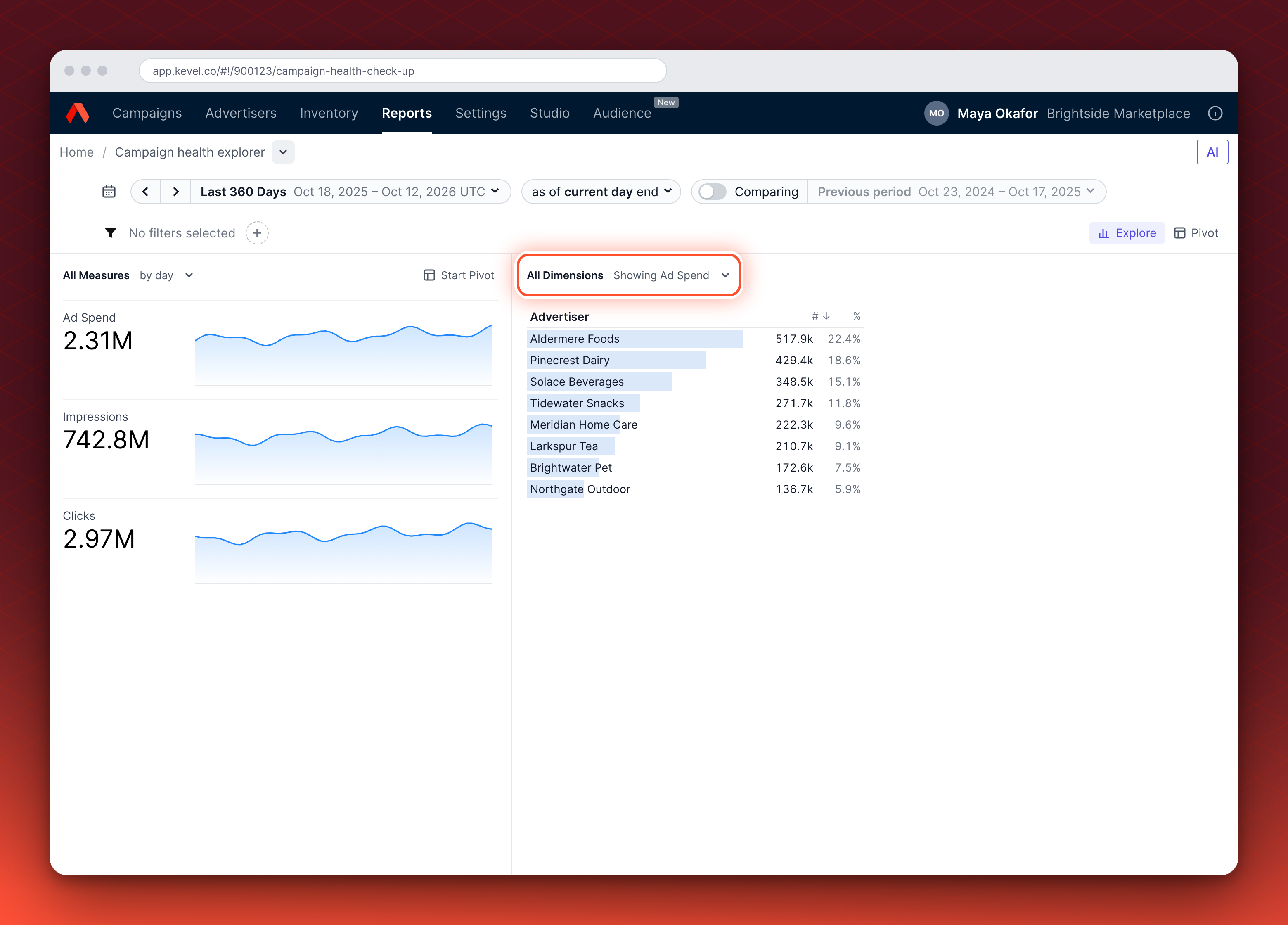
Add Goal cadence and Pacing Status to see where Recurring and Unpaced Flights sit, or Pacing direction to split under-pacing from over-pacing. You can also group by Campaign, Flight, Goal or Ends within 7 days. Measures include # Flights Act Now, Estimated ad spend at risk and Flat-rate price, the same figures the dashboard shows. # Flights Act Now is a count and works at any grouping. The spend figures and Flat-rate price are per Flight, so group by Campaign and Flight to read them: grouped more coarsely, such as by Advertiser, they are not totals.
What changes the figures
| Option | Where | What it does |
|---|---|---|
| Filters | The filters in the dashboard | The dashboard opens on active Flights that are not archived and have a non-recurring goal. |
| Time range | The time range at the top of the dashboard | The dashboard opens on the last 360 days. The picker offers All Time only and has no custom range. |
| Flat-rate accrual | Your network setting, changed by your Kevel representative | Applies to the revenue figures. See Flat rate reporting. |
| Goals and dates | The Flight | Pacing is measured against the Flight's current goal. |
Goal cadence groups goals into three families. Non-recurring covers Impressions, Clicks, Conversions and Revenue goals, and is the focus of the dashboard. Recurring covers Daily Revenue and Monthly Revenue goals, which suit always-on Campaigns. Unpaced covers Percentage goals, which have no fixed target to pace against.
The dashboard hides Recurring and Unpaced Flights by default. To see them, use the Campaign health explorer.
Examples
| Flight | Situation | What happens |
|---|---|---|
| Impressions goal | Delivering at 100% | On Pace. It does not appear in the Act Now or Needs Attention tables. |
| Revenue goal, 10 days left | Pacing at 75% | Act Now, under-pacing. It appears in Ending soon only if 7 days or fewer remain, and its booked spend not yet delivered counts as ad spend at risk. |
| Start date passed | No delivery | Under-pacing. For a Flight that is not flat-rate, the whole booked spend counts as at risk. |
| Percentage goal | Any delivery | Unpaced. Not in the main tables. |
| Monthly Revenue goal | Monthly target lowered part-way through the month | Recurring, so hidden from the main tables by default. In the explorer it can read as far over target, because earlier spend is compared with the new goal. |
| Flat-rate Flight | Behind pace | Ad spend at risk is 0 and the flat-rate price shows. |
Defaults and scope
- Active Flights by default. The dashboard opens filtered to Flights that are active and not archived. A Flight whose end date has passed is not active, so the default filter leaves it out.
- Current goal only. The dashboard compares the Flight's delivery with its current goal. If a goal changed mid-Flight, a healthy Flight can look off pace. Treat a flag as a prompt to review.
- A point in time, not a forecast. Pacing does not predict whether a Flight with a long runway will recover.
- Ending soon. A Flight counts as ending soon when its end date is 0 to 7 days away. A Flight with no end date never counts as ending soon, and its Days Remaining column is empty.
- Time range. Ad Spend and the money figures count only delivery inside the time range at the top of the dashboard. For a Flight that started before it, they are incomplete.
Related
Updated 21 days ago