
How category targeting matches Ads
How Kevel compares the category on a request with the category rules on a Flight or Ad, for ad ops and integrators.
Category matching is how Kevel decides whether an Ad is eligible on the category page a request comes from. It applies to Flights and Ads that have category rules, on networks where category targeting is enabled. You meet it when an Ad does not serve where you expected, or serves where you did not.
How it works
Each request carries a category on each placement. Each category rule on a Flight or Ad is a saved category ID, marked include or exclude. For each placement, Kevel compares the request's category with the Ad's rules and keeps the Ad only if the comparison passes. The comparison is one condition among the Ad's other targeting, so the Ad must also pass its keyword, geo, segment and other conditions.
Exact matching
Kevel trims spaces from the start and end of the request's category, then compares the whole value with each saved ID. The comparison ignores capitalization and is otherwise exact.
- Capitalization does not count.
Womens-Shoesandwomens-shoesmatch the same rule. Reports still show each value as your pages send it. - Leading and trailing whitespace is trimmed. Separators and spacing inside the value must match.
- A parent does not match its children. A rule for
Grocerymatches requests whose category isGrocery, and does not matchGrocery > Dairy. - There are no patterns. A saved ID is compared as text, with no wildcards.
- Two rules cannot differ only by capitalization. A Flight or Ad cannot hold both
Groceryandgrocery, as two includes, two excludes or one of each. The Management API rejects the request with a 400.
For logs and reports, Kevel splits each category on the delimiter ( > by default) and trims whitespace around each level, so Grocery>Dairy and Grocery > Dairy both report as Grocery > Dairy. Targeting compares the whole string, so Grocery>Dairy does not match a saved Grocery > Dairy.
Selecting a category targets that category page only. To cover a parent and its children, select each category you want. In the Ad Server UI, Select all next to a parent adds the categories below it and not the parent.
Include and exclude rules
Each rule is either an include or an exclude.
- Include: the Ad is eligible when the request's category matches this category.
- Exclude: the Ad is not eligible when the request's category matches this category.
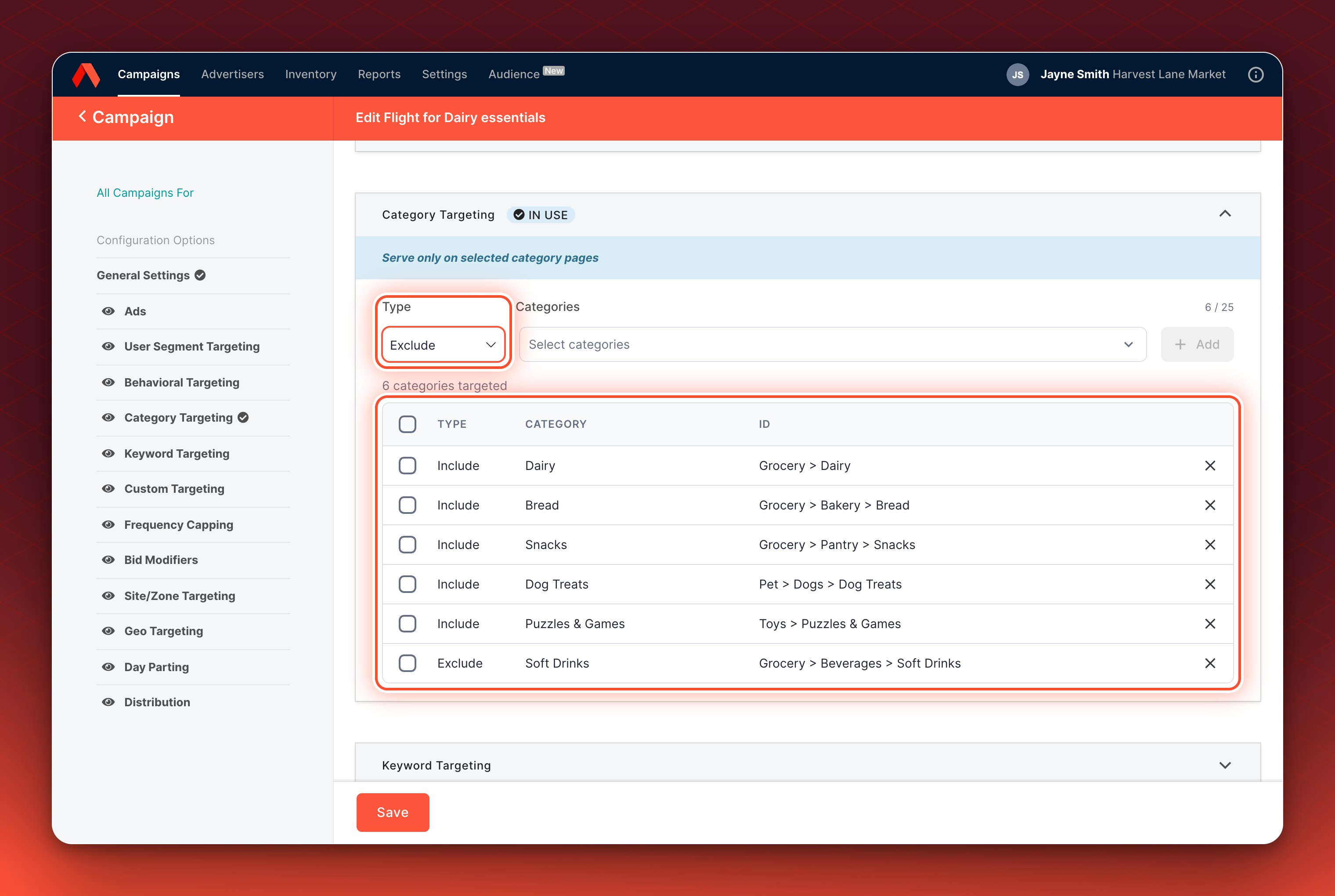
With includes, the Ad is eligible only on those categories. With excludes only, the Ad is eligible on every category except those, including categories that are not in your category list. Because a parent does not match its children, excludes are most useful on their own. When a list has includes, a category you have not included is already not eligible.
When a request carries a category, an Ad passes category targeting if it has no category rules, if one of its include rules matches, or if it has only exclude rules and none of them matches.
If a request carries no
category, an Ad with any category rule is not eligible, including an Ad that only excludes categories. Send acategoryon every placement where those Ads should serve. An empty value or one made only of spaces counts as no category.
Flight and Ad rules
An Ad with no category rules uses its Flight's rules. An Ad with its own category rules uses them instead of the Flight's. The two lists are not merged, and an Ad that only excludes categories also replaces a Flight that includes them.
Skip category targeting for a request
A request can bypass category rules. Set skipFilters with category set to true on the placement, and Ads with category rules are eligible whatever category the request carries. It affects only that request, and the targeted and matched category are left out of the event logs. See skipFilters.
Category bid modifiers
A category bid modifier changes an Ad's bid when the request's category matches the modifier's category. It uses the same exact comparison as the rules above. A modifier never makes an Ad eligible. It applies only on requests where the Ad is already eligible and the request carries a category that matches. Only one bid modifier applies to a request, the one that gives the highest price, so a keyword modifier can outrank a category modifier. See Bid modifiers.
What you control
| Setting | Where you set it | What it changes |
|---|---|---|
| Category rules | The Flight or Ad, in the Ad Server UI or Management API. See Set up category targeting | Which categories an Ad is eligible on |
The request's category | Your ad requests. See Send a category in decision requests | The value Kevel compares with your rules |
| The delimiter | Set by Kevel for your network | How a category is split into levels in logs and reports, and not matching |
Examples
| Rules | Request's category | What happens |
|---|---|---|
Include Grocery | Grocery | The Ad is eligible |
Include Grocery | grocery | The Ad is eligible, because matching ignores capitalization |
Include Grocery | Grocery > Dairy | Not eligible, because a parent does not match its children |
Include Grocery and Toys | Toys | The Ad is eligible |
Exclude Toys | Grocery | The Ad is eligible |
Exclude Toys | Toys | Not eligible |
Include Grocery | No category sent | Not eligible |
Exclude Toys | No category sent | Not eligible |
Flight includes Grocery, the Ad has no rules | Grocery | The Ad is eligible, because it uses the Flight's rules |
Flight includes Grocery, the Ad includes Toys | Grocery | Not eligible, because the Ad's rules replace the Flight's rather than adding to it |
| No category rules on the Flight or Ad | Any, or none | Category targeting does not affect the Ad |
Related
- Category targeting
- How to keep category targeting aligned with your catalog, on Send a category in decision requests
- Set up category targeting
- Send a category in decision requests
- Bid modifiers
- skipFilters
Updated 14 days ago
What’s Next
Set up category targeting and send the category