Release notes: July 2026
Ad Server
Ad Program Insights
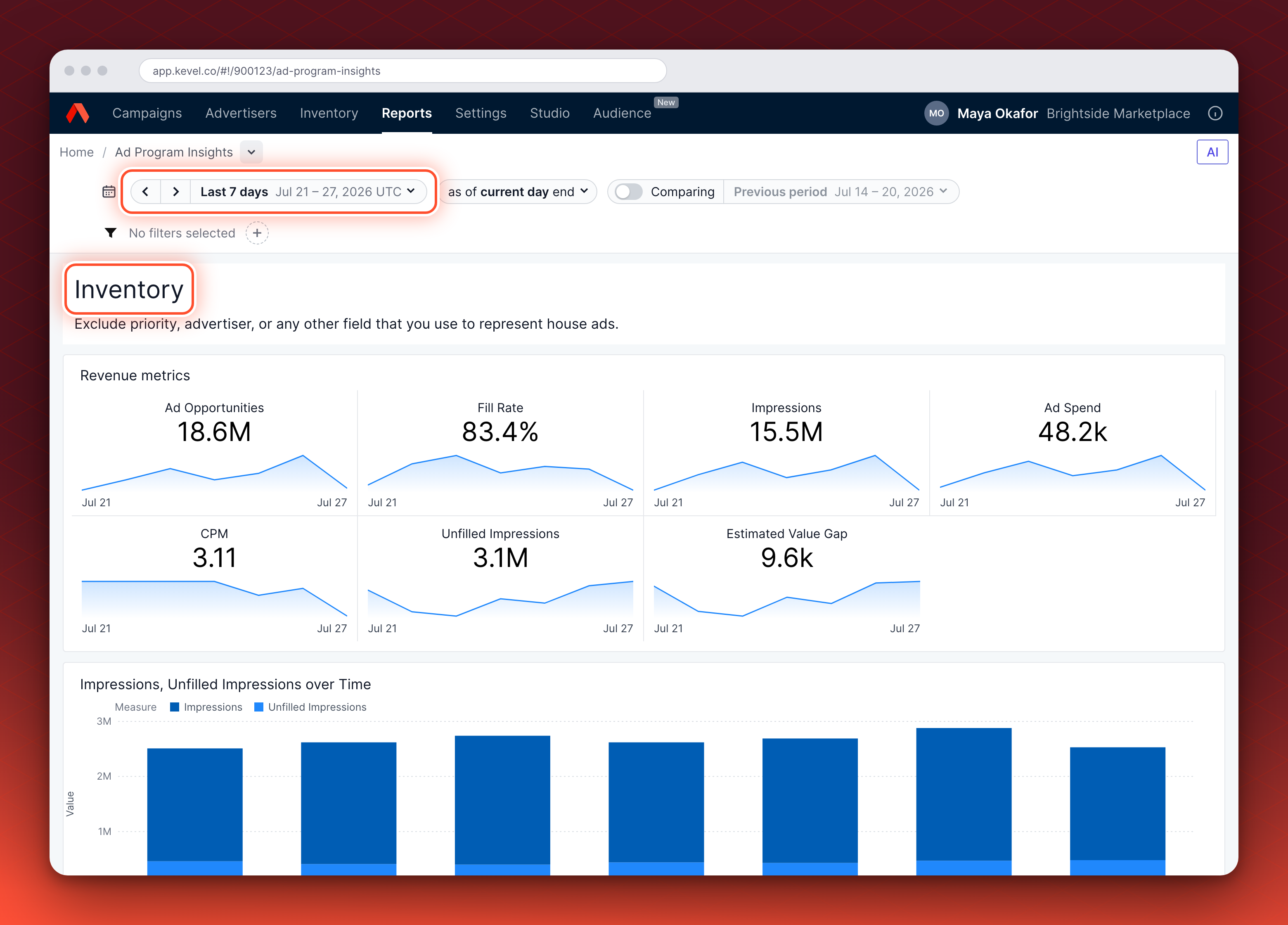
See how your whole ad program performs, not one Campaign at a time. Open Reports > Ad Program Insights in the Ad Server UI. The dashboard covers inventory (fill rate and unfilled impressions), revenue (ad spend by Advertiser, Site, Zone and ad type) and performance (clicks, purchases and ROAS). Use the Ad Program performance explorer to pick your own measures and dimensions, or ask the AI assistant a question in plain language. Flat-rate revenue appears only if your network accrues it.
Learn more about Ad Program Insights
Data Shipping V3
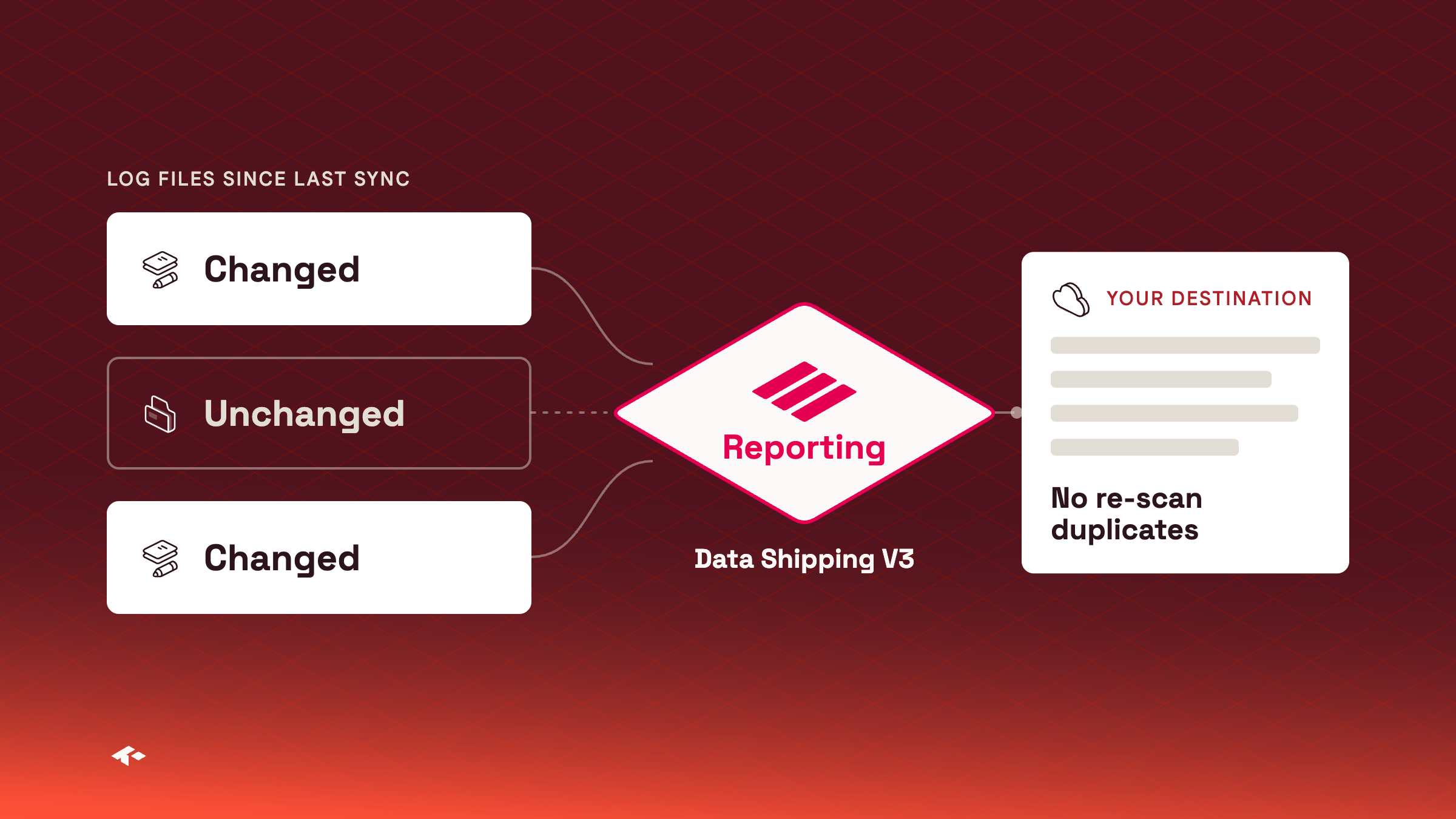
Data Shipping V3 re-reads only the log files that changed since your last successful sync. That removes the duplicate rows that could appear when a partition was re-scanned. V3 also drops some columns that could arrive empty, normalizes column names and corrects some column types. The log types are the same as V2, except that conversions sent to the legacy conversion endpoint are not included yet.
When your destination moves to V3, update any query, view or dashboard that uses a removed, renamed or retyped column.
Moved to V3 on requestYour existing V2 destination keeps running. To move it to V3, ask your Kevel representative.
Learn more about Data Shipping V3
City geo-targeting
You can now target or exclude a Flight by city, in addition to country, region and metro. In the Ad Server UI, open Geo Targeting on a Flight and choose a City after you pick a country and region. Through the Management API, set CityGeonameId in the Flight's geo-targeting, and use the List Cities in Region endpoint to look up the IDs for a region. City coverage is strongest in the United States and more limited in other countries.
"GeoTargeting": [{
  "CountryCode": "US",
  "Region": "NC",
  "City": "Durham",
  "CityGeonameId": 4464368,
  "IsExclude": false
}]
Good for local promotionsRun a store-opening Campaign only in that store's city.
Not on every network yetIf you do not see City under Geo Targeting, ask your Kevel representative.
Learn more about geo-targeting
AND/OR segment targeting in Forecast
Forecast now matches included user segments with OR within a category and AND across categories. A request must match at least one included segment in every targeted category. Pass each segment's Category in the forecast request's SegmentTargeting. Segments without a category count as one group, and excluded segments stay a flat deny list.
"SegmentTargeting": [
  { "SegmentId": 123456789, "Category": "Demographics" },
  { "SegmentId": 123456790, "Category": "Shopping Intent Signals" },
  { "SegmentId": 123456791, "IsExclude": true }
]
Learn more about how segments are matched
Brand and category attribution for Ads created from products
Create Ads from Products can now add only Same Brand and Same Category and Brand attributable items, with no Same Product item for each product. Products that share a brand, or a category and brand, share those items, so an Ad with many products is much more likely to stay under the limit of 30 attributable items per Ad. Three options are available: Same Brand only, Same Category and Brand only, or both.
Not on every network yetYour Kevel representative sets the option on your Ad Template or Product Table, on networks that support it.
Check the status of a Forecast upload
After you upload a static audience file or a seasonality file to Forecast, you can now check where the upload is. The response to the ingest URL request carries a status link. Call it to see whether the upload is incoming, processing, completed or failed, and when it completed. To know whether a forecast already includes a static audience upload, compare the upload's ingestedAt time with forecastEnvironment.staticAudiencesSyncDateTime on the forecast response.
Learn more about static audience upload status · Learn more about seasonality upload status
Flat-rate revenue in reports
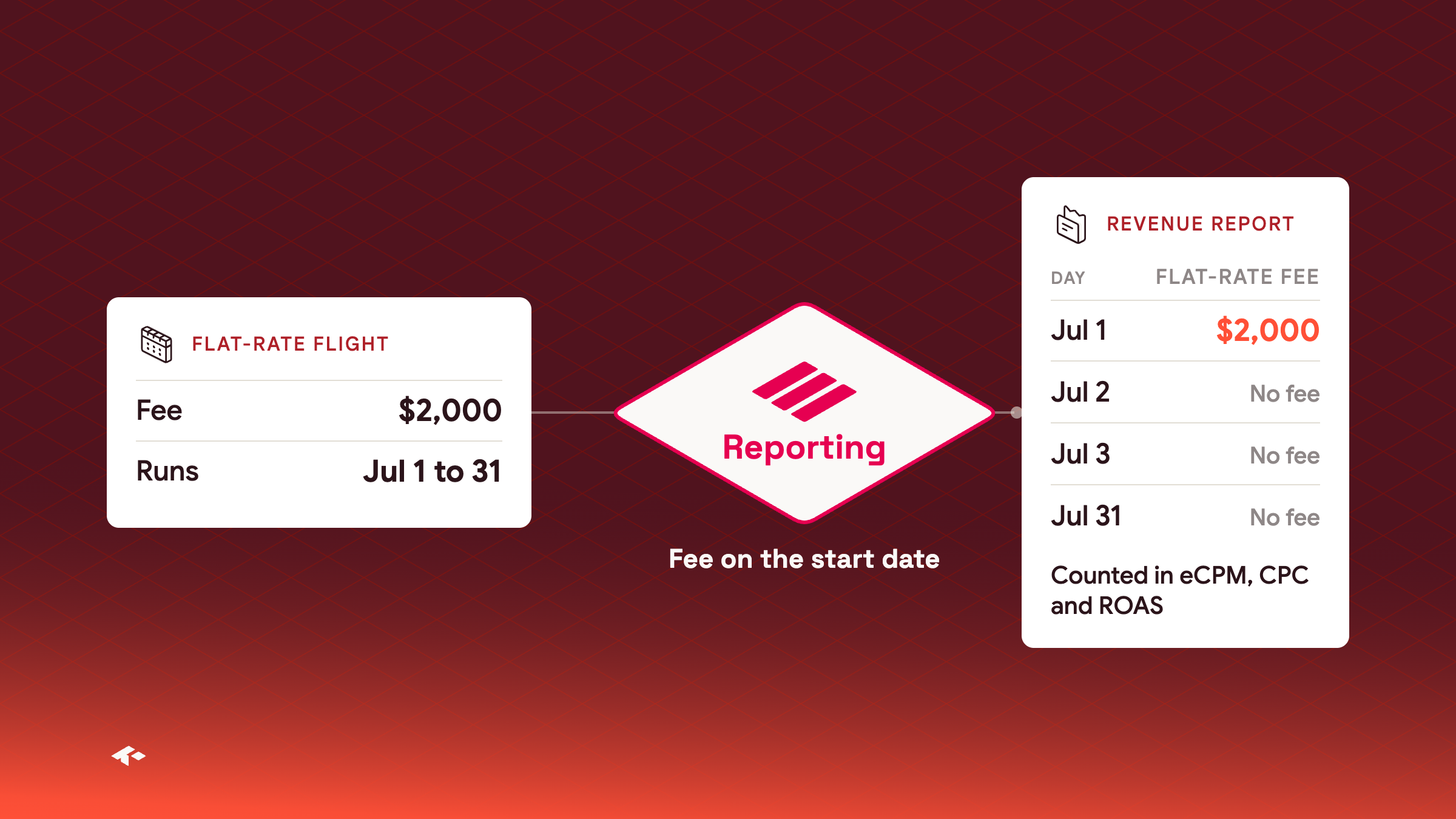
Media owner teams who sell a placement for a fixed fee can now see that fee in revenue reports. Reports record the fee once, on the start date of the flat-rate Flight, and revenue metrics such as eCPM, CPC and ROAS include it.
To include the fee, set FlatRateAccrualMethod to startdateaccrual on a Create Queued Report request, or ask Kevel to set it as your network default. norevenueaccrual turns it off for one report, and any other value returns a 400.
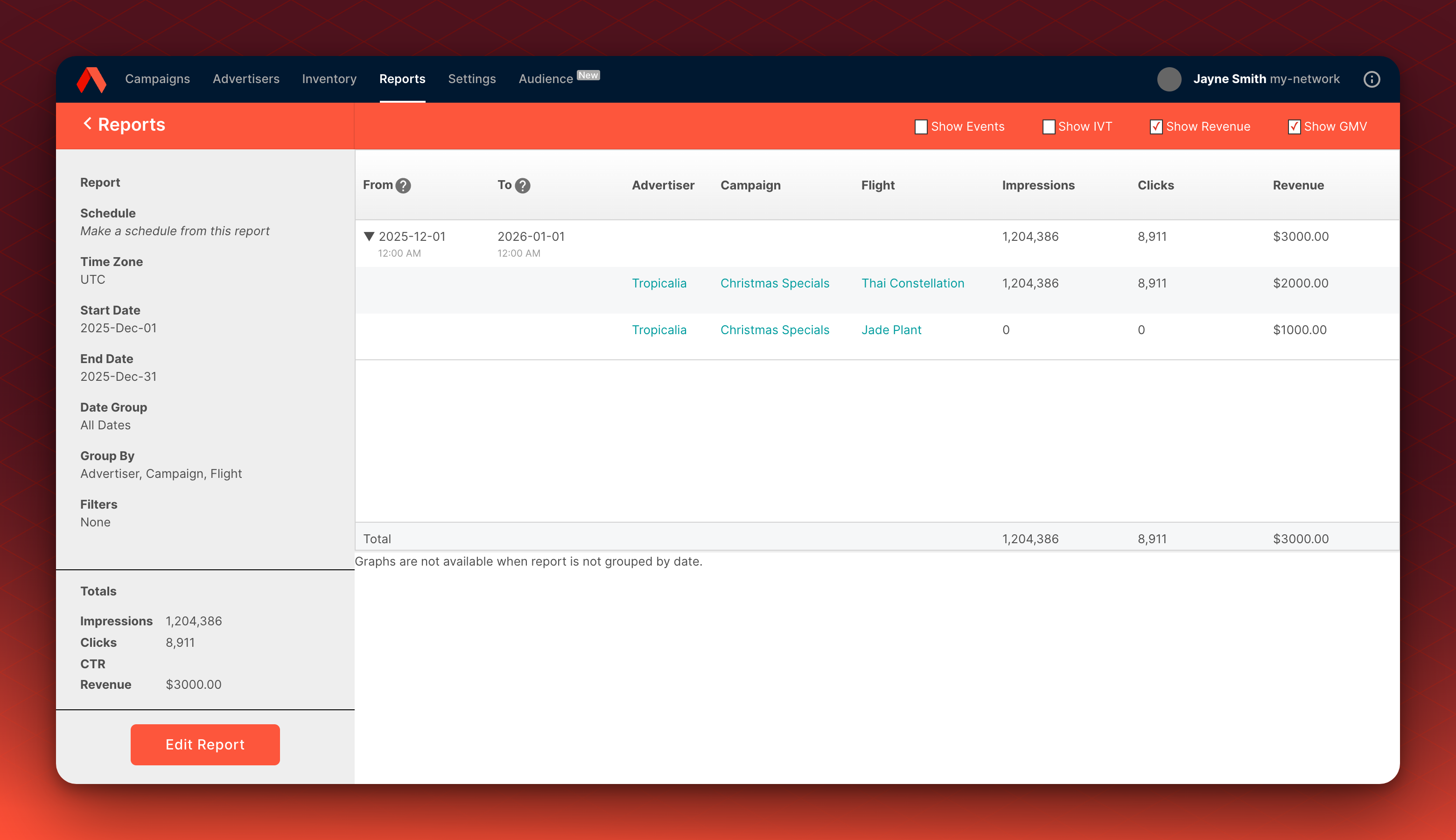
Off by defaultKevel does not turn flat-rate accrual on by default. Where it is off, reports that follow your network setting show $0 for flat-rate Flights.
Learn more about flat rate reporting and flat-rate Flights
Protected fields for Ads created from Catalog items
Catalog updates no longer overwrite what you change by hand. A field you change on an Ad created from a Catalog item, or on its Creative, is protected: later Catalog updates skip it, and every other field keeps following the Catalog. Fields you set with Overrides when you create Ads from products are protected from the start. Protection stays until Kevel removes it, so contact Kevel Support if you want a field to follow the Catalog again.
Learn more about protecting fields from Catalog updates
Console
Merchant widget in campaign stats
The campaign stats drawer in Console can now show a Merchant widget. It splits a Campaign's attributed purchases by the Merchant recorded on each purchase, with purchased items, purchase amount and each Merchant's share. Marketplaces can see which sellers drove sales, and retailers can split in-store from online purchases.
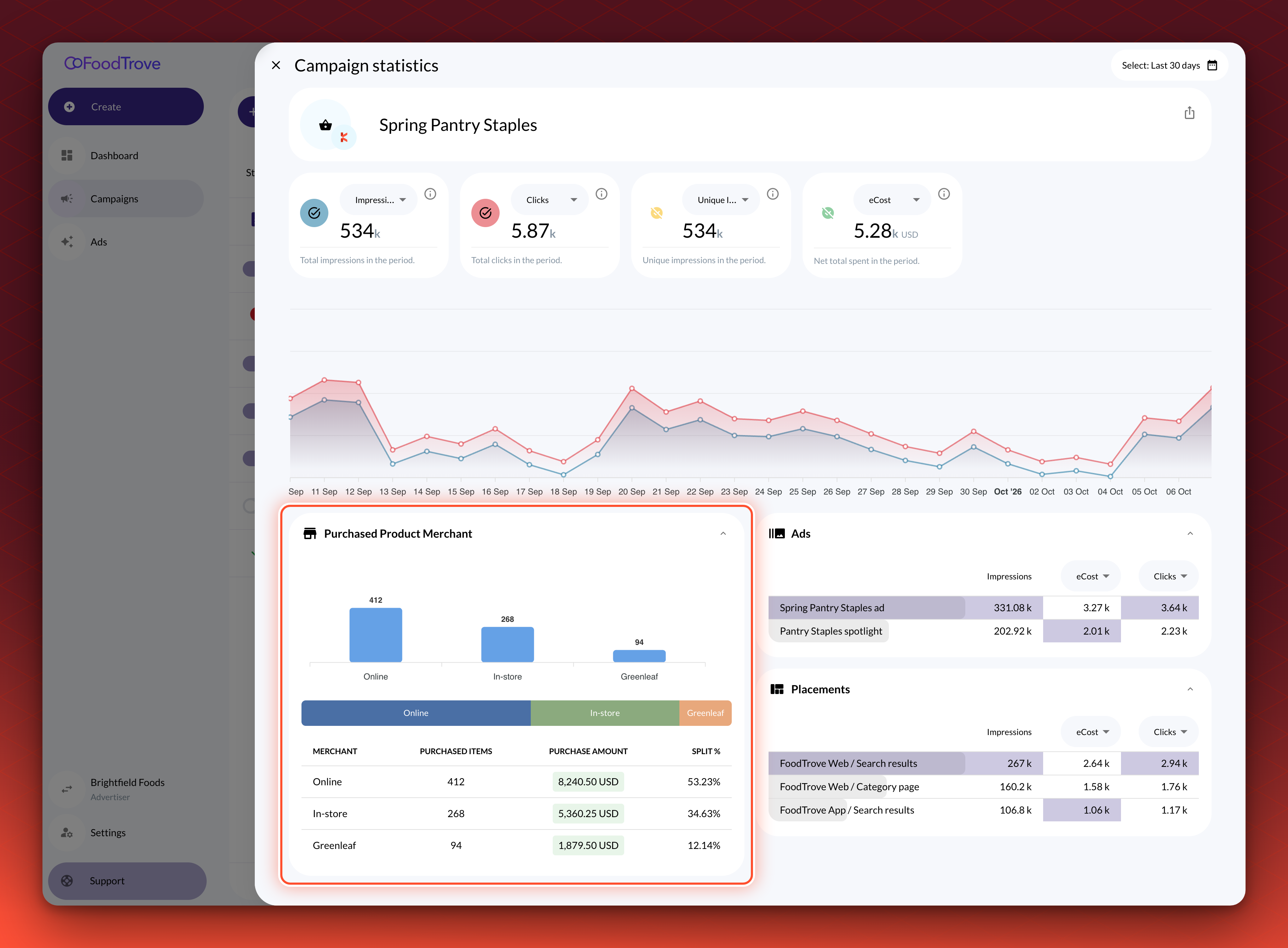
Good for marketplacesShow each seller the sales their Campaigns drove.
You choose, Kevel turns it onThe widget is off until you ask for it, and it needs merchantId on your purchase events. Your Kevel representative turns it on for your team, your advertisers or both.
Learn more about Merchant reporting
Product attribute indicators on the campaign list
The Campaigns list in Console can now show an Indicators column. It flags Campaigns whose products match a rule on a product attribute, such as HFSS, which stands for High in Fat, Sugar or Salt. Each indicator has a label, a severity color, an optional icon and an optional tooltip. The same indicators can also show on product cards when you choose products and on the review step.
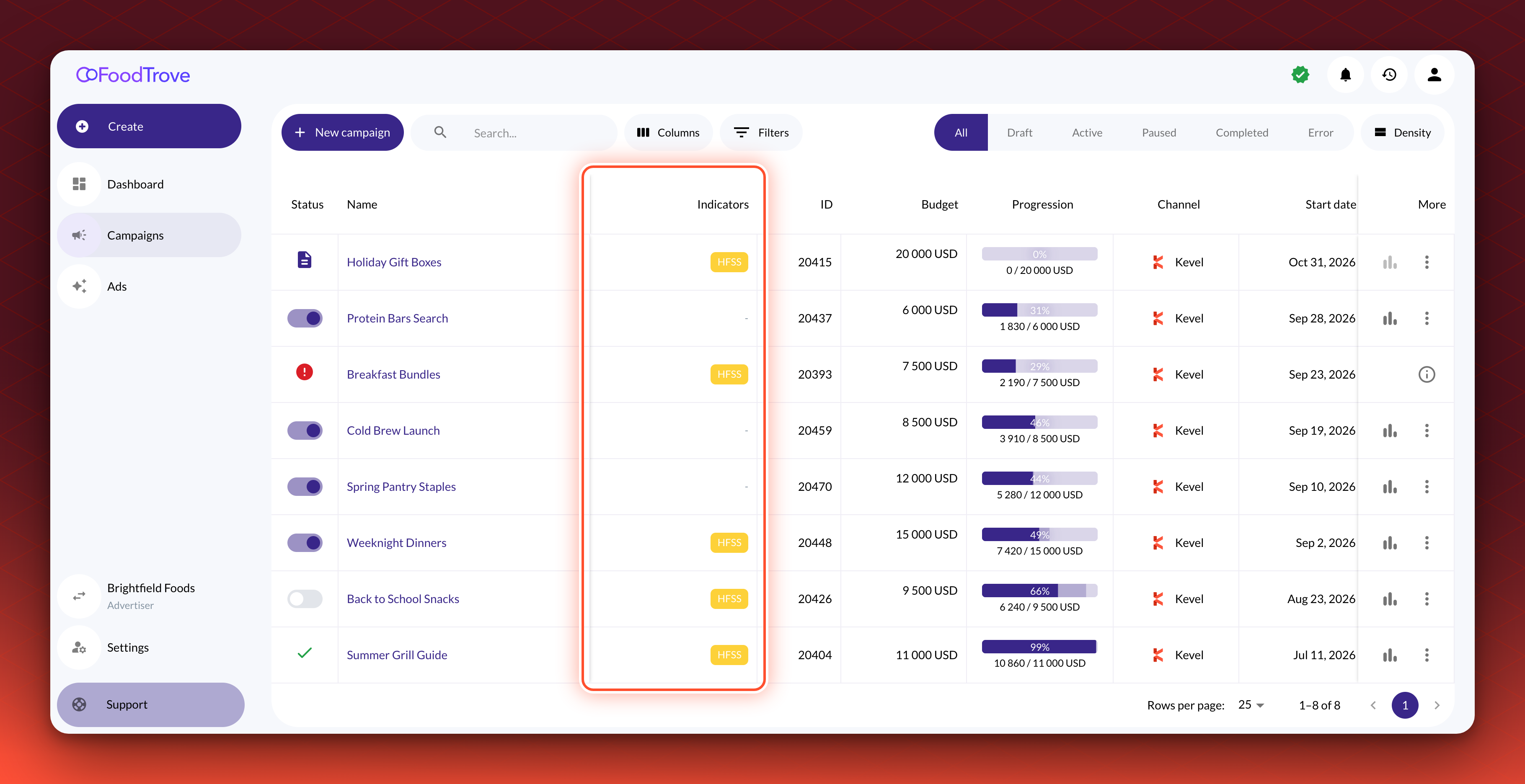
You choose, Kevel turns it onYou decide which product attributes to flag and how each indicator looks. Kevel sets up your rules, and the column appears once a rule is in place.
Daily budgets
Advertisers can now book a Campaign on a daily budget where the placement offers one. Once a Campaign has spent the day's amount, it stops for the rest of the day and resumes the next day.
You choose the placementsDaily budgets are off until you ask for them. Tell your Kevel representative which placements should offer them, and advertisers see the option only on those.
One login for more than one advertiser
If your email address belongs to more than one advertiser in the same Business Manager, you sign in to Console once and choose which advertiser to work in. You can switch to another later from the advertiser name at the bottom of the sidebar. When an admin invites an email address that already has a Console account, Console adds the advertiser to that account and sends no email.