
Accessing Console as an advertiser
For advertiser users: activate your Console invitation, sign in, reset a forgotten password, and know what to do if your account is locked.
You get access to Console when an admin invites you by email. This page covers activating that invitation, signing in, and recovering access. If you work for the media owner rather than an advertiser, see Accessing Console as a Media Owner.
Activate your invitation
- Open the invitation email. The default subject line is "Invitation to join Kevel Console", and it comes from [email protected]. Your media owner may have applied their own branding.
- Select the link in the email. This opens an Activate your account page. Your username is your email address, shown on the page and not editable.
- Set a password. Enter it twice. A password needs at least seven characters, with an uppercase letter, a lowercase letter and a digit.
- Select Activate account. You go to the Console sign-in page, where you sign in with your email address and the password you chose.
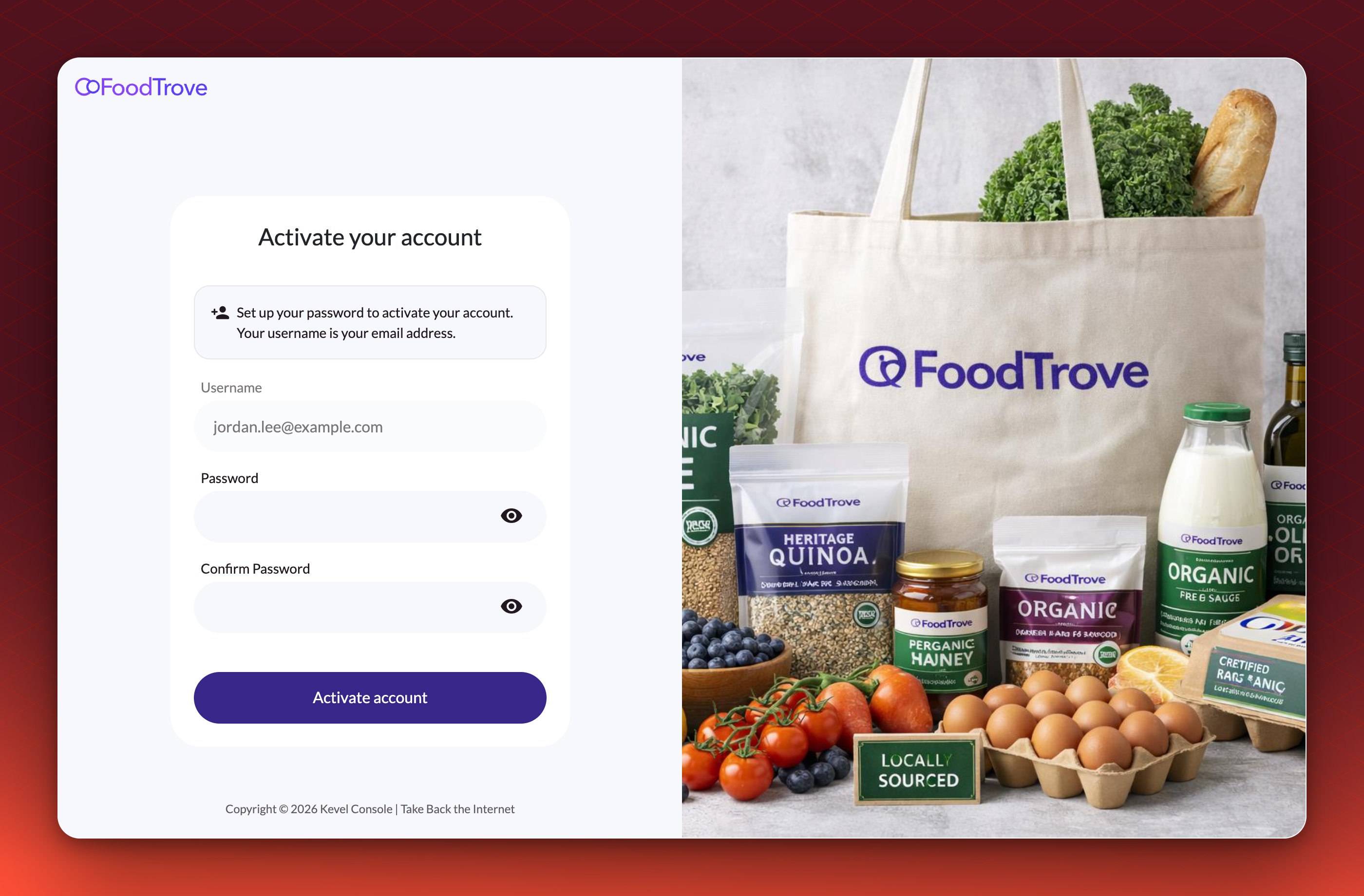
If the media owner who invited you uses single sign-on, the link opens a Confirm your email page instead. Select Confirm email, then sign in through your media owner's login. There is no Console password to set. If anything goes wrong, contact your media owner, who manages that sign-in.
If you see "Invalid Invitation", the link has expired or is not valid. Ask the person who invited you to resend it.
Sign in
- Go to your Console address. Your media owner gives you this address. Each media owner's Console has its own.
- Enter your username and password. If you activated an invitation, your username is your email address. Select Sign in.
- Choose an advertiser if you are asked. If your email address has been added to more than one advertiser, you choose which to work in, and can switch to another later.
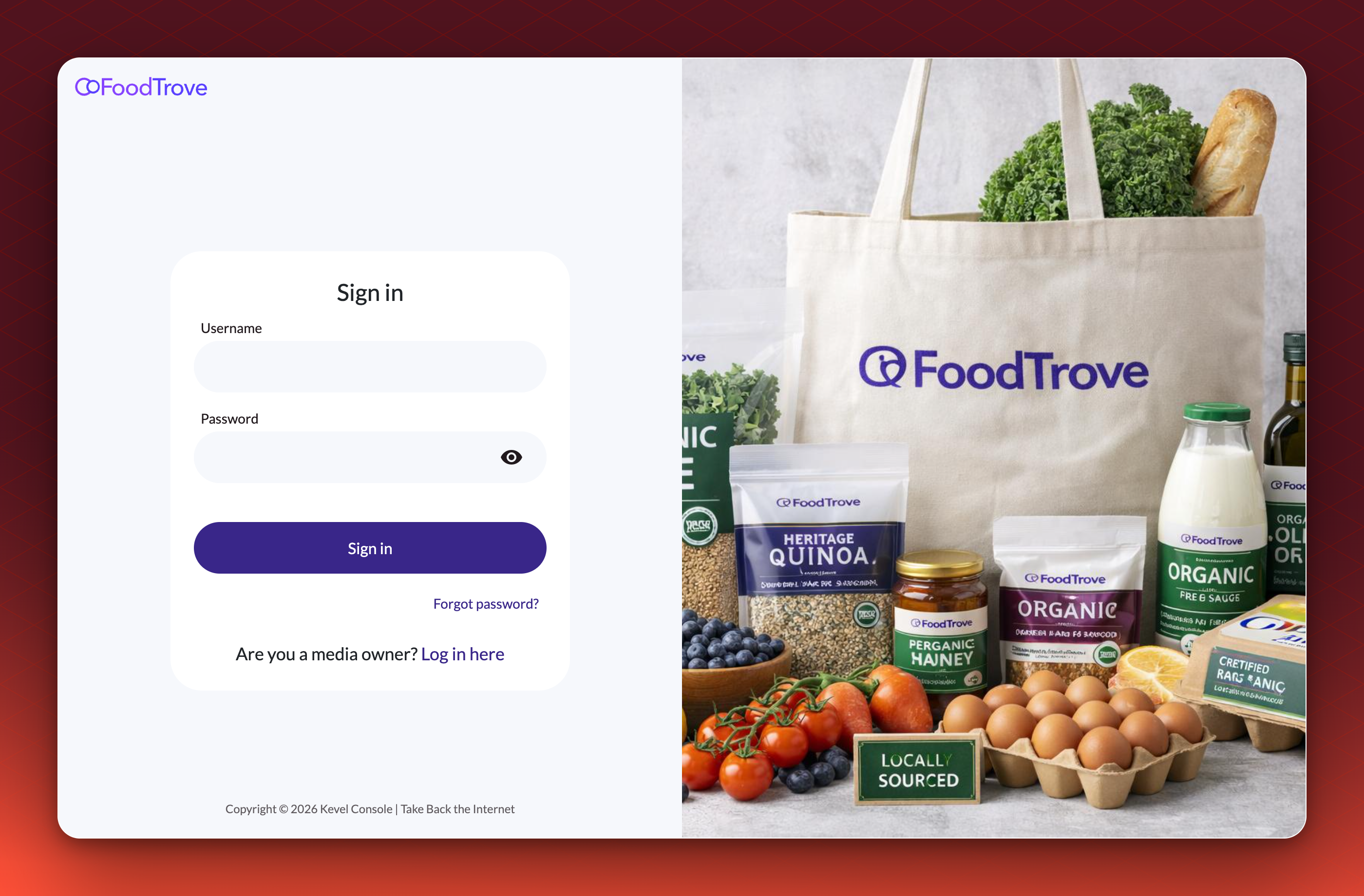
If your media owner uses single sign-on, you may sign in through their login instead of with a Console password. If you cannot sign in that way, contact your media owner.
Reset a forgotten password
- Select Forgot password? It is on the sign-in page, below the Sign in button.
- Enter your email address. Select Send recovery link. Console confirms with "Password reset link sent".
- Open the email and follow the link. By default, the email comes from [email protected] with the subject "Reset your Nexta password", and the link works for one hour. Set a new password. The same password rules apply as when you activated your account.
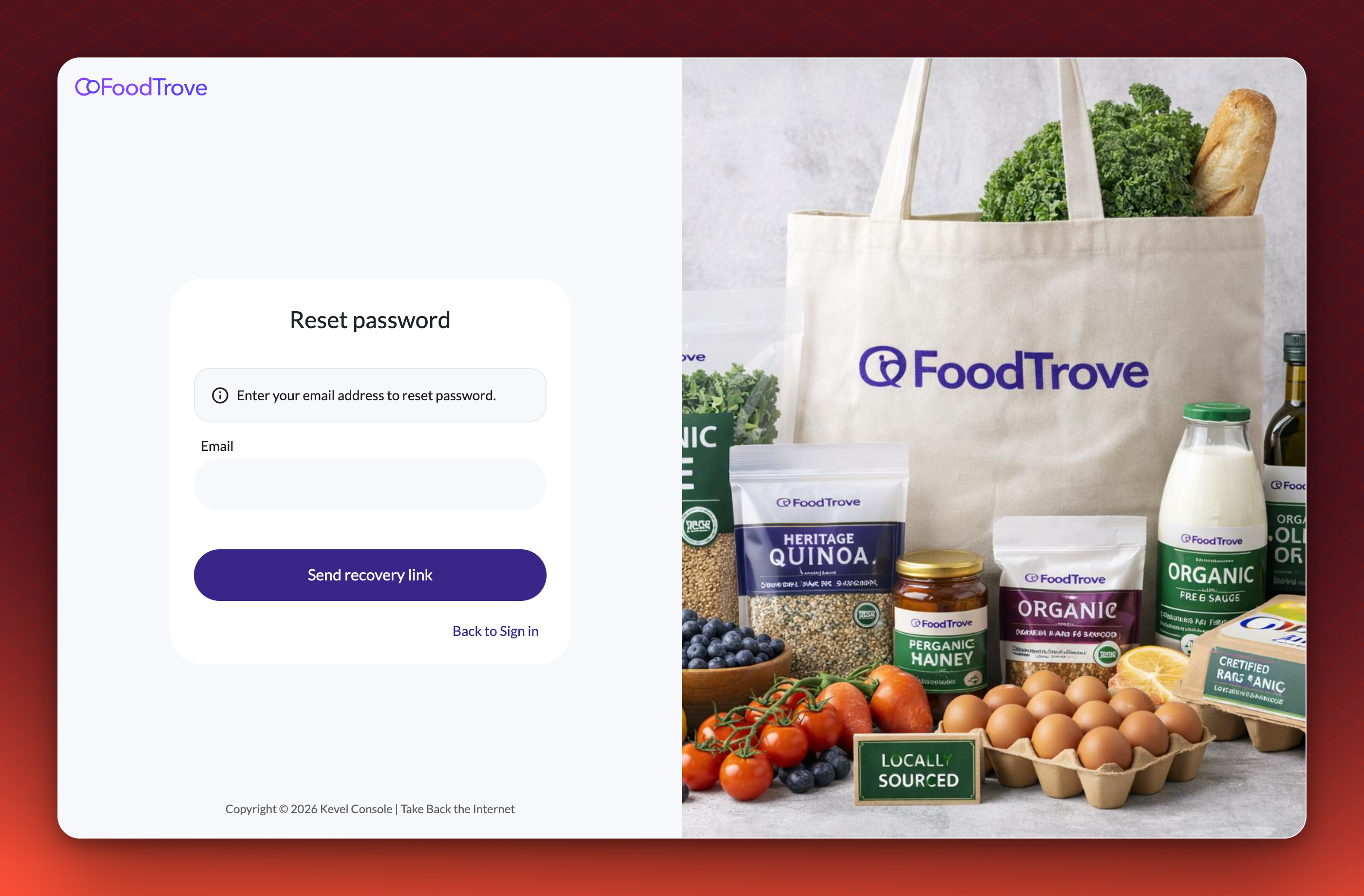
If you sign in through your media owner's single sign-on, you do not have a Console password to reset. Contact your media owner.
If your account is locked
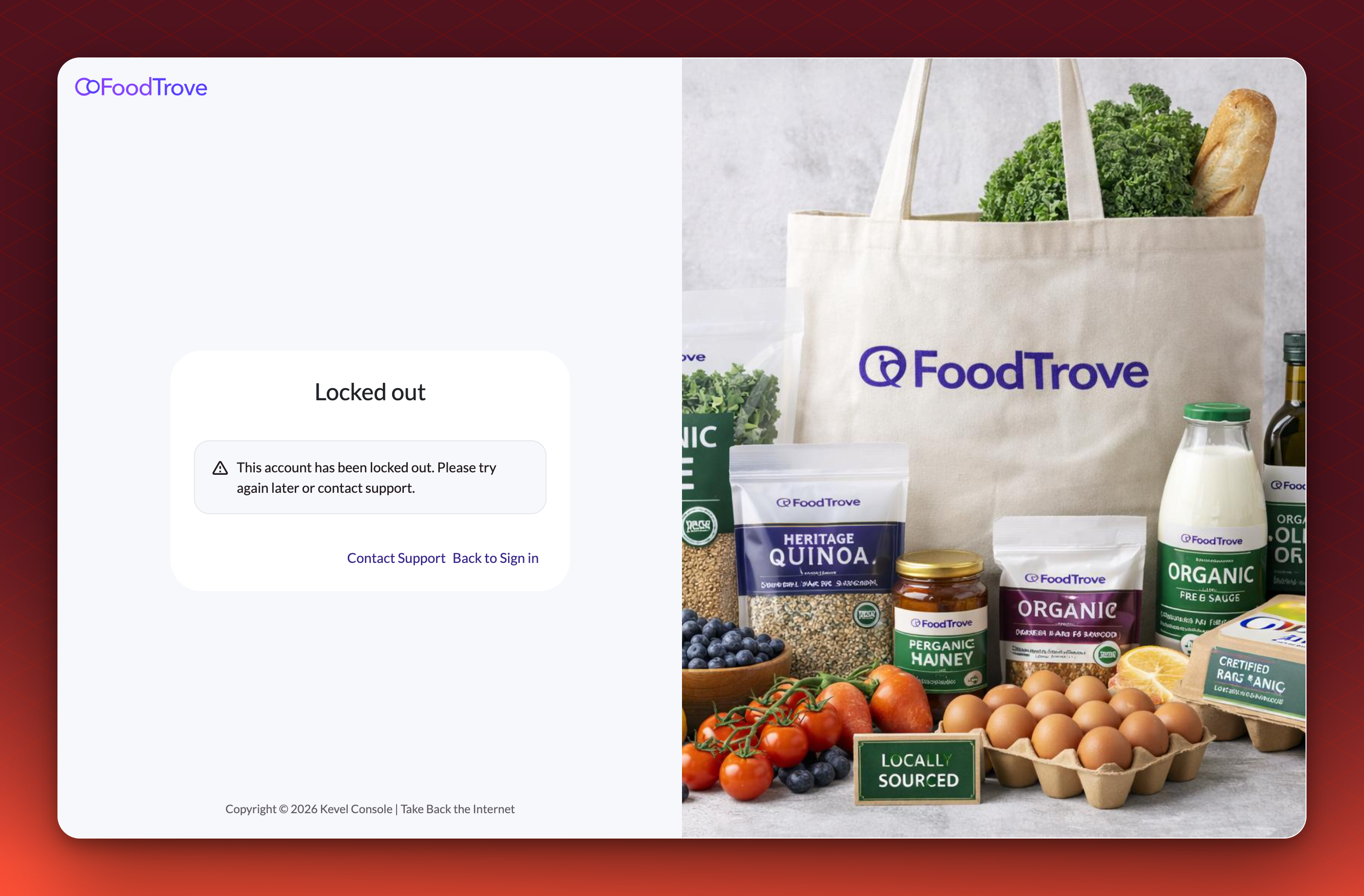
Console locks an account for five minutes after five unsuccessful sign-in attempts. The page reads "This account has been locked out. Please try again later or contact support." Wait five minutes, then try again.
Troubleshooting
Console says "Error signing in" and does not say whether the email or the password is wrong. This is deliberate. The same message appears whichever one is incorrect, or if you have not activated your account yet. Check both, check your email for the invitation link, or reset your password.
I never received the invitation. Check junk or spam, and allow mail from [email protected]. Ask the person who invited you to resend it.
I never received the password reset email. Check junk or spam. By default, the reset email comes from a different address, [email protected], so ask your IT team to allow mail from nexta.io if it is filtered.
I work for the media owner and I am on the advertiser sign-in page. Use the media owner link on the sign-in page, or follow Accessing Console as a Media Owner.
Related
Updated 25 days ago