
Release notes: August 2026
Ad Server
Event multipliers in Forecast
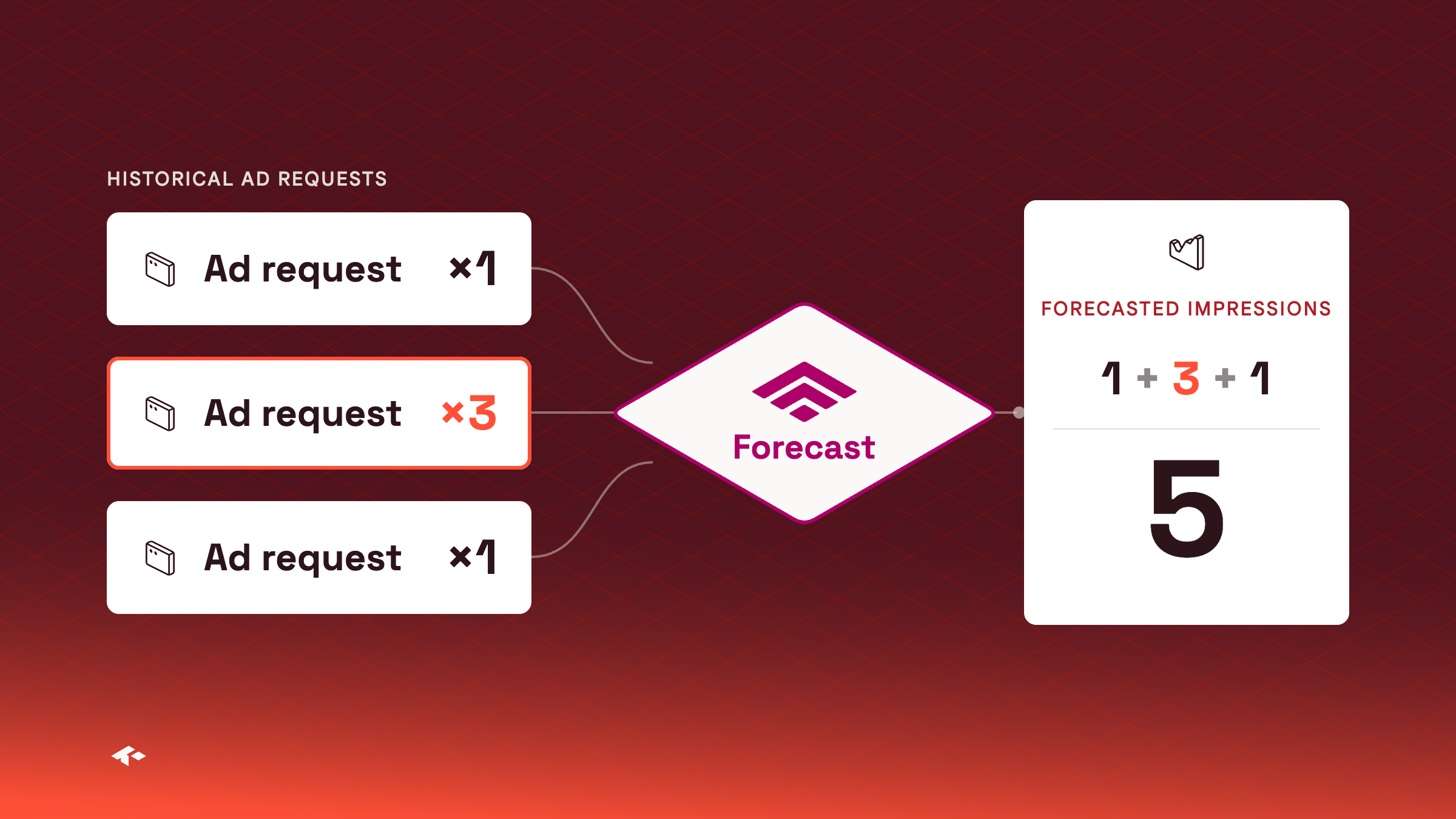
Forecast now applies the event multipliers you set on impressions and clicks. Each forecasted impression carries the multiplier of the historical ad request it is based on, and each forecasted click event counts as the average click multiplier seen on matching requests in your history.
Forecast applies event multipliers on every network without setup.
Forecasts can changeIf you send event multipliers, forecast numbers can differ from forecasts made before this change. The click rate now measures how often a click event follows an impression event, not how often a single impression is clicked.
Learn more about Forecast and event multipliers
Per-resolution MP4 renditions for video Assets
Hosted video Assets you upload are now transcoded to one MP4 per resolution, from 270p to 2160p, instead of three fixed low, medium and high files. The resolution is the video's shorter side. Request the one that matches your screen with the Asset's Playback ID, for example https://stream.video-assets.kevel.com/{PLAYBACK_ID}/360p.mp4. Videos are never upscaled. This suits fixed-resolution screens such as in-store displays.
Good for in-store screensRequest the exact resolution each screen plays, with no upscaling.
Existing Assets keep their filesAssets uploaded before this change keep low.mp4, medium.mp4 and high.mp4. Networks whose Creative Templates use those three filenames stay on them until Kevel switches the network. To move existing Assets onto per-resolution files, or to switch your network, contact support.
Ad provenance in Decision API responses
Ask the Decision API where each ad came from. Set includeProvenanceData to true in the request, and each returned ad carries a provenance value of in_network, programmatic or cross_network. The values you see depend on the demand sources enabled for your network, and provenance is returned on API v2 JSON responses only.
{
  "includeProvenanceData": true,
  "placements": [
    { "divName": "div0", "networkId": 1234, "siteId": 123456, "adTypes": [5] }
  ]
}
No change unless you set the flagResponses are unchanged when the flag is omitted.
Repeated item IDs in Catalog upserts
Upserting a batch of items to a Catalog through the API no longer fails when the request repeats an item ID. Kevel keeps the last item for each repeated ID, applies the rest of the batch, and returns a warning in the response. Before, a request that repeated an ID failed as a whole with a server error.
Catalog files are unchangedThis applies to batches upserted through the API. A Catalog file that repeats an ID still fails.
Learn more about repeated IDs in Catalog uploads
Companion ads in Forecast
Forecast can now model Flights that serve companion ads. When a Flight's ads are companions, the forecast treats them the way the ad server does: when one ad wins a placement, Forecast places the Flight's other ads in the request's remaining placements. In an availability forecast, set isCompanion to true on the Flight whose ads are companions. In a Yield Forecast targeting set, list up to 19 ads in ads and set isCompanion. The forecast availability widget sends a Flight's companion setting with its forecast. There is nothing to turn on.
Learn more about creating a forecast
City targeting in Forecast
Forecast now includes city targeting. A forecast for a Flight that targets cities counts only the ad requests from those cities. In the Forecast API, add CityGeonameId to a GeoTargeting entry, together with the CountryCode it belongs to. To break results down by city, add $location.cityGeonameId to GroupBy.
"GeoTargeting": [{ "CountryCode": "US", "CityGeonameId": 4464368 }]
"Params": { "GroupBy": ["$location.cityGeonameId"] }
Not on every network yetCity forecasts need city targeting on your network. If you do not see City under Geo Targeting, ask your Kevel representative.
Learn more about creating a forecast
Console
Campaign review and the Review manager
Media owner teams can hold new Campaigns, and changes to live ones, for approval before they take effect. Reviewers work in the Review manager, where each request shows every changed field with its current and requested value. A reviewer approves a request, or rejects it with a reason that the advertiser reads.
Advertisers follow each request's status in Console and are notified of each decision. You choose with Kevel which placements need review, and which changes to a live Campaign wait.
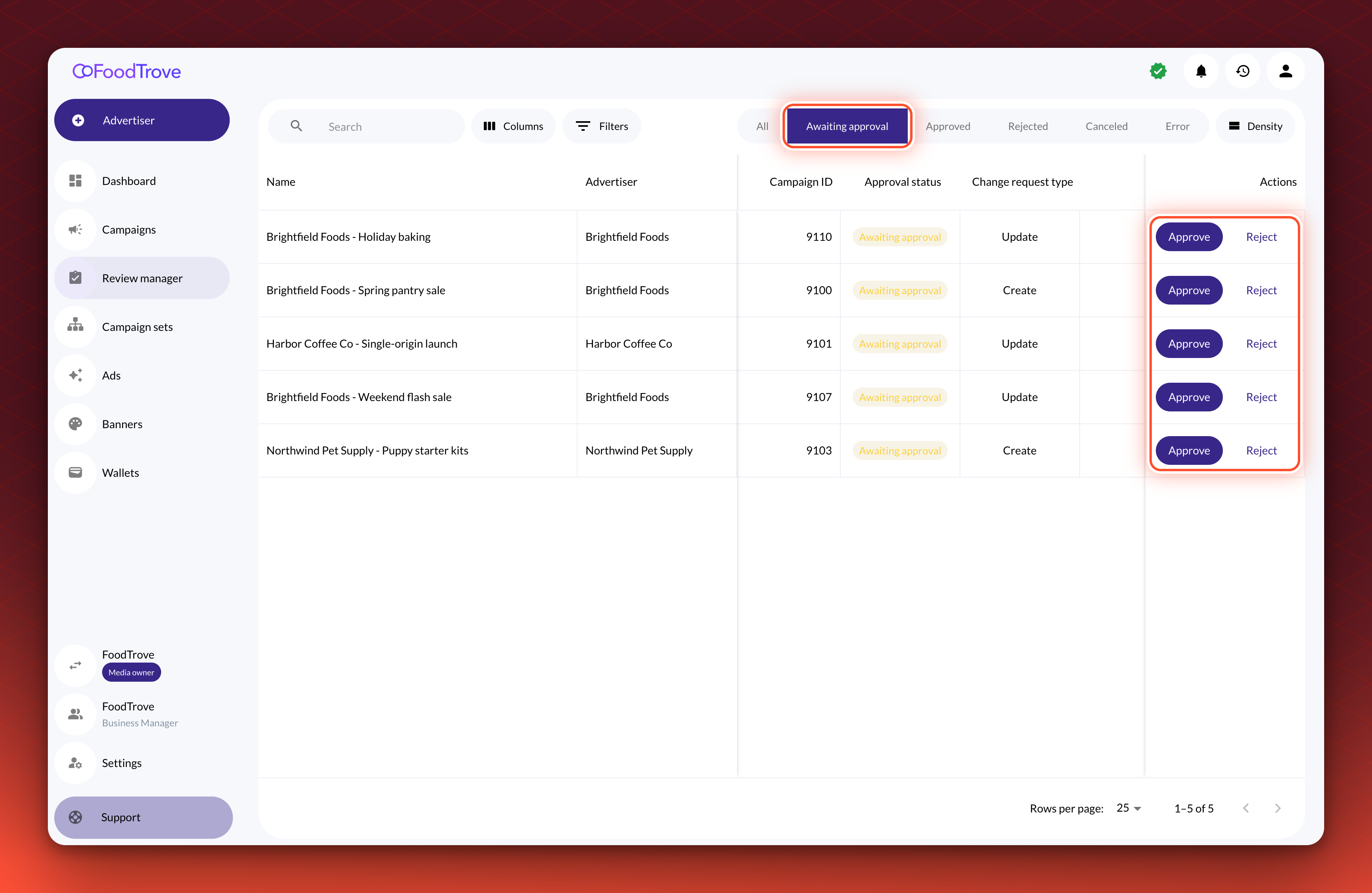
You choose what needs reviewCampaign review is off until you ask for it and applies to onsite campaigns for now.
Learn more about campaign review
Search terms in Console
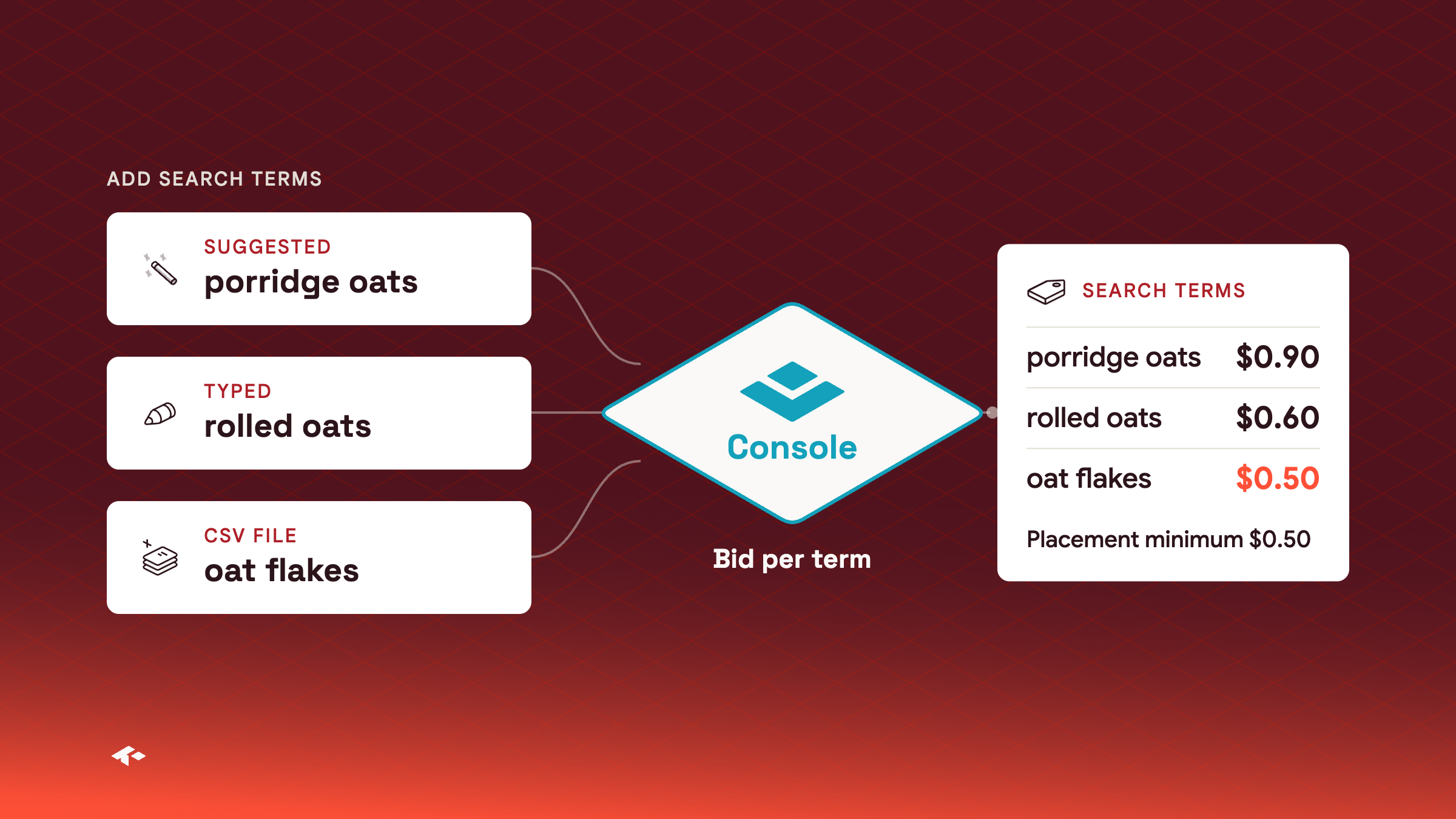
You choose the placementsSearch terms are off until you ask for them. Tell your Kevel representative which placements should offer them, and advertisers see search terms only on those.
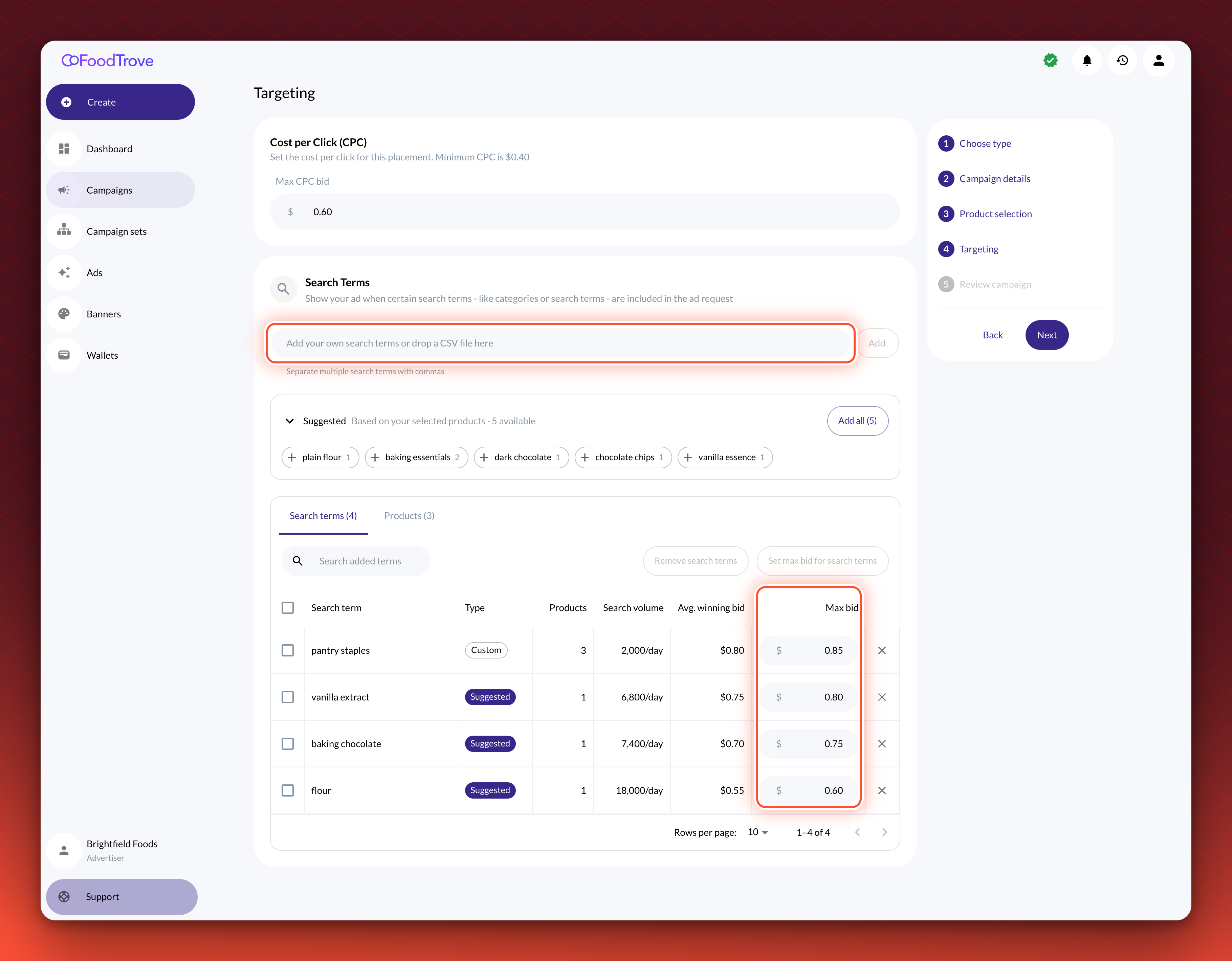
If you sell search placements, advertisers can target search terms when they book in Console, and bid on each term. On the Targeting step they add terms from a Suggested list, built from your Catalog's search terms for the products they chose, or type their own or drop in a CSV file. Each term starts at the campaign bid and cannot go below the placement minimum, or a higher minimum you set for that term. Each term shows an estimated search volume and average winning bid. Every product needs a covering term, and terms match exactly.
Learn more about search term targeting in Console
Campaign review emails
Console can now email people about campaign review, as well as notify them in the app. Reviewers get an email when an advertiser submits a campaign or a gated edit. The advertiser's team gets one when a reviewer approves or rejects it, and a rejection email gives the reason and a link to edit. Admins choose who receives each email and switch each one on or off under Settings > Notifications.
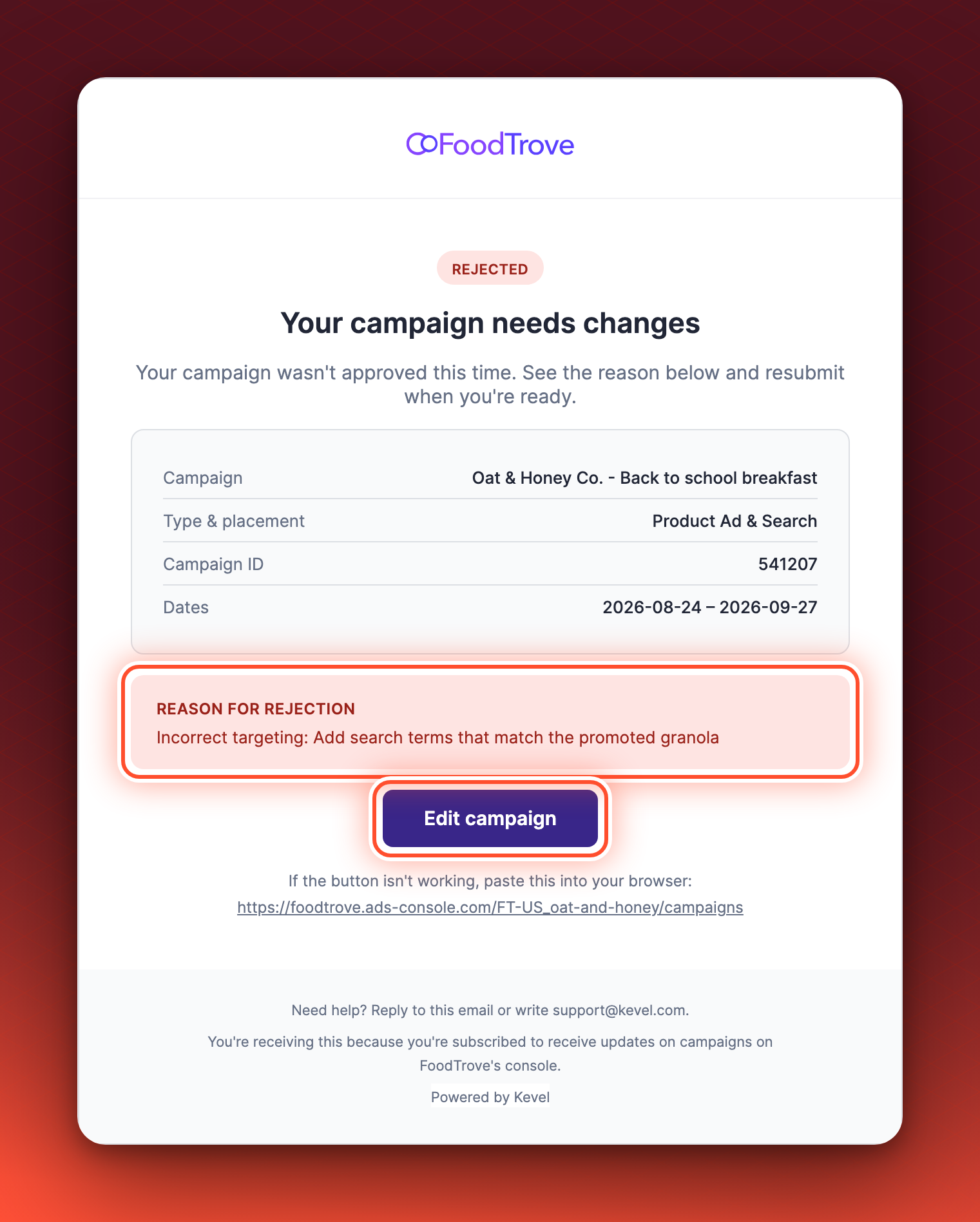
You choose, Kevel turns it onThe emails are off until you ask for them. Kevel sets them up and brands them for you, and your admins choose who receives each one.
Learn more about emails in Console
Edit a wallet
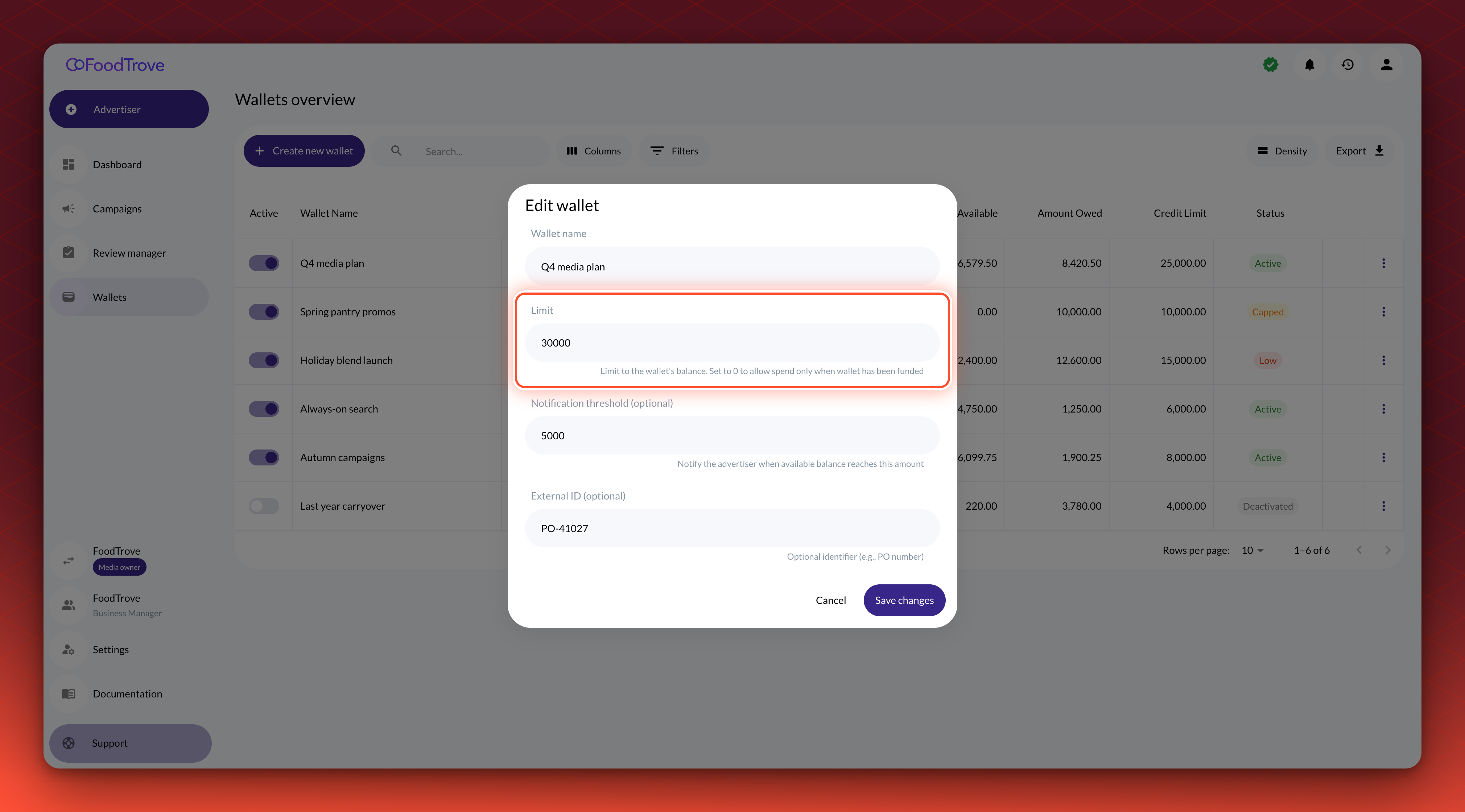
Media owner admins can now edit a wallet in Console. On the Wallets page, open the row menu and select Edit to change the wallet's name, credit limit, notification threshold or external ID. The currency and the advertiser stay as they are.
Learn more about editing wallets
Start a campaign today
Advertisers can now pick today as a campaign's start date when they book, unless the placement asks for notice. The campaign starts about an hour after it is submitted. This works when booking a campaign and when editing a Draft.
You choose, Kevel turns it onSame-day starts are off until you ask for them. Your Kevel representative turns them on, and a placement that asks for notice still does.
Learn more about starting a campaign today
Forecast while booking
Advertisers booking a campaign in Console now see a Forecast panel beside the steps. It estimates the campaign's impressions, clicks and reach from the bid, budget, dates, products, search terms and location, and updates as they change them. Audience segments are left out of the figures, and the panel says so.
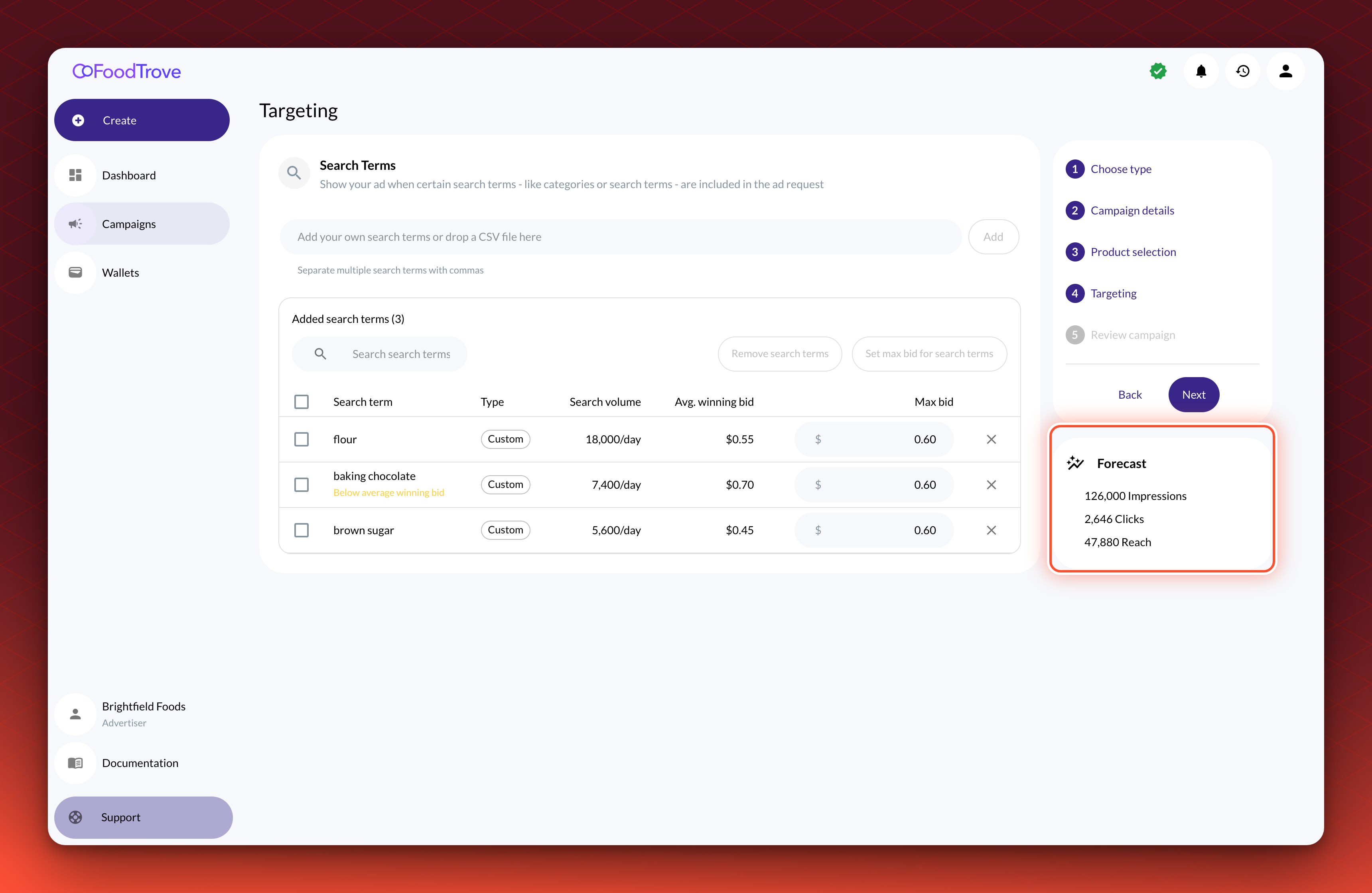
On unless you turn it offThe Forecast panel is on by default when advertisers book on your placements. Ask your Kevel representative if you'd rather they didn't see it.
Learn more about the Forecast panel
Products, search terms and categories in campaign details
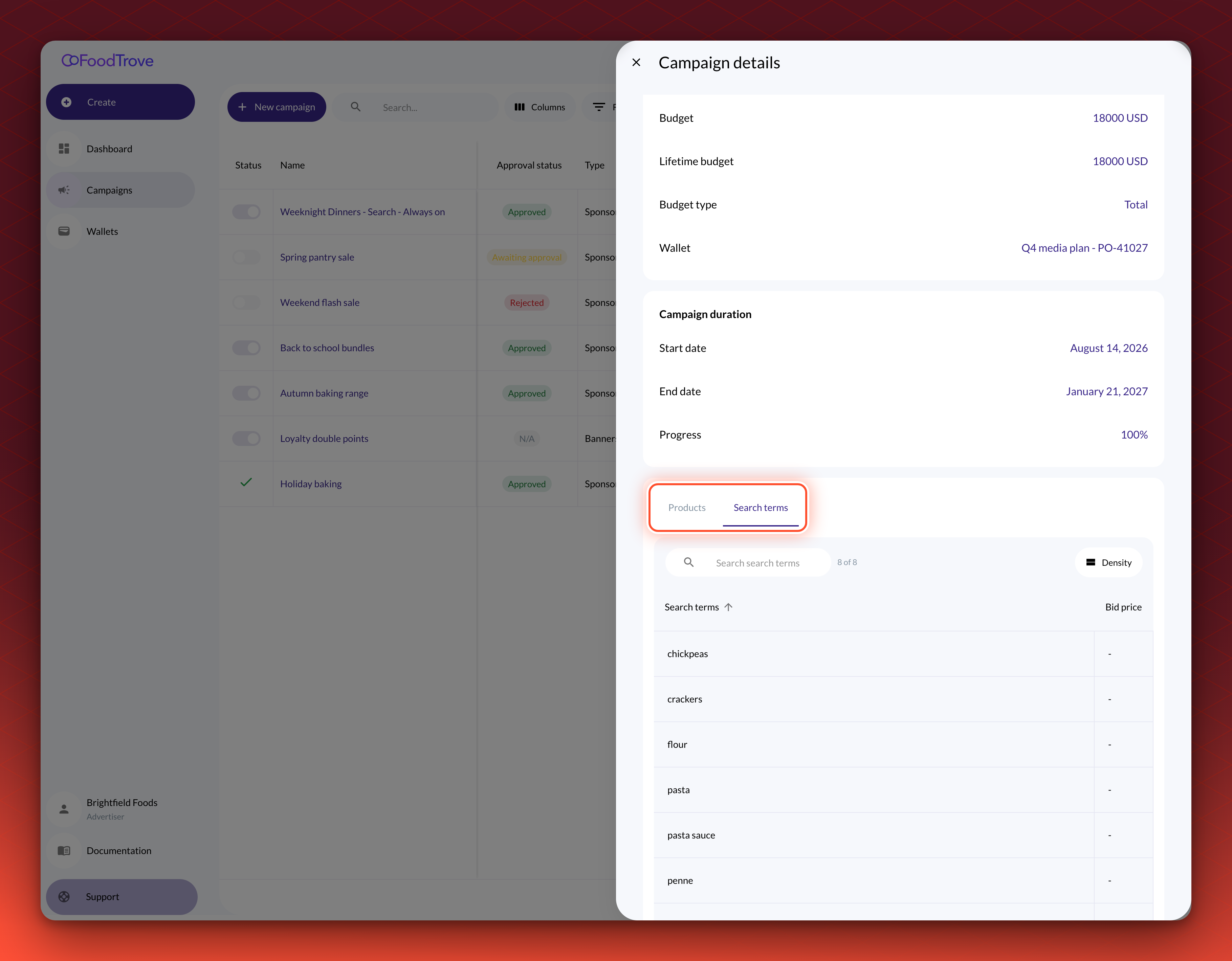
A campaign's details in Console now list its products, search terms and categories in their own tabs. Select a campaign's name in the Campaigns list to open them.
Learn more about campaign details
Export every row of the dashboard
Export on the advertiser dashboard now includes every row that matches the open tab's search, in your sort order, not only the rows on the current page. Download XLSX or CSV, or print the dashboard to PDF.
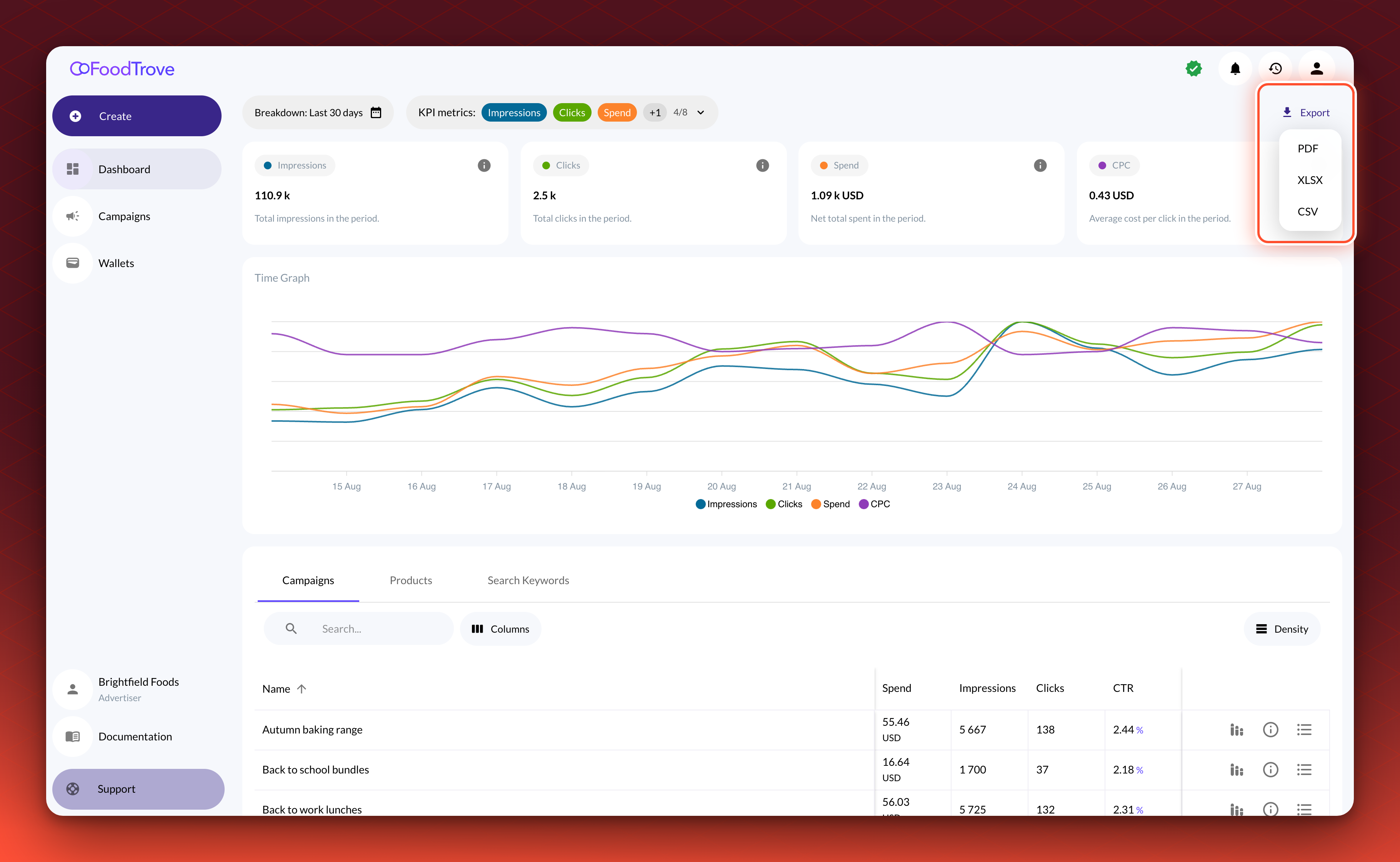
You choose, Kevel turns it onExport is on the newer advertiser dashboard, which is off until you ask for it. Your Kevel representative turns it on.
Learn more about exporting the dashboard
Search brands in catalog access
Media owner admins setting an advertiser's catalog access can now search for brands by name and pick them from a list, instead of typing brand IDs. Each brand shows its name and ID. Merchants work the same way where the catalog has a merchants table.
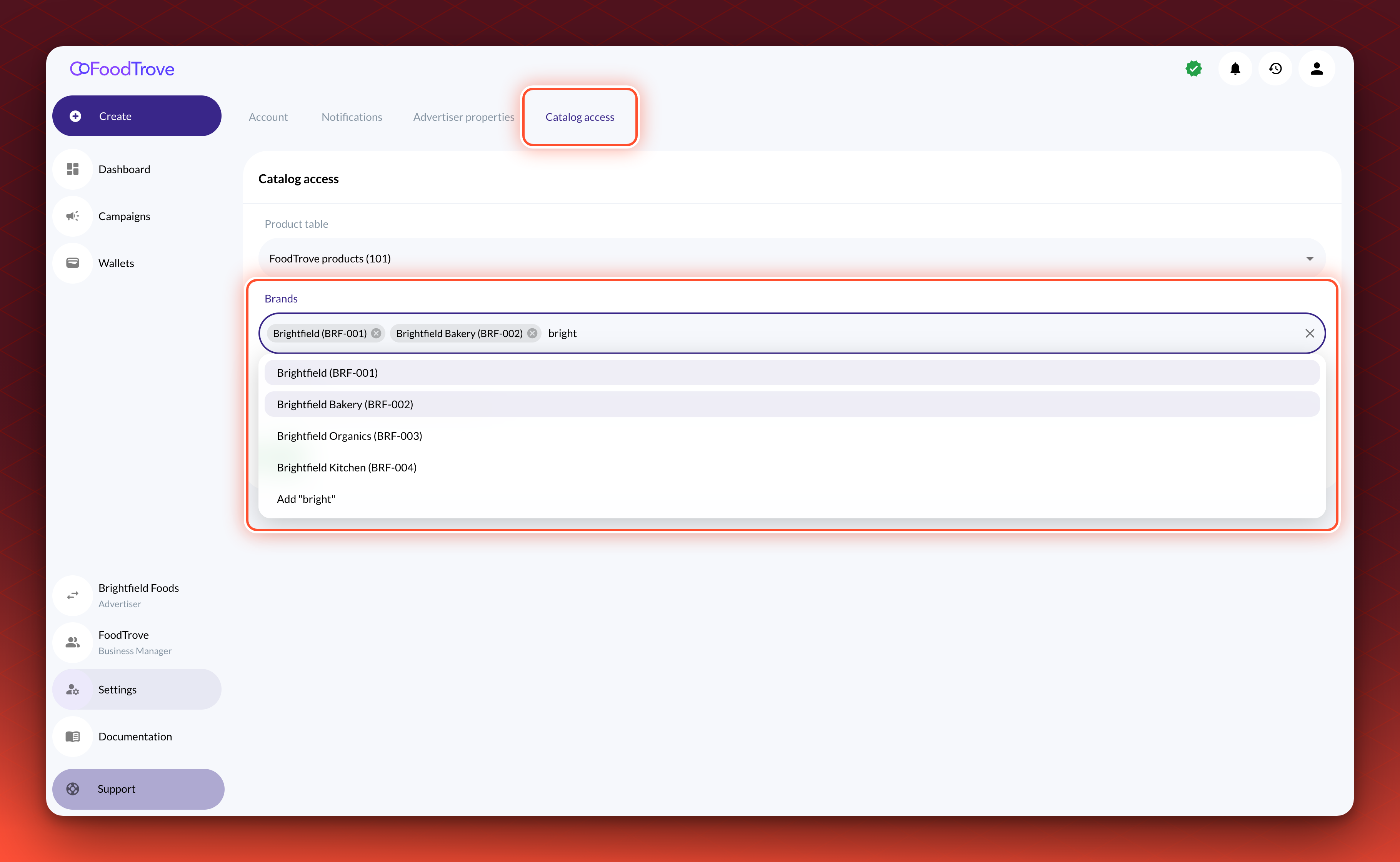
You choose, Kevel turns it onThe Catalog access tab is off until you ask for it. Your Kevel representative turns it on, and only media owner admins see it.
Learn more about catalog access
Audience
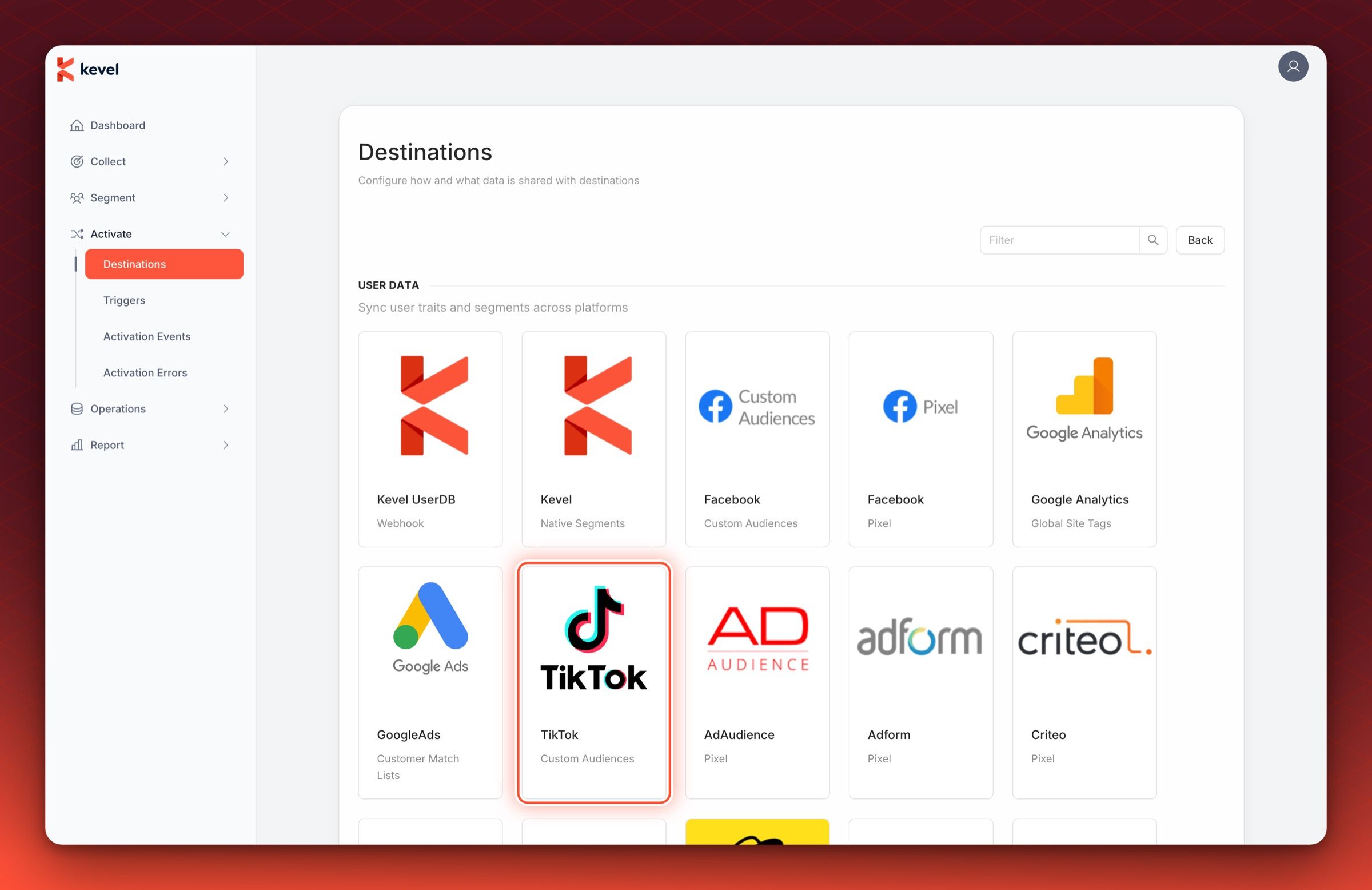
New TikTok Destination
Kevel Audience can now export audience segments to TikTok. Jump into the TikTok Custom Audiences entry in the destination list, and start sending your segments to TikTok for ad targeting in real time.
Learn more about TikTok Custom Audiences
Site ID on order imports
The Kevel Audience order import CSV now has an optional siteId column, so offline orders can be associated with a specific site.
Learn more about the Kevel Audience order import CSV
Retention policy for file uploads
There is now a retention policy for the file uploads bucket, so that files are deleted after 2 years.