
Managing advertiser users
Overview
Advertiser User Roles and Access Management lets Advertiser and Media Owner Admins control who can access an advertiser account in Console, and what they are allowed to do.
It helps media owners provide advertisers with the right level of visibility and collaboration using role-based permissions, without requiring advertisers to manage campaign setup, configuration, or platform administration.
When to Use It
Use this functionality when you want to:
- Invite advertiser users into Console with defined permission levels
- Give advertisers performance visibility without allowing configuration changes
- Support managed-service workflows while keeping advertisers informed
- Prevent accidental edits by limiting access to view-only roles
How It Works
- An Admin selects the correct advertiser account from the left-hand panel
- The Admin opens Settings, then the Users tab
- Console applies role-based permissions that control what each user can view or manage
How to Enable It
Settings
- Select the advertiser. Then go to Settings and open the Users tab
- Click Invite user or Create user
- Assign at least one role: Admin, User or Read only
Only Advertiser Admins or Media Owner Admins can create and manage advertiser users.
Console Access
Once added, users can log into Console with permissions determined by their assigned role.
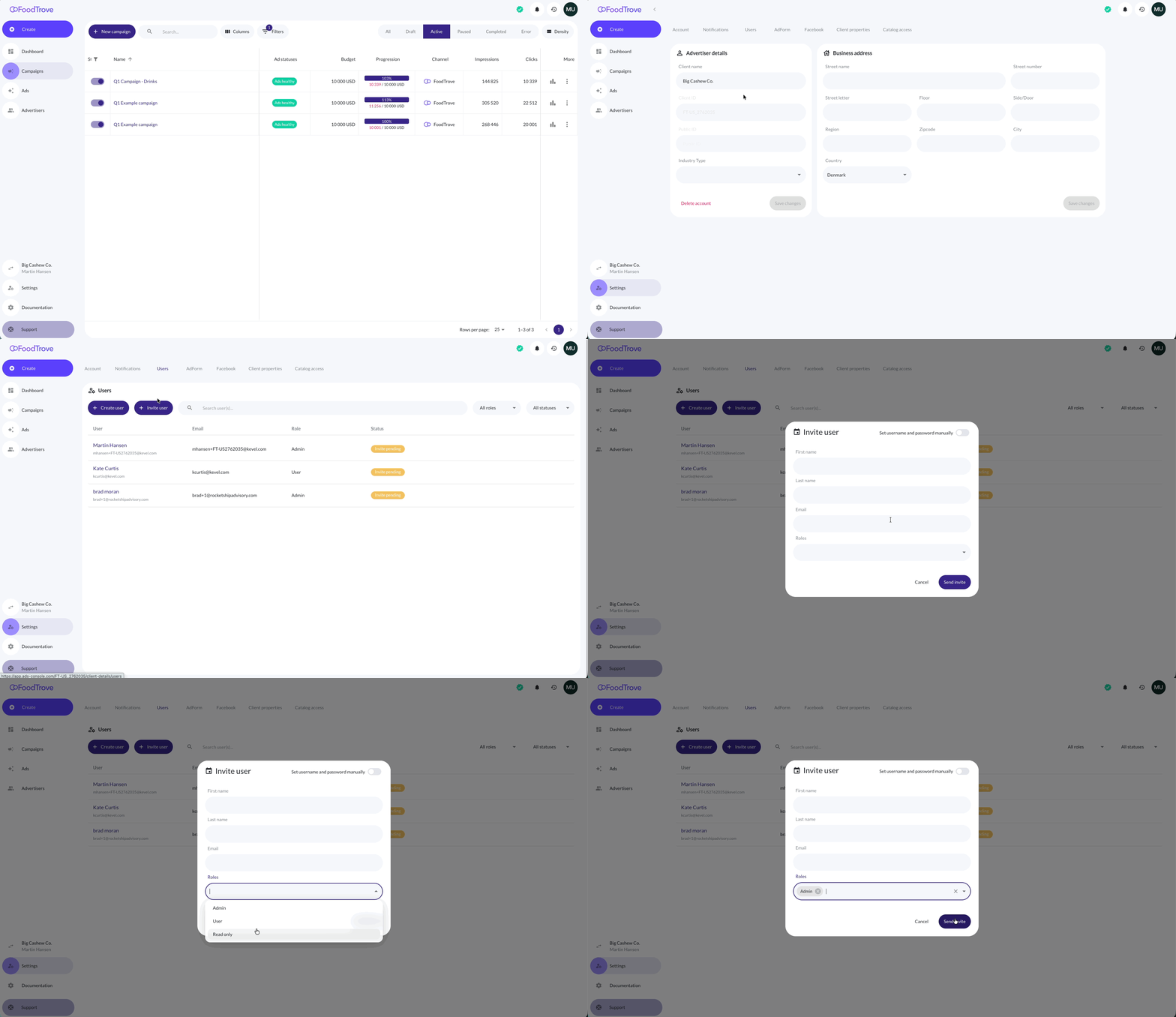
In-depth User Management
Advertiser and Media Owner Admins can manage users for their specific advertiser account. This includes:
- Creating new users
- Editing user details
- Resetting passwords
- Deleting users
User access is managed per advertiser account, in Settings, on the Users tab.
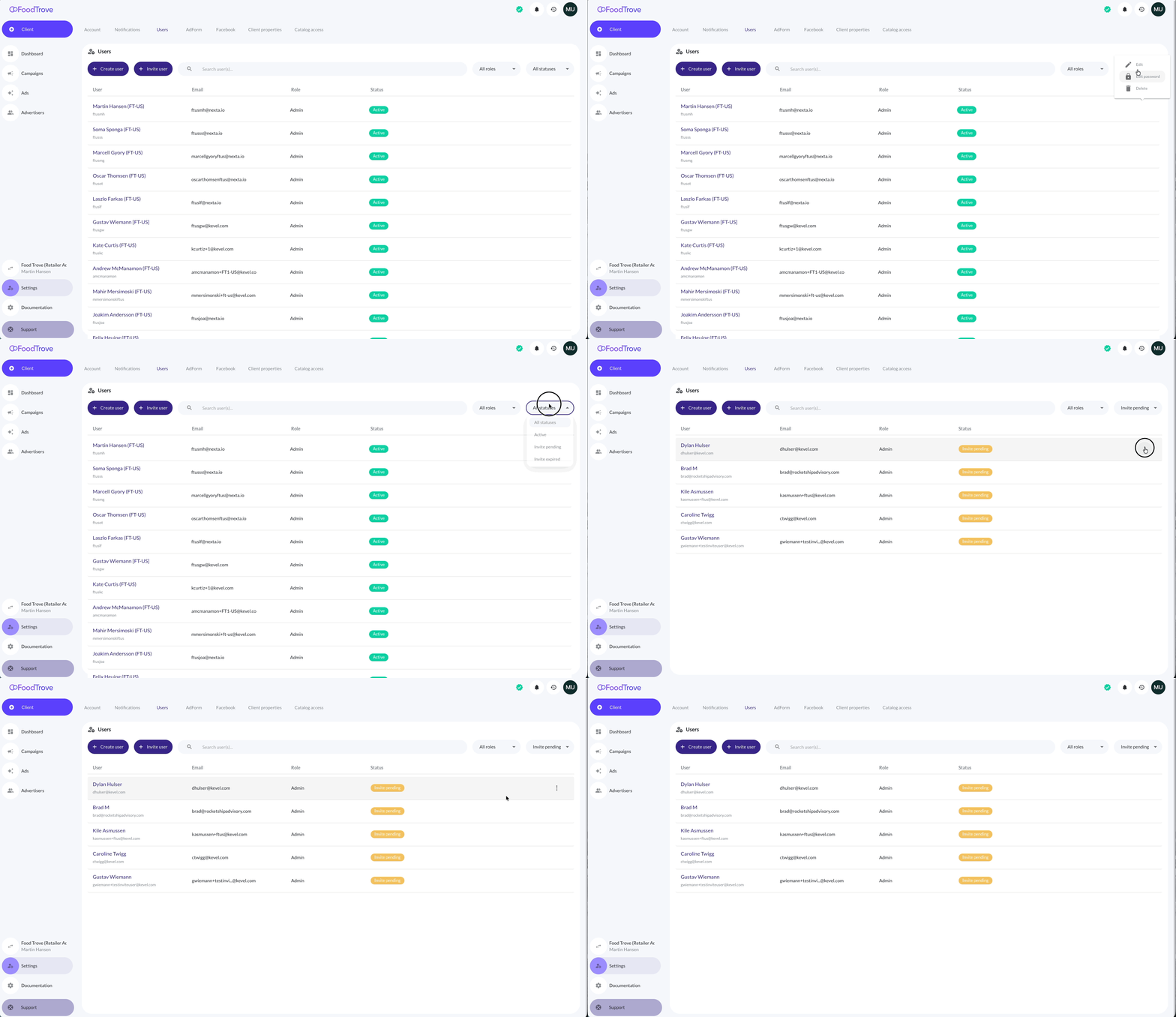
Adding a New Advertiser User with Create User
Click the Create user button to open the form.
You must provide the following:
- First name (e.g., John)
- Last name (e.g., Joe)
- Username
- Role - see overview below.
- Password
- Repeat password
Click Create user to create the user.
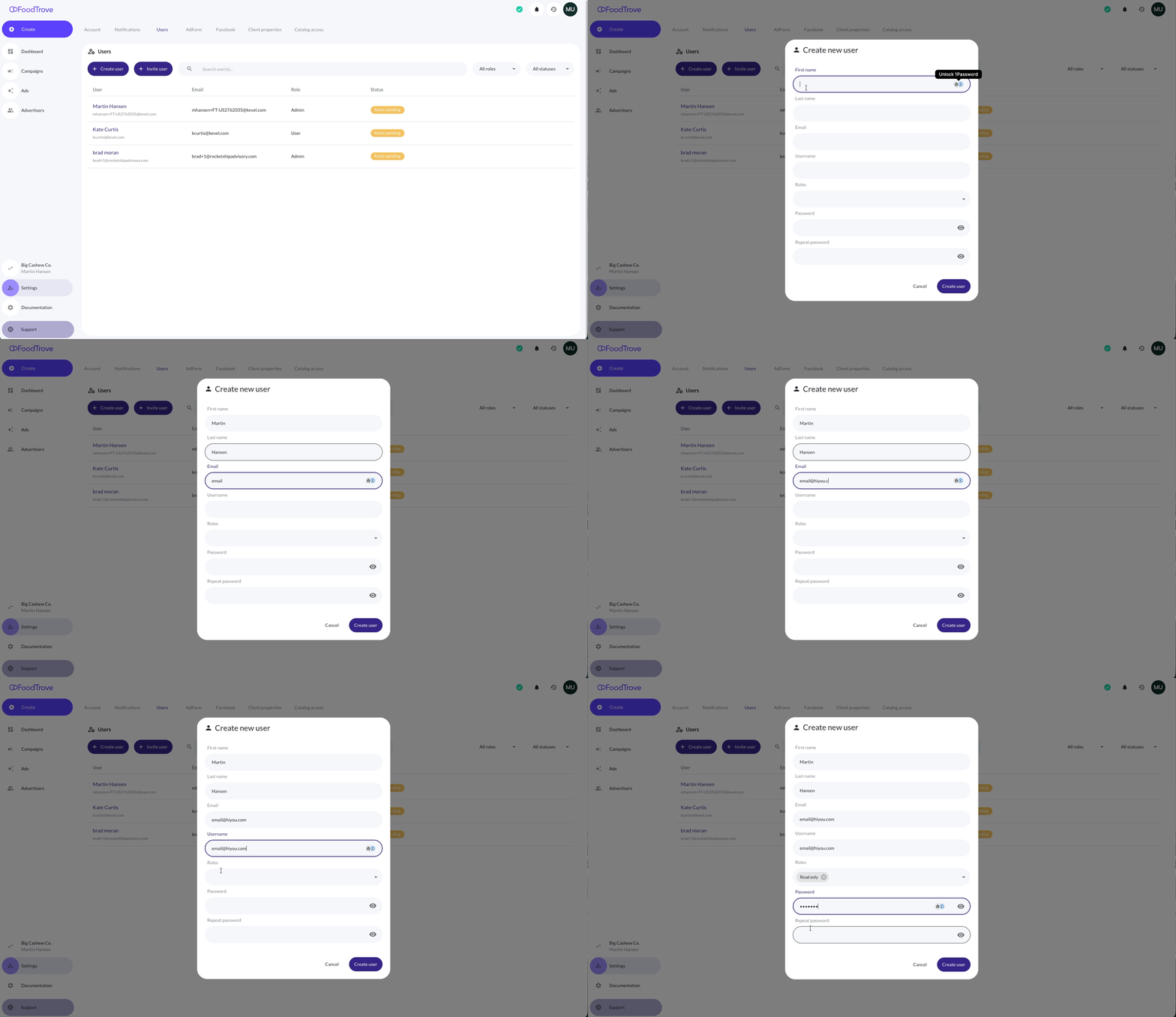
To invite a new advertiser user:
- Click the Invite user button.
- Provide the required information:
- First name (e.g., John)
- Last name (e.g., Joe)
- Roles: choose at least one. They determine the user’s permissions (see below)
- Click Send invite to invite the user.
The person receives an email with a link to activate their account, and appears in the user list with the status Invite pending until they do. If the email address already has a Console account, Console adds the advertiser to that account instead and sends no email. For statuses, resending an invitation and what the invited person sees, see Invite advertiser users to Console.
Advertiser user permissions
Console allows the following permissions for advertiser users.
| Role | Description |
|---|---|
| Read only | View campaign performance and booked campaigns in the Dashboard and Campaign List |
| User | All abilities of Read only, plus:
|
| Admin | All abilities of User, plus:
|
Managing Existing Users
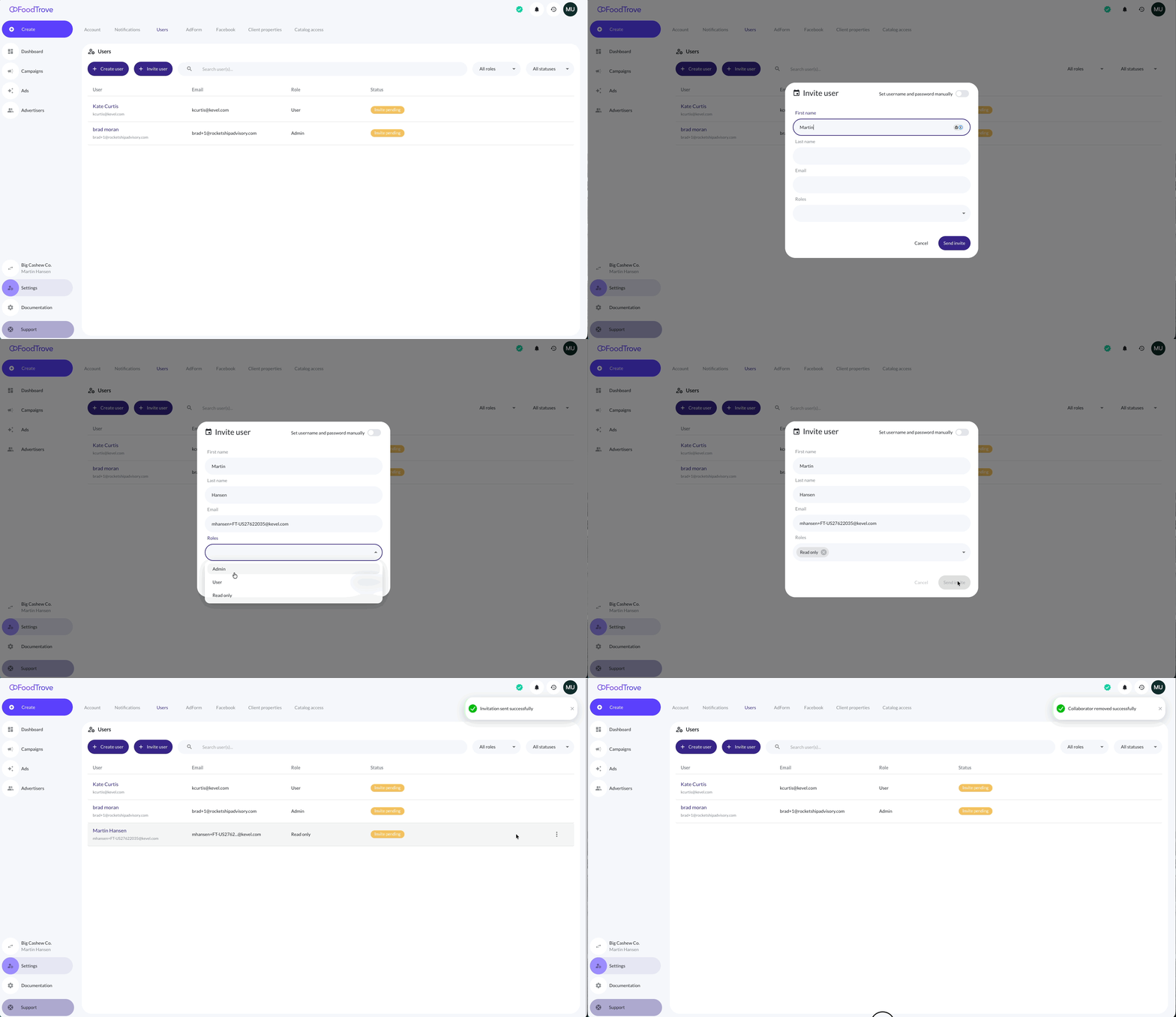
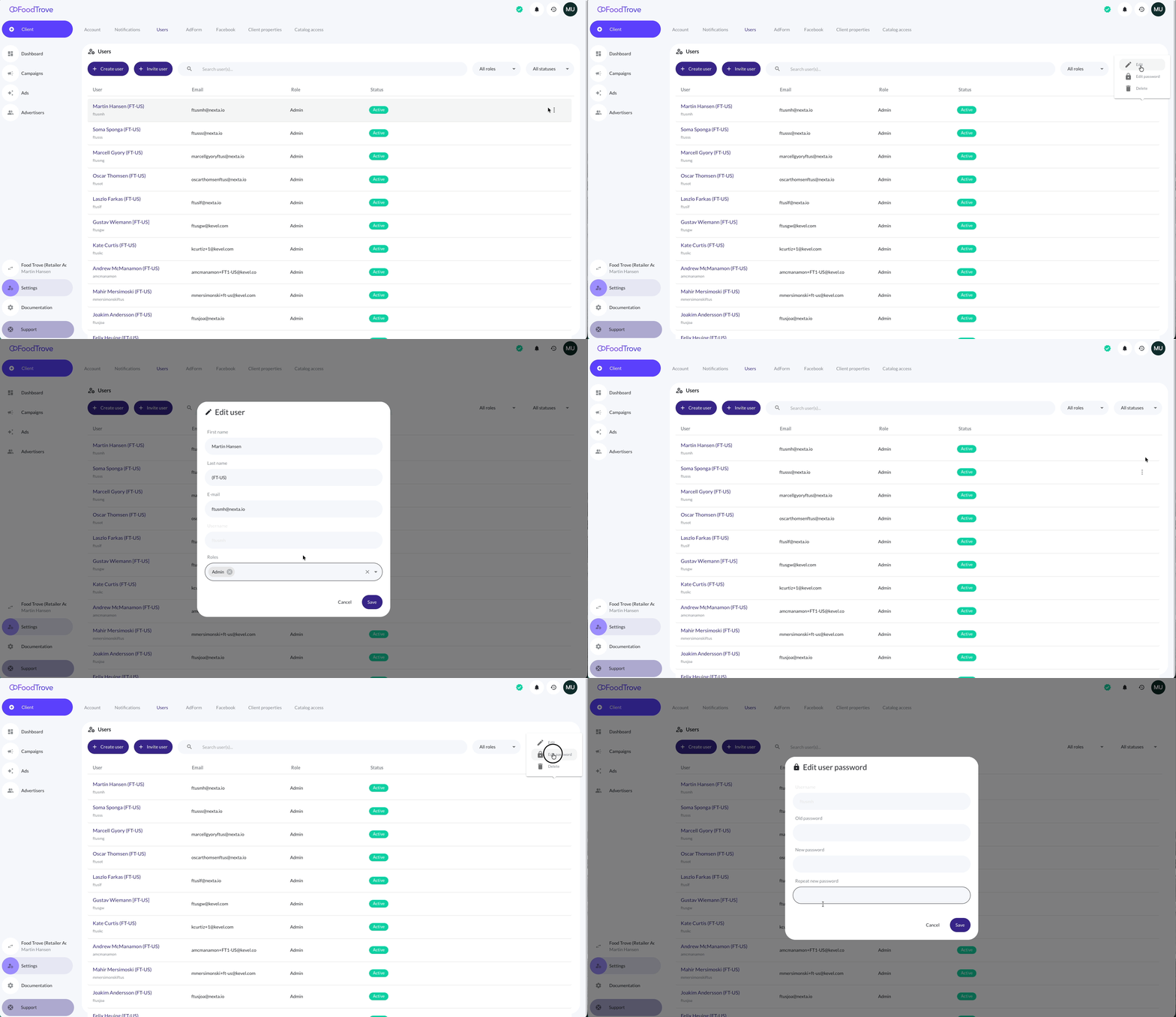
Each user row includes a More actions menu that allows Admins to manage existing users.
Available actions include:
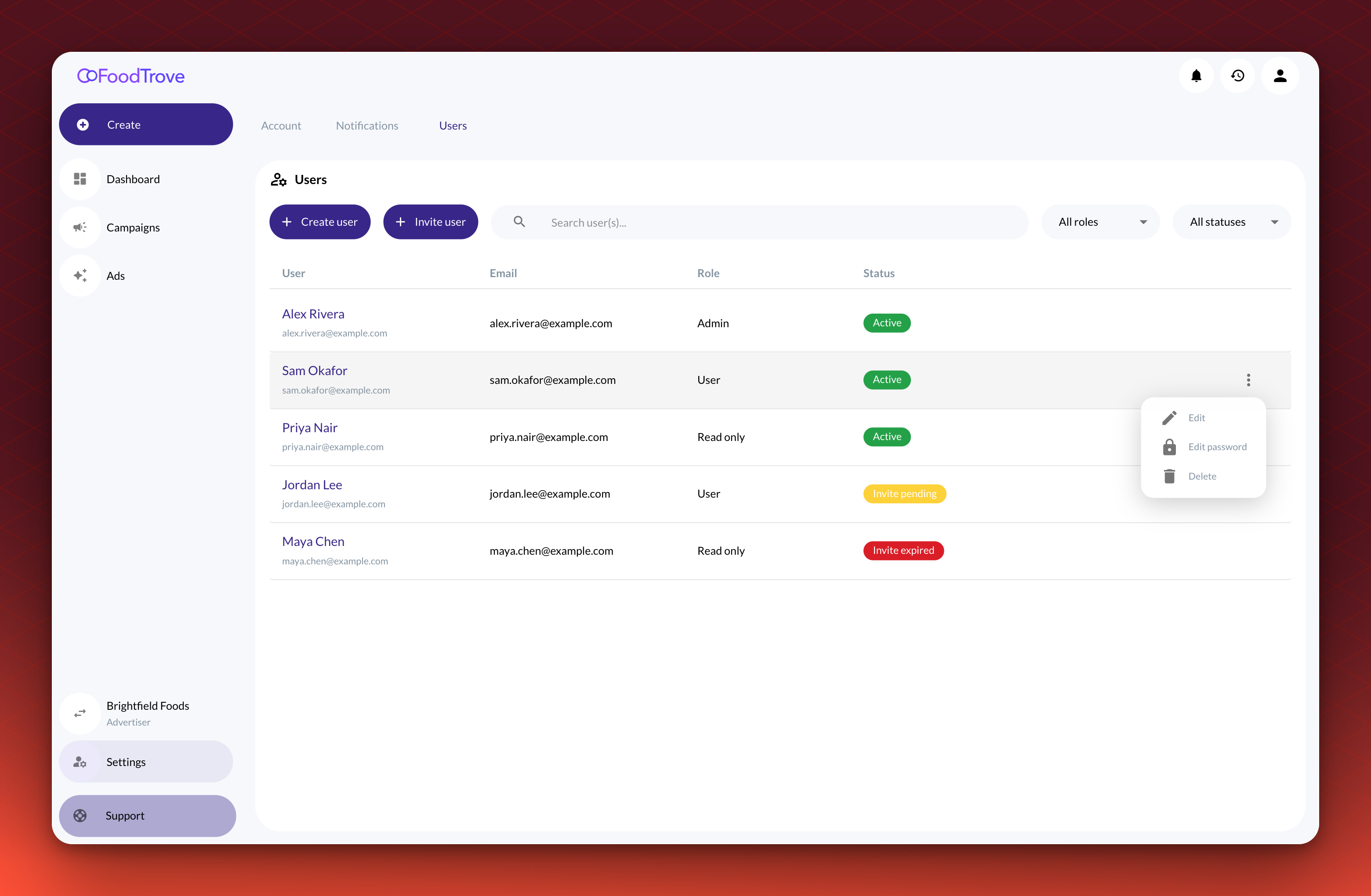
- Edit: update the user’s name, email, or assigned role
- Edit password: change the user’s password. Console asks for the current password and the new password twice, so this is for changing a known password. A user who has forgotten theirs selects Forgot password? on the sign-in page
- Resend invite: send a new activation email. This appears while a user’s invitation is pending or expired, and while it does, Edit and Edit password are not available
- Delete: remove the user from the advertiser account
Only Admins can edit, remove, or manage advertiser users.
References
Invite advertiser users to Console
Updated 15 days ago