
User Management
User management for all Kevel platform products is accessed within the Ad Server UI.
This page refers to user management for media owner users.
- Media owner users are associated with the entity that owns and operates the media – the ad inventory, channels, and first-party audiences. Media owner users use Kevel to build and run an advertising business.
- "Media owner" might be called "retailer" or "marketplace" in retail media, or "publisher" in traditional adtech.
- Media owner users can be granted permission to access Kevel Ad Server, Audience, and Console.
- Advertiser users are associated with the organizations that buy ads within the media owner organization.
- "Advertiser" might be called "client," "supplier," "brand," or "partner" in retail media.
- Advertiser users can be granted permission to access Kevel Console.
To find the user management page, navigate to Settings -> User Management.
This page shows all users in your Kevel account, across all Kevel products you have access to.
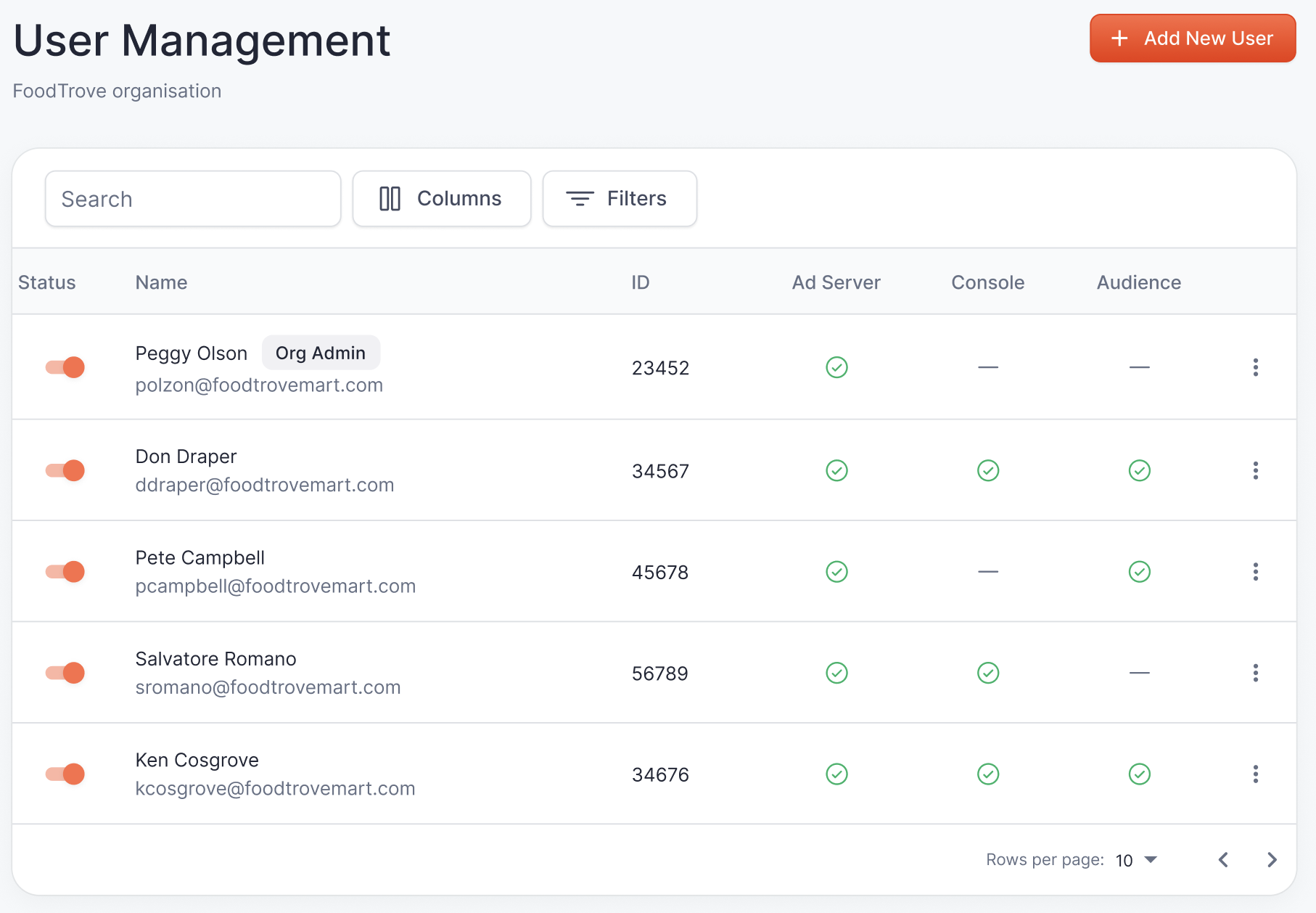
The Ad Server UI navigation bar shows different navigation items depending on which Kevel products your company has access to.
Search, columns, & filters
Search
Use the search bar to quickly search for users by name and email address.
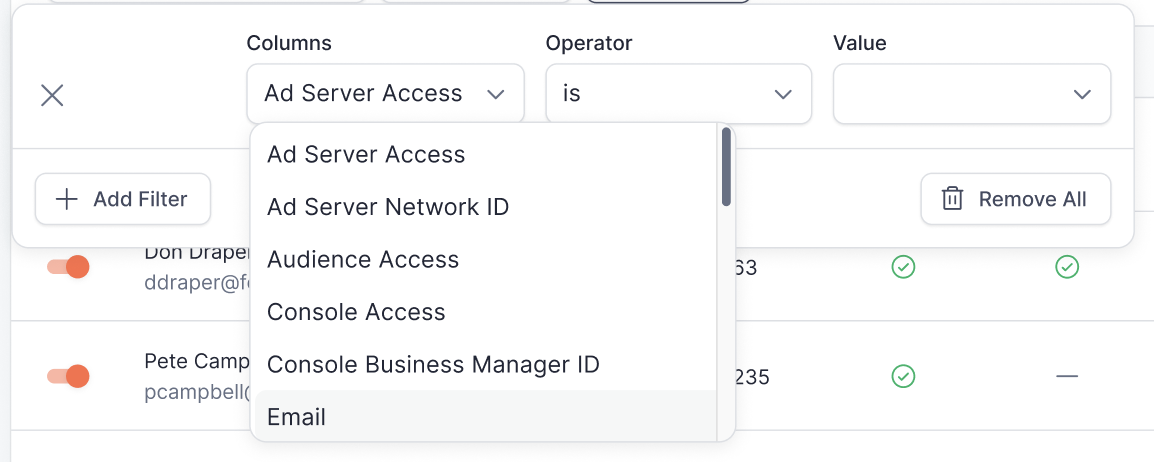
Filters
Use the filters to filter the list of users based on
- Ad Server, Audience, and Console access
- User status (active / inactive)
- Name (contains)
- Email (contains)
- ID (contains)
- Audience Access
- Console Access
- Console Business Manager ID
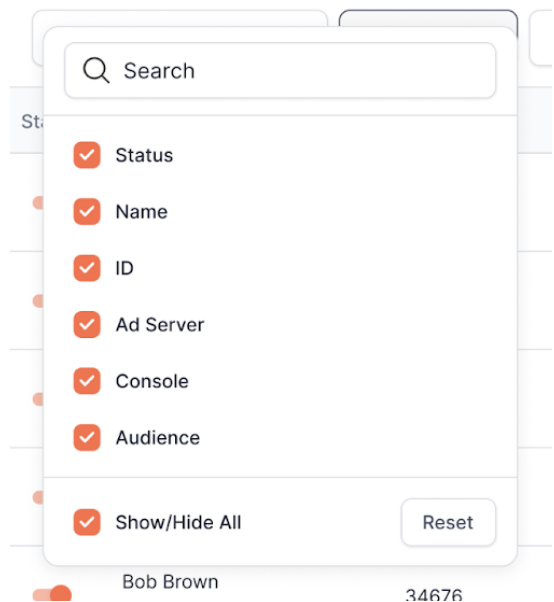
Columns
Use the column picker to adjust visible columns in the user list.
Adding a user
To add a new user, click the “Add New User” button.

Enter the user’s name and email, and choose whether or not they will be an organization admin.
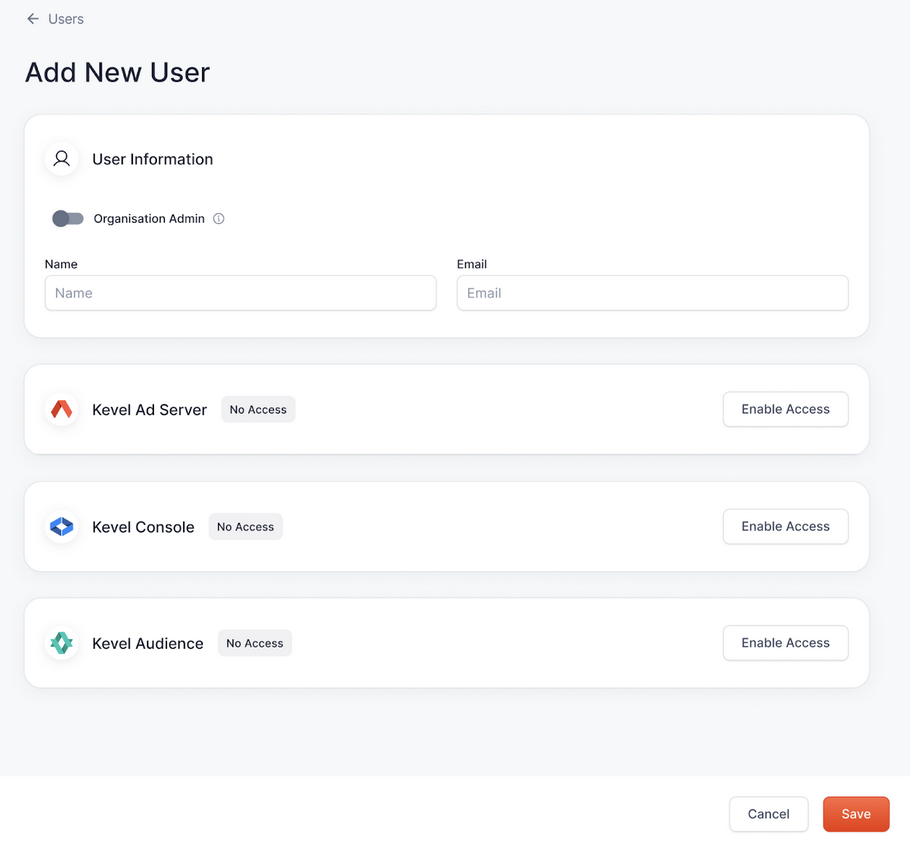
On this page, you can grant this user access to any product in your account.
For each product, you will choose which instance they have access to, and their access level.
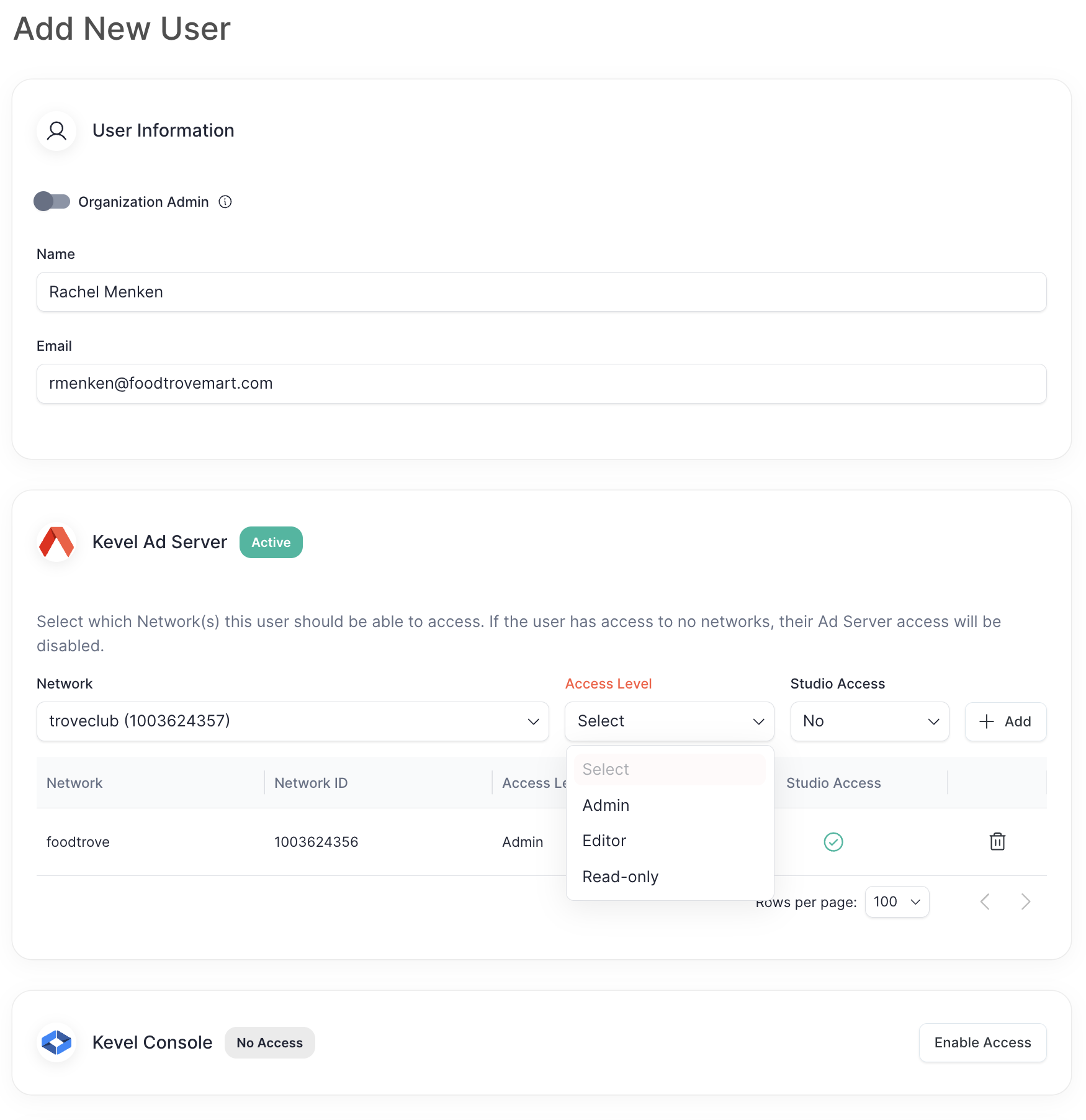
Access levels will appear in a list within each product. Learn more about user permissions for all Kevel products in user permissions documentation.
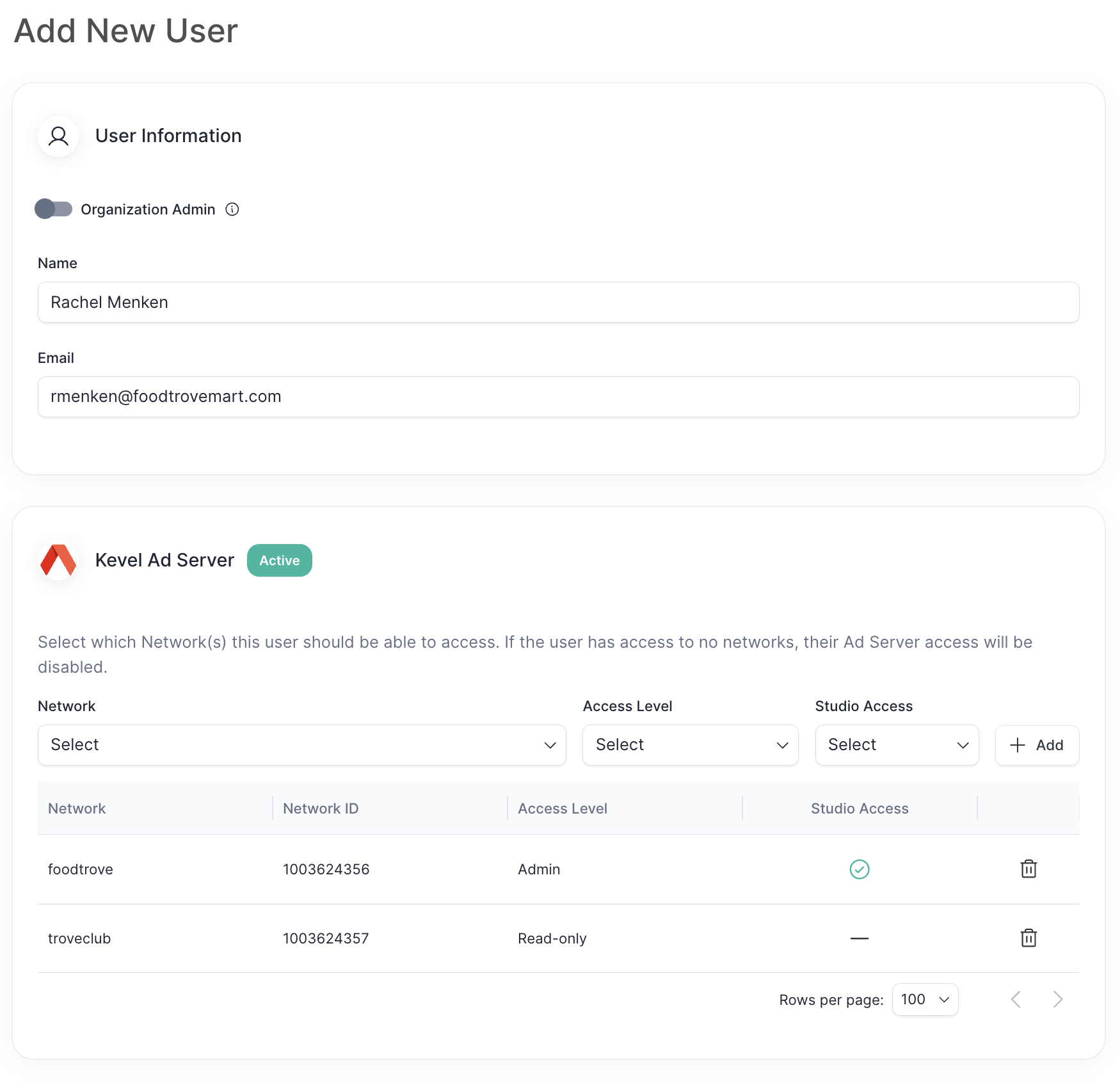
Note that only the products to which you have access appear here. For example, if you use Kevel Console and not Kevel Ad Server or Audience, you will only be able to add the user to your Console Business Manager(s).
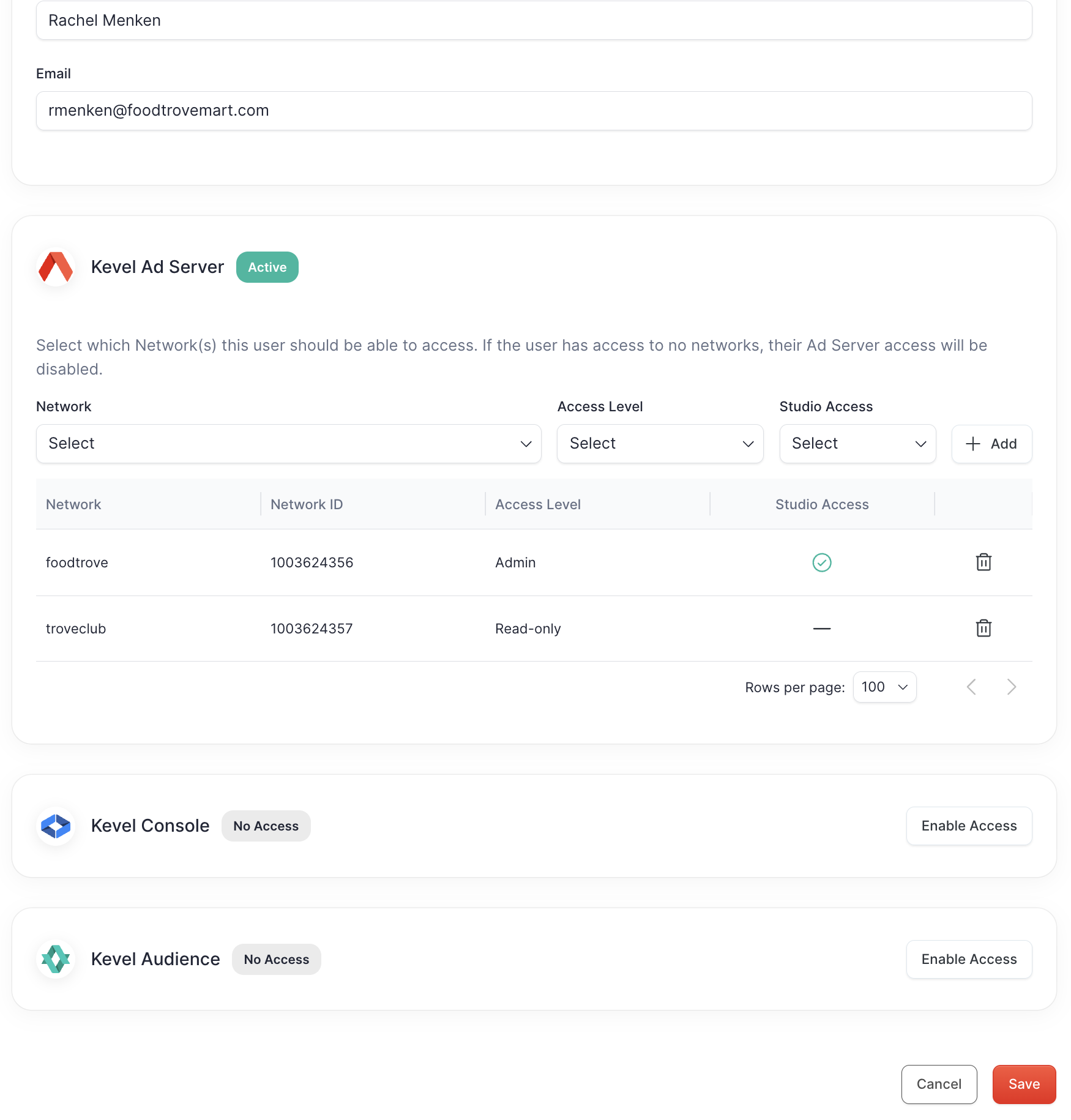
When you are finished, click “Save” to create the user.

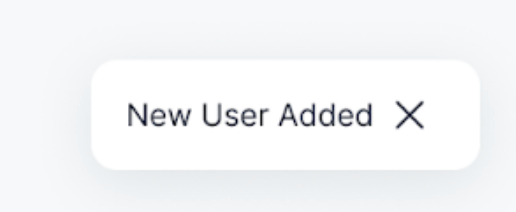
You will see a confirmation message.
Editing a user
To edit a user, click the 3 dot menu for that user and select "Edit."
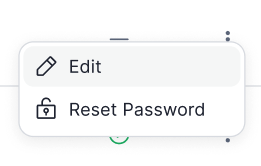
You will be able to edit the user's name, organization admin status, and product access settings.
Deactivating a user
To deactivate a user, click the toggle for the user.
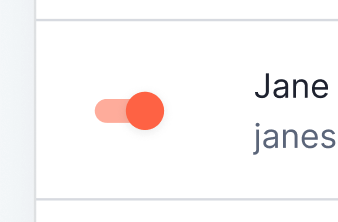
You will be asked to confirm deactivation.
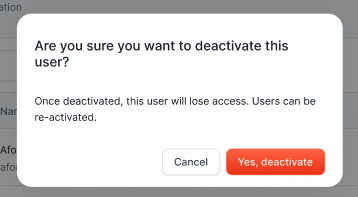
Once deactivated, users will lose access to all products.
Users can be re-activated by re-activating the toggle.
Resetting a password
If your organization's users access Kevel with a password and not SSO, organization admins can reset a password for a user.
Click the 3 dot menu for the user and select "Reset Password."
You will see a confirmation dialog.
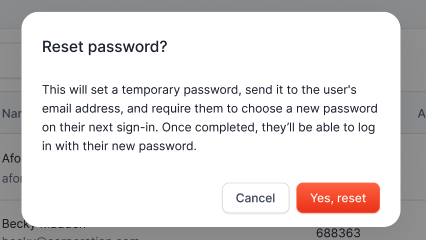
This will set a temporary password, send it to the user's email address, and require them to choose a new password on their next sign-in.
Updated 3 months ago