
Ad Status in Campaign List
See campaign ad health directly in the campaign list.
Overview
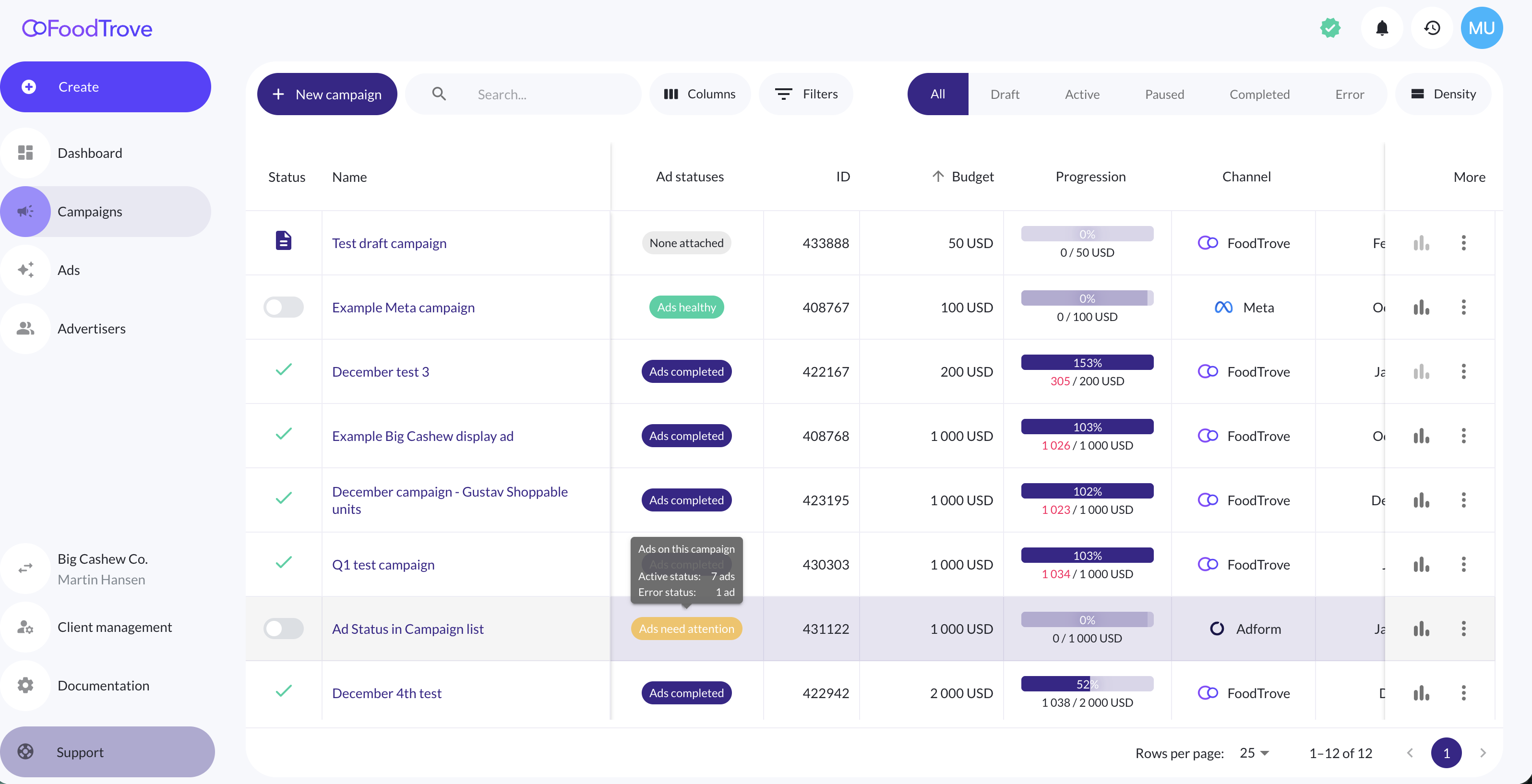
Ad Status in the Campaign List lets media owners and ad operations teams see the health of a campaign’s ads directly from the campaign list in Console.
It helps teams quickly identify campaigns with errored, paused, or processing ads, without opening each campaign’s ad list.
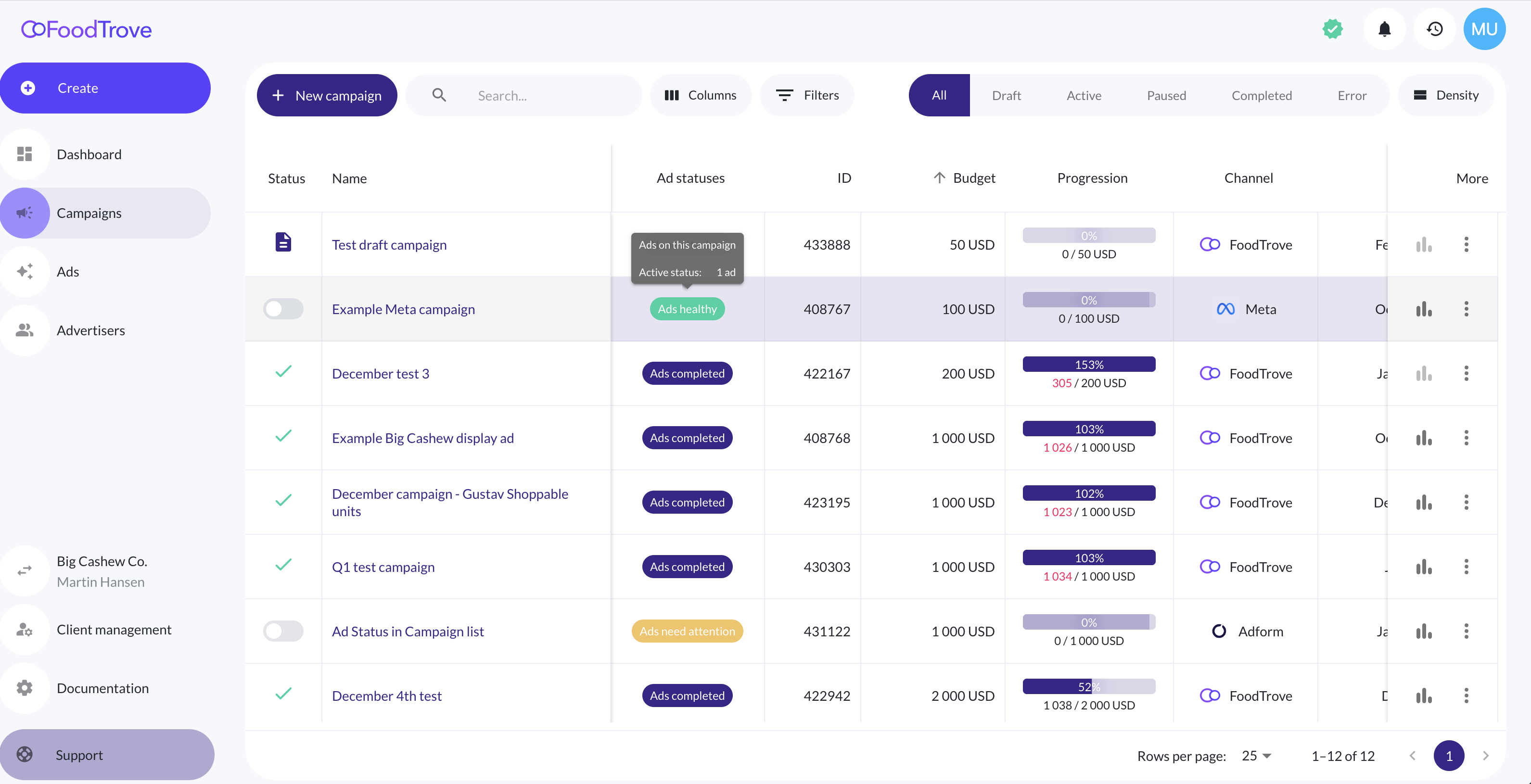
In the images above, you can see how campaign Ad Status reflects ad health: a campaign with 7 active ads and 1 ad in error is marked as Needs attention, while a live campaign with 8 ads still processing is marked as Processing.
Who It’s For
- Media owners & AdOps teams – Monitor campaign health at a glance and catch issues early.
- Publishers managing many campaigns – Reduce manual checks across individual campaigns.
When to Use It
Use this feature when you want to:
- Quickly spot campaigns with ads in error.
- Understand why a campaign may be underdelivering.
- Prioritize which campaigns need attention.
- Reduce time spent opening campaigns one by one.
How It Works
- Console reviews the status of all ads linked to each campaign.
- Each campaign displays a single Ad Status in the Campaign List.
- The shown status always reflects the most important issue or state affecting the campaign.

Console determines the Ad Status using the following rules:
- Completed – The campaign has finished running.
- Needs attention – One or more ads are in error, or the campaign has no ads and is not in Draft.
- Processing – One or more ads are still being processed, with no errors.
- Paused – One or more ads are paused, with no higher-priority issues.
- Draft – The campaign or its ads are still in draft and not ready to deliver.
- Healthy – All ads are active and ready to deliver.
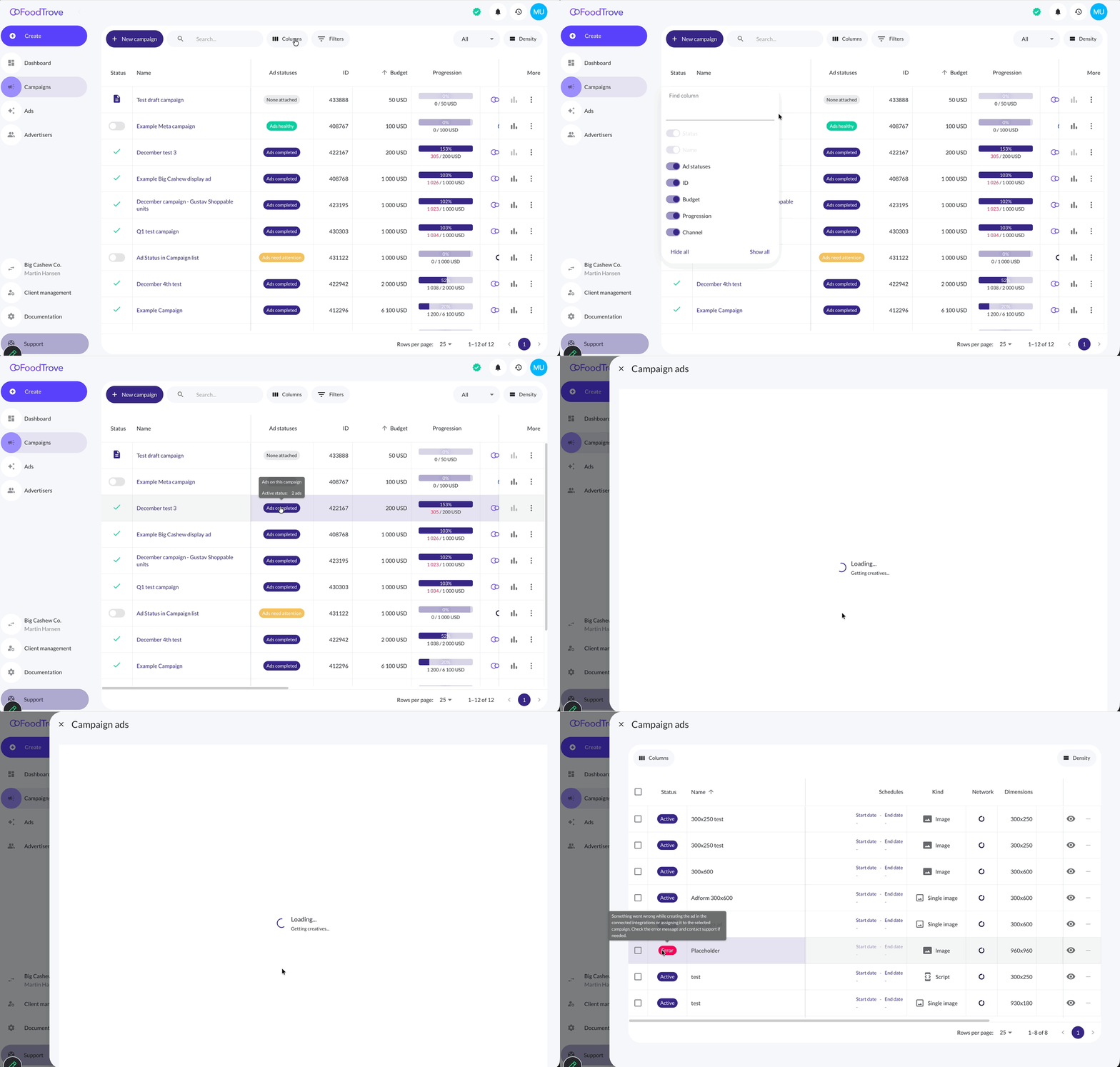
Hovering over the status shows a breakdown of ad states (See example below), helping you quickly understand what’s happening without leaving the list.
How to Enable It
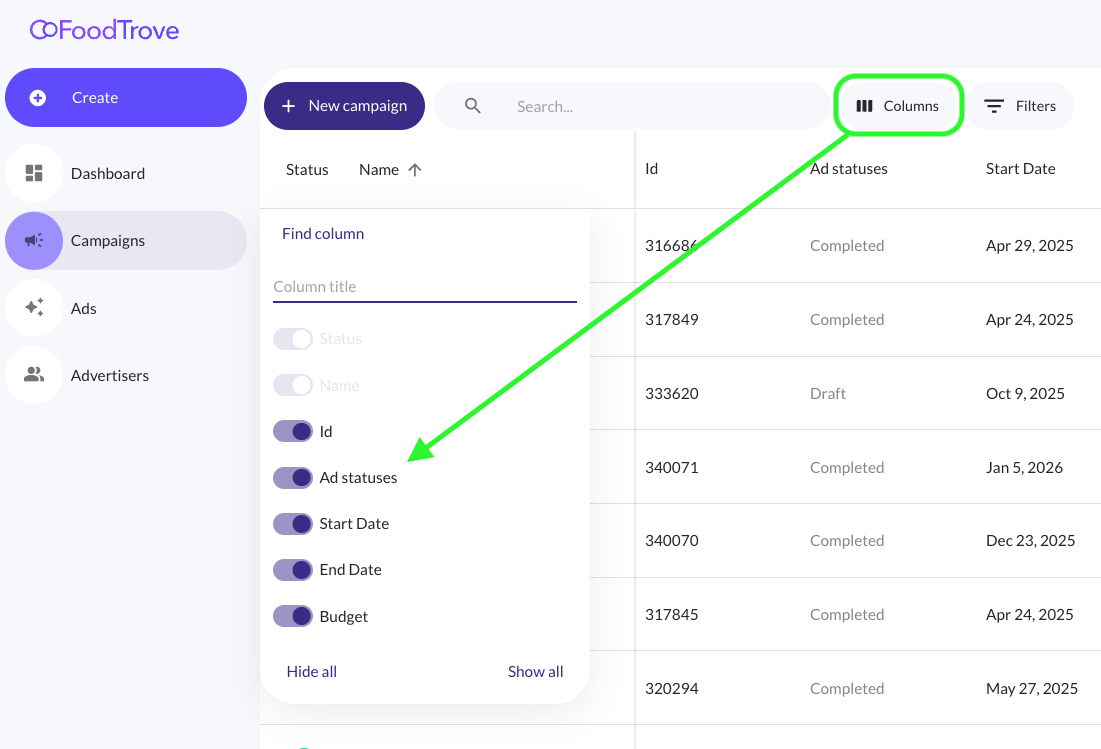
The Ad Status column is available as an optional Campaign List column and can be enabled per client using a feature flag.
Console
- Open the Campaign List.
- Click Columns.
- Add Ad statuses to your table.

Once added, the column appears next to other campaign performance indicators.
Investigating Ad Issues
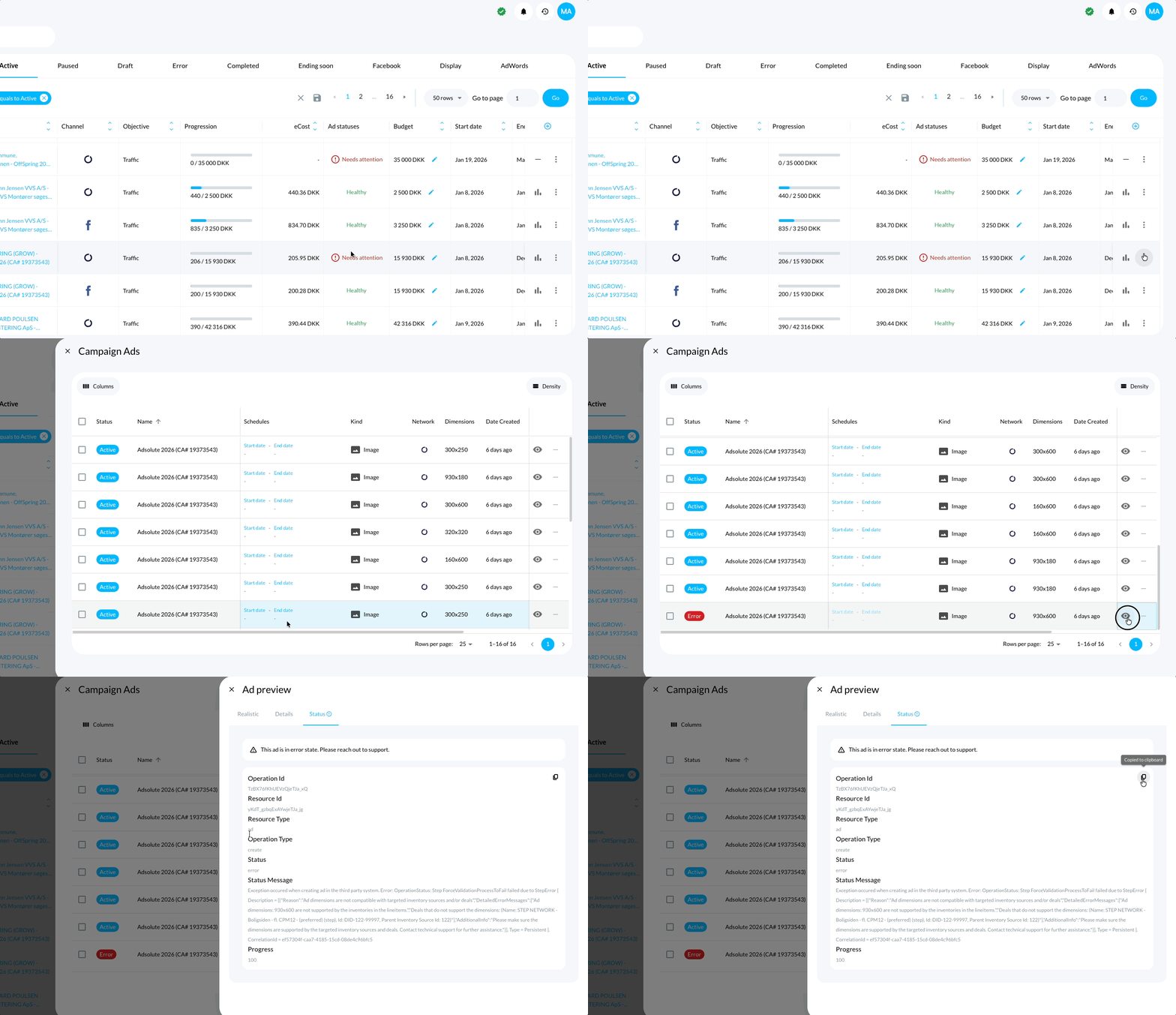
When a campaign shows Needs attention, you can quickly drill down to find the cause:
- Open the campaign menu and select Campaign Ads.
- Identify ads marked as Error in the list.
- Click Preview on an errored ad to view details.
- Open the Status tab to see the full error message.
- If needed - copy the error message if you need help from support.
Example:
Notes
- Ad Status reflects the current state of the ads associated with a campaign.
- For Product Listing Ads, the status is based on the single ad representing the product set, not on individual products within the ad.
- A Product Listing campaign may appear Healthy even if it contains many products, as long as the underlying ad is active.
- The feature is optimized for large campaign lists, making it suitable for Agency mode where media owners view and manage campaigns across multiple advertisers.
- Support for additional campaign types may be added in future updates.
Related Resources
Updated about 2 hours ago