
Read-only Role for Console
Give advertisers visibility without giving them control.
Overview
The Read-only role lets advertisers view campaign performance and booked campaigns in Console without being able to create, edit, or manage anything.
It helps media owners share transparent performance insights using dashboards and campaign lists, while keeping full control over campaign setup and execution.
Who It’s For
- Advertisers – View campaign performance and delivery status without risk of making changes.
- Media owners & publishers – Provide partner visibility while maintaining a managed-service setup.
When to Use It
Use this role when you want to:
- Give advertisers direct access to campaign performance data.
- Replace screenshots, spreadsheets, or manual reporting.
- Prevent accidental edits or configuration changes.
- Support a managed-service operating model.
How It Works
-
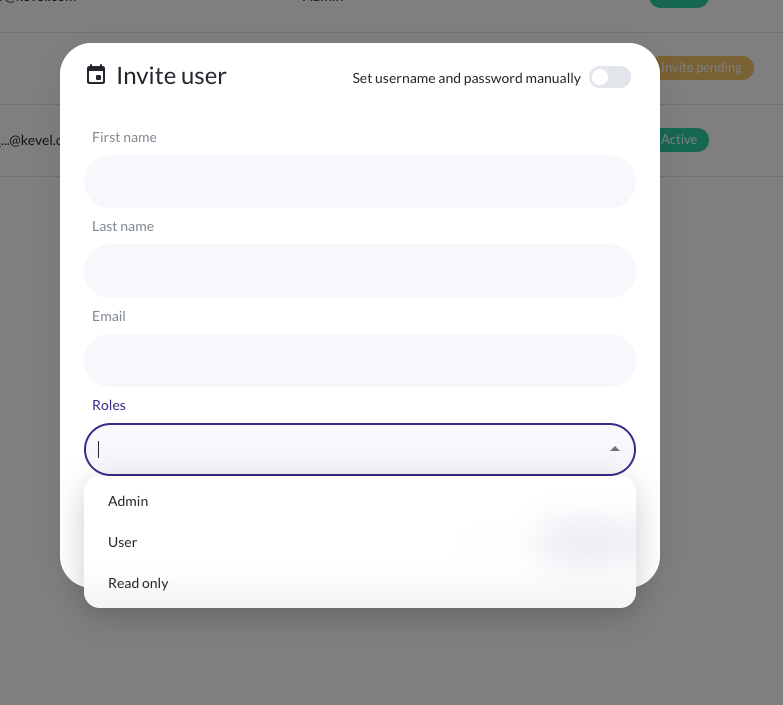
An Admin invites a user with the Read-only role.
-
The user logs into Console with restricted permissions.
-
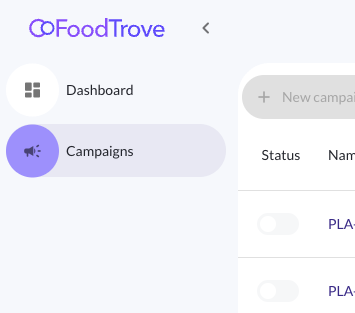
Console shows performance views only, with all configuration and actions disabled or hidden.
Read-only users can explore data via Dashboard & Campaign list, but cannot interact with campaign setup or controls.
How to Enable It
Invite in Console
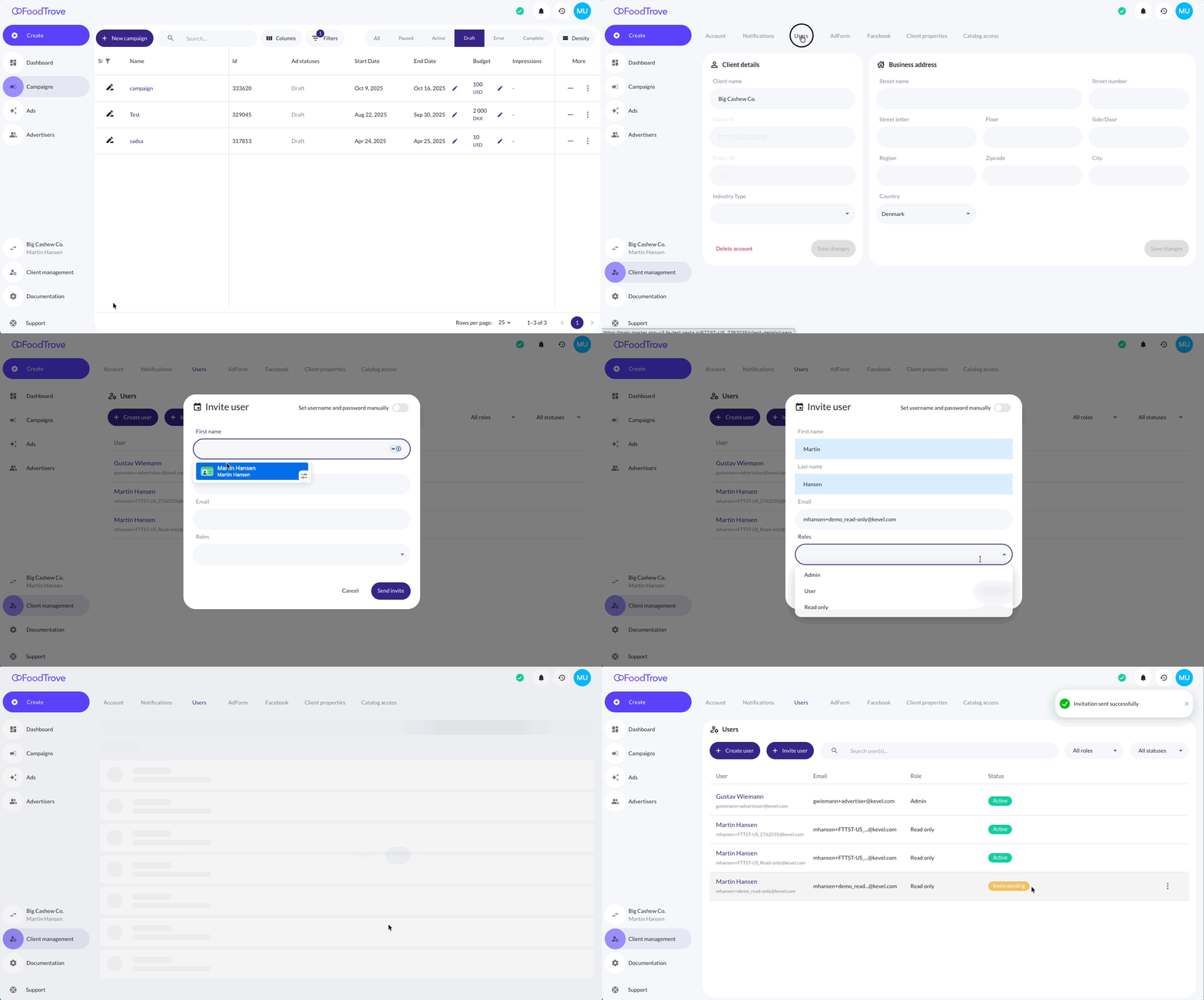
- Go to Client Management → Users.
- Click Invite user.
- Select Read only as the role and send the invite.
Only Media owner or Advertiser Admin users can create or manage Read-only users.
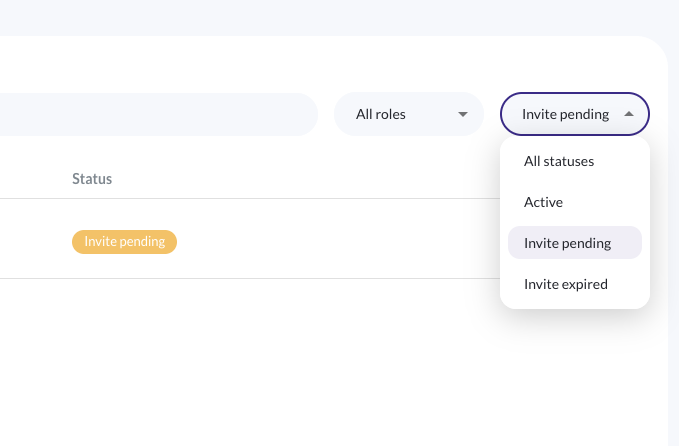
Once the invitation is accepted, the user appears in the user list with the Read-only role and status (Active or Invite pending).
What Read-only Users Can See
Dashboard
Read-only users can access the Dashboard to view aggregated performance metrics such as:
- Impressions
- Clicks
- Spend
- CTR, CPC, CPM
- Conversions and ROAS (if available)
Campaign List
Read-only users can access the Campaign List, including:
- Campaign name and ID
- Status and dates
- Channel
- Performance metrics (impressions, clicks, CTR, spend)
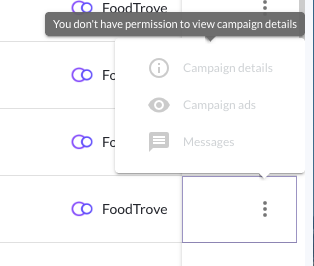
Campaign actions and inline controls are disabled or hidden.
What Read-only Users Cannot Do
-
Create, edit, pause, duplicate, or delete campaigns.
-
Access campaign setup details such as:
- Targeting
- Bids
- Creatives
- Keywords
- Audiences
-
Open campaign detail or configuration views.
-
Access Client Management or Billing.
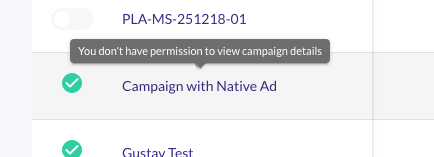
If a restricted action is attempted, Console clearly indicates that the action is not allowed.
Notes
- The Read-only role is strictly view-only.
- Access is limited to Dashboard and Campaign List views.
- All setup, configuration, and management functionality is hidden or disabled.
- This role is designed for transparency and safety, not advanced reporting or configuration.
- Additional reporting or export capabilities may be added in future updates.
- Access might be extended to Ads and previews in the future iterations
Related Resources
Updated 12 days ago