
Console SSO
Set up OpenID Connect SSO for the advertisers using your Console instance, and understand how invitations, sessions and access removal behave.
Kevel Console SSO lets the advertisers using your Console instance sign in with your identity provider (IdP) instead of a Console-issued username and password, using OpenID Connect.
Your Console's sign-in page then sends advertisers to your own SSO login.
It covers advertisers signing in to your branded Console instance. For your own staff and media-owner users, see Ad Server SSO and Console sign-in paths.
How sign-in works
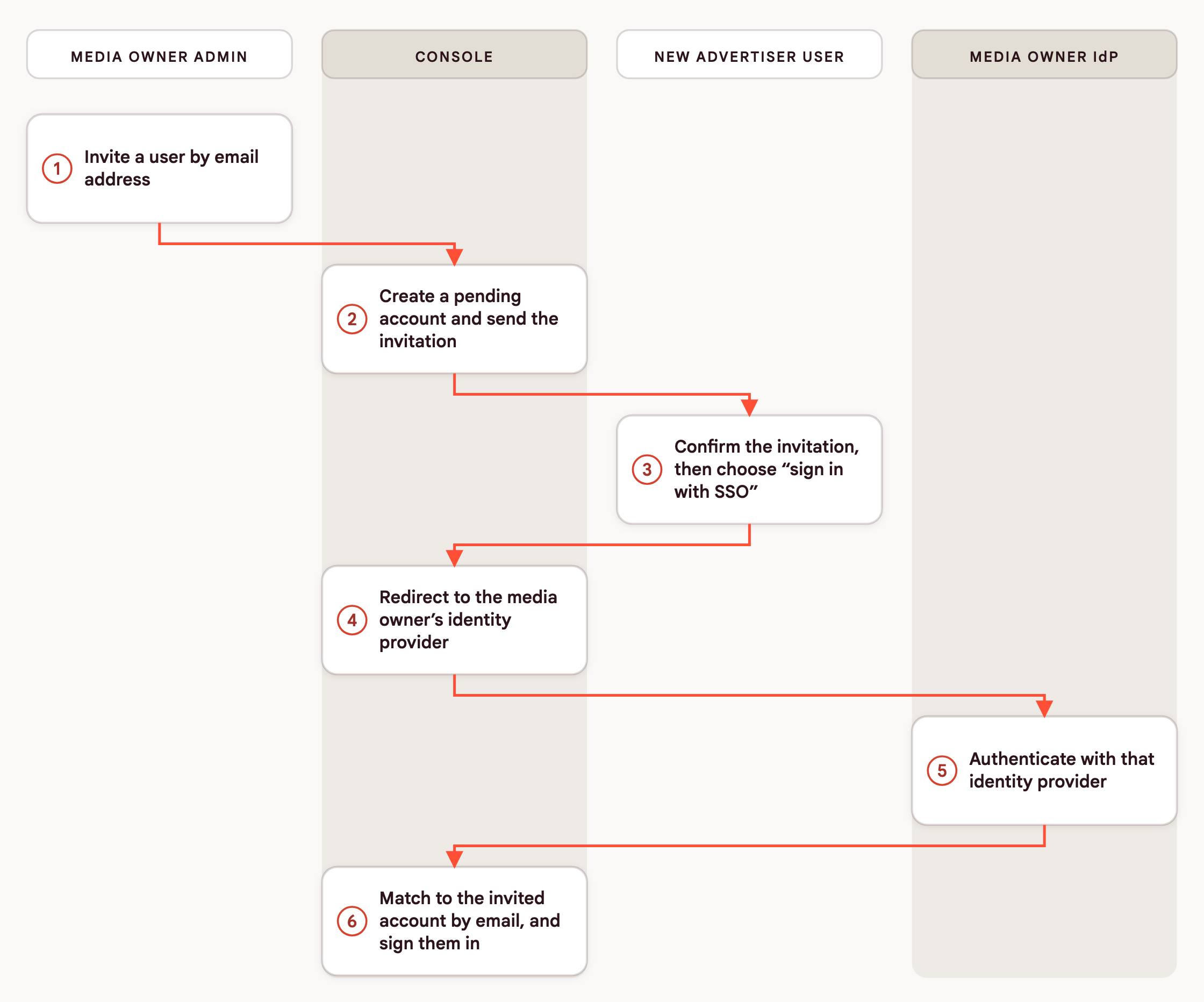
A media owner admin invites an advertiser user to Console by email address, and an advertiser admin can invite users to their own advertiser account in the same way. The invited user confirms the invitation, and signs in through your IdP from then on. Console matches each SSO sign-in to a Console account by email address, so the account exists from the invitation rather than being created at sign-in.
Sign-in is service provider (SP)-initiated: it starts at Console, and your IdP redirects the user back once authentication completes.
SSO establishes identity only. Which advertiser accounts a user reaches, and their role, are set in Console by an admin, not in your IdP.
Console sign-in paths
The Console sign-in page serves two kinds of user, and they authenticate against two separately configured SSO integrations.
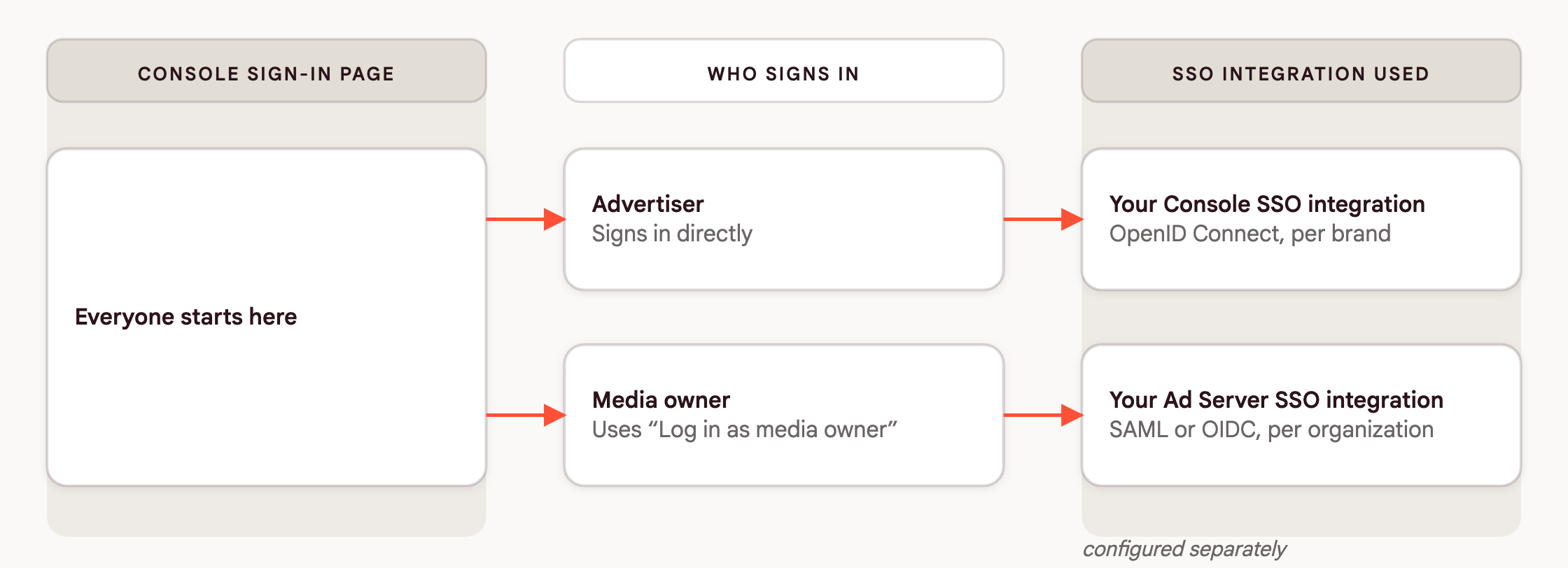
- Advertisers, the brands using your self-serve Console instance, sign in directly on the Console sign-in page, against your Console SSO integration. This is what the rest of this page configures.
- Media owners, your own retail media staff, use the "Log in as media owner" link on the same page. That link hands sign-in off to your Ad Server SSO integration, the same one used for direct Ad Server sign-in. See Ad Server SSO for what applies on that path, including just-in-time provisioning and default network access.
Setting up SSO for media-owner sign-in is an Ad Server SSO integration rather than a Console one. The two are configured independently, even though they share a sign-in page.
Signing in with email and password
Email and password is Console's standard sign-in, and it is what advertiser users use where SSO is not configured. An admin invites the user by email address, the user confirms the invitation and sets a password, and signs in with that password from then on.
Once password sign-in is turned off for your brand, your IdP becomes the only way in for advertiser users. Password sign-in is on or off for the whole brand. It cannot be left on for some advertisers or users only.
Where both are left enabled, offboarding takes two steps rather than one. Removing a user from your IdP closes the SSO path but leaves their Console password working. They keep a way in until an admin also removes their Console access. See Removing access.
Integration steps
Your Kevel contact guides you through setup. Use this section to prepare what your IdP admin needs in advance.
Prerequisites
Gather the following before starting:
- A branded Console instance on its own subdomain, such as
yourbrand.ads-console.com. The SSO option only appears when advertisers sign in at that address. - An issuer URL, typically ending
/.well-known/openid-configuration. - A client ID and client secret. Exchange the client secret through a password manager rather than email or chat.
- A test user in your IdP, so the sign-in can be tested before go-live.
- Confirmation that every advertiser user who needs Console access exists in your IdP, and that every future one will. Once password sign-in is off, a user who is not in your IdP cannot sign in.
- An IdP that supports OpenID Connect. SAML, and Active Directory directly, are not supported. Active Directory must sit behind an OIDC-capable identity provider.
How setup runs
1. You send Kevel your issuer URL, client ID, and client secret.
2. Kevel configures the integration for your brand. Console reads the email claim from your IdP to identify each user. Make sure your IdP sends it for every advertiser user who needs Console access. Kevel also sends you the callback, post-logout and initiate-login URLs for your brand's subdomain, which your IdP admin registers in the application.
3. You confirm the test sign-in link Kevel sends reaches your IdP correctly.
4. Kevel enables the integration for your brand, with password sign-in still on while you test. Once you confirm that every advertiser user can sign in through your IdP, Kevel turns password sign-in off as a separate change, unless you ask to keep it. Enabling SSO, turning it off and changing the password setting are each a Kevel release, so none of them is instant.
What your users see
Once SSO is enabled for your Console, any advertiser user you invite confirms their email address and signs in through your IdP directly, without setting a Console password. Users invited before SSO was enabled keep their account, and their next SSO sign-in is matched to it by email address with no separate linking step.
Matching is by email address, so where the address in your IdP differs from the one a user was invited with, no account matches and sign-in stops. Confirm addresses match before go-live.
Common errors
| What you see | Likely cause |
|---|---|
| "No active Kevel account matches your SSO email address." | No Console account has been invited for the email address your IdP asserted, or the two addresses differ. A removed account looks the same as one that was never invited. Console accounts are created by invitation. See Provisioning new users. |
| "Your Kevel account must be activated from the invitation email before you can use SSO." | The account has been invited, and the invitation has not been confirmed yet. Confirm it from the invitation email, then sign in through your IdP. Invitations expire after 28 days, so an admin may need to resend it. |
| "The SSO provider did not provide an email address for this account." | Your IdP is not sending an email claim. Add it to the claims mapped for the Kevel application. |
| The SSO option does not appear on your brand's sign-in page | The integration is not yet enabled for your brand, or you are viewing a different brand's sign-in page than the one configured. |
Go-live checklist
- Existing invited users' email addresses match between Console and your IdP
- Every advertiser user who needs Console access exists in your IdP, and you have a process for adding future ones
- Advertisers have been given your brand's own Console address to use
- Invited users have confirmed their invitation before their first SSO sign-in
- The test sign-in link reaches your IdP and lands you in Console as the expected user
- You have decided whether to keep password sign-in enabled alongside SSO
- Kevel has confirmed the integration is enabled for your brand
How SSO behaves day to day
Provisioning new users
Console accounts are created by invitation. A media owner admin invites an advertiser user by email address, and an advertiser admin can invite users to their own advertiser account. The invitation creates the account, and an SSO sign-in is matched to an invited account by email address. Adding an advertiser user works the same way whether or not SSO is enabled for your brand: invite them, and they sign in through whichever method your brand supports.
A newly invited advertiser user must confirm the invitation before SSO signs that account in. They open the invitation email first, then sign in through your IdP.
Access to more than one advertiser
A single Console account holds access to more than one advertiser. Where your organization works with more than one Kevel customer's Console instance, the same invited email address is used for each. Signing in once reaches whichever advertiser accounts that user has access to. The account decides which advertisers a user can reach, not the IdP they signed in with, so your IdP does not gate access that the user holds through another media owner.
Session behavior
A Console session is time-limited, and ends sooner if the user signs out.
Access is not frozen for the life of the session. Console re-reads the signed-in user's access every 30 seconds. A change you make in Console, including removing a user's access or changing their role, takes effect within about half a minute. The user does not need to sign out and back in.
That refresh reads Console's own record of the user. It does not ask your IdP anything. Console confirms identity with your IdP at sign-in. Removing a user in your IdP therefore does not end their session or revoke their access on its own. The user also stays listed on the Users tab until someone removes them there. Their next sign-in goes back through your IdP, and an identity your IdP no longer admits cannot get in.
Signing out of Console ends the Console session. It does not sign the user out of your identity provider, and signing out of your identity provider elsewhere leaves an existing Console session running.
For offboarding, remove the user's Console access as part of the same step that removes them from your IdP.
Removing access
To remove a user's access, remove them from the advertiser account in Console: select the advertiser, go to Settings, open the Users tab and remove the user. This takes effect within about 30 seconds. Media owner users see the Users tab only if they are organization admins, so ask an organization admin if you do not see it.
Where the user has access to one advertiser account, this removes their Console account entirely. Where they have access to more than one, this removes access to the account you are managing and leaves their other access unaffected.
Where password sign-in is still enabled alongside SSO, removing the user in Console matters more, because their Console password stays a way in until you do.
Updated 9 days ago