
Day & Hour Parting
Day & Hour parting is set at the Flights level.
Overview
Day Parting allows you to limit a flight to serve on specific days, times, or both. For instance, you could target users just in the evening or just on the weekends.
Each day parting rule is a time part. You can set up to 10 time parts per flight.
Time parts on a flight are not allowed to overlap.
How Day Parting Works
A time part sets a flight to serve from the first instance of the Start Time until the first instance of the End Time.
The End Time can potentially be earlier than the Start Time. In that case, the time part will stop serving when the End Time is reached on the day following the day of the time part. For instance, a time part for Monday with a Start Time of 20:00 and an End Time of 8:00 will stop serving at 8:00 on Tuesday.
Consecutive time parts can be used to achieve a greater than 24 hour day part. For instance, to serve a flight from Friday evening GMT until the end of Sunday, you can use the time parts:
| Start Time | End Time | Day |
|---|---|---|
| 17:00 | 00:00 | Fri |
| 00:00 | 00:00 | Sun, Sat |
Day Parting Balancing
For day parting flights with non-percentage goals, the ads in the flight are balanced based on:
- The flight (or ad) Goal amount
- The Start Time and End Time of the flight (or ad)
- The total time parts on the flight
From these, the balancer calculates the duration the ads can serve within the flight Start and End Times given its time parts. As the flight serves, the balancer adjusts the weights of the ads so the flight can reach its Goal.
The following will cause a time parted ad to stop serving, in order of precedence:
- Caps (frequency, budget, event-based) being reached
- Goals (flight, ad) being reached
- End Date/Time (flight, ad) occurring
- First occurrence of the time part's end time
Setting Up via the UI
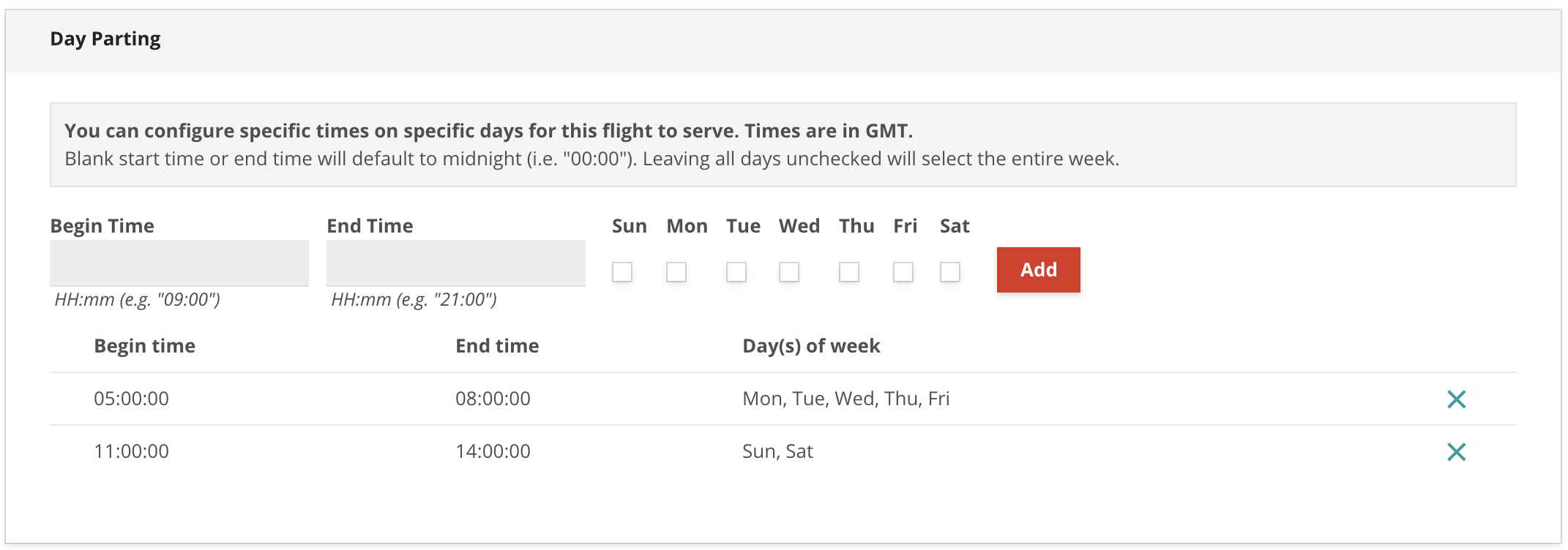
- On the flight's settings page, click on the 'Day Parting' tab on the left.
- Set the times and/or days you'd like the flight to serve. Times should be specified in 24 hour time. Leaving a time blank defaults to 00:00. Not selecting a day defaults to every day.
- Click "Add".
- Repeat for up to 10 day parts per flight.
Setting Up via the API
To enable day parting on a flight via the API, use the day parting endpoints to create day parting entities and associate them with the flight.
These entities contain the same data as a time parting rule on the flight's page:
{
  "Id": 1234,
  "StartTime": "16:00:00",
  "EndTime": "22:00:00",
  "FlightId": 1234567,
  "WeekDays": [
    "FR"
  ]
}
Crossing Midnight GMT
Day parts may cross midnight in the flight's time zone. In this case, the day part will begin on each of the days selected, and finish on the subsequent days.
For example, on a flight with no time zone set, day part times are GMT. To run that flight Monday to Friday 4pm to 8pm PDT, you would create day parts for 11pm to 3am GMT.
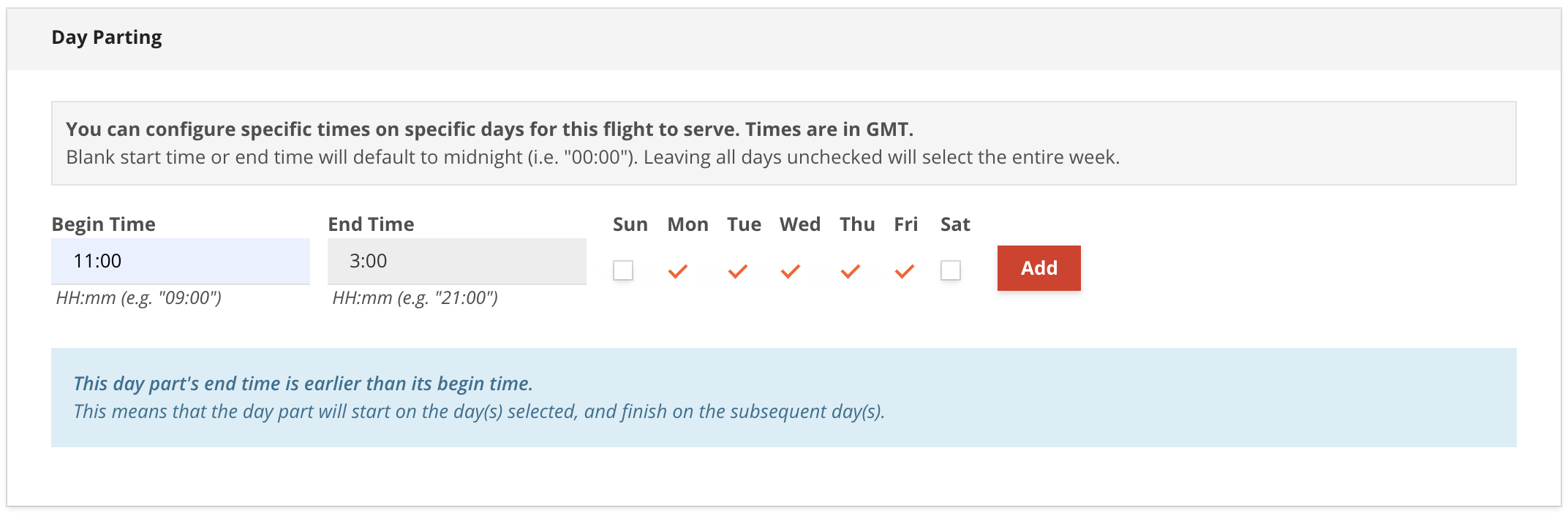
If a day part is set from midnight to midnight, it will run for the full day(s) selected.
Updated about 1 month ago