
Category targeting in Console
Where advertisers choose categories for Product ads and Native Product ads in Console, and what you set up first, for media owners.
Category targeting in Console lets advertisers choose the categories where their Product ads and Native Product ads can appear. It is for media owners who offer Console to advertisers and want Ads matched to the category pages of their site or app. To compare it with the other ways to target by category, see Category targeting.
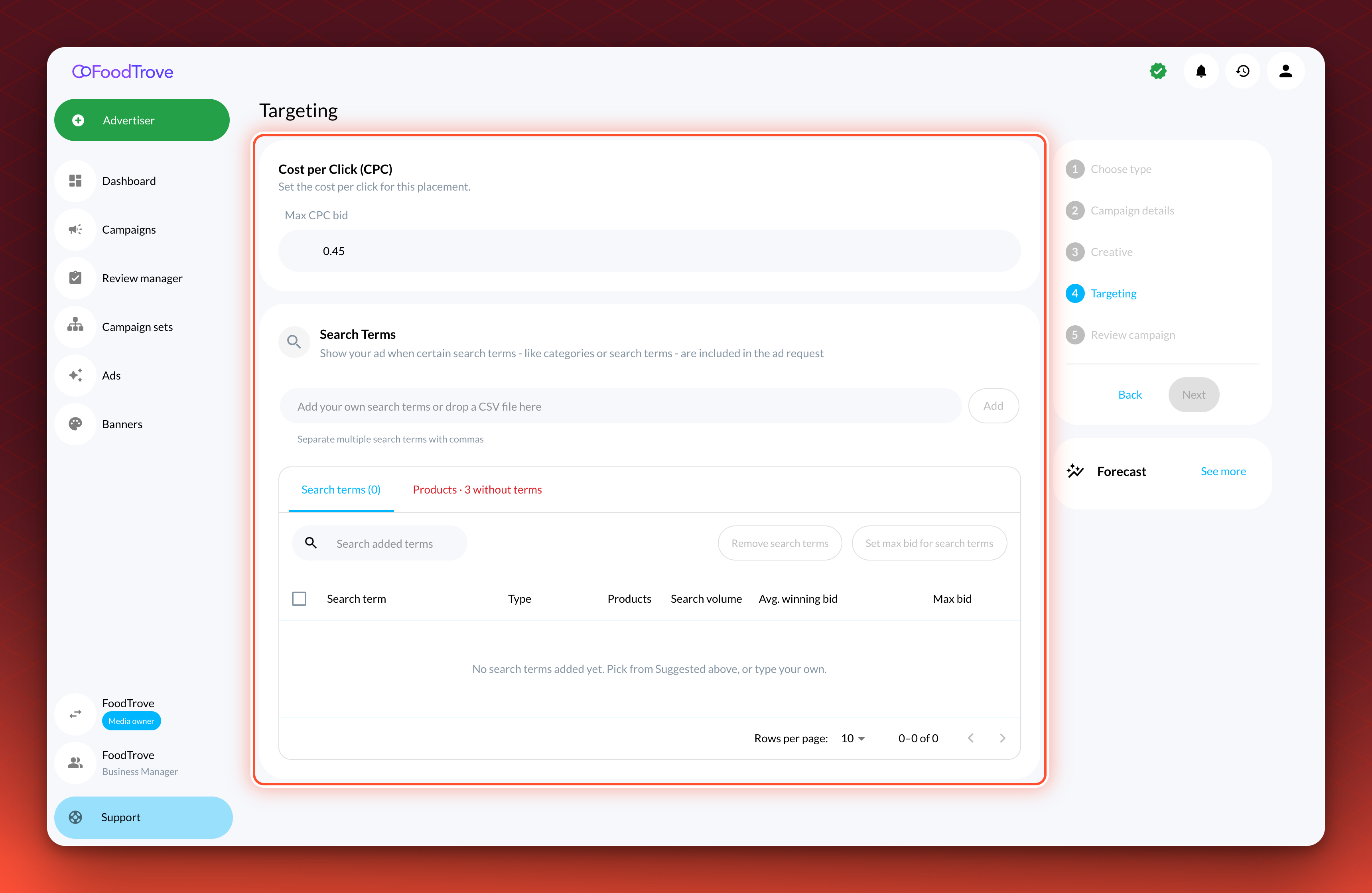
Console shows Categories in the Targeting step on the placements your Kevel team has enabled for it. If advertisers do not see Categories on a placement, contact your Kevel representative.
How it works
Categories is off by default, and Kevel turns it on for each placement. On an enabled placement, the Targeting step of a campaign includes a Categories section. Console can fill it in from the selected products, and the advertiser can add more categories or remove any of them. See What advertisers can choose from.
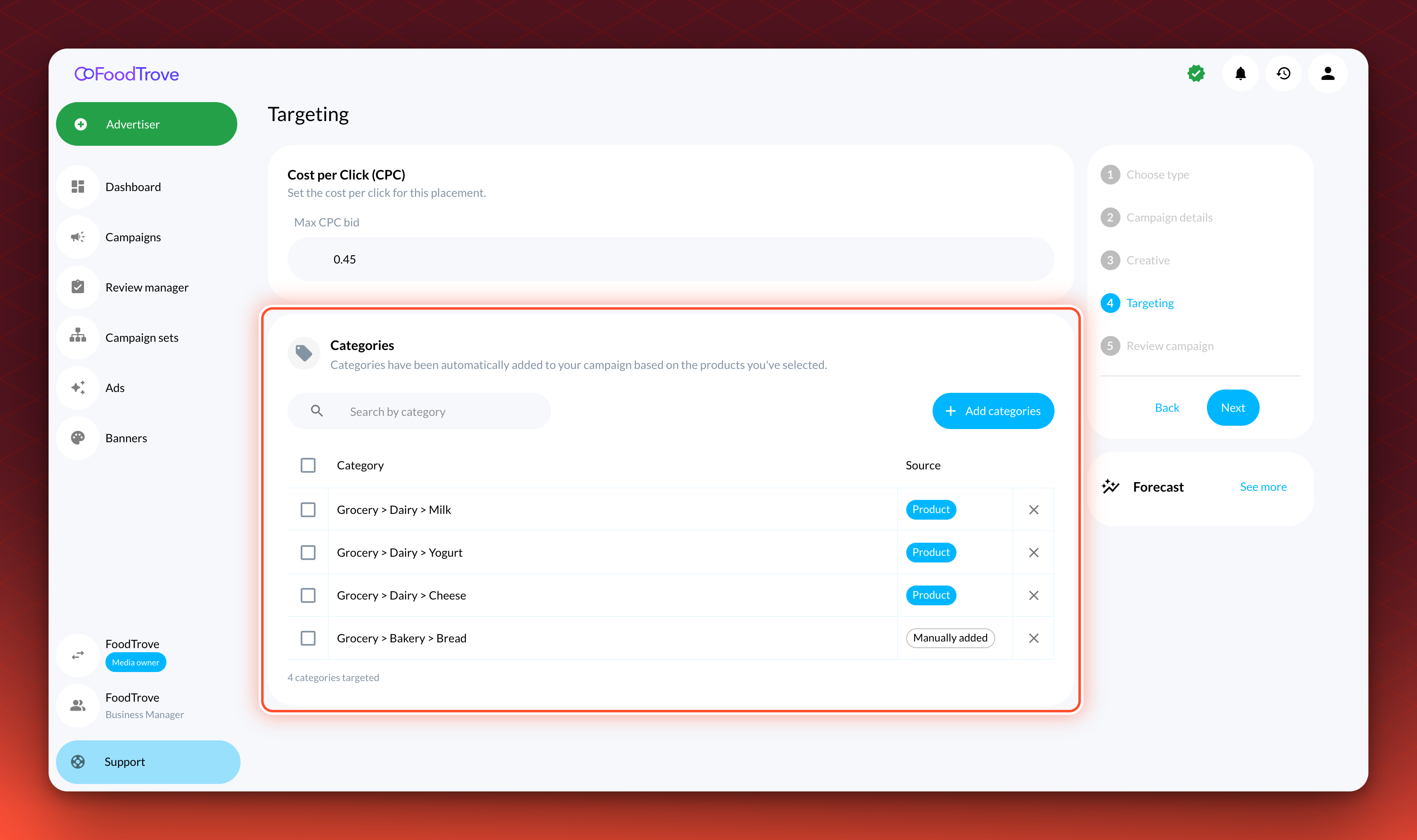
When the advertiser saves the campaign, Console saves each selected category on the Ad in two ways. One is a Creative field that an AdQuery filter on your requests can read. The other, where category targeting is enabled for your network, is a category rule on the Ad. Kevel compares those rules with the category your pages send, using the rules in How category targeting matches Ads.
The categories an advertiser can choose come from the category list Kevel sets up for your network. It can be your site's own category taxonomy, or Kevel can build it from your product feed. Console shows each category by its name or by its ID, as set up for your network.
What advertisers can choose from
Your Kevel team sets two things for your Console.
Whether categories are filled in from products. When it is on, selecting a product adds the categories that product belongs to, and the Source column reads Product. Removing the product removes them again. Each applies only to the Ad for its product, and the advertiser can remove any of them. It needs products that carry the same category IDs as your category list, so it stays off when the list is your site's own taxonomy.
What the Add Categories window lists. One of two options:
| What categories your advertisers can target | What the Add Categories window shows | Which Ads a category added in the window applies to |
|---|---|---|
| Any category (the default) | Where categories are filled in from products, they are added automatically. Advertisers can remove categories they don't want to target. Advertisers can select "Add categories" to browse or search your whole category list, as a tree or flat list, and select additional categories to target. | Every Ad in the campaign |
| Only categories pertinent to selected products | Categories pertinent to the products are added automatically. Advertisers can remove categories they don't want to target. They can select "Add categories" to browse or search categories they removed. | Only the Ads for the products in that category |
In order for advertisers to be able to target only categories pertinent to selected products, IDs of categories in your targetable categories table must align with your products' category IDs in your product feed.
Before you start
Where it applies. Campaigns that advertisers book in Console through campaign types and placements, on Product ads and Native Product ads. Campaigns booked from a campaign template instead of a placement do not show Categories.
What it does not do.
- It does not match child categories. Matching is exact, so a category an advertiser chooses matches that category page only. Advertisers choose each category they want, because each category has its own checkbox and a parent does not select its children.
- It does not save categories on other ad types. Console builds a campaign's categories from the products on its Ads. Product ads and Native Product ads carry them, and other Ads in the campaign do not. To target other Ads by category, contact your Kevel representative.
- It does not offer Exclude. Advertisers choose categories to include. Excludes are set in the Ad Server UI or Management API.
- It does not update Ads saved before it was enabled. Those Ads get their category rules when they are next saved in Console. To update many at once, contact your Kevel representative.
- It does not remove a category when a product leaves it. The Ad keeps the categories it was saved with until the advertiser changes them. To keep Ads off pages their product has left, see How to keep category targeting aligned with your catalog.
- Category bid modifiers in Console are coming soon.
- Category reporting in Console is coming soon.
Offer category targeting to your advertisers
Purpose. Make sure the categories advertisers choose line up with the pages they want to reach.
- Send the category on every request. Add
categoryto each placement in your ad requests, using the values you want advertisers to choose. Make them match the category IDs in the list Kevel sets up, because a category that does not match never serves and nothing reports an error. An Ad that has category rules is not eligible on a request that carries no category, so send it on every placement where those Ads should serve. See Send a category in decision requests. - Ask your Kevel representative to enable it. Name the placements, say where your categories come from, your site's category taxonomy or your product feed, and say which option advertisers should have. Kevel loads the category list, enables category targeting for your network and turns on Categories for the placements.
- Check the placement in Console. Start a campaign on an enabled placement and open the Targeting step. Categories appears.
Validation. After an advertiser saves a campaign, a request whose category matches one of the chosen categories can serve the Ads. A request with a different category, or with none, does not.
Choose categories in a campaign
Purpose. Know what advertisers see, so you can support them.
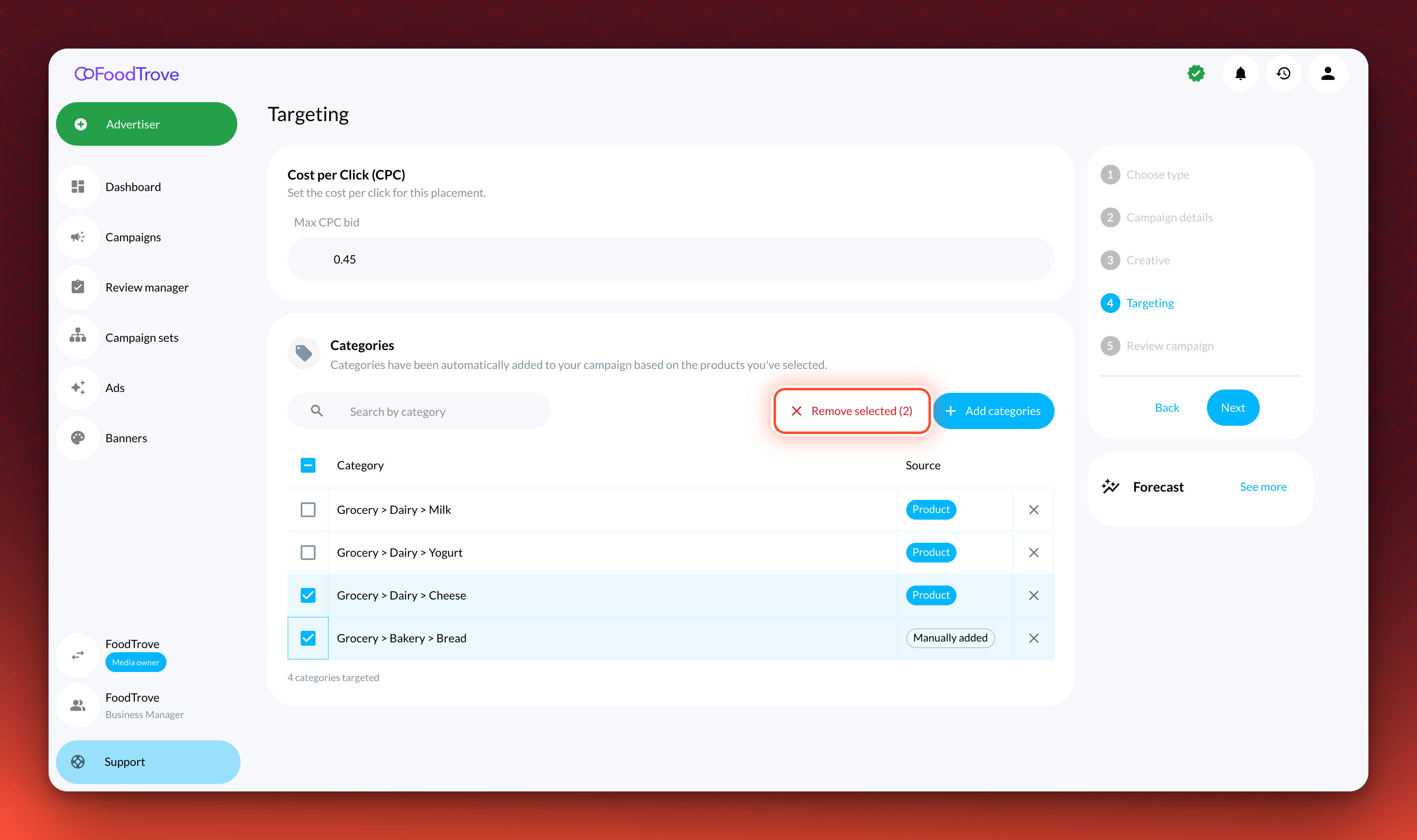
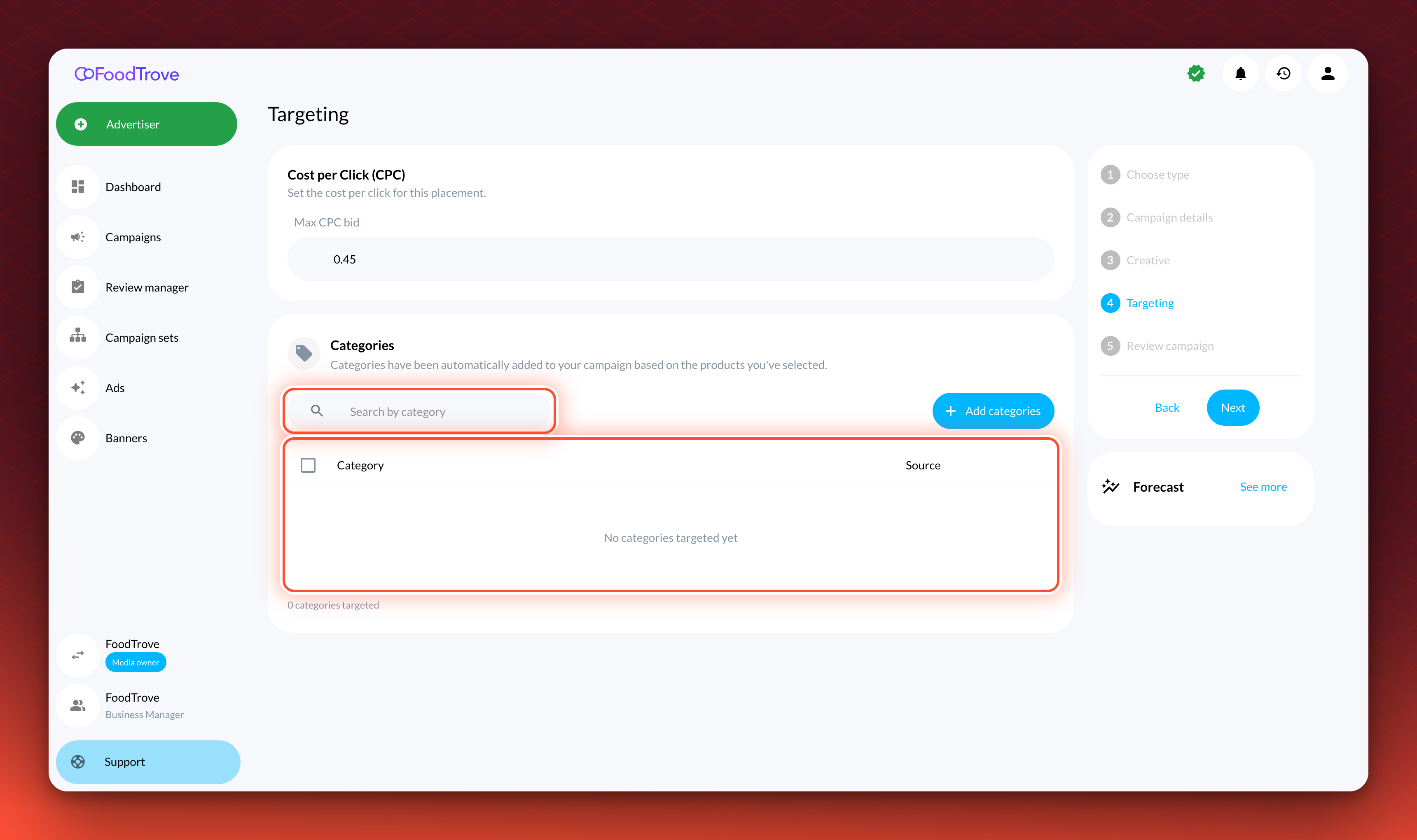
- Open the Targeting step. On an enabled placement, the step includes a Categories section with a table and a search box.
- Review the categories added from products. The Source column reads Product for a category that came from a selected product, and Manually added for a category the advertiser added.
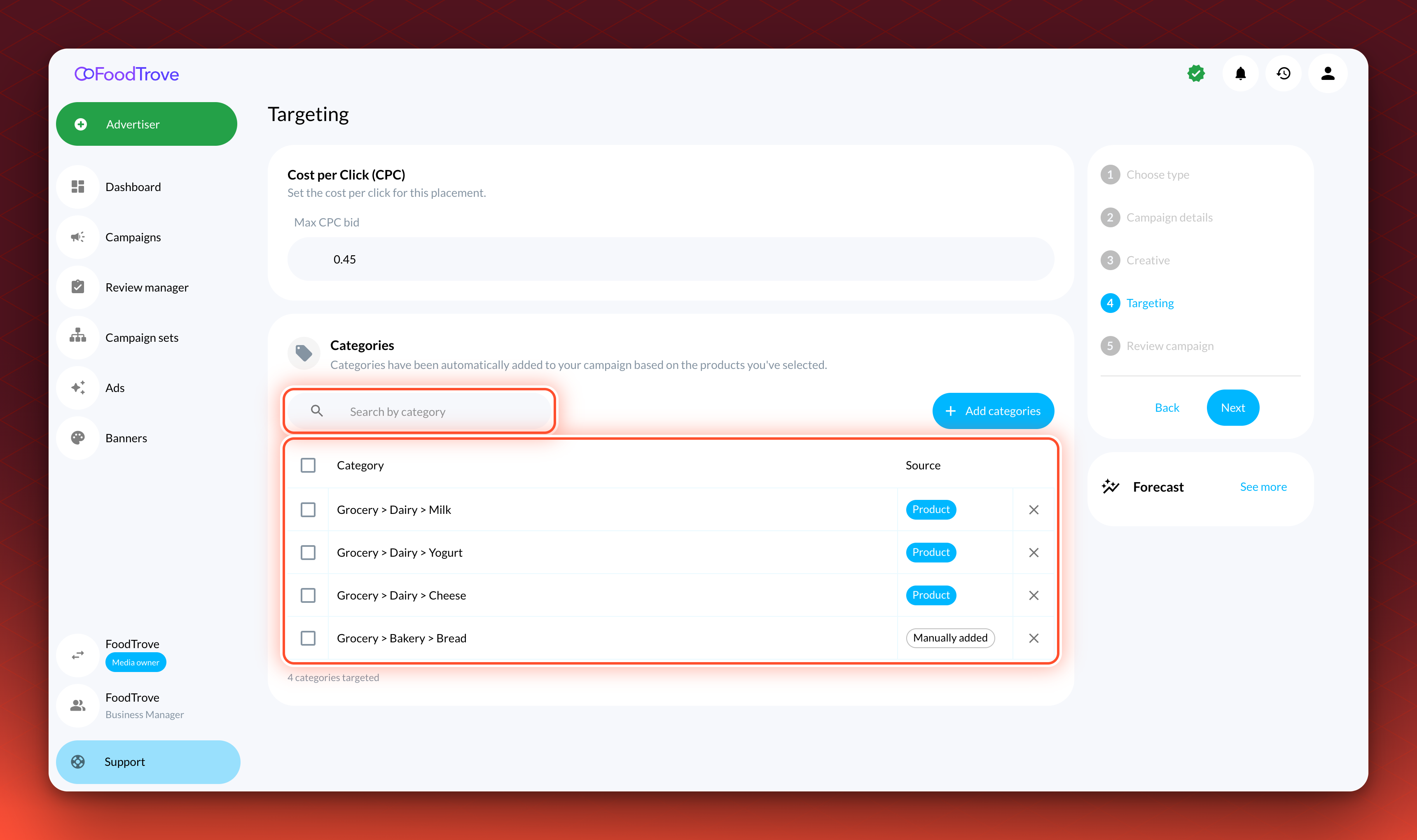
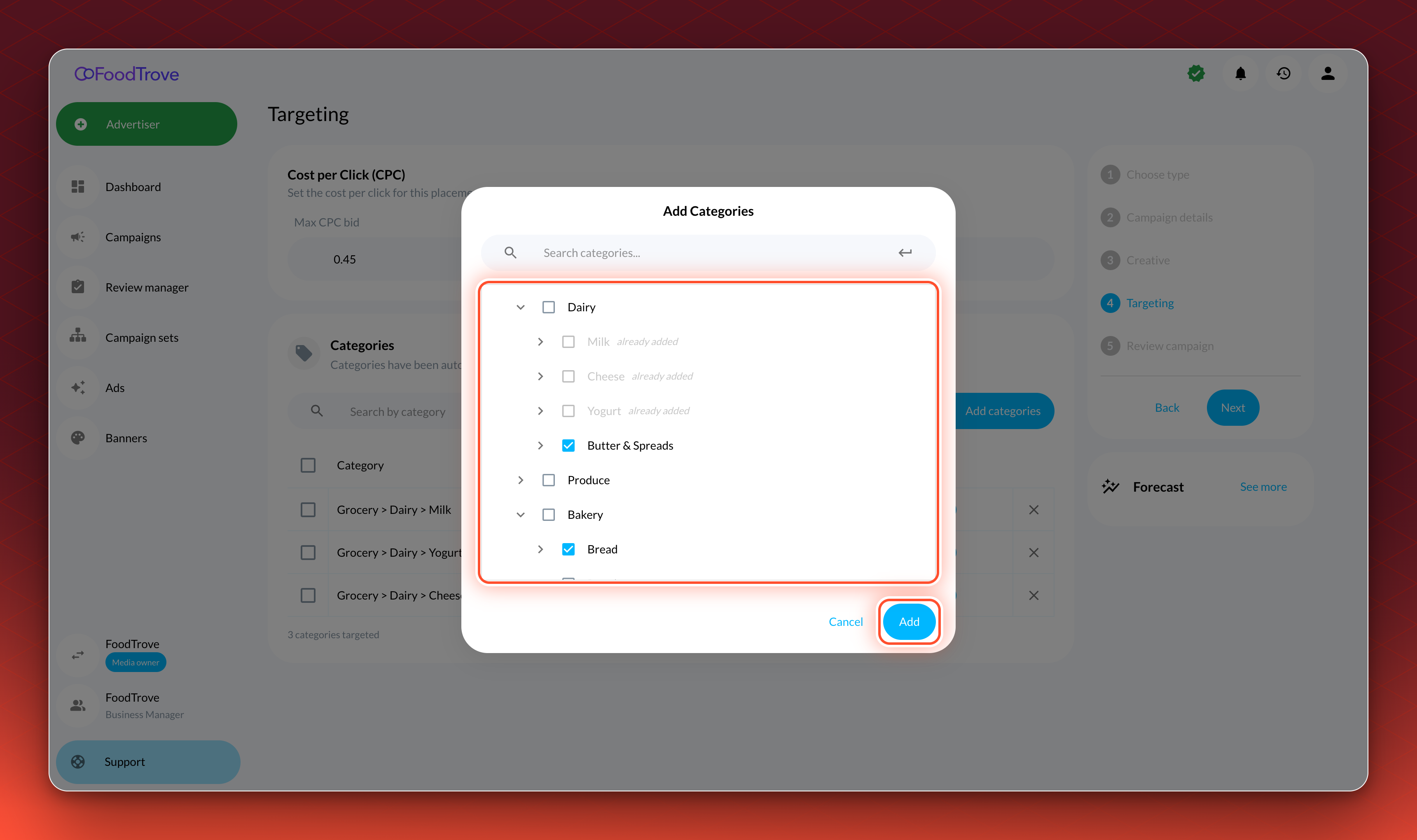
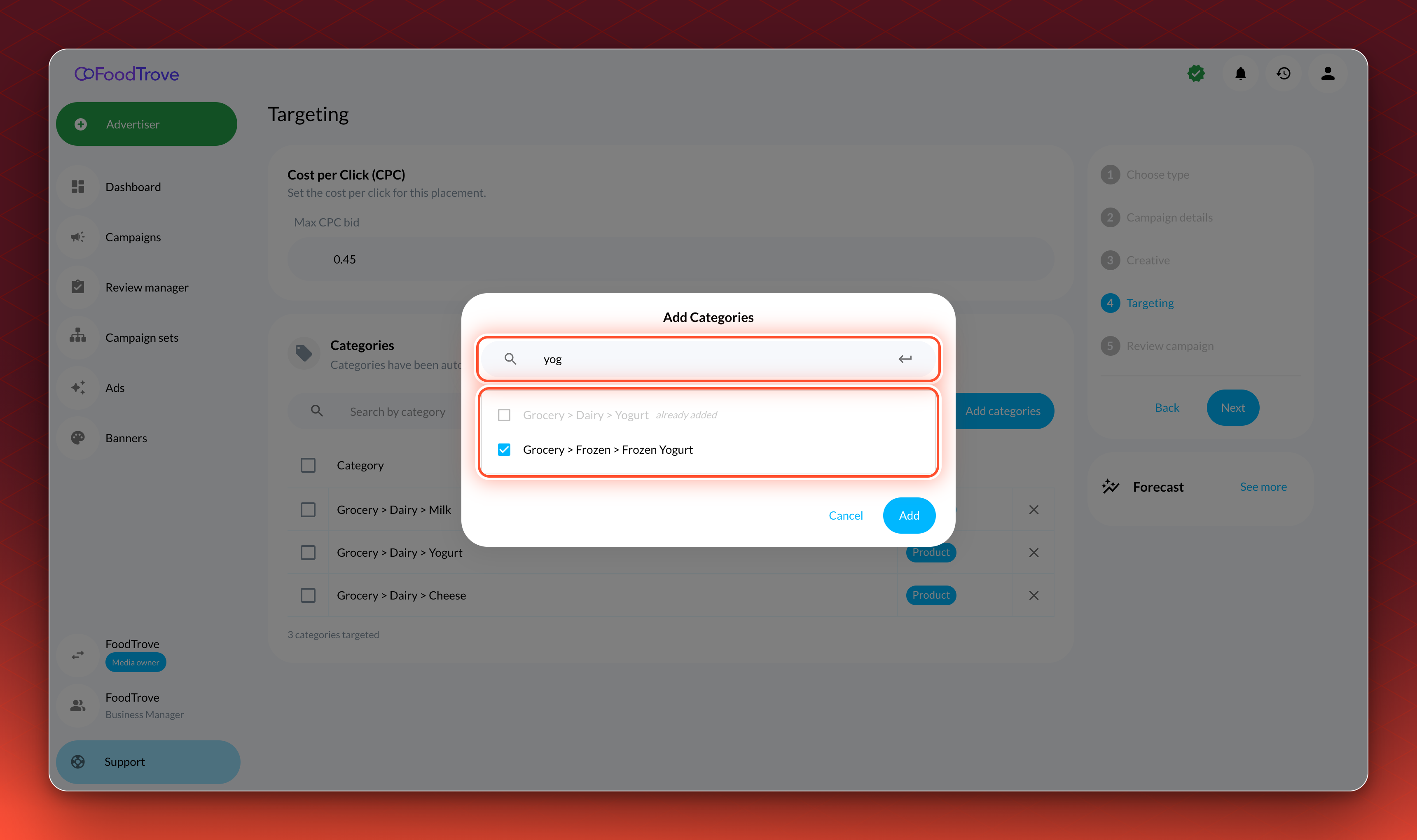
- Add categories. Select Add categories. In the Add Categories window, browse the tree, or type in the search box and press Enter to list the matching categories by their full path. Check each category to add, and select Add. A category already in the table is marked as already added. With Only product categories, the window lists the products' categories instead, the search box filters the list as you type, and categories already in the table are left out.
- Remove categories. Select the remove icon on a row, or check several rows and select Remove selected.
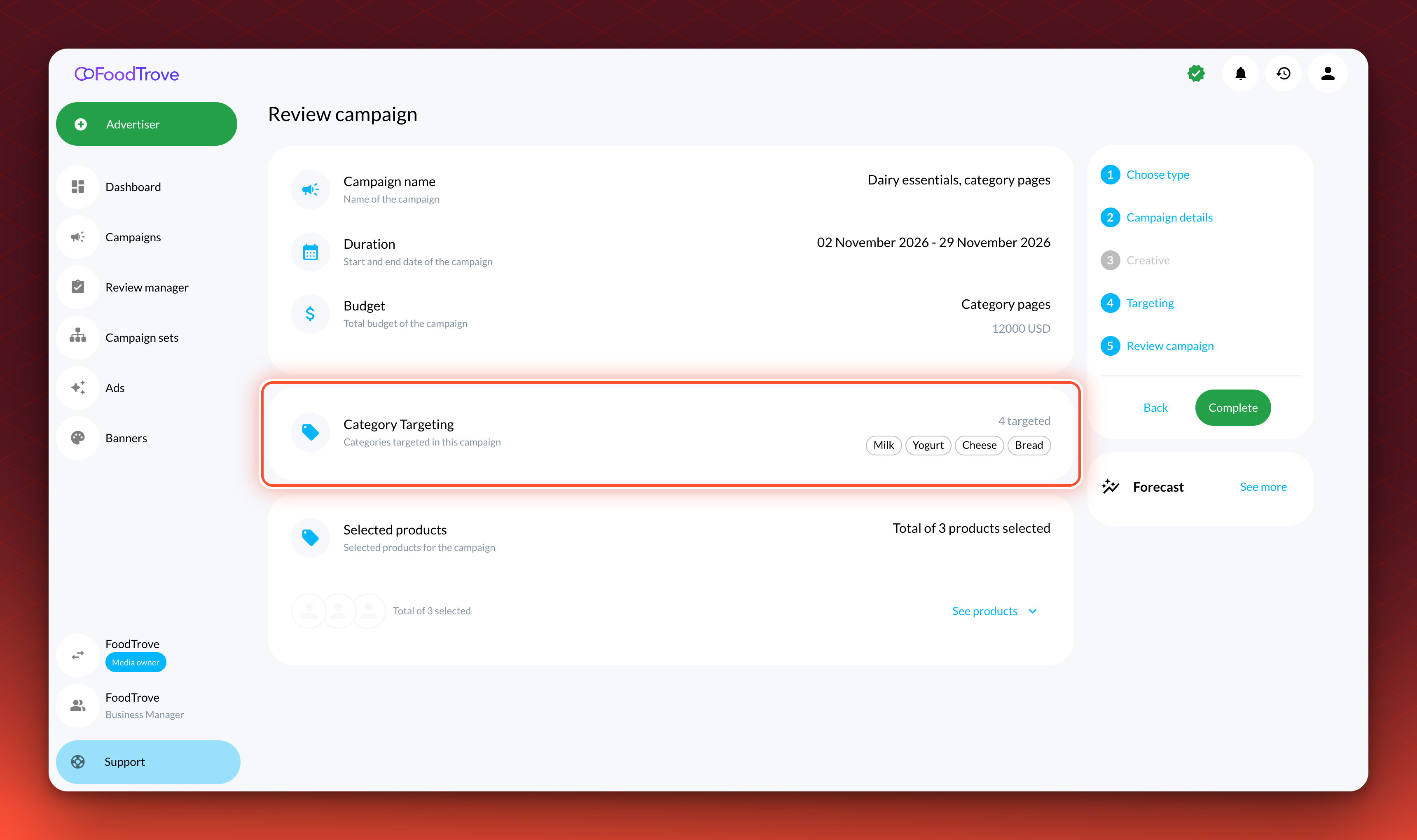
- Check the Review step. The Category Targeting card shows how many categories are targeted and lists them.
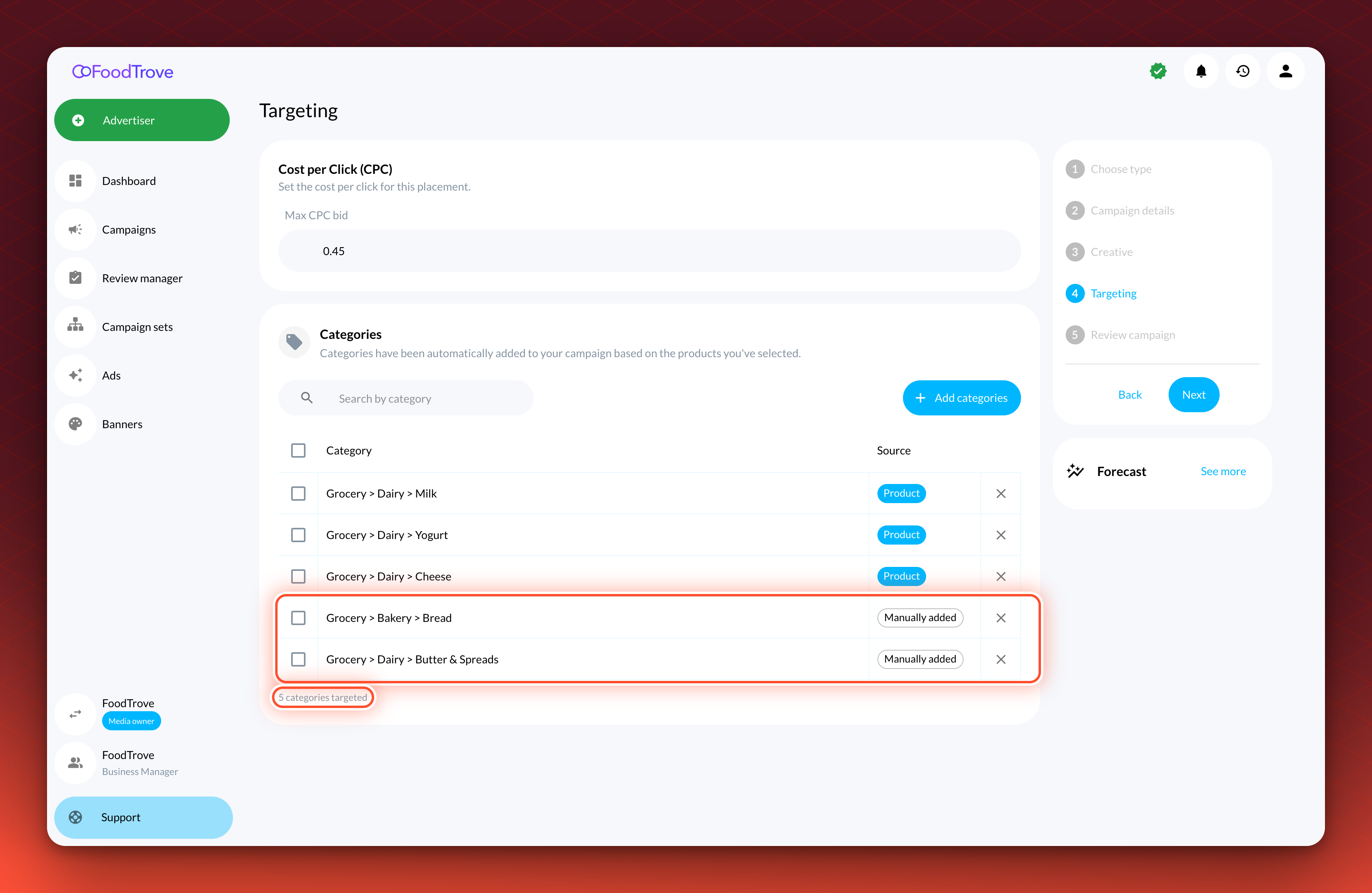
Validation. The count under the table updates, for example "5 categories targeted" after two categories are added by hand. An empty table reads "No categories targeted yet".
Troubleshooting
Advertisers do not see Categories in the Targeting step. Categories appears only on placements Kevel has enabled for it, and not in campaigns booked from a template instead of a placement. Contact your Kevel representative with the placement name.
The Add Categories window says "No categories available". The category list for your network is empty or has not been loaded. Contact your Kevel representative.
An error appears in the Add Categories window instead of the list. Console could not read the category list for your network. Contact your Kevel representative with the placement, the time and the advertiser you tried it with.
An Ad stopped serving after an advertiser chose categories. The Ad must now match its categories as well as its other targeting. Check that the category your pages send equals the category the advertiser chose. See How category targeting matches Ads.
A parent category does not include its children. Matching is exact. Advertisers choose each category they want.
Related
Updated 21 days ago
What’s Next
Understand the matching rules and send the category