
How campaign review works
For media owner admins and ad ops: what triggers a review in Console, how a request moves between statuses, and what happens to the campaign while it waits.
Campaign review lets your team approve what advertisers book in Console before it takes effect. You choose, placement by placement, which new campaigns and which changes need approval. Advertisers submit them as requests, and your reviewers approve or reject each one in the Review manager. This page explains the behavior. To choose what gets reviewed, see Set up campaign review. The reviewer's steps are in Review campaigns in the Review manager, and the advertiser's side is in Submit a campaign for review.
AvailabilityCampaign review is on for a business manager only when Kevel has turned it on, and it applies only to the placements Kevel has set to require it. Contact your Kevel representative to turn it on or to change which placements need review.
What triggers a request
Review is set per placement. On a placement that requires it:
- A new campaign always becomes a request. Console creates the campaign, holds it paused, and sends it to your reviewers.
- A change to an existing campaign becomes a request when it contains one of the changes the placement reviews. By default, that is adding products, adding search terms or categories, and adding or changing an ad. You can customize it for each placement. Budget, bid and end date changes, pausing and resuming a campaign, and removing a whole ad apply immediately when they are saved on their own.
Console reviews an edit as one package. If an advertiser saves reviewed and unreviewed changes together, none of the edit applies until a reviewer approves it, including the changes that would not need review on their own. To make a change go live straight away, an advertiser can save it as its own edit first, such as an end date extension, and then submit the changes that need review as a second edit.
The defaults, what you can customize, and examples for common placement types are in Set up campaign review. Console always tells the advertiser, on the last step of an edit, whether their change needs approval.
Changes your own team makes in Console are never reviewed. Campaigns booked from a campaign template, instead of through a campaign type and placement, are not reviewed either.
Statuses
A request is either Create, for a new campaign, or Update, for a change to an existing one. It moves through these statuses.
| Status | What it means | What can happen next |
|---|---|---|
| Awaiting approval | The advertiser submitted the request, and a reviewer has not decided. | A reviewer approves or rejects it. The advertiser can cancel it. |
| Approved | A reviewer approved it, and Console applied it. | Nothing. |
| Rejected | A reviewer rejected it and gave a reason. | The advertiser edits the campaign and resubmits, or the request is canceled. |
| Canceled | The request was withdrawn. | Nothing. |
| Error | A reviewer approved it, but Console could not apply the change or activate the campaign. | Contact your Kevel representative. |
A request stays Awaiting approval until a reviewer decides or the advertiser cancels it. Console sets no deadline and does not approve a request on its own. Approving and rejecting are applied in the background, so a status can take a moment to change. While Console applies a decision, the Review manager shows Processing next to the request.
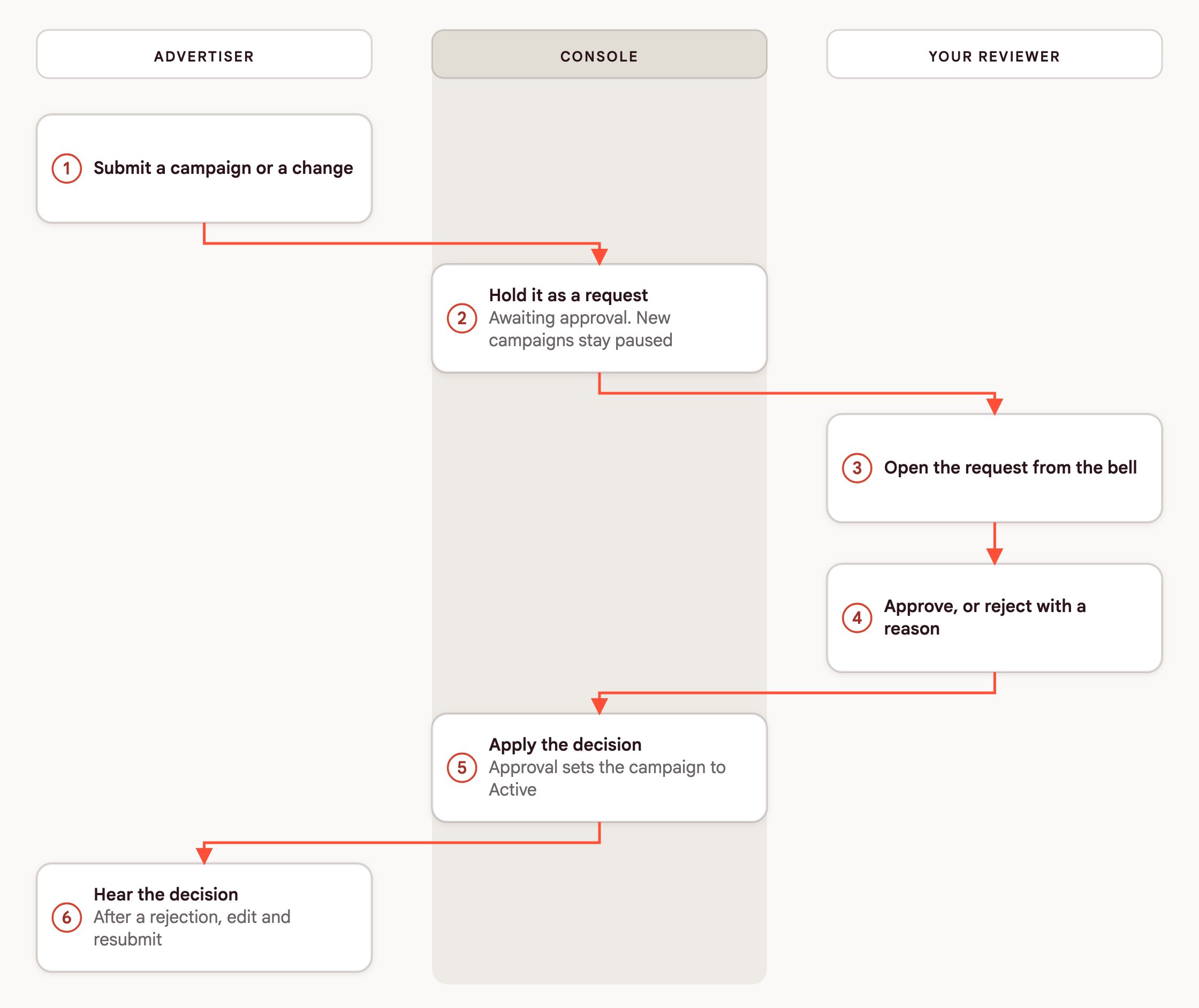
What happens to the campaign
A new campaign exists from the moment the advertiser submits it, but it stays paused. The advertiser cannot activate it while its request is awaiting approval, rejected or in error. On approval, Console sets the campaign to Active, and it starts delivering on its start date. Approving a change to a paused campaign also sets that campaign to Active. If you reject a new campaign, the advertiser can edit it and resubmit.
A change to an existing campaign does not touch the campaign. The campaign keeps running on its current settings while the request waits, and the changes apply the moment you approve. If you reject a change, the campaign carries on as it was. A waiting change does not stop the advertiser from pausing or activating the campaign.
Who does what
| Action | Reviewer | Advertiser |
|---|---|---|
| Approve or reject a request | Yes, with the Admin role | No |
| Cancel a request that is awaiting approval | No | Yes |
| Cancel a rejected request | Yes | Only by resubmitting, which cancels it |
| Resubmit a rejected request | No | Yes |
| Edit a campaign directly | Yes, and your edits are never reviewed | Only through a new request, where the placement reviews the change |
A campaign has one open request at a time. For an advertiser to submit another change, the existing request has to be resolved first.
Notifications
Console notifies people in the app and, where your business manager has them set up, by email. When an advertiser submits a request, every media owner user signed in to Console gets a notification in the bell, which links straight to the request. When a reviewer decides, the advertiser gets a notification with the decision, and with the reviewer's reason and a link to fix the campaign if it was rejected. Notifications arrive as they happen while a person is signed in, with no refresh. See In-app notifications in Console. For the review emails and what you can brand, see Emails in Console.
Deciding several requests at once
Where Kevel has turned bulk review on for your business manager, a reviewer can approve, reject or cancel up to 50 requests in one action. Console applies each request on its own, so one that fails does not stop the others. Each advertiser is notified of their own decision, exactly as they are for a single one. A rejection sends one reason and description to every request in the selection, and a reviewer can give any one of them its own message instead. The steps are in Review several requests at once.
What it does not do
- It does not reverse a decision. Approvals are recorded as final, and the advertiser is notified when they happen. If you approve a campaign by mistake, fix it yourself. Your own edits are never reviewed, so you can change the campaign directly, or pause it in the Campaigns list while you decide what to do next. Alternatively, you can ask the advertiser to change the campaign and resubmit it.
- It does not let a reviewer cancel a request that is awaiting approval. The advertiser owns a pending request, and a reviewer's decisions are approve or reject. To send a request back, reject it with a reason.
Related
Updated 18 days ago