
Alternative category targeting methods
Target category pages with keywords, reserved keys or AdQuery filtering, for ad ops and developers.
We recommend category targeting for most new setups. Keyword targeting, reserved keys and AdQuery category filtering are alternative integration methods for targeting Ads by category.
Each approach below has the same parts: what you send in the request, what you set up, and what you can report.
Which approach fits
Start from what you need. Each approach is explained in the next section, and Compatibility by approach compares them in detail.
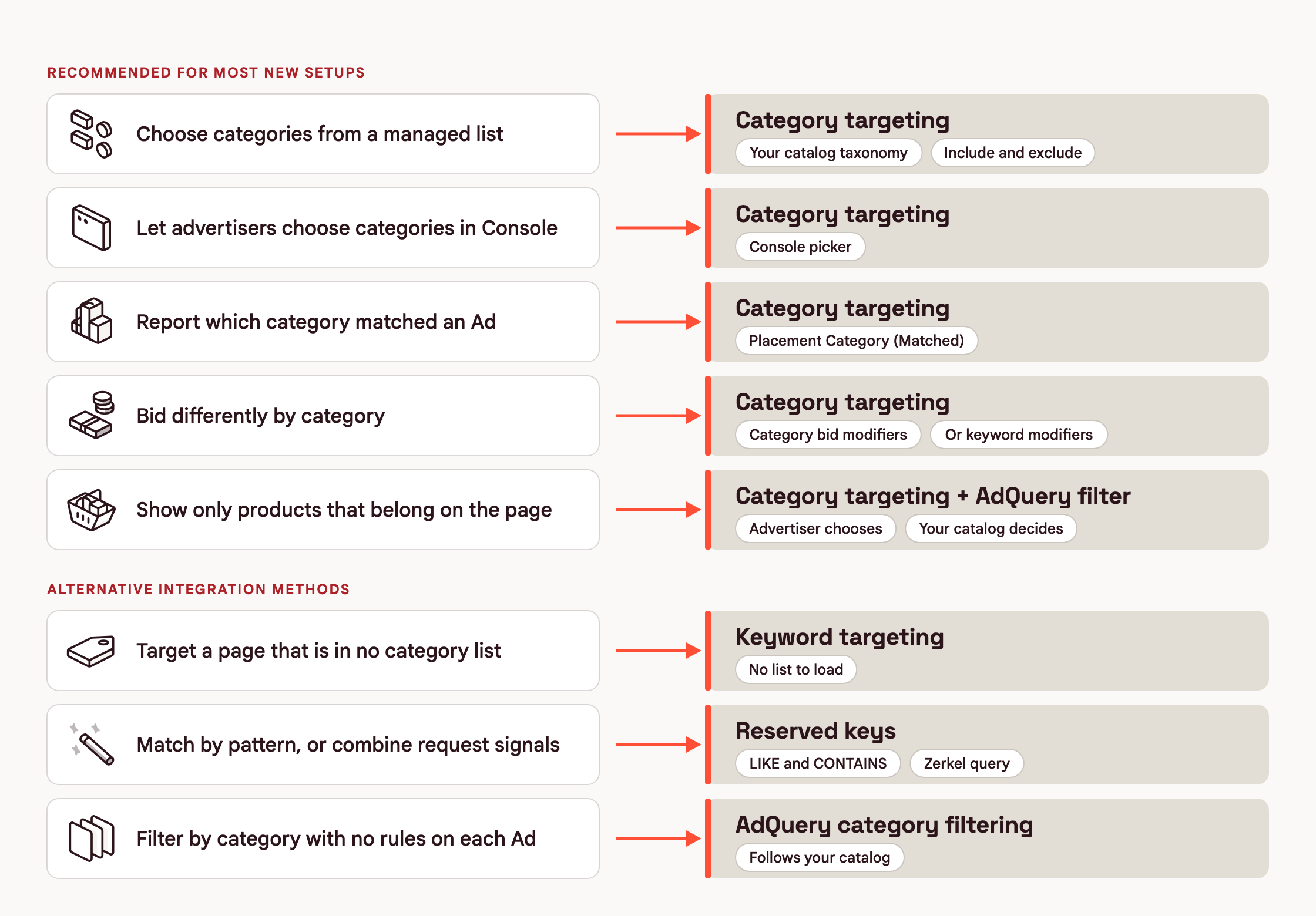
How each approach works
AdQuery category filtering
Your site sends an AdQuery on the placement, and Kevel filters Ads by a category field on a product or Creative. It chooses which products are relevant on a page, and it is not reported as a category. See Filter by category. It works well alongside category targeting: advertisers choose their categories, while the AdQuery filter restricts each Ad to the categories its product has in your catalog. See How to keep category targeting aligned with your catalog.
Keyword targeting
You send the category of the page as a keyword in the request, and target that keyword on Flights and Ads. Matching is exact and ignores case. Keyword targeting is also how you match what a shopper searches for, from a search placement, so this is a second use of a feature you may already have. See Target categories with keywords.
Reserved keys
Reserved keys use a Zerkel query on the keywords in a request, with operators such as LIKE and CONTAINS. Use them to match categories by pattern. See Match category patterns with reserved keys.
Compatibility by approach
What each approach works with, with category targeting first.
| Category targeting | AdQuery filtering on category | Keyword targeting and reserved keys | |
|---|---|---|---|
| Who sets the categories | Your team in the Ad Server UI or Management API, or an advertiser in Console, picking from a list uploaded to your Catalog | Your Catalog product table dynamically populates category values on the Creative. Or your team in the Ad Server UI or an advertiser in Console can fill Creative fields manually with category identifiers | Your team on Flights and Ads, or an advertiser in Console, typing values |
| Setup | Kevel enables it for your network and loads a targetable category list. After setup, you update the list by uploading a file. See Load and update your category list | An AdQuery-enabled Creative Template field. Kevel can enable the field to be dynamically populated from your product Catalog | None beyond sending keywords, and a Zerkel query for reserved keys |
| What your request sends | category on each placement | An adQuery on the placement | keywords |
| If the request carries nothing | An Ad with any category rule is not eligible, including one that only excludes categories | An Ad is excluded unless the filter allows missing values | An Ad that targets a keyword is not eligible |
| How it matches | Exact, against the whole category, ignoring case. A parent does not match its children | By the filter operators you write in the ad request, such as eq and in | Exact, ignoring case. Reserved keys add patterns such as LIKE |
| Include and exclude | Both, as rules on the Flight or Ad | By the filter operators you write in the ad request | Include and exclude keywords. Reserved keys add not in a Zerkel query |
| Page category in reports | Yes, as Placement Category, when your pages send category | Yes, as Placement Category, when your pages send category | Yes, as Placement Category, when your pages send category |
| Matched category in reports | Yes, as Placement Category (Matched) | Not reported | By keyword. You can group by keyword on Sites and Zones |
| Category bid modifiers | Yes, in the Ad Server UI and Management API | No | Yes, as keyword modifiers |
| Skip for one request | skipFilters with category, set to true | Not applicable. The filter is on the request | skipFilters with keyword |
| Forecast | Yes | For booked Ads in the Ad Server UI forecast widget | Yes |
| Console | Advertisers pick categories on the placements your Kevel team has enabled, and Console saves them as includes. Category bid modifiers and category reporting in Console are coming soon. See Category targeting in Console | A Console placement can be configured to save an advertiser's chosen categories in a Creative Template field that AdQuery can filter on | Advertisers type keywords or select from pre-determined keywords |
Every approach needs your pages to send category information in the request:
categoryfor category targeting,keywordsfor keyword targeting and reserved keys, and anadQueryfor AdQuery category filtering. Each also gives you category reporting, and the approach you choose changes how. To report Placement Category with any approach, also sendcategory. See Send a category in decision requests and Report on categories.
Filter by category with AdQuery
AdQuery category filtering matches the category of the page to a category field on a product or Creative. It chooses which products are relevant on a page, or limits where an Ad appears.
What your request sends. An adQuery on the placement, with the page's category.
What you set up. A category field on the product or Creative, in a Creative Template field such as ctCategories. Console can write the field for an advertiser. See AdQuery.
- Store the category data. Keep a product's categories, or the categories an Ad targets, in a Creative Template field.
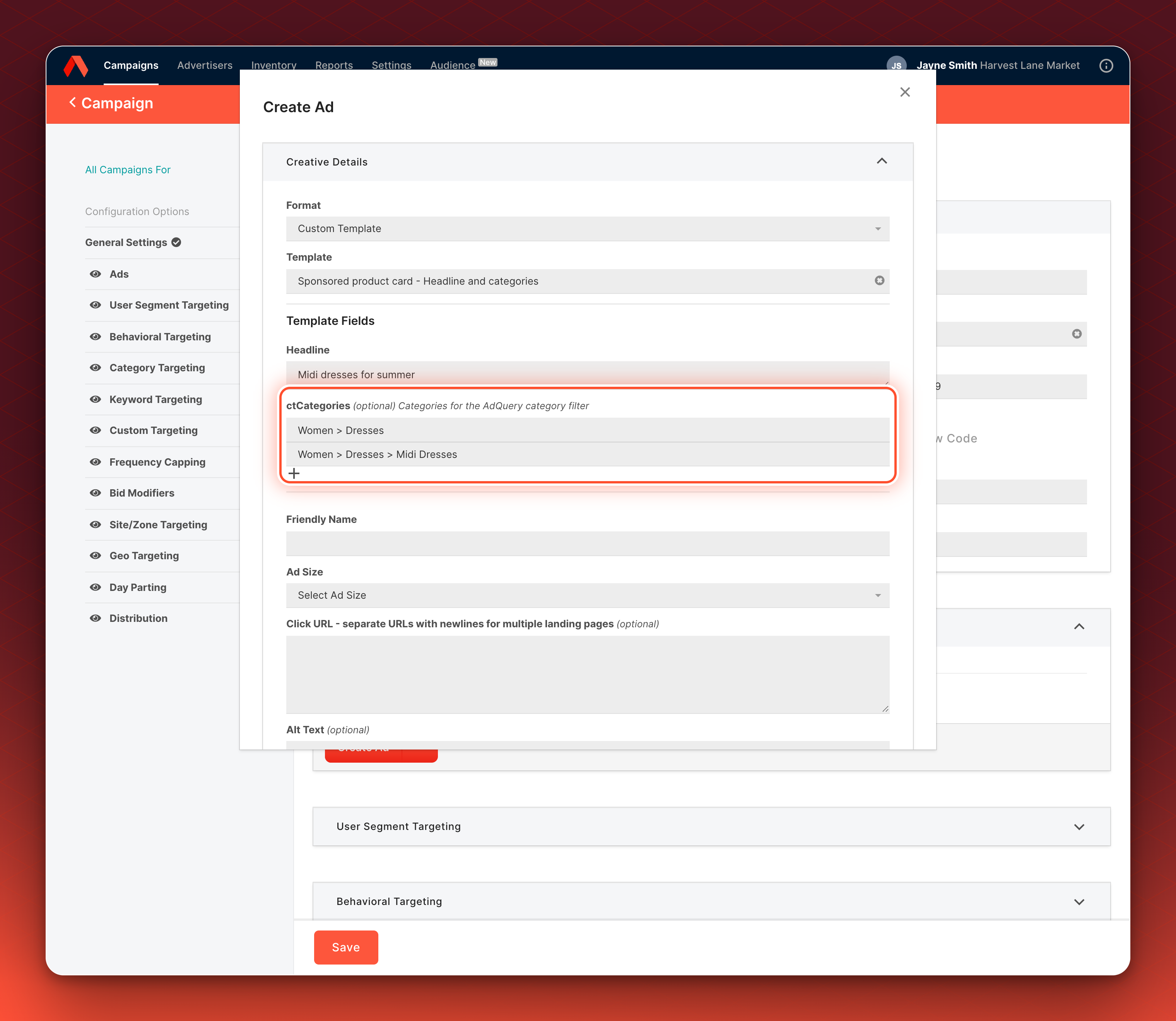
- Send the page's category in an AdQuery. For a field that holds an array of categories:
"adQuery": {
  "ctCategories": {
    "in": ["Women > Dresses"],
    "nullValuesMatch": false
  }
}- Check the Ads that come back. Only Ads whose field matches are eligible. An Ad must also pass its other targeting.
See Filter by category for both uses and for how arrays work.
What you can report. AdQuery category filters are not reported as a category. To report by category, also send category on each placement. See Send a category in decision requests.
Target categories with keywords
Keyword targeting keeps its main job, matching the terms a shopper searches for, from a search placement. Many integrations also use it to target the category of a page: the site sends the category as a keyword, and you target that keyword.
What your request sends. The keywords field of the Decision API request. See Passing keywords in requests.
What you set up. Keyword targeting on the Flights or Ads that should appear on those pages. See Enabling keyword targeting.
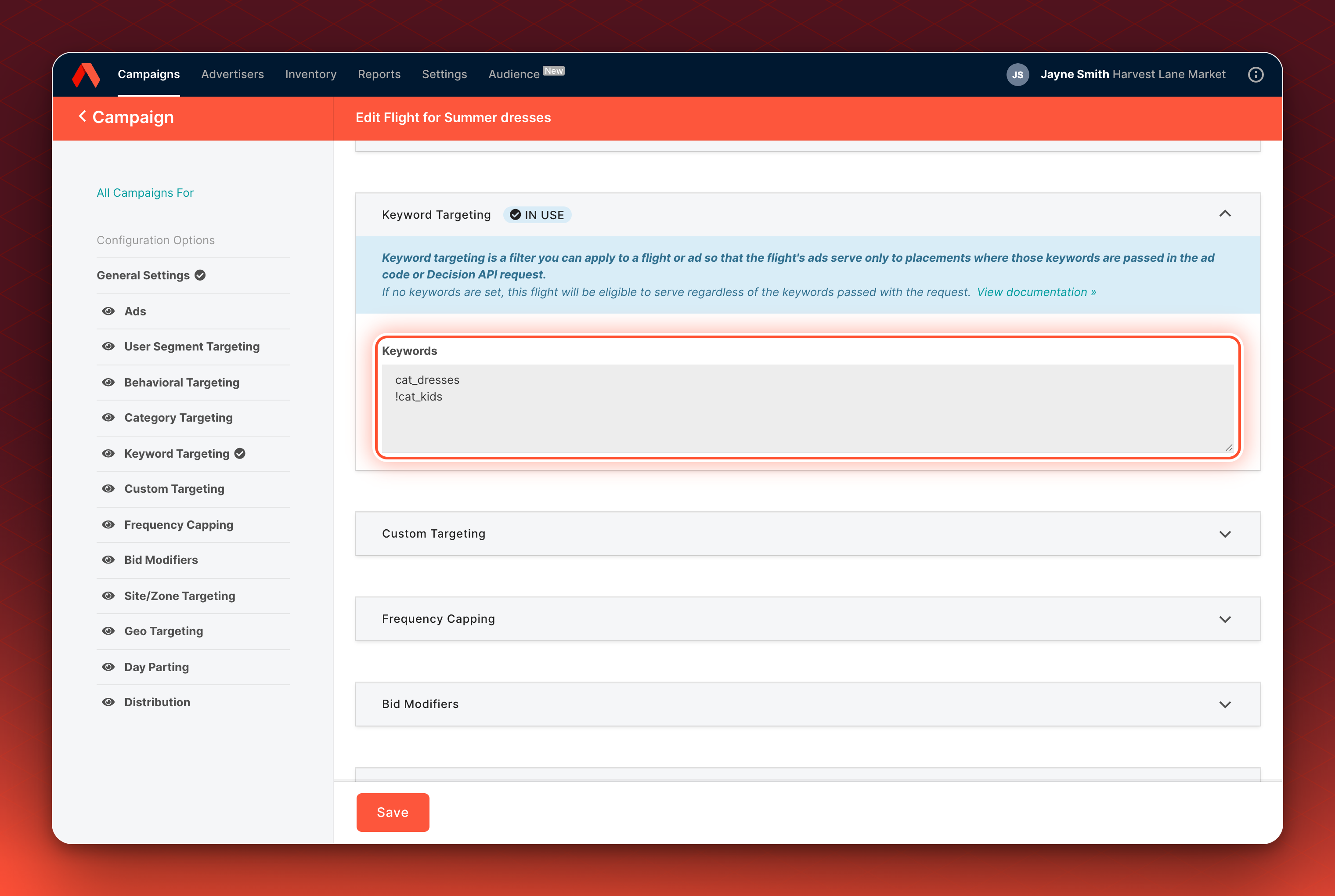
- Create Flights or Ads that target the keyword. The keyword can be any information about the page, such as its category, theme or focus.
- Send the keyword in the request. Put it in the
keywordsfield of the Decision API request. - Check for a match. If the request's keywords include the keyword, the Ad is eligible to show. It may not win.
For example, a fashion retailer can send its category names as keywords in the request, and set up Ads that appear only for requests that include a certain keyword. The retailer can then target the "Dresses" browsing page, and a product page tagged as being in the "Dresses" category.
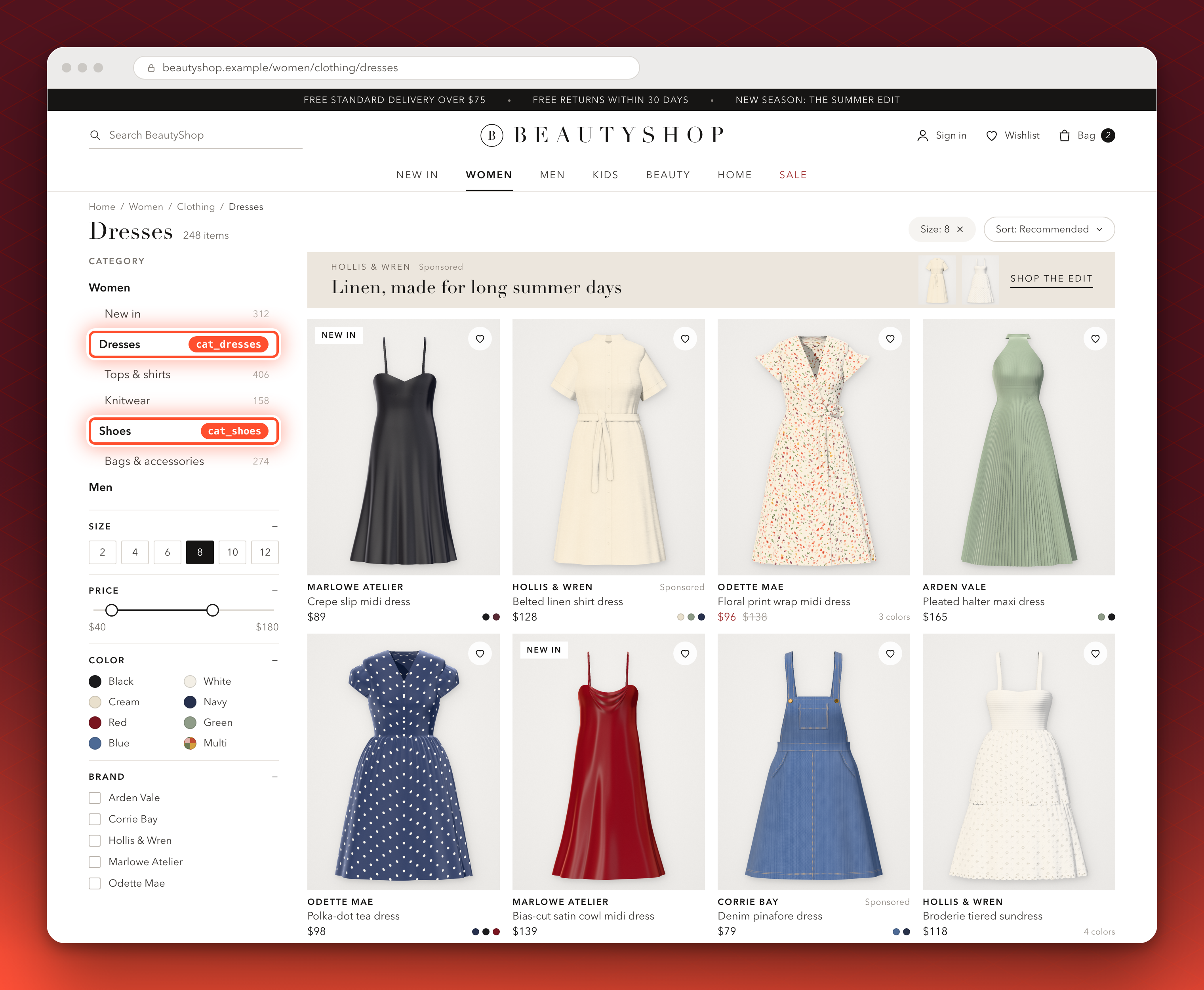
Keyword targeting is an exact match. If you target "dresses", the keyword "party dresses" does not trigger the Ad.
Use a prefix such as
cat_dressesandcat_shoes, instead ofdressesandshoes, when you use those words for other keyword targeting, such as search terms.
What you can report. Reports show performance by keyword. You can group by keyword on Sites and Zones. To report Placement Category as well, also send category.
Match category patterns with reserved keys
Reserved keys use the same keywords your pages send, and let you match them with a pattern instead of an exact keyword. They do not read product categories or the category field. A reserved key is a variable you use in a Zerkel query, and $keywords is the list of keywords in the request.
What your request sends. The keywords field of the Decision API request, as for keyword targeting.
What you set up. A Zerkel query in Custom Targeting on the Flight or Ad. You do not need keyword targeting on the Flight or Ad. See Enabling custom targeting and Passing custom targeting.
-
Write the query. Use
likeorcontainson$keywords. To target any category containing "dress":$keywords like "*dress*" -
Add it to the Flight or Ad. Put the query in Custom Targeting in the Ad Server UI, or in the
CustomTargetingparameter of the Create Flight, Create Ad or Create Channel request. -
Send the keywords. Pass
keywordsin the Decision API request.
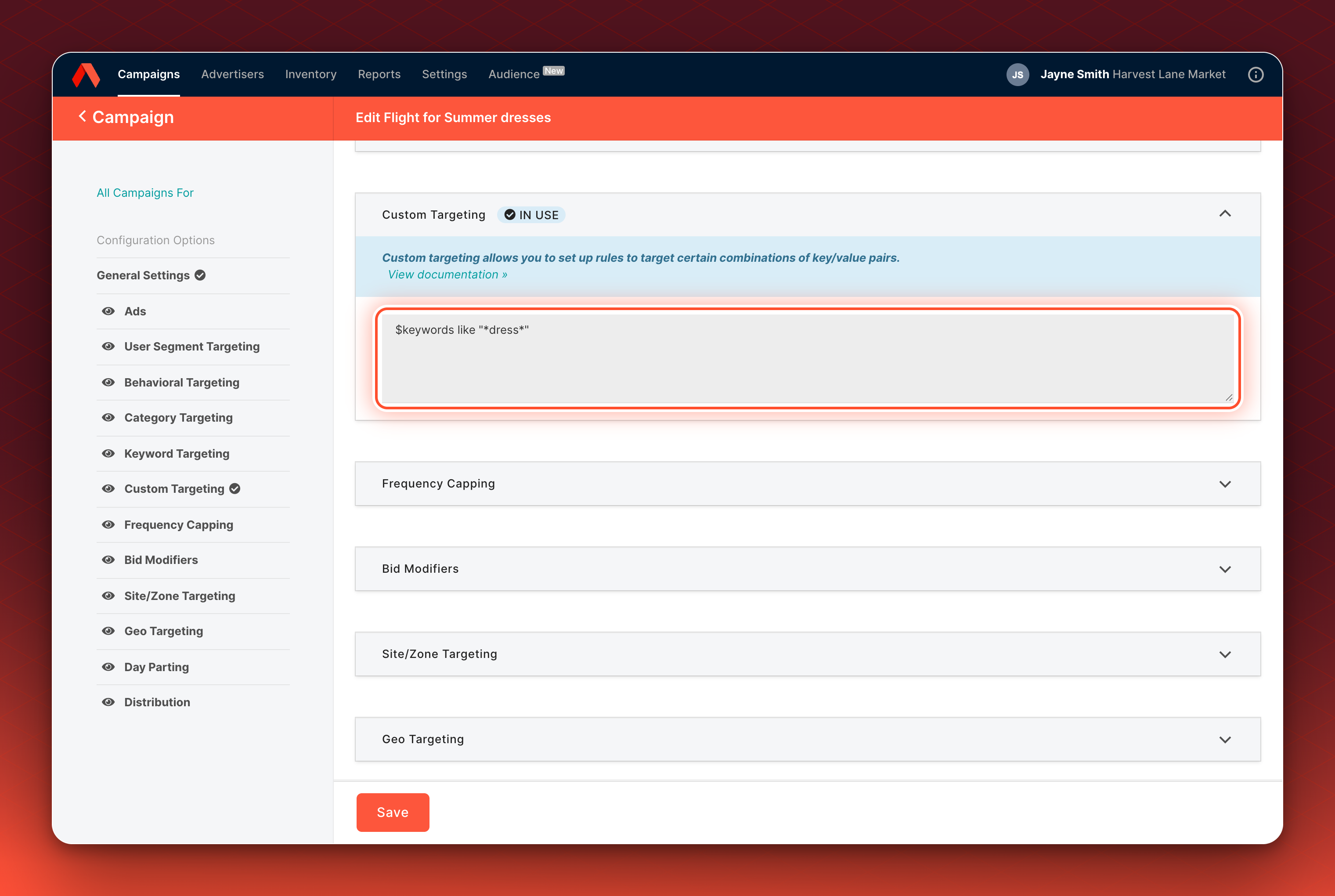
The query matches keyword variations such as "Party Dresses" and "Summer Dresses". A single query can match many category keywords at once. See Reserved keys for the other variables and operators.
What you can report. The same as keyword targeting: by keyword, and Placement Category when you also send category.
Related
Updated 14 days ago
What’s Next
Compare the approaches