
Set up campaign review
For media owner admins: the foundational choices you make with Kevel before advertisers book, which placements and changes need approval, and who reviews.
Campaign review is a foundational setup item. You decide it with Kevel when you set up Console, before advertisers start booking, and you revisit it when you add placements or change how you work. The choices are configuration: which placements need approval, which changes to a live campaign wait, and who on your team reviews. This page lists the choices, shows how real placement types combine them, and says what Kevel sets up. To see how a request behaves once review is on, read How campaign review works.
AvailabilityKevel configures campaign review for your business manager and for each placement. You cannot switch it on or change a placement's rules yourself. Contact your Kevel representative, who will work through the choices below with you.
How it works
Review is decided placement by placement. A placement is a spot an advertiser can book, such as search results, a category page or a homepage unit. For each one you decide whether it needs review, and, if it does, which changes to a live campaign need approval. A new campaign on a reviewed placement always waits for approval. A change to a live campaign waits only if it is one of the changes you chose.
Kevel starts each reviewed placement from a default and customizes it with you, so every part of review can be tuned to how you work. Kevel records your choices in the settings for each placement. The settings are read each time an advertiser edits a campaign, so a change to a placement's rules applies from the next edit, including to campaigns that are already running.
Before you start
Where it applies. Campaigns that advertisers book through campaign types and placements. Changes your own team makes in Console are never reviewed, so your ad ops team can adjust any advertiser's campaign at any time without approval.
What you need. A decision on the three questions below, and a named group of reviewers with the Admin role.
What it does not do.
- It does not review edits without reviewing new campaigns. Every new campaign on a reviewed placement waits. You choose only which changes to live campaigns wait as well.
- It does not set review criteria for you. Console records approve or reject and a reason. What a reviewer should check, and how fast they respond, is your policy.
What you can customize
Review is customizable, placement by placement. Kevel sets a default for each placement and changes it to fit how you work. The defaults are a starting point, not a limit.
| You can customize | What it means | The default |
|---|---|---|
| Which placements need review | Turn review on or off for each placement. Some can stay open | Decided with you when you set up Console |
| Which changes to a live campaign wait | Add or remove any change from the table below, for each placement | A standard list matched to the placement type |
| Different rules on different placements | Use a different set of changes on each placement, such as reviewing search terms on a search placement and not on a homepage unit | One standard list per placement type |
| Who reviews and how fast | Choose which Admin users review, and set your response time | Any Admin user reviews, with no deadline |
Some things are fixed. A new campaign always waits on a reviewed placement. Changes your own team makes are never reviewed. Banner changes and changes to a line item's budget cannot be reviewed. A reviewer chooses from seven rejection reasons and adds a description.
Customizing a placement is a configuration change by Kevel's engineering team, and it ships with a release. Ask early if you need one, and contact your Kevel representative to make a change.
Decide which placements need review
List your placements and decide, for each, whether a new campaign should be checked before it can run. You can review some placements and leave others open. A campaign on an open placement goes through the normal booking flow, and its last step reads Complete instead of Submit for approval.
The default: a standard list
Kevel starts each reviewed placement from a standard list: a ready-made set of the changes that wait for approval, matched to the type of placement. A new campaign always waits, whichever list a placement uses. The standard lists add to that.
| Standard list | Used for | Changes it reviews, as well as new campaigns |
|---|---|---|
| Search | Placements where advertisers add search terms, such as sponsored products in search | Adding products, adding search terms, adding or changing an ad |
| Category | Placements where advertisers target categories | Adding products, adding categories, adding or changing an ad |
| No targeting | Placements with no targeting step, such as a homepage native unit | Adding products, adding or changing an ad |
| Search with wallet | Search placements that need a wallet | Everything on the Search list, and changing the wallet |
If a standard list does not fit, ask Kevel to customize the list for a placement, using the changes in the next section.
Customize: choose which changes need review
A rule matches on what part of the campaign changed and how it changed: added, changed or removed. The table lists every kind of change a rule can match, and whether the standard lists review it by default. You can turn any of them on or off for a placement, except New campaign, which always waits.
| Change | What it covers | On by default in |
|---|---|---|
| New campaign | Every campaign an advertiser books on the placement | Every list, and it cannot be turned off |
| Adding products | A product added to a campaign, or to an ad | Every list |
| Adding search terms | A search term that is new to the campaign | The Search lists |
| Adding categories | A category that is new to the campaign | The Category list |
| Adding or changing an ad | A new ad, or any change to an ad's creative, copy, products, search terms or categories | Every list |
| Removing an ad | Removing a whole ad | No list |
| Wallet | Choosing or swapping the wallet a campaign draws from | The Search with wallet list |
| Budget | The campaign budget and budget type | No list |
| End date | The campaign end date. A start date can be changed only on a draft campaign, so it is not part of a change to a live campaign | No list |
| Status | Pausing and resuming | No list |
| Bids and campaign settings | Bids, campaign properties and the campaign name | No list |
| Targeting | Targeting rules on the campaign and its line items | No list |
| Goals and optimization | Campaign goals and optimization settings | No list |
| Booking details | The booking details recorded on a campaign | No list |
A change that is off for a placement applies as soon as the advertiser saves it on its own. Only settings the placement lets advertisers change can be changed at all.
Removing a search term, a category or a product from an ad that stays counts as a change to that ad, so it is reviewed on every placement that reviews ad changes.
Console reviews an edit as one package. An advertiser who saves several changes together submits them as one request. If any one of them is on the list, the whole edit waits, including the changes that would not need review on their own. Changes saved separately are judged separately, so an advertiser who wants a change to go live straight away, such as an end date extension, can save it as its own edit first and submit the changes that need review as a second edit.
Examples
These examples show the default lists on three common placement types. Each can be customized.
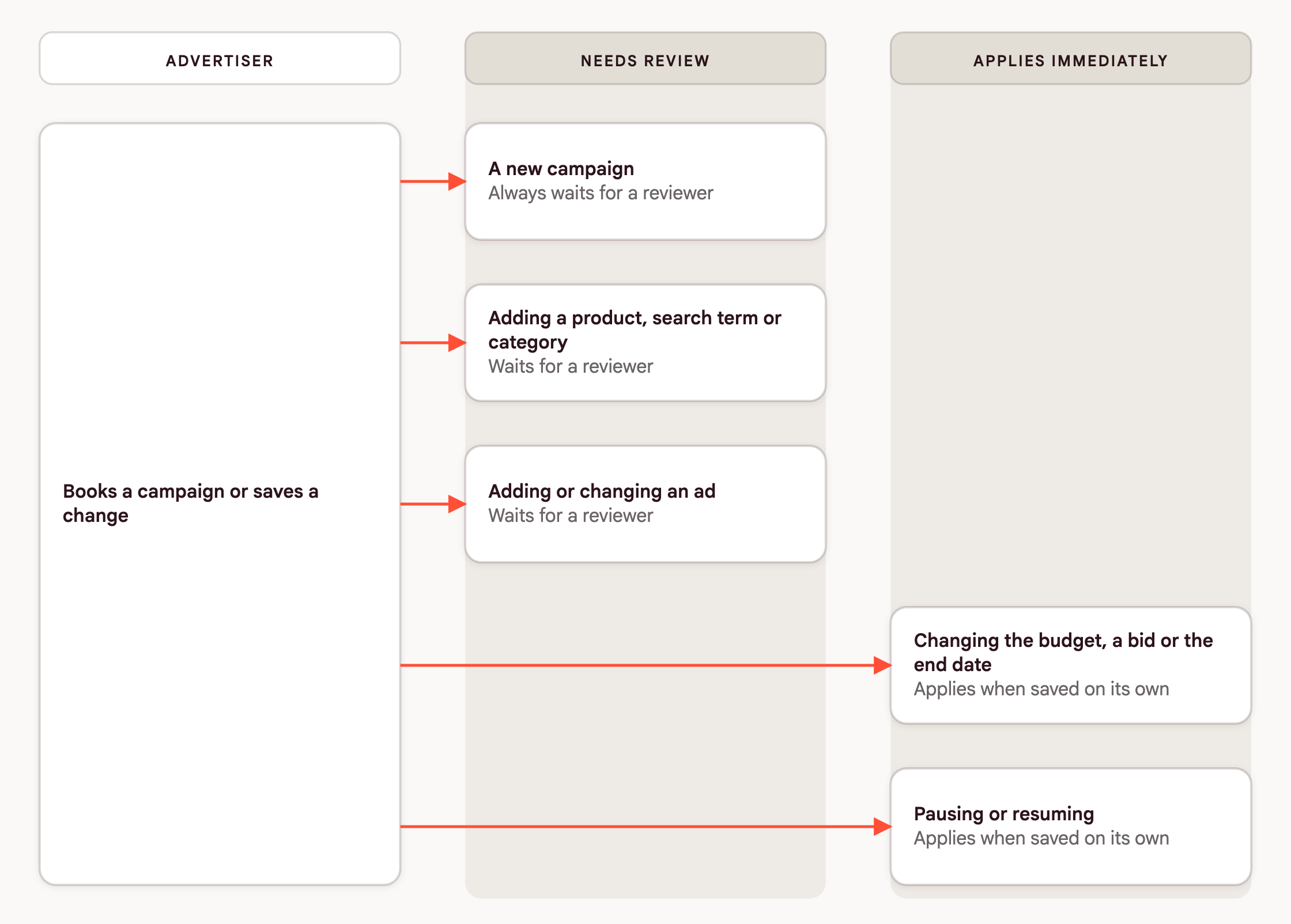
Sponsored products in search (Search with wallet list). Advertisers pay per click to appear in search results for the products they sell. The placement sets a minimum bid and requires a wallet. Advertisers set the name and dates, budget, bid, products and search terms.
| Needs review | Applies immediately |
|---|---|
| Every new campaign | Budget, bid and end date changes, saved on their own |
| Adding products | Pausing and resuming |
| Adding search terms | Removing a whole ad |
| Adding or changing an ad |
Native display on the homepage (No targeting list). Advertisers pay per thousand views for a native unit that carries their products. The placement has no targeting step. Advertisers set the name and dates, budget or daily budget, bid, products and creative.
| Needs review | Applies immediately |
|---|---|
| Every new campaign | Budget, bid and end date changes, saved on their own |
| Adding products | Pausing and resuming |
| Changing the ad |
Category pages (Category list). The same as search, with categories in place of search terms.
| Needs review | Applies immediately |
|---|---|
| Every new campaign | Budget, bid and end date changes, saved on their own |
| Adding products | Pausing and resuming |
| Adding categories | |
| Adding or changing an ad |
A placement left open. A landing page placement that you choose not to review needs no rules. Advertisers complete the booking flow and the campaign goes through your normal activation.
Decide who reviews and how
Who reviews. Any media owner user with the Admin role can approve or reject, and every one of them sees every request. There is no assignment or queue per reviewer, so agree on who checks the list and how often.
How fast. A request stays Awaiting approval until a reviewer decides or the advertiser cancels it. Console sets no deadline and never approves a request on its own. Agree a response time with your team, and tell advertisers what it is.
How reviewers hear. Reviewers get an in-app notification when a request arrives, as it happens while they are signed in. Your business manager can also send review emails to a mailing list you choose. See In-app notifications in Console and Emails in Console.
What advertisers ask. Advertisers contact your team about a decision, not Kevel Support, because the decision and its reason are yours. Give them the reasons you use. Console offers seven reasons and a free description.
Ask Kevel to set it up
| Step | Who | What happens |
|---|---|---|
| 1. Decide | You | Which placements, which changes, which reviewers, and your response time |
| 2. Configure the placements | Kevel | Kevel sets each placement to need review and applies its list of changes. This ships with a release |
| 3. Turn review on | Kevel | Kevel switches on campaign review for your business manager and shows the Review manager menu item to your reviewers |
| 4. Test as an advertiser | You, with Kevel | Sign in as an advertiser, book a campaign on a reviewed placement, and review it as a media owner |
| 5. Brief your reviewers and advertisers | You | Share Review campaigns in the Review manager with reviewers and Submit a campaign for review with advertisers |
Validation. A test advertiser's campaign shows Awaiting approval, and a reviewer sees it in the Review manager.
Troubleshooting
My own booking did not need approval. Media owner users are never reviewed. Sign in as an advertiser to test.
Advertisers see Complete, not Submit for approval. The placement is not set to need review, or review is not on for your business manager. Contact your Kevel representative with the placement name.
An advertiser's change applied without review. It is not on the placement's list of changes. Check it against the table above, and ask Kevel to add it if you want it reviewed.
Reviewers cannot see the Review manager. Kevel has not turned on the menu item for your business manager, or the user has a read-only role. Contact your Kevel representative.
Related
Updated 21 days ago