
Set up category targeting
Make a Flight or Ad eligible only on the category pages you choose, in the Ad Server UI or Management API, for ad ops.
Category targeting lets you make a Flight or an Ad eligible only on the category pages you choose, or keep it off the ones you exclude. It is for the team that sets up Flights and Ads in the Ad Server UI or the Management API.
Category targeting is enabled per network, and it needs a list of categories loaded for your network. If you do not see Category Targeting on your Flights, contact your Kevel representative.
How it works
Each category you select is saved on the Flight or Ad as a category ID. When a request arrives, Kevel compares each saved category ID with the category your page sends on the placement. The Ad is eligible only if the comparison passes, alongside the Ad's other targeting. The matching rules are in How category targeting matches Ads.
The list you pick from in the UI comes from a table of targetable categories for your network. The list helps people choose. It is not checked at decision time, so an Ad keeps matching on the saved ID even if you later remove the category from the list. When you use category targeting via the Management API, category IDs are not validated against the table.
Before you start
Where it applies. Flights and Ads on networks where category targeting is enabled, set in the Ad Server UI or Management API. Advertisers in Console choose categories through the Console picker instead, and Console does not offer Exclude.
What you need.
- Your pages send a
categoryon each placement. See Send a category in decision requests. - To select categories in a Kevel UI, set up a targetable categories table for your network. Each network can have one. It can be your site's own category taxonomy, with no connection to your products, or derived from your product feed. See Where the category list comes from.
- Category IDs to target that match the values your pages send. An ID that does not match never serves.
What it does not do.
- It does not match child categories when you select a parent. To cover a parent and its children, select each one.
- It does not check the IDs you target via the Management API against the list. Confirm them against the values your pages send.
- It does not replace keyword targeting or AdQuery filtering. An Ad that has both must pass both.
Target a Flight to categories
Purpose. Limit every Ad in the Flight to the category pages you choose.
- Open the Flight. In the Ad Server UI, open the Flight you want to edit.
- Open Category Targeting. In the left sidebar, select Category Targeting.
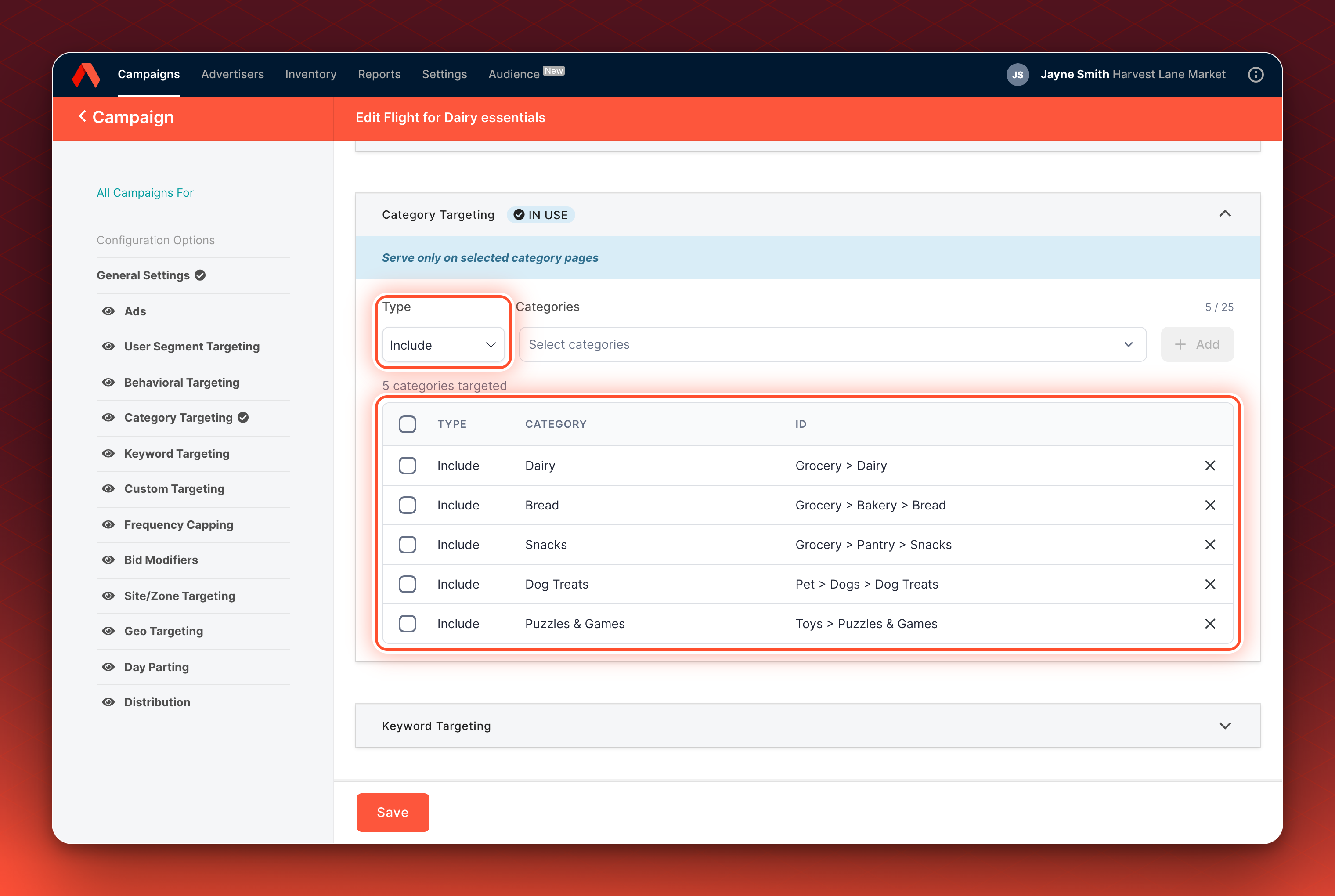
- Choose include or exclude. In Type, select Include to serve only on the categories you pick, or Exclude to serve everywhere except them.
- Select the categories. Open Categories and search by name. Select Select all (N) next to a parent to add every category below it, skipping any you already added. It does not add the parent itself, so select the parent separately if you want that page too.
- Add them. Select Add. The categories are saved to the Flight straight away, without a separate save.
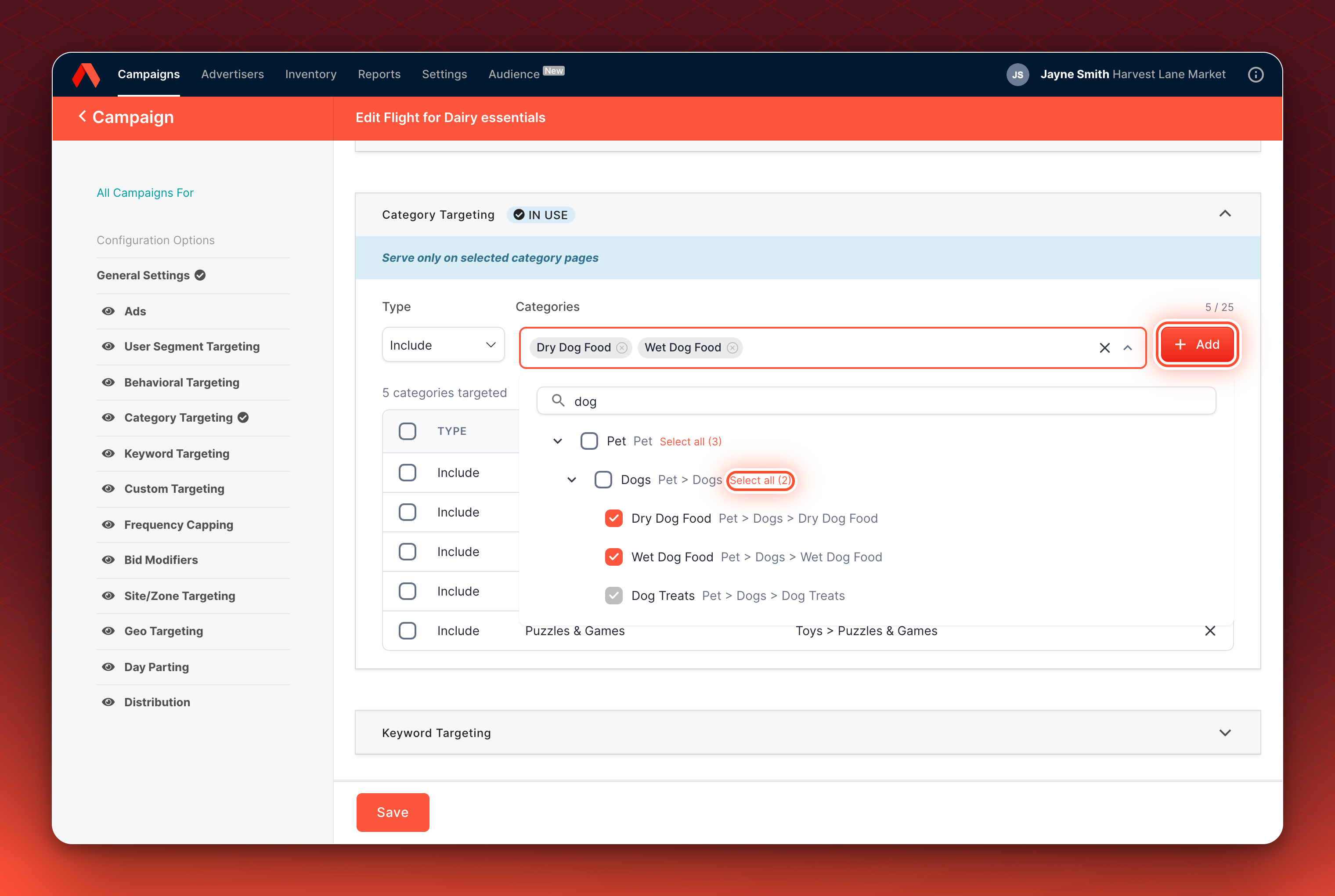
Validation. The categories appear in the table with their type, category name and ID, and the counter beside the field shows how many of your limit you have used.
Target an Ad to categories
Purpose. Give one Ad its own category rules instead of the Flight's.
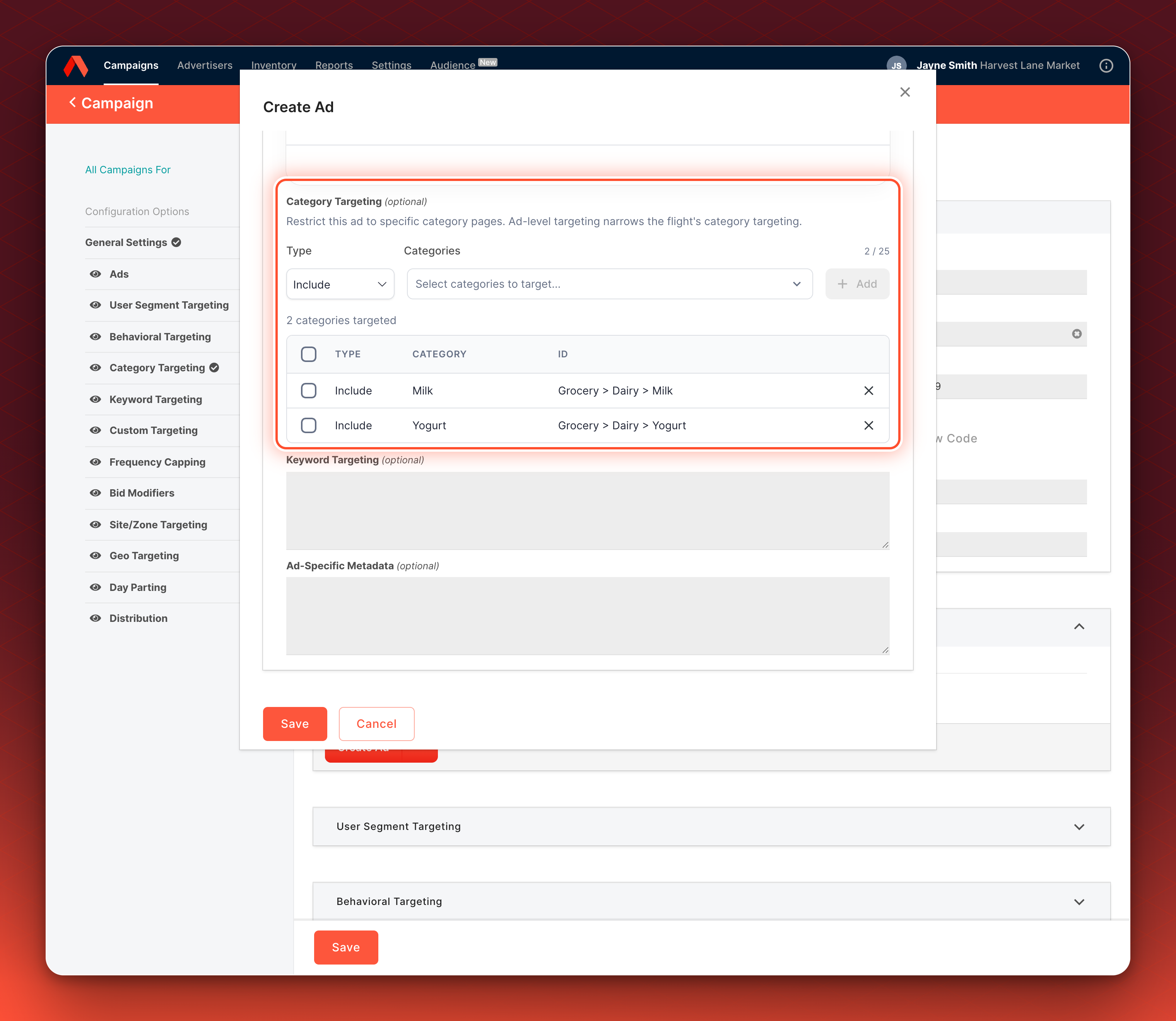
- Open the Ad. In the Ad form, find Delivery Settings.
- Select the categories. In Category Targeting, choose Include or Exclude, then pick the categories as for a Flight.
- Add them. Select Add.
An Ad with its own category rules uses them instead of the Flight's. The two lists are not combined. An Ad with no category rules uses the Flight's.
Validation. The Ad's table lists the categories you added.
Add a category bid modifier
Purpose. Bid more or less when the request's category is one you choose.
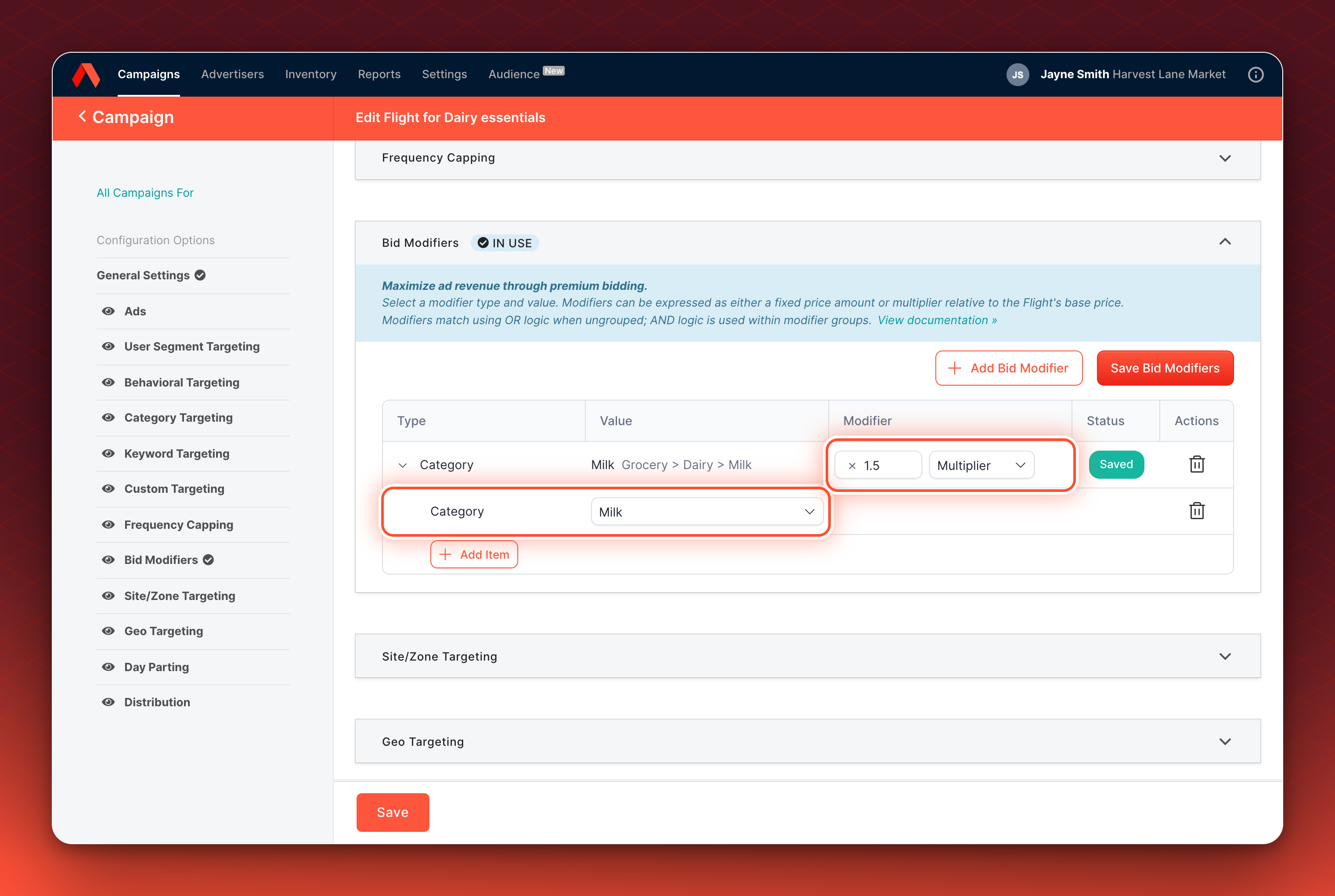
- Open the Flight. Select Bid Modifiers in the left sidebar. The panel is not shown for Flat-rate Flights.
- Add a modifier. Select Add Bid Modifier, then in the type menu choose Category.
- Pick the category. Select the category you want.
- Set the bid. Choose Multiplier or Price and enter the value.
- Save the modifiers. Select Save Bid Modifiers.
A category bid modifier changes the bid only. It never makes an Ad eligible, and it applies only on requests where the Ad is already eligible and the category matches. Only one bid modifier applies to a request, the one that gives the highest price, so a keyword modifier can outrank a category modifier. See Bid modifiers.
Validation. The modifier appears in the Flight's bid modifier list with the category you picked, after you save.
Set categories with the Management API
Purpose. Create or update category rules in your own tooling.
Send CategoryTargeting when you create or update Flights and Ads: Create Flight, Update Flights, Create Ads and Update Ad. Each entry has an Id and an IsExclude value, and both are required.
{
  "CategoryTargeting": [
    { "Id": "Grocery", "IsExclude": false },
    { "Id": "Grocery > Pet food", "IsExclude": true }
  ]
}
A category bid modifier uses Match.Category:
{
  "BidModifiers": [
    { "Match": { "Category": { "Id": "Grocery" } }, "Multiplier": 1.5 }
  ]
}
To read the categories you can choose from, call List Category Catalog, GET /v1/category-catalog. It returns Id, Name and ParentId, and accepts a search parameter that matches part of an ID or name. It returns up to 10,000 categories and does not say if there are more, so search cannot find a category beyond that point.
Send the full CategoryTargeting list on every Update call. An Update that leaves the field out clears the rules, as it clears any other field you leave out, unless your network uses partial updates.
If your network does not have category targeting enabled, the API ignores CategoryTargeting on writes and leaves it out of responses. Contact your Kevel representative to enable it.
Validation. Get Flight or Get Ad returns the CategoryTargeting you sent.
Default limits
| What | Limit | What happens above it |
|---|---|---|
| Categories per Flight | 25 | The request returns a 400 with "Your account has exceeded the limit for CategoryTargeting on this flight. Please contact support." |
| Categories per Ad | 25 | The request returns a 400 with the same message ending "on this ad." |
Length of one Id | 200 characters, after trimming | The request is rejected |
The same Id twice, including once as include and once as exclude | Not allowed | The request returns a 400 with "CategoryTargeting includes duplicate Id values, or it may be null." |
Two Id values that differ only by capitalization | Not allowed | The request returns a 400 with the same message. |
These are the default limits for a network. Kevel can raise the Flight and Ad limits for your network, so contact your Kevel representative if you need to target more categories.
Troubleshooting
| What you see | Why it happens and what to do |
|---|---|
| Category Targeting is missing from the Flight sidebar. | It is not enabled for your network. Contact your Kevel representative. |
| "Targetable categories are not configured correctly for this network. Contact Kevel support." | The category list is missing, loaded twice, or could not be read. Contact Kevel support with your network ID. |
| "Contact Kevel support to use Category Targeting" | The category list is empty. Contact Kevel support. |
| An Ad with category targeting does not serve. | The request carries no category, or the value differs from the saved ID in spacing or wording. See How category targeting matches Ads. |
| A Flight's category rules do not appear on an Ad. | The Ad has its own category rules, which replace the Flight's. Remove the Ad's rules to inherit the Flight's. |
Related
Updated 14 days ago
What’s Next
Understand the matching rules and send the category