
Campaign-level search term reporting
For Console users who manage Campaigns: see which search terms drove a Campaign’s spend, clicks and sales, and export them.
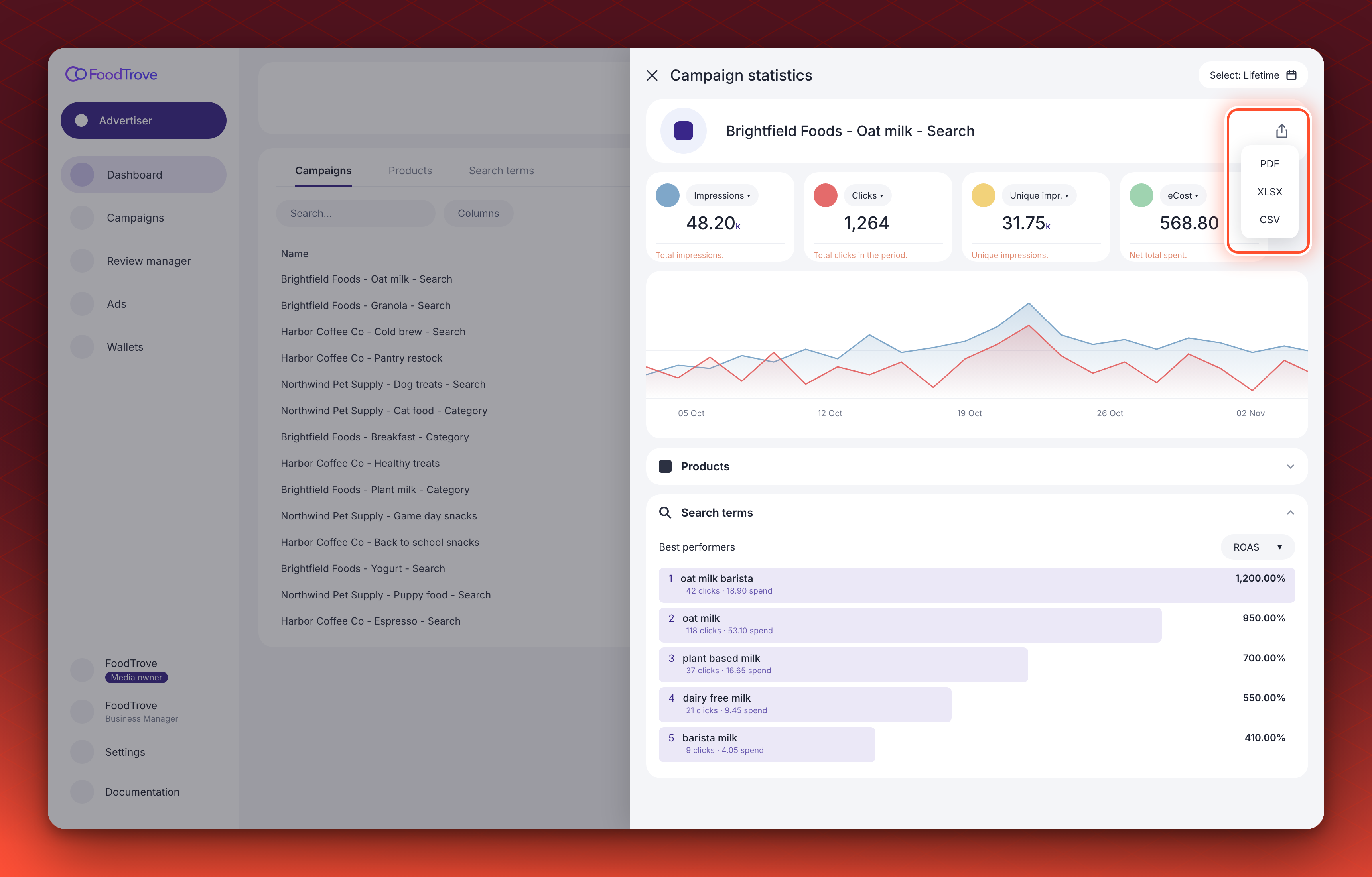
The Search terms block in a Campaign’s statistics shows how that Campaign performed on each search term it targets. Advertisers and media owner teams use it to see which terms earn their spend. They can then raise bids on the terms that convert and exclude the ones that do not. For the same view across all Campaigns at once, use the Search terms tab on the Dashboard.
How it works
Each row in the block is one search term targeted by the Campaign. Its metrics count only the traffic where that term matched a shopper’s search, within the date range set at the top of the statistics view.
To share the figures, download the whole Campaign report from the top right corner of Campaign statistics. The block has two parts:
- Best performers. The five terms with the highest value for one metric, ranked, with a bar sized against the top term. Choose ROAS (the default), Revenue, Clicks or CTR from the dropdown. Each term shows its clicks and spend underneath, so a high rate on a handful of clicks is not mistaken for a strong performer.
- The table. Every term the Campaign earned traffic on in the period, with the metric columns your account’s statistics configuration sets for this block. You can search, sort, and choose which columns to show.
Search terms are reported in lowercase, so “Champagne” and “champagne” share one row. Traffic that did not match a search term, such as ads served on category or product pages, is not in the block. It is still counted in the Campaign’s totals at the top of the statistics view.
The block appears only when the Campaign has search term traffic in the selected period. A Campaign that does not target search terms, or has not yet served on one, shows no Search terms block.
Before you start
Where it applies. Campaigns that run on your onsite inventory through Kevel, including Campaigns created outside Console, which the Campaign list shows as Managed. It is available to advertiser and media owner users who can open the Campaign’s statistics.
What you need. Kevel reporting switched on for your type of Console user, with the Search terms block in your account’s campaign statistics configuration. If you do not see the block on a Campaign that targets search terms, ask your Kevel representative to check both.
What it does not do.
- It does not show the shopper’s exact search. Each row is the Campaign’s own targeted term. For Exact terms, that is the term the shopper typed. For Broad and Strict terms, a search that matched one of an Ad’s terms can be credited to another term on the same Ad, so their per-term figures are approximate. Media owners who need the shopper’s query can group a custom report by Search Term in the Ad Server. Their Kevel representative switches that option on.
- It does not tag each term with its match type. Check the match type on the Campaign’s search terms in the Campaign itself.
- It does not split a term by Ad or by product. Each row covers the whole Campaign. To see how products performed, use product stats in the same view.
Review a Campaign’s search terms
-
Open the Campaign’s statistics from the Dashboard. The Campaigns tab on the Dashboard opens the statistics that include Search terms.
Purpose. Starts you in the one view that holds the Campaign’s totals, products and search terms together.
What you need to do. On the Dashboard, in the Campaign’s row, open the actions menu and select Statistics. If the Campaign opens in a details drawer instead, select the Performance tab.
Validation. The Campaign’s summary metrics and chart appear, with blocks such as Ads and Products below them.Common error Fix The menu shows “No statistics available” The Campaign has no statistics yet. Check again once it is active, paused or completed and has run for at least a day -
Set the date range. Use the Select date picker in the top right corner of Campaign statistics.
Purpose. Lets you compare terms over a promotion, a bid change or any other period, rather than the whole Campaign.
What you need to do. The range starts as the Campaign’s full lifetime. Pick a shorter range within the Campaign’s lifetime. Every block, including Search terms, updates to it.
Validation. The summary metrics change to match the new period.Common error Fix Dates outside the Campaign cannot be selected The range cannot start before the Campaign was created or end after its end date (or today, if it has none). Pick dates within them -
Read Best performers. Scroll to the Search terms block.
Purpose. Shows at a glance which terms earn the most, without sorting the full table.
What you need to do. Choose the metric to rank by from the dropdown next to Best performers. Read the clicks and spend under each term before acting on a high ROAS or CTR.
Validation. Up to five terms appear, highest first.Common error Fix “No search terms have ROAS in this period.” No term has a value above zero for that metric. ROAS and Revenue need attributed purchases. Choose Clicks, or widen the date range -
Find a term in the table. Use the table under Best performers.
Purpose. Gives you the full figures for any term, including the ones outside the top five.
What you need to do. Type in the search box to find a term, or select a column header to sort by it. Use the column selector to show or hide metrics.
Validation. The row shows the term’s figures for the selected period.Common error Fix A term the Campaign targets is missing It earned no traffic in the period. Widen the date range
Export search term figures
-
Download the Campaign report. Use the export button in the top right corner of the Campaign’s header, under the date picker.
Purpose. Gives you the term-level figures in a file you can share with an advertiser or analyze further.
What you need to do. Select the export button and choose XLSX or CSV. PDF prints the view as shown. The download covers the whole Campaign report, not only Search terms.
Validation. The file includes every Search terms row for the selected date range, next to the Campaign’s other blocks: a sheet namedsearchTermsin the XLSX file, orsearchTerms.csvin the CSV zip.Common error Fix The export has no search terms The block was empty for the period, so there was nothing to export. Widen the date range and export again
Troubleshooting
“There is no Search terms block on my Campaign.” The Campaign has no search term traffic in the selected period, or the block is not switched on for your account. Widen the date range first. If the Campaign targets search terms and has served on them, ask your Kevel representative to switch the block on.
“I see a Keywords block instead of Search terms.” Keywords belongs to Console’s older campaign statistics and does not report search terms. Open the Campaign’s statistics from the Dashboard rather than from a separate statistics page. If Keywords still shows, ask your Kevel representative to move your account’s campaign statistics to Kevel reporting.
“A Broad term shows traffic on searches it should not match.” Figures for Broad and Strict terms go to one of the Ad’s targeted terms. That is not always the term that matched. Read those terms together, or ask your media owner for a report by the shopper’s search term.
“The columns differ from another account’s.” The metric columns follow your account’s statistics configuration, which your media owner can change. The Search terms block has its own column list in that configuration.
Related
Updated about 10 hours ago