
Submit a campaign for review
For advertisers booking in Console: what happens when your media owner reviews a campaign or a change, how to follow it, and what to do if it is rejected.
On some placements, your media owner approves a new campaign, or certain changes to a live one, before they take effect. You submit the campaign in Console, and a reviewer on the media owner's team approves or rejects it. This page shows what you see at each point and what to do next. Media owners can send it to their advertisers.
Check whether your campaign needs reviewReview applies only to placements where your media owner has turned it on. If the last step of the booking flow offers Submit for approval, the campaign goes to review. If it offers Complete, it does not.
How it works
A request stays Awaiting approval until a reviewer decides or you cancel it. Your media owner decides how quickly they review, so ask them what to expect.
A new campaign is created as soon as you submit it, but it stays paused until a reviewer approves it. Once it is approved, it becomes active.
A change to a live campaign works differently. The campaign keeps running on its current settings while the change waits, and the change applies when a reviewer approves it. If the change is rejected, the campaign carries on as it was.
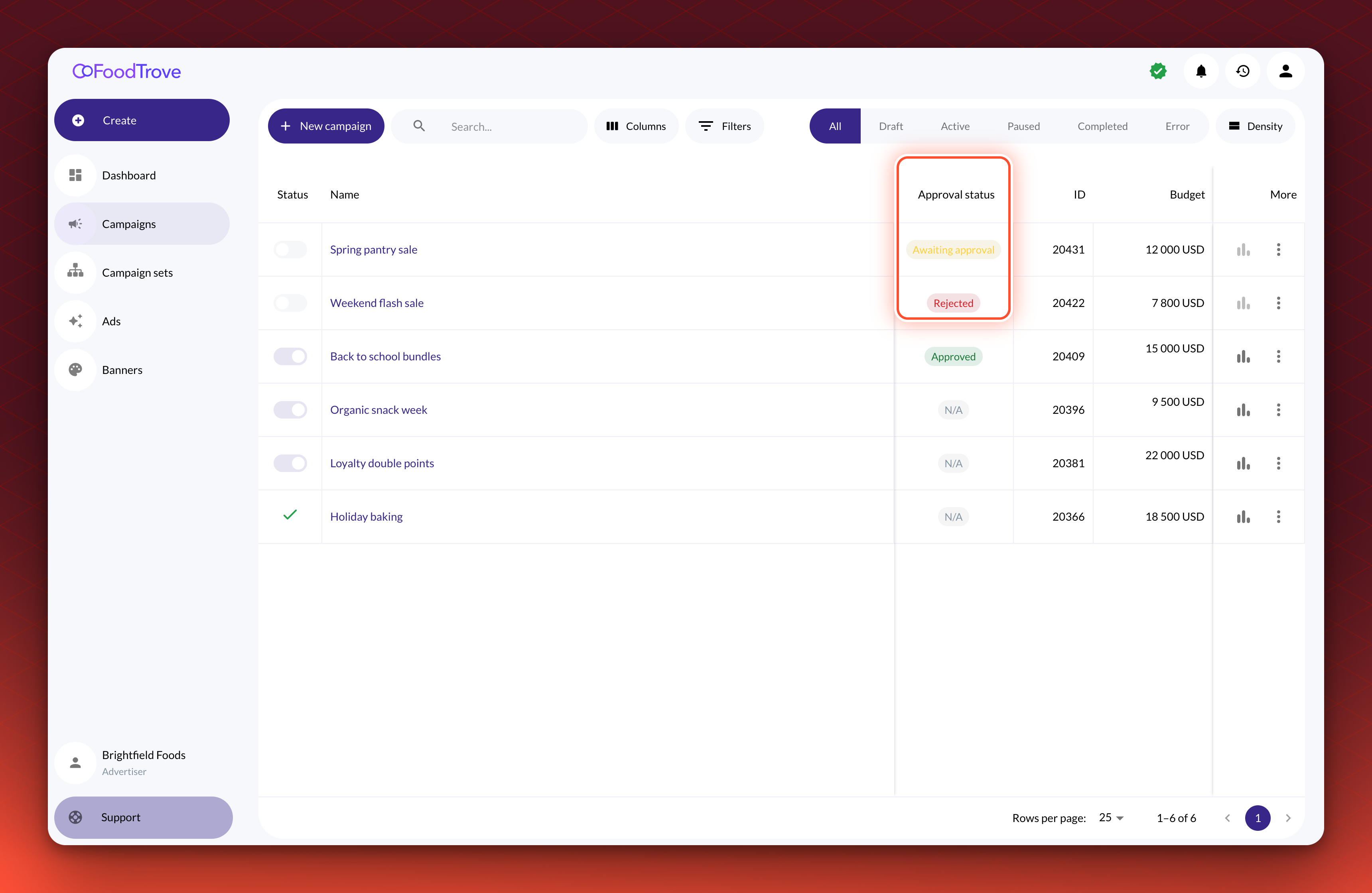
Each submission becomes a request with a status. Console shows the status in the Approval status column of your campaign list.
| Status | What it means |
|---|---|
| Awaiting approval | You submitted the request, and a reviewer has not decided yet. |
| Approved | A reviewer approved it, and Console applied it. |
| Rejected | A reviewer rejected it and gave a reason. |
| Canceled | The request was withdrawn. |
| Error | A reviewer approved it, but Console could not apply it. |
| N/A | The campaign has no request. |
Before you start
Where it applies. Campaigns you book through campaign types and placements, on placements that require review.
What you need. A user role that can create and edit campaigns. Read-only users cannot submit requests.
What it does not do.
- It does not review every change. Your media owner chooses which changes need approval, and each placement has its own list. On the placements Kevel has set up, review covers adding products, adding search terms or categories, and adding or changing an ad. Budget, bid and end date changes, and pausing and resuming a campaign, apply immediately when you save them on their own. Console tells you before you submit which of your changes need approval.
- It does not let you activate a new campaign early. A new campaign cannot be activated while its request is awaiting approval, rejected or in error.
- It does not hold a change that is not gated. If your change does not need approval, it applies as soon as you save it on its own, even while another request waits.
- It does not split an edit. Console submits an edit as one package. If you save a change that needs approval together with changes that do not, the whole edit waits for the reviewer, including the changes that would not have needed approval on their own. If you want a change to go live straight away, such as an end date extension, save it as its own edit first. Then make the changes that need approval in a second edit.
Submit a new campaign
- Book the campaign as usual. Work through the booking steps until the last one, Review campaign.
- Select Submit for approval. Console shows "Submitting campaign for approval..." and then returns you to the campaign list.
- Check the list. A message reads "Campaign submitted for approval", and the campaign appears paused with the Approval status Awaiting approval.
Duplicating a campaign counts as a new campaign. The duplicate is submitted for approval in the same way.
Validation. The campaign shows Awaiting approval in the Approval status column.
Submit a change to a live campaign
- Edit the campaign as usual. Make your changes, and go to the last step.
- Read the banner. If a change needs approval, the banner reads "The following changes made to this campaign will require approval before they will be applied", followed by a list such as Search terms added, Products added or Ads changed. If it reads "The changes made to this campaign do not require approval and will be applied immediately after saving", the button is Complete, and you are done.
- Select Submit for approval. Console shows "Change request submitted for approval". The live campaign keeps running on its current settings.
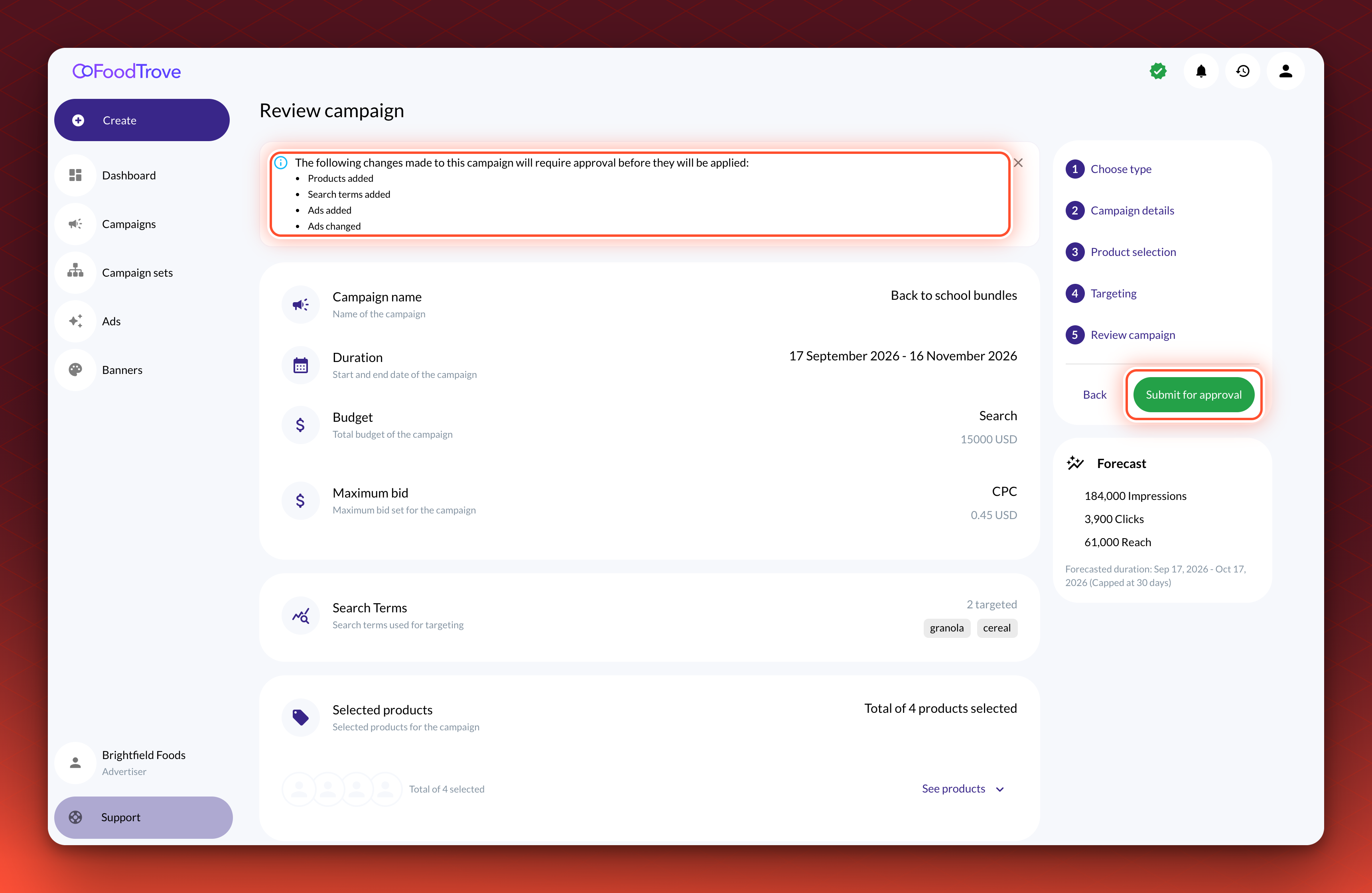
Validation. The Approval status shows Awaiting approval for the campaign.
Follow a request
- Open the status menu. In the campaign list, select the chip in the Approval status column.
- Select View request. The request opens in a panel with what you submitted and, for a change, a grid of Current and Requested values.
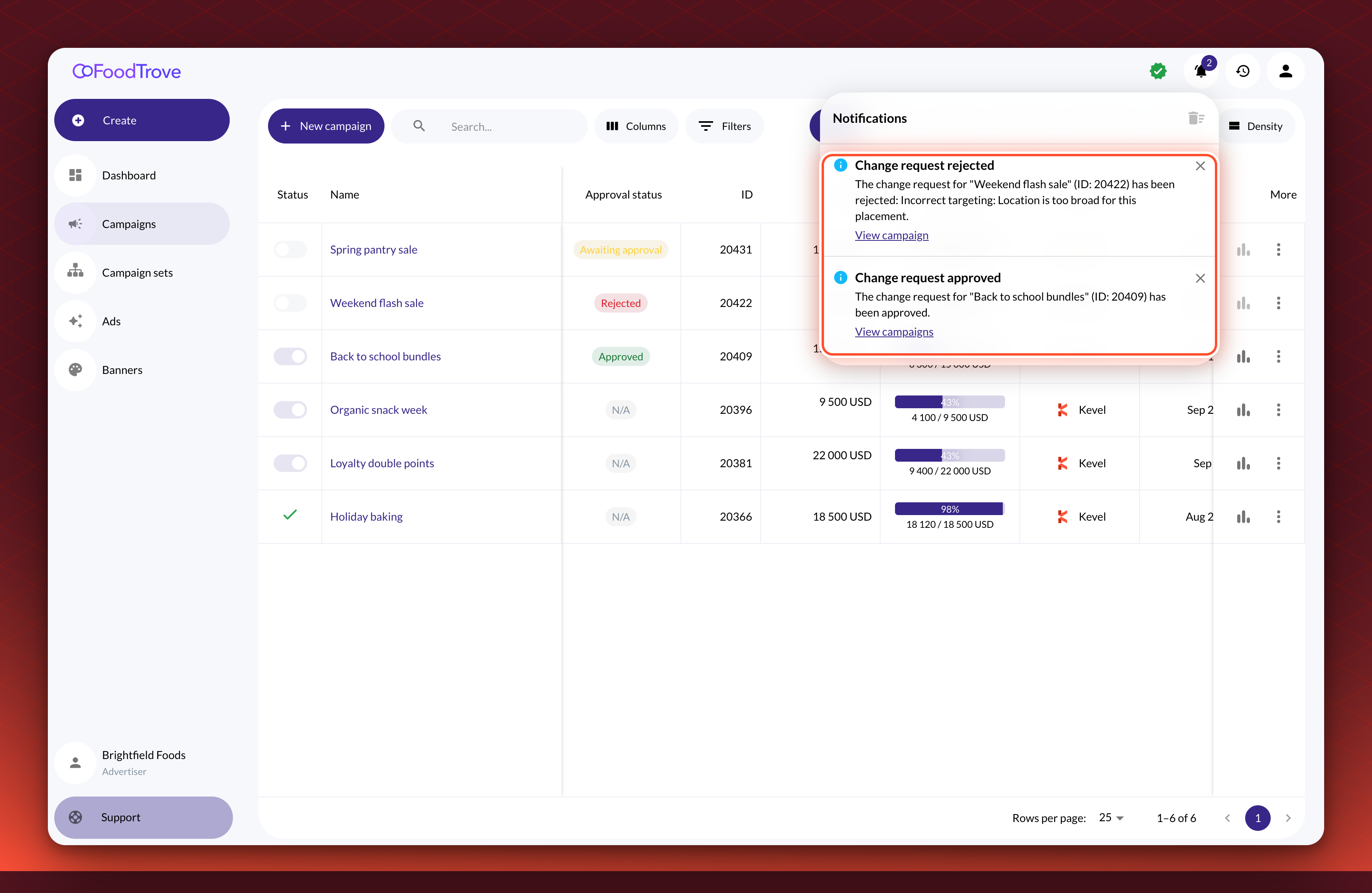
- Watch for the notification. When a reviewer decides, Console adds an item to the bell in the top bar and shows a short message that closes after a few seconds, so you do not need to refresh. If you are not signed in at that moment, the notification is waiting in the bell when you return, until it expires. A decision shows as Change request approved or Change request rejected. Your media owner may also send review emails.
Fix a rejected request
- Read the reason. The notification gives the reason and the reviewer's description, in the form "Incorrect targeting: Location is too broad". Select the Rejected chip and then View request to read it again.
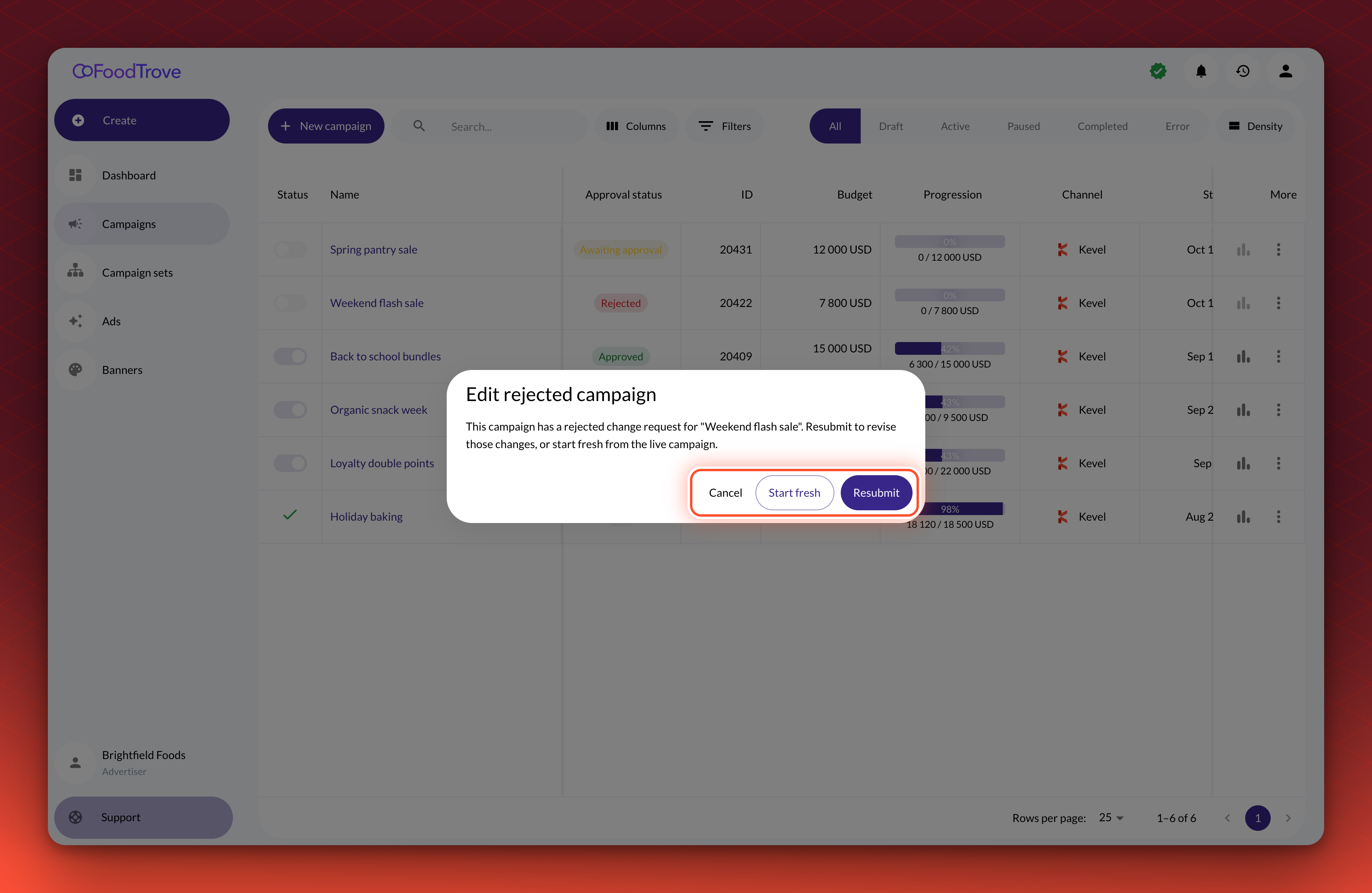
- Open the campaign. Select View campaign in the notification, or select Edit on the campaign in the list. The Edit rejected campaign dialog opens.
- Choose how to continue. Select Resubmit to start from the changes you submitted, or Start fresh to start from the live campaign. Select Cancel to leave without changing anything.
- Make your changes and submit again. Select Submit for approval. Console cancels the rejected request and creates a new one, which shows Awaiting approval.
A rejected new campaign goes through review in full each time you resubmit it.
Cancel a request
You can cancel a request while it is awaiting approval, for example if you submitted the wrong campaign.
- Open the status menu. Select the chip in the Approval status column.
- Select Cancel request.
- Confirm. In the Are you sure? dialog, select Cancel request. Select Keep request to leave it as it is.
Cancelling cannot be undone. A live campaign carries on as it was. A canceled new campaign cannot be edited or activated, so book a new campaign if you still want it.
Troubleshooting
I cannot activate my new campaign. It is still awaiting approval, or its request was rejected or ended in an error. Console shows the reason when you hover over the disabled action. Wait for the decision, or fix it as described above.
I cannot edit my campaign. A campaign is locked while its new-campaign request is awaiting approval, and after the request is canceled or ends in an error. A live campaign with an edit waiting stays editable, but a second change that needs approval is held back until the first request is resolved.
Console says the campaign already has a change request. A campaign has one open request at a time. The message names the request and its status. Wait for the decision, or cancel the request, and then submit your change again.
Console says my changes cannot be submitted because the campaign changed. Someone else edited the campaign while you were editing it. Reload the page to see the latest version, then make your changes again.
Console says it cannot check whether my changes need approval. The check is temporarily unavailable. Try again later, or contact your media owner.
The status is Error. A reviewer approved the request, but Console could not apply it. Contact your media owner, and give them the campaign name.
I want to know why my campaign was rejected, or when it will be reviewed. Questions about a decision go to your media owner, who makes it. The reason and description they gave are in the notification, and in the request you open from the Rejected chip.
Related
Updated 21 days ago